P-TOOL说明书.pdf - 第181页
4-6 4 F eeder Vie wer T oolbar Board toolbar 1 2 3 4 5 6 64406-S0-10 1. [Add Board] button When a plan information window or a plan information file already registered is open, clicking this button allows you to add boar…
4-5
4
Feeder Viewer
●
Toolbars
Among the Feeder Viewer functions, those that are frequently used are registered as the toolbar buttons. There are 4
toolbarsusedwiththeFeederViewer:“Standardtoolbar”forinitialsetting,“Boardtoolbar”formanipulatingboarddata
files, “Plan information toolbar” displaying feeder setup information and “Plan window manipulation toolbar” for
manipulating the feeder setup information windows.
Each toolbar can be hidden or redisplayed by selecting it from the Toolbar submenu on the View menu.
Reference
• Some buttons on the "Plan window manipulation toolbar" are grayed out and unavailable depending on the
specifications
• The same functions performed with the toolbar buttons can also be selected from commands in the menu bar.
Toolbar
Standard toolbar
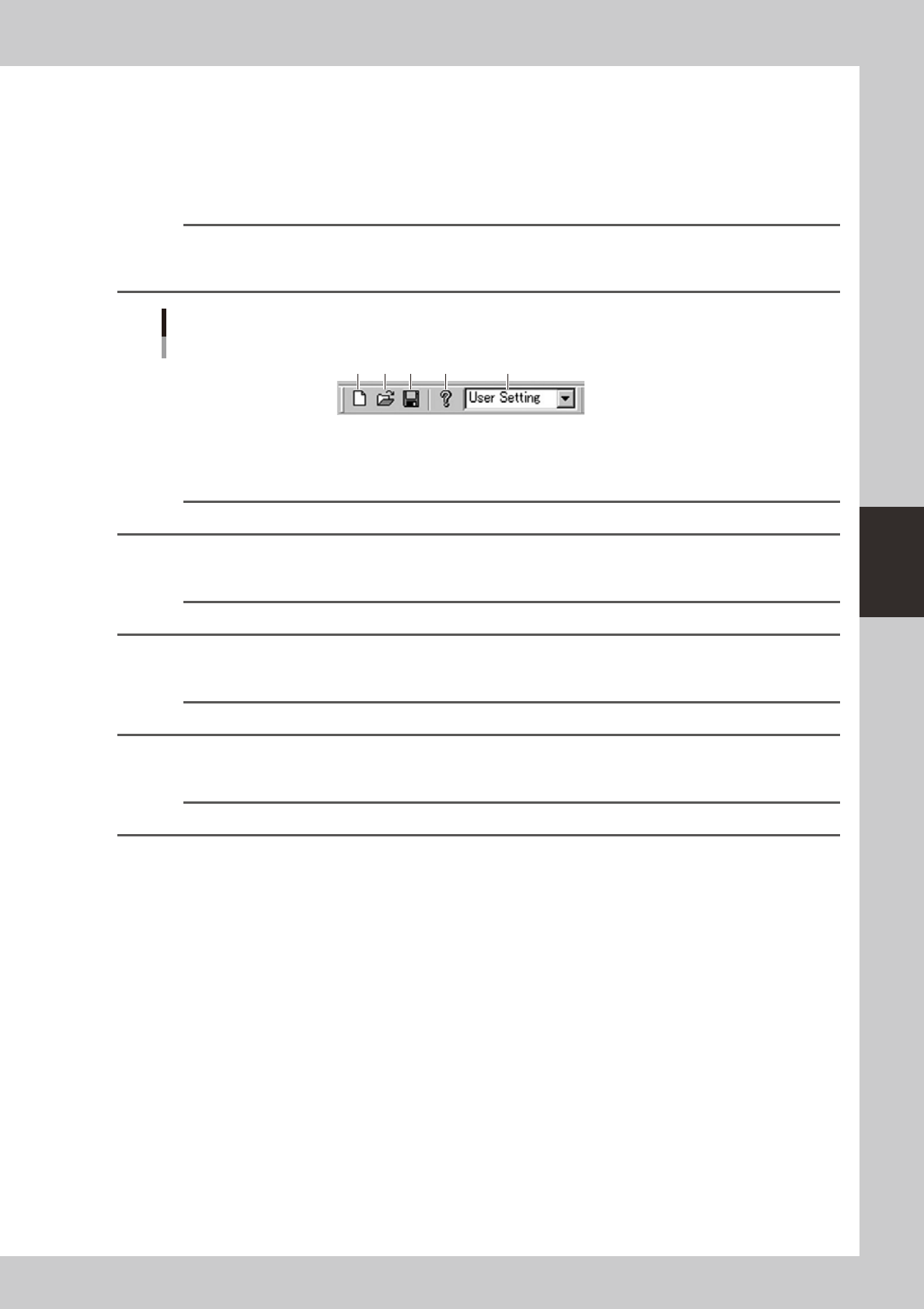
1 2 3 4 5
64405-S0-00
1. [New] button
Creates new feeder setup information.
Reference
The [New] button has the same function as the "New" command in the Plan menu.
2. [Open] button
Opens feeder setup information that has been registered.
Reference
The [Open] button has the same function as the "Open" command in the Plan menu.
3. [Save] button
Saves feeder setup information.
Reference
The [Save] button has the same function as the "Save" and "Save As" commands in the Plan menu.
4. [Version] button
Shows the version of the Feeder Viewer.
Reference
The [Version] button has the same function as the "About" command in the Help menu.
5. Drop-down list box for selecting group display
When setting multiple groups for feeder setup, you can select the group that should be displayed.
4-6
4
Feeder Viewer
Toolbar
Board toolbar
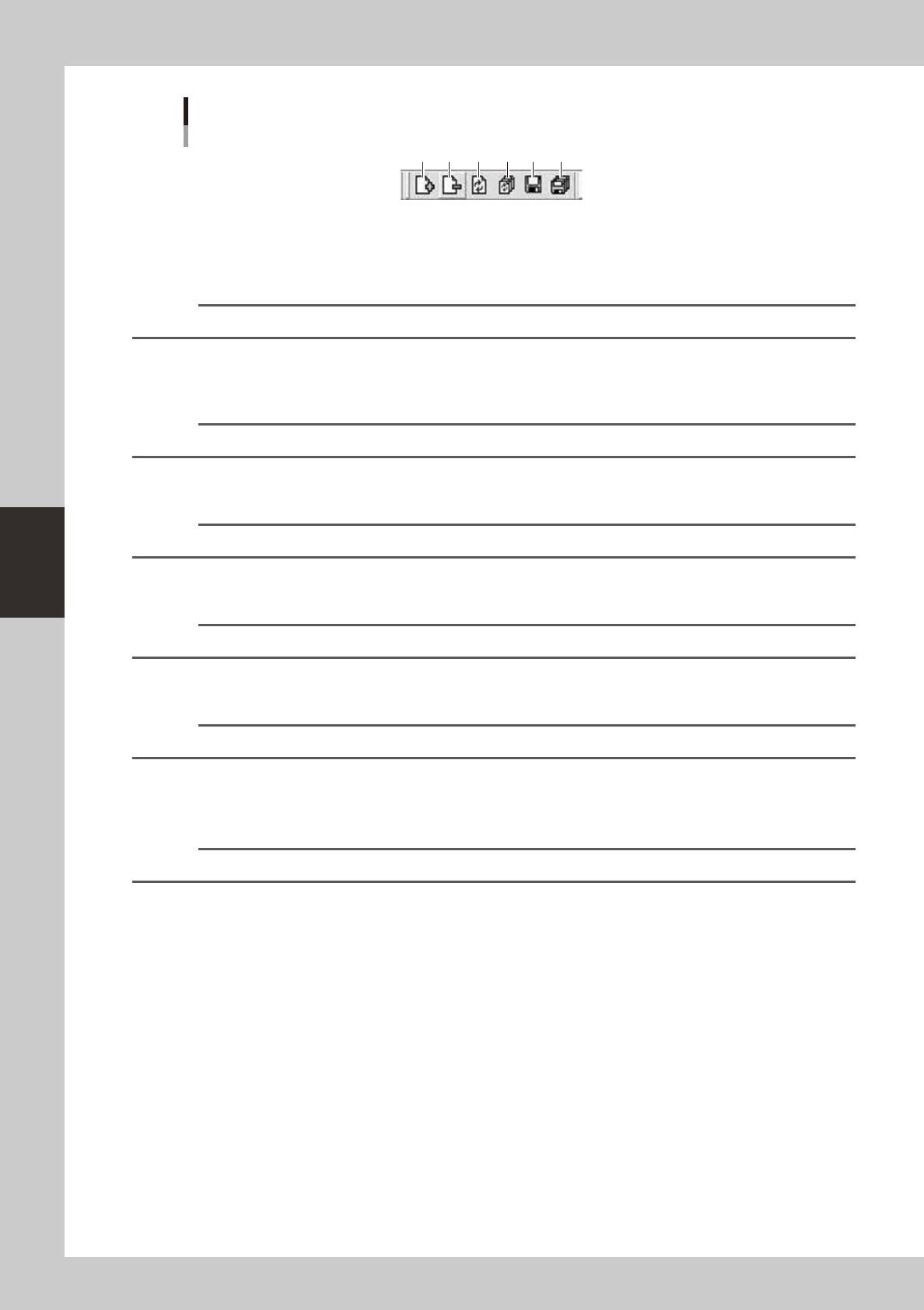
1 2 3
4 5 6
64406-S0-10
1. [Add Board] button
When a plan information window or a plan information file already registered is open, clicking this button allows you to
add board data to the production board list in the left pane.
Reference
The [Add] button has the same function as the "Add Board" command in the Edit menu.
2. [Remove Board] button
When a new plan information window or a plan information file already registered is open, clicking this button deletes
board data from the production board list in the left pane.
Reference
The [Remove Board] button has the same function as the "Remove Board" command in the Edit menu.
3. [Board Reload] button
Reloadsboarddata.
Reference
The [Board Reload] button has the same function as the "Board Reload" command in the Edit menu.
4. [Reload All Boards] button
Reloadsallboarddata.
Reference
The [Reload All Boards] button has the same function as the "Reload All Boards" command in the Edit menu.
5. [Save Board] button
Saves the currently selected board data by overwriting the existing data.
Reference
The [Save Board] button has the same function as the "Save Board" command in the Edit menu.
When you want to save the board data under a different name, select the “Save Board As” command in the Edit menu.
6. [Save All Boards] button
Saves all board data currently opened.
Reference
The [Save All Boards] button has the same function as the "Save All Boards" command in the Edit menu.
4-7
4
Feeder Viewer
Toolbar
Plan information toolbar
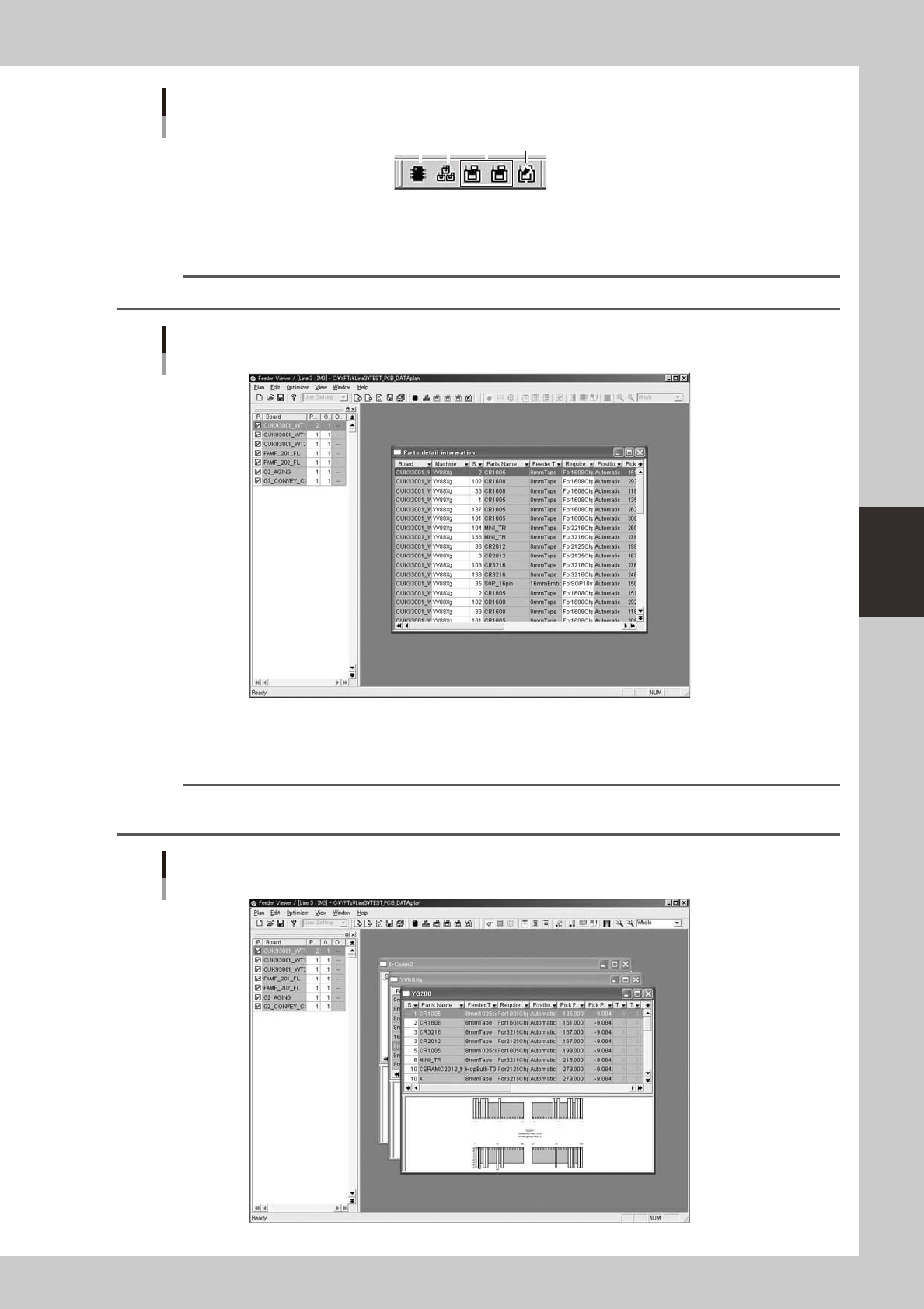
1 2 3 4
64407-S0-00
1. [Parts Info] button
Displays information on all parts (components) used in the board data in the production board list.
Reference
The [Parts Info] button has the same function as the "Parts Info" command in the Window menu.
Parts detail information used with all machines
64408-S0-00
2. [Plan Info on All Machines] button
Displays plan information on all machines.
Reference
The [Plan Info on All Machines] button has the same function as the "Plan Info on All Machines" command in the
Window menu.
Plan information on all machines
64409-S0-00