P-TOOL说明书.pdf - 第19页
1-5 1 Installation of Factor y T ools 1.2 Upgrade of Factor y T ools The following explains the method for upgrading the Factory Tools. Start the installer. 1 Start the installer . 1. Set the CD-ROM to the PC. 2. Double-…
1-4
1
Installation of Factory Tools
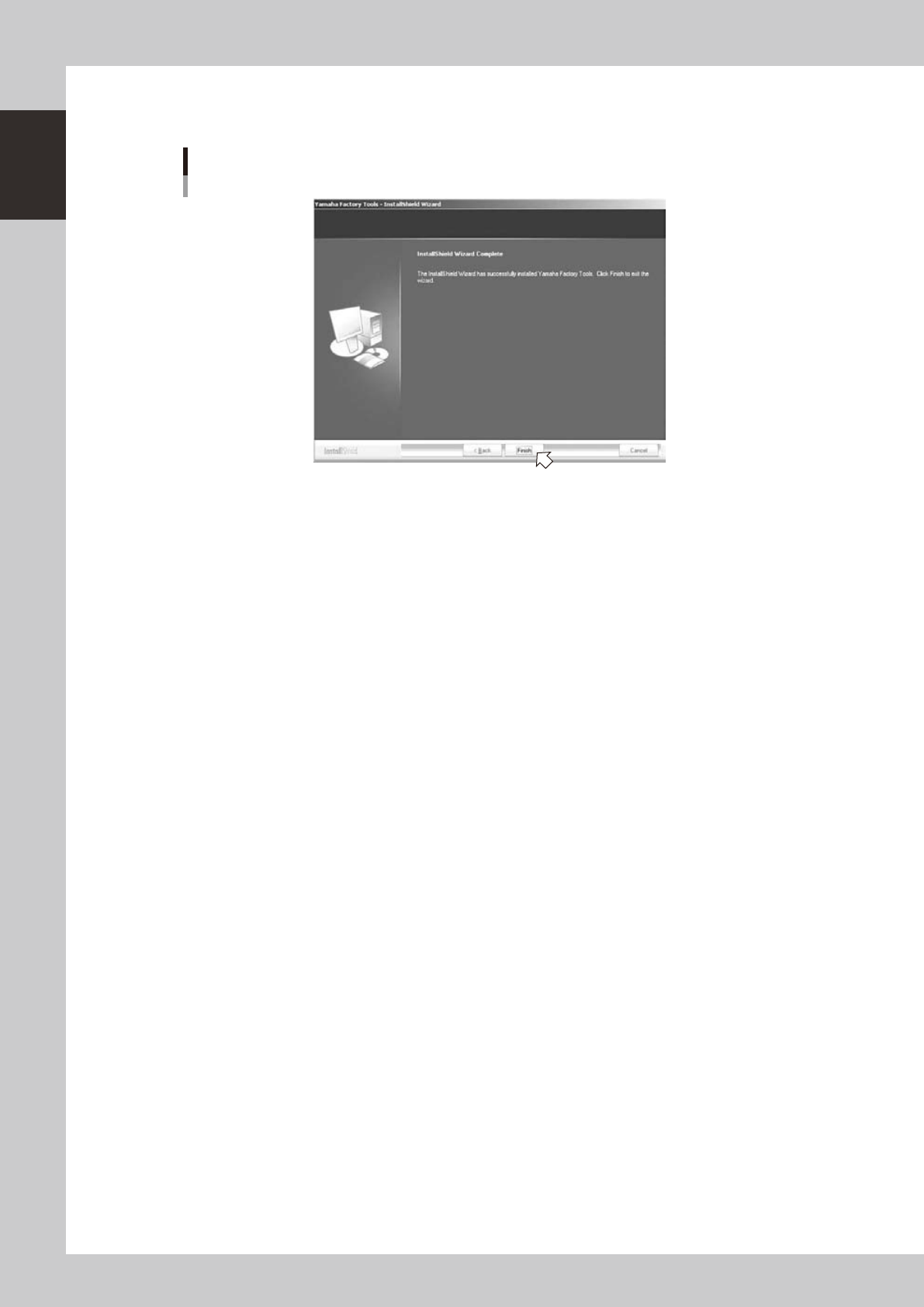
6. "InstallShield Wizard Completed" dialog box will appear when the installation is completed.
Click the [Finish] button to quit the "InstallShield Wizard".
“InstallShield Wizard Completed” dialog box
64105-S0-00
New installation of the Factory Tools is now completed.
1-5
1
Installation of Factory Tools
1.2 Upgrade of Factory Tools
The following explains the method for upgrading the Factory Tools.
Start the installer.
1
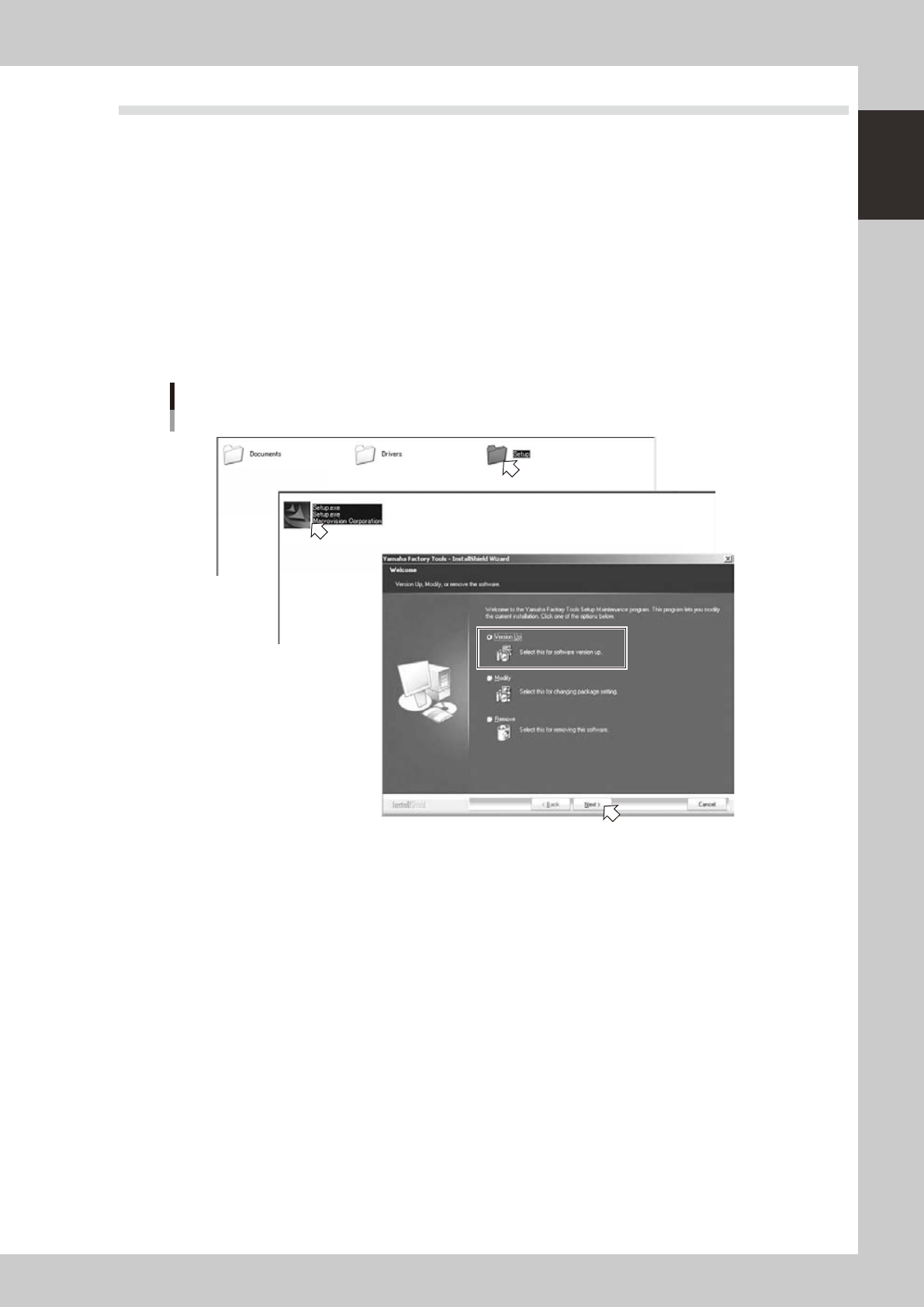
Start the installer.
1. Set the CD-ROM to the PC.
2. Double-click the “My Computer” icon of the PC and select the CD-ROM drive.
3. Open the “Setup” folder and double-click the “Setup.exe”.
4. “Software renewal/change” dialog box will appear.
2
Execute upgrading.
1. Tick the “Upgrade” radio button in the “Software renewal/change” dialog box and click the [Next]
button.
Setup application
Upgrade
Step1
Step1
64106-S0-00
1-6
1
Installation of Factory Tools
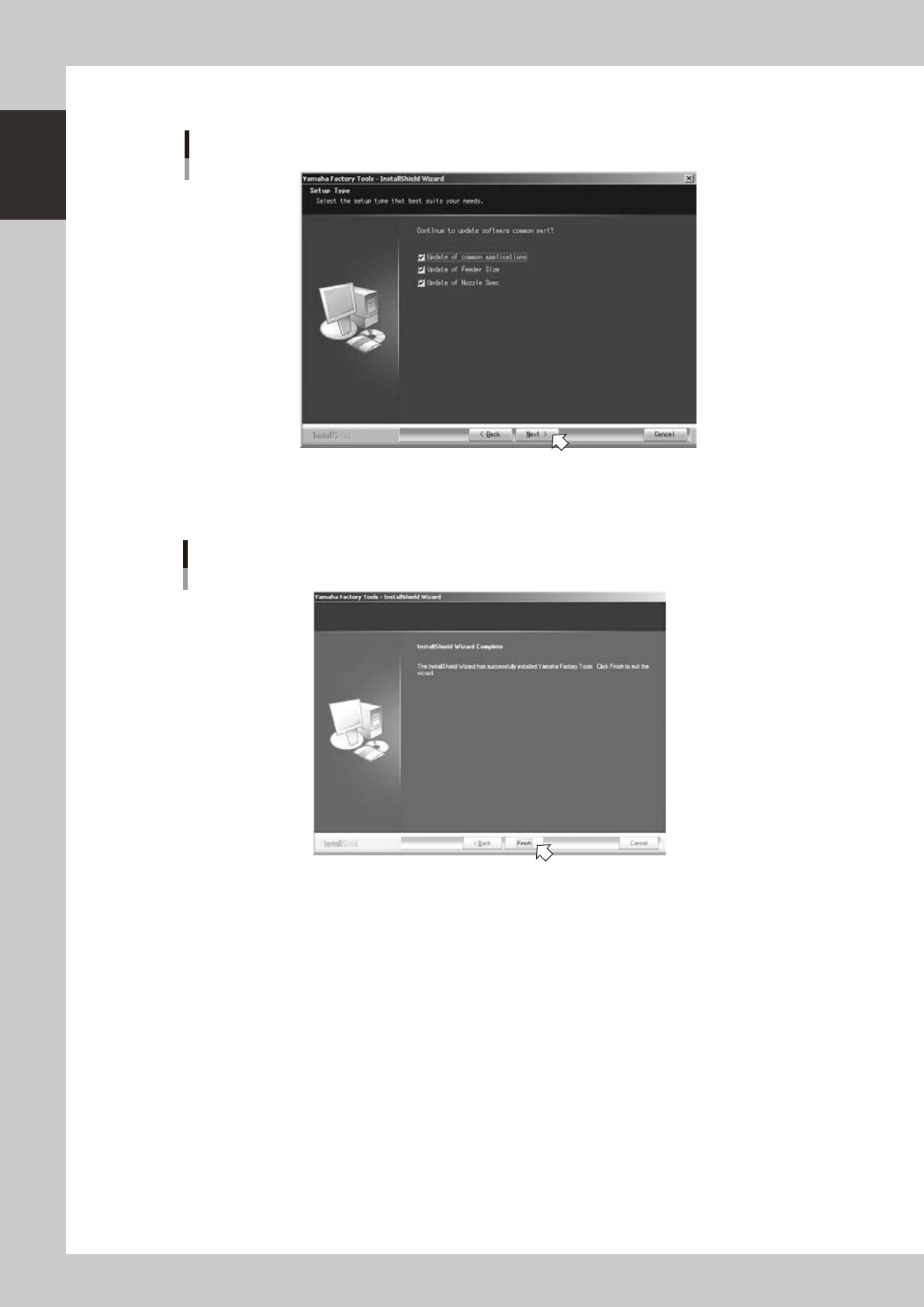
2 Check the update object in the “Setup Type” dialog and click the “Next (N)” button.
“Setup Type” dialog
64130-S0-10
3 "InstallShield Wizard Completed" dialog box will appear when the upgrade is completed.
Click the [Finish] button to quit the "InstallShield Wizard".
“InstallShield Wizard Completed” dialog box
64105-S0-00
Upgrade of the Factory Tools is now completed.