P-TOOL说明书.pdf - 第193页
4-18 4 F eeder Vie wer 2.2 Creating new plan information To create new plan information, follow these steps. 1 Select “New” from the Plan menu. Reference Clicking the [Ne w] button on the toolbar perf or ms the same oper…
4-17
4
Feeder Viewer
12, 13.
[Zoom Out], [Zoon In] buttons, 14. Magnification drop-down list
Use these buttons to zoom in or out the feeder setup layout.
Selectthedesiredmagnificationfromthedrop-downlist.
●
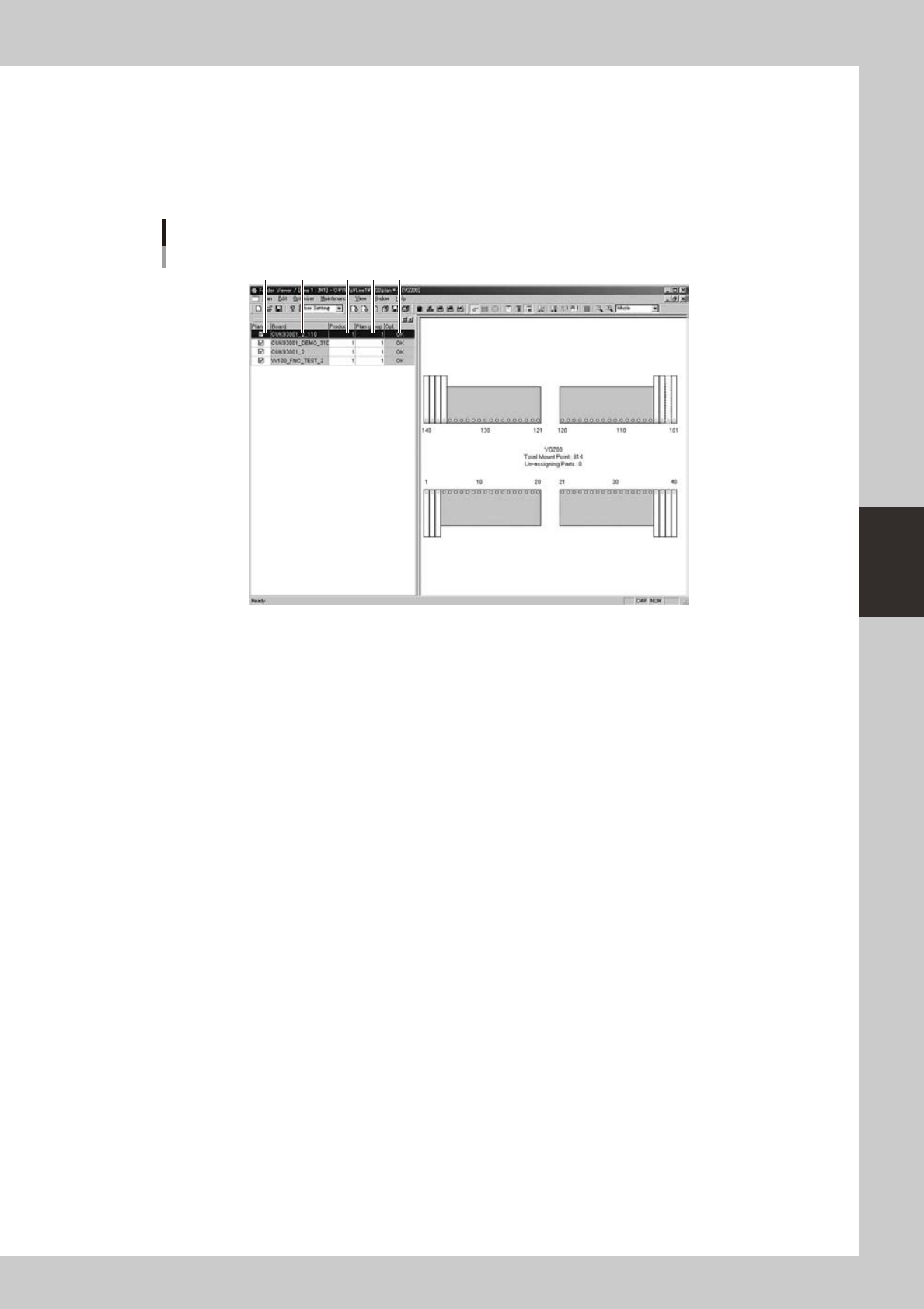
Production board list
The production board list in the left pane shows a list of board data currently loaded into the Feeder Viewer.
Production board list pane
1 2 43 5
64427-S0-00
1. Plan
The contents of each board data are displayed in the plan information window in the right pane only when the check box
is selected.
You can select the check box to display the contents of board data or clear that check box if not displaying the contents.
When the [Show feeder layout by board] button is pressed, each row in this column is shown in different colors that
indicate feeder set positions on the feeder plate layout.
2. Board
The names of board data loaded into the Feeder Viewer are listed in the order they were loaded.
3. Product
Enter the number of boards to be produced. Changes in this number are reflected on the number of parts to be used, and
are displayed on the plan information screen.
4. Group
Enter the plan group number.
Thedrop-downlistboxonthetoolbarallowsselectingthegrouptobedisplayed.
5. Opt.
Shows the results of data optimization.
●
Status bar
Displays the Feeder Viewer operation status, as well as the status of an item selected by the mouse cursor and a
description of the menu functions. Selecting the “Status Bar” command from the View menu shows or hides the status
bar.
4-18
4
Feeder Viewer
2.2 Creating new plan information
To create new plan information, follow these steps.
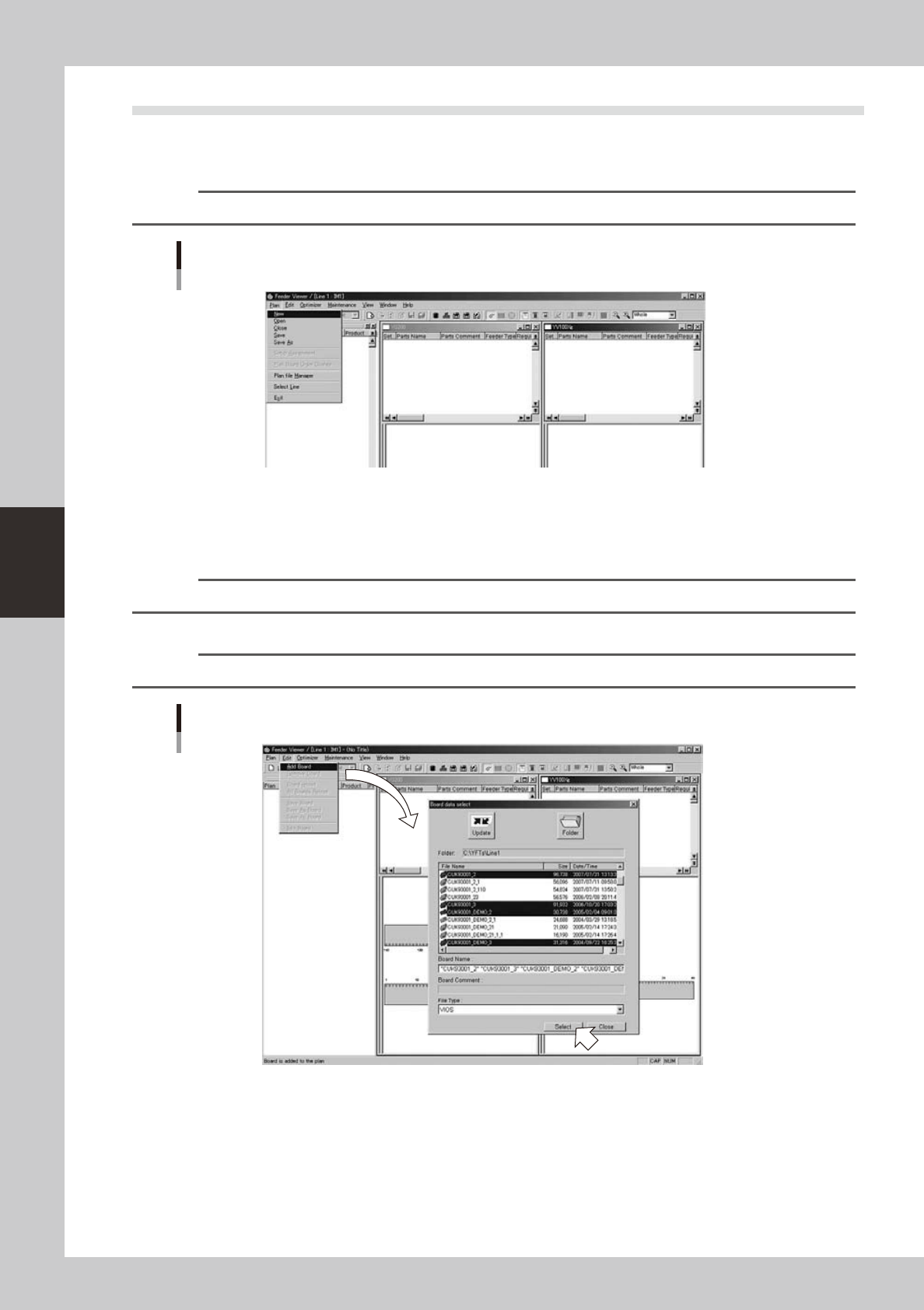
1
Select “New” from the Plan menu.
Reference
Clicking the [New] button on the toolbar performs the same operation.
Selecting the "New" command
64428-S0-00
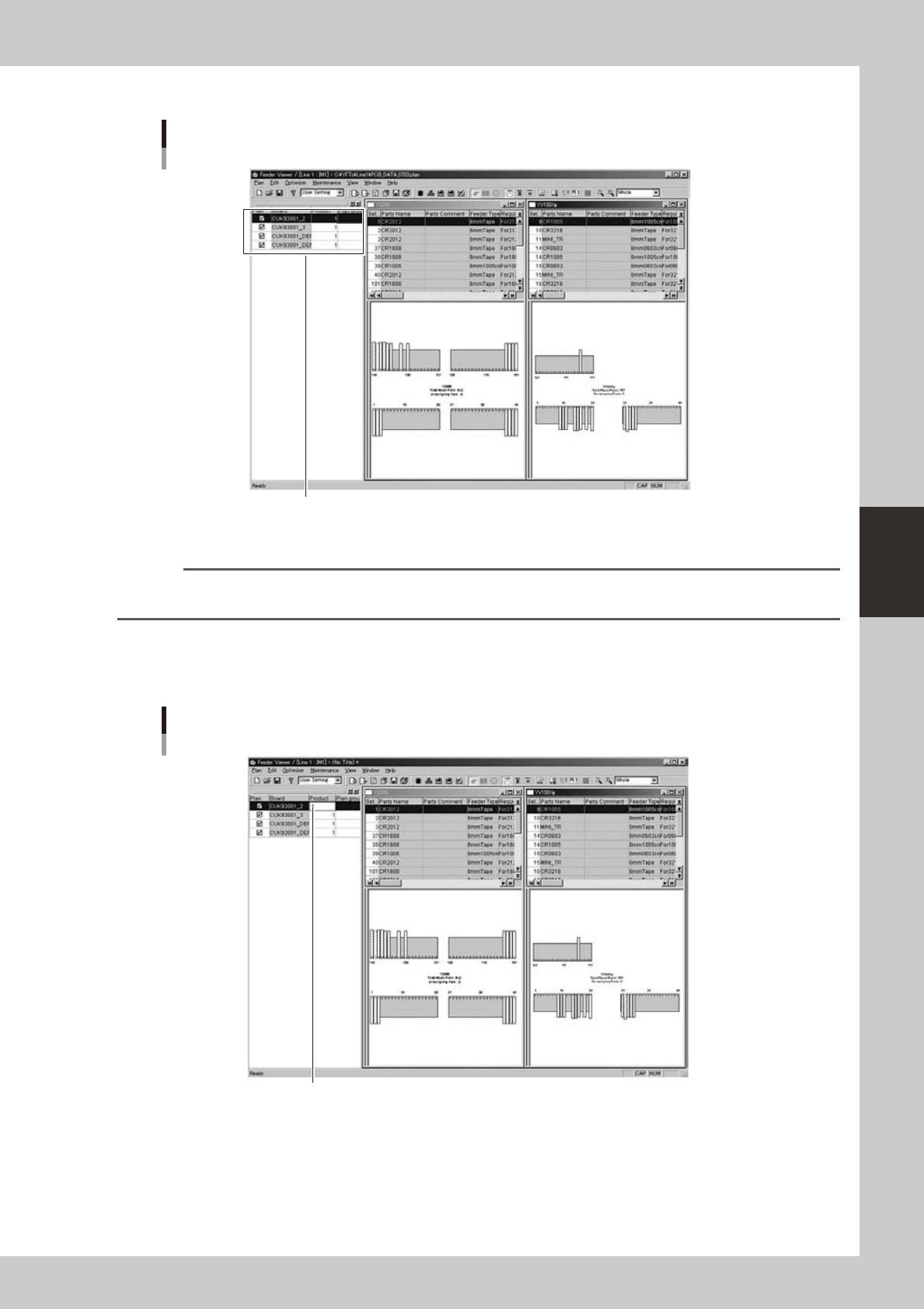
2
Add board data to the production board list.
1. Select "Add Board" from the Edit menu.
The "Board data select" dialog box appears.
Reference
Clicking the [Add Board] button on the toolbar performs the same operation.
2. Select the board data from the File Name list box and click the [Select] button.
Reference
You can select two or more items of board data while using the [Ctrl] key or [Shift] key.
Selecting the "Add Board" command
64429-S0-00
4-19
4
Feeder Viewer
3. Check that the selected board data names have been added to the production board list.
Added Board data
Names of added Board data are shown here.
64430-S0-00
Repeat the above steps to add other board data if necessary.
Reference
The "Add Board" command can also be selected from the context menu (right-click menu) that appears when the
right mouse button is clicked at any point in the production board list pane.
3
Set the number of boards to be produced.
In the Product column in the production board list, enter the number of boards to be produced and
press the [Enter] key.
Entering the number of production boards
Double-click and then enter the number of boards.
64431-S0-00