P-TOOL说明书.pdf - 第204页
4-29 4 F eeder Vie wer • Save All Boards Select "Save All Boa rds" from the Edit menu t o save all currently opened board data. All board data currently being edited will be saved o ver the originals . Plan inf…
4-28
4
Feeder Viewer
3.5 Saving the board data
To save the board data you have edited, follow these steps.
1
Select the board data.
In the production board list, click the board data you have edited.
2
Save the board data.
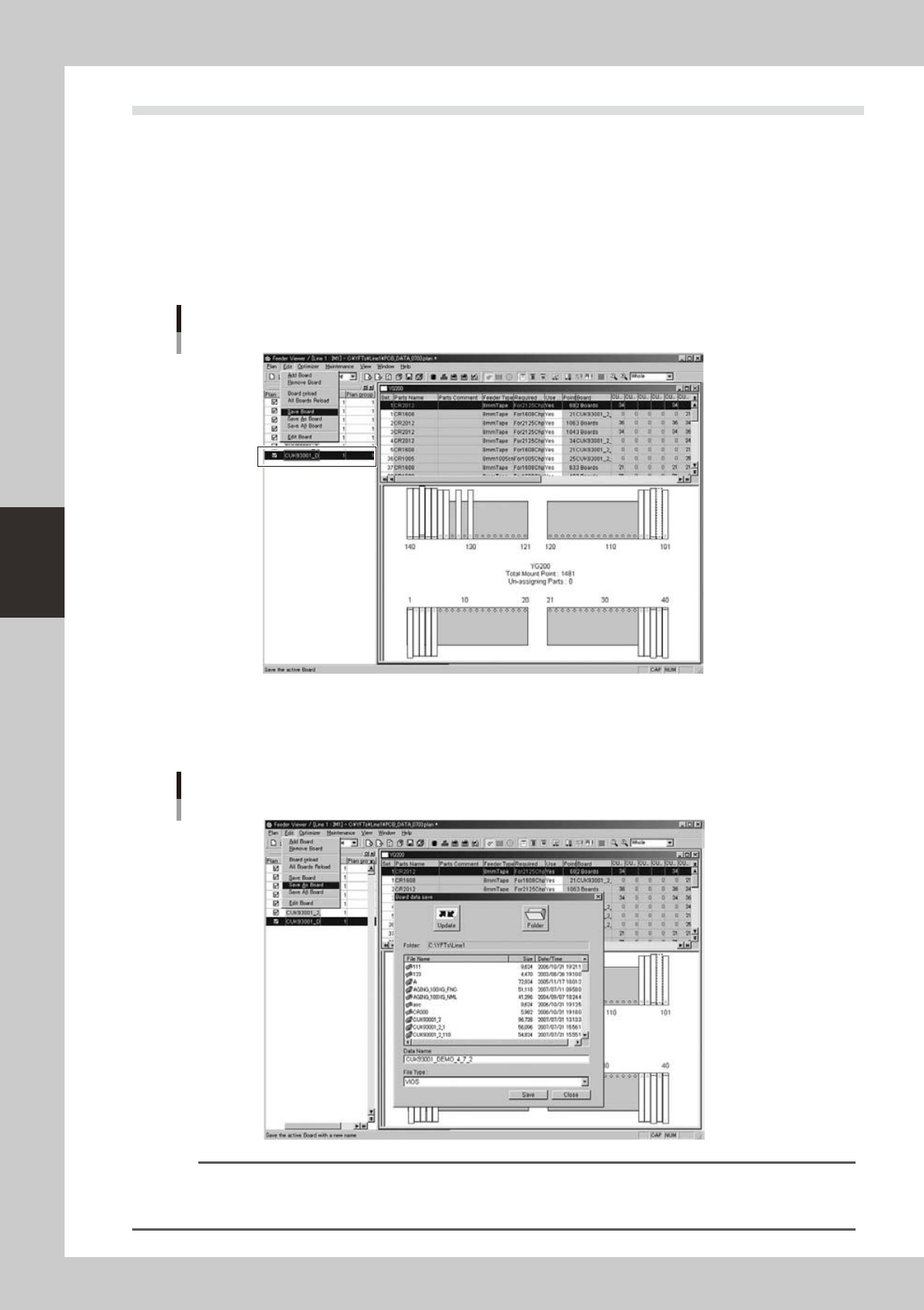
There are three methods to save the data.
• Save Board (overwrite)
Select "Save Board" from the Edit menu to save the data by overwriting the existing file.
Plan information screen
Selecting the "Save Board" command
64444-S0-00
• Save as Board
Select "Save as Board" from the Edit menu to save the data under a different name.
The "Board data select" dialog box appears. Enter the new name in the Board Name text box, check
or select the file type and then click the [Save] button.
Plan information screen
Selecting the "Save as Board" command
64445-S0-00
Reference
Clicking the [Save Board] button on the toolbar performs the same operation as the "Save Board" command.
The "Save Board" and "Save As Board" command can also be selected from the context menu (right-click menu) that
appears when the right mouse button is clicked at any point in the production board list pane.
4-29
4
Feeder Viewer
• Save All Boards
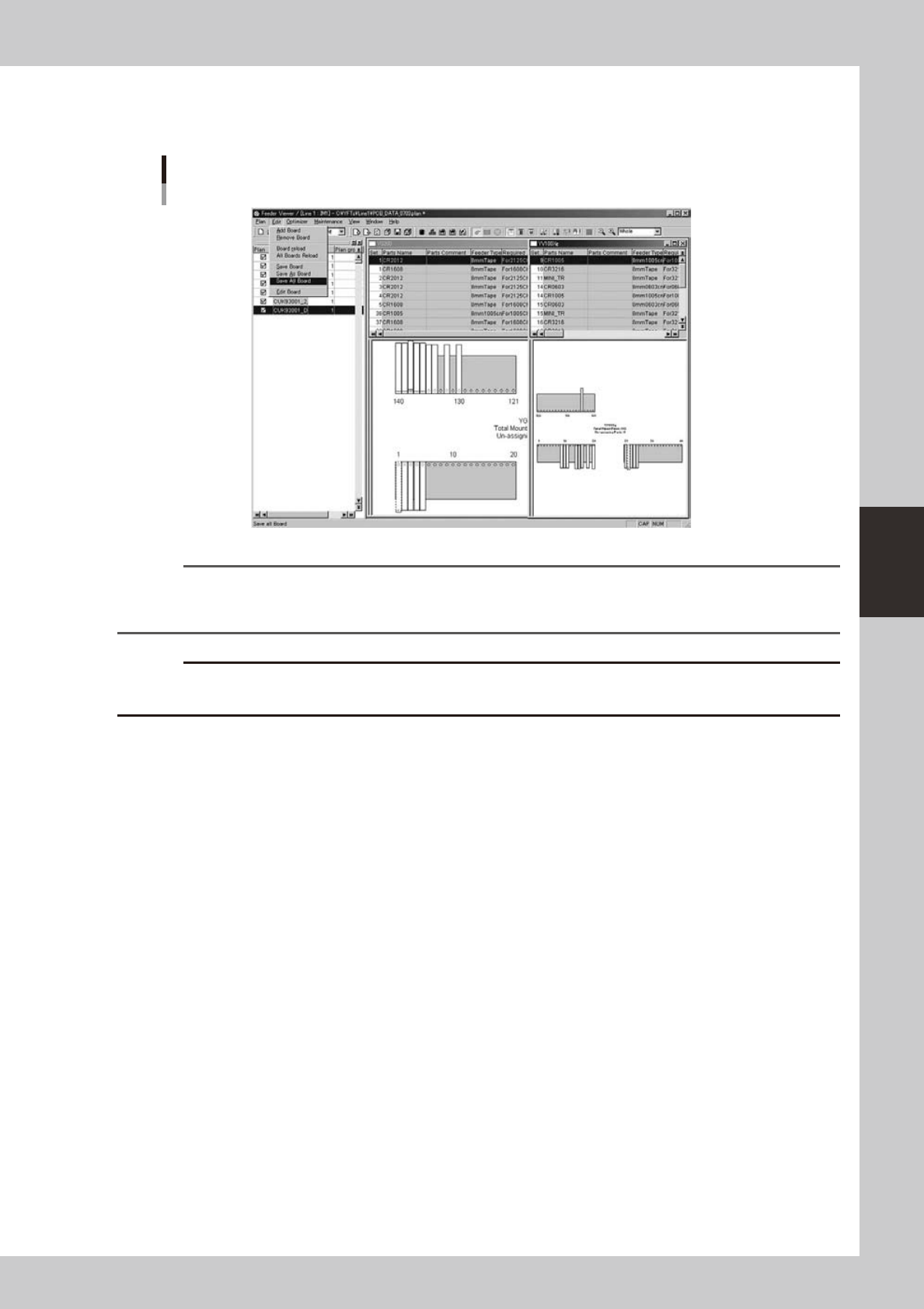
Select "Save All Boards" from the Edit menu to save all currently opened board data.
All board data currently being edited will be saved over the originals.
Plan information screen
Selecting the "Save All Boards" command
64446-S0-00
Reference
Clicking the [Save All Boards] button on the toolbar performs the same operation.
The "Save All Boards" command can also be selected from the context menu (right-click menu) that appears when
the right mouse button is clicked at any point in the production board list pane.
c
CAUTION
If you attempt to quit the Feeder Viewer without saving any board data, an alert message appears. Check the
message before quitting.
4-30
4
Feeder Viewer
3.6 Changing the feeder or tray position
The feeder, tray or wafer tray positions can be changed by dragging and dropping them to another position.
The following examples explain how to change the feeder positions on the feeder plate layout.
3.6.1 Moving a feeder within the same machine
On the feeder plate layout, you can easily move a feeder from its current position to another position.
1
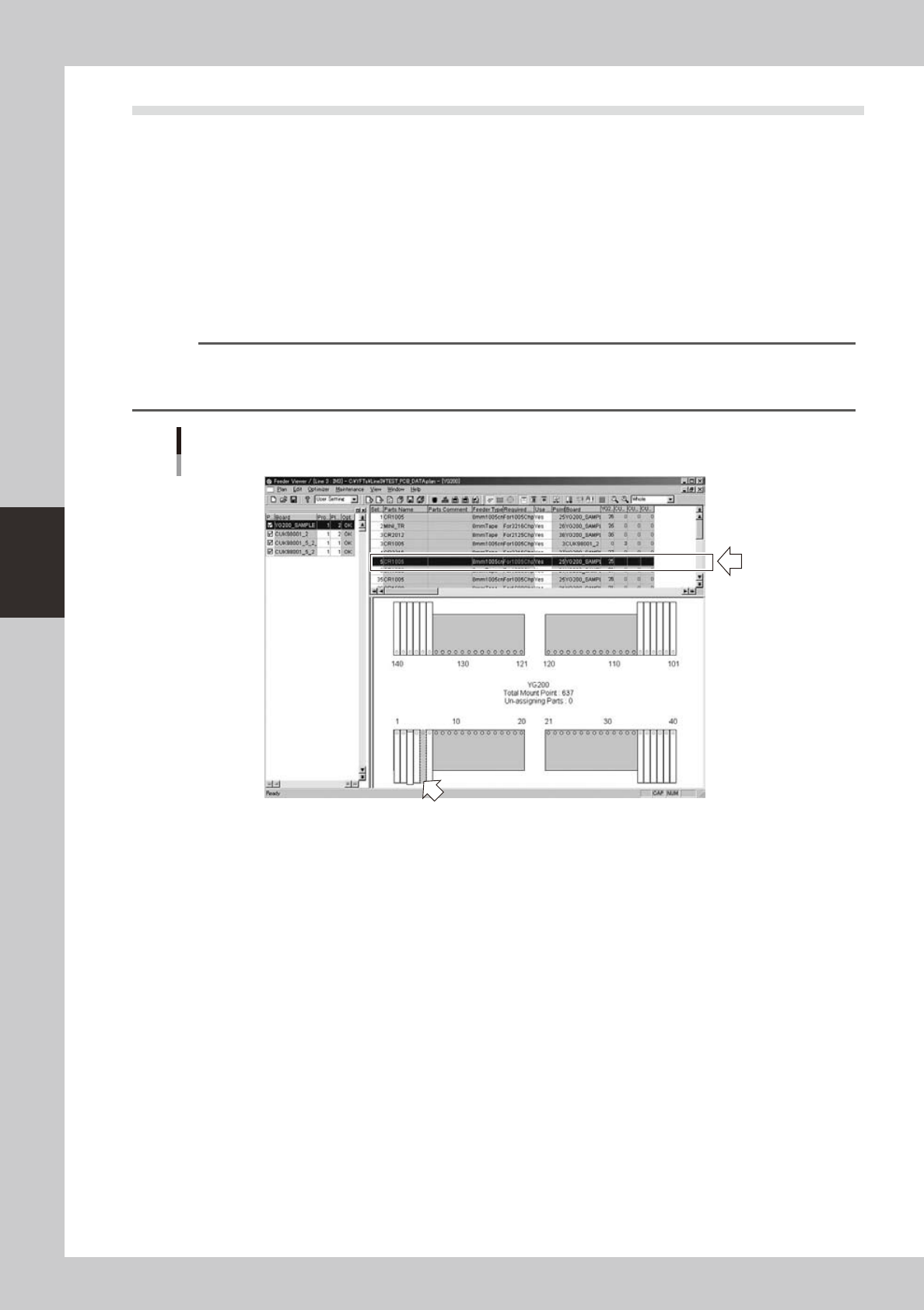
Select the feeder you want to move.
On the feeder plate layout, click the feeder you want to move.
The selected feeder is then enclosed by a dotted line.
When the parts setup information list is displayed in the upper grid, the selected feeder row is
highlighted.
Reference
• When the parts setup information list is displayed in the upper grid, you can also select a feeder by clicking on its
row.
• If alternative parts are specied, they are also highlighted.
Selecting the feeder you want to move
Double-click the feeder to select it. (Selected feeder is indicated in blue.)
64447-S0-00