P-TOOL说明书.pdf - 第209页
4-34 4 F eeder Vie wer 3.7 Dividing the par ts Parts loaded on one feeder can be divided so that they are supplied from two or more feeders. This will shorten the time required to mount parts on one board when the same t…
4-33
4
Feeder Viewer
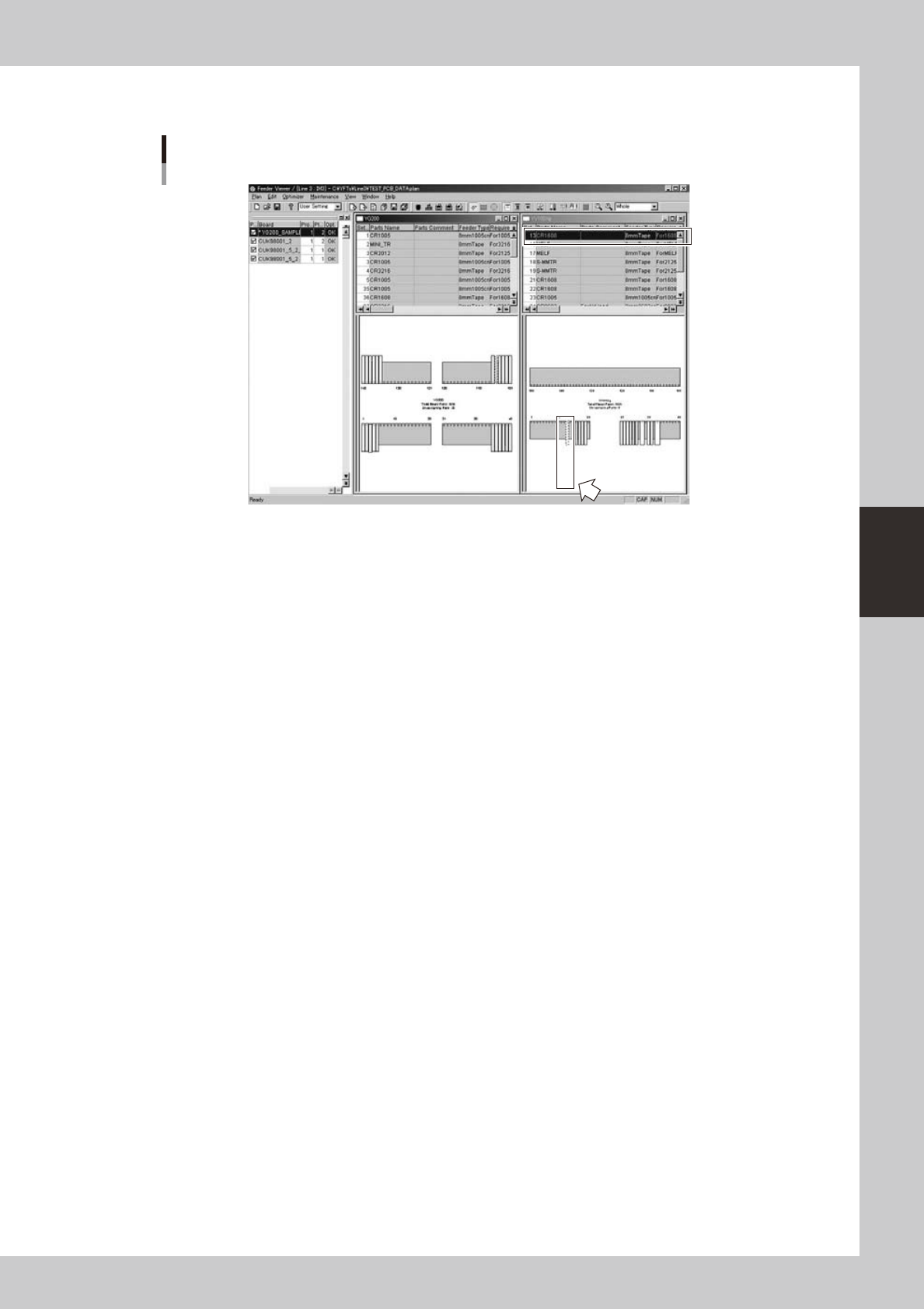
When you have moved the feeder, the parts setup information of that feeder is added to the parts setup
information list of the machine where the feeder was moved.
Display after moving the feeder
The Set No.
changes to the
new number.
New position to which the feeder was moved.
64452-S0-00
3
Save the data.
4-34
4
Feeder Viewer
3.7 Dividing the parts
Parts loaded on one feeder can be divided so that they are supplied from two or more feeders. This will shorten
the time required to mount parts on one board when the same type of parts are used in large quantities.
1
Select the parts you want to divide.
On the feeder plate layout, double-click the feeder for the parts you want to divide.
The feeder for the selected parts is enclosed by a dotted line.
When the parts setup information list is displayed in the upper grid, the selected parts row is highlighted.
Reference
When the parts setup information list is displayed in the upper grid, you can also select a part by clicking on its row.
2
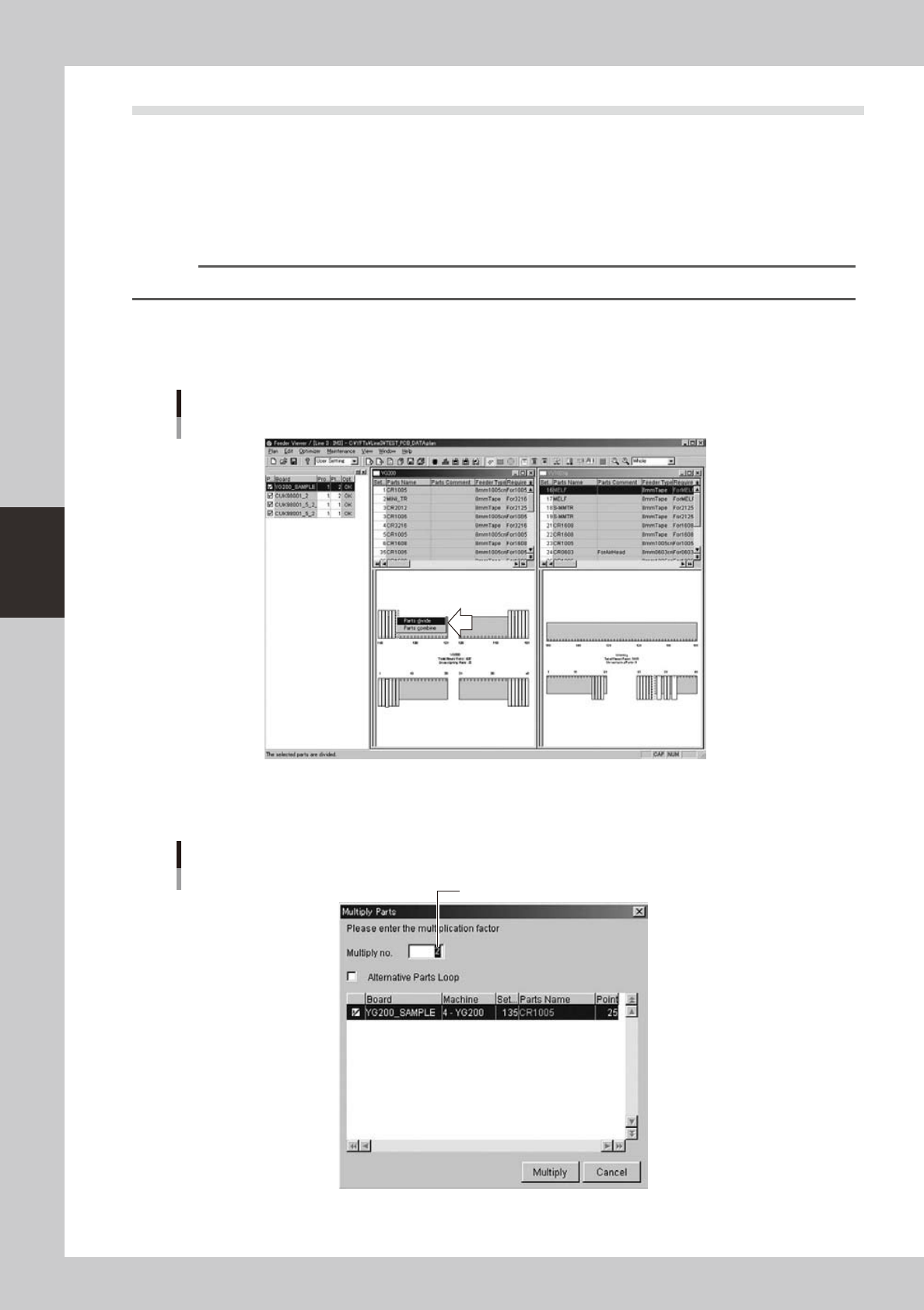
Execute the “Parts divide” command.
1. Select "Parts divide" from the context menu (right-click menu) that appears when the right mouse
button is clicked on the feeder for the selected parts.
Selecting the "Parts divide" command
64453-S0-00
2. The "Multiply Parts" dialog box appears.
3. In the "Multiply No." box, set the number of feeders among which you want to divide the parts.
"Multiply Parts" dialog box
Set the number by which you want to divide the parts.
64454-S0-00
4-35
4
Feeder Viewer
4. If using the divided parts as alternative parts, select the "Select Alternative Parts" check box.
Reference
When the divided parts are specified as alternative parts, the source parts data and divided parts data can be used
as alternative parts for each other by making the following settings just like a loop.
[Example 1]
If parts No.1 data has been divided by 2, and you now have parts No.1 and No.2, make the settings as follows:
• Set the "Alternative Parts" parameter of parts No.1 to "2".
• Set the "Alternative Parts" parameter of parts No.2 to "1".
[Example 2]
If parts No.1 data has been divided by 3, and you now have parts No.1, No.2 and No.3, make the settings as follows:
• Set the "Alternative Parts" parameter of parts No.1 to "2".
• Set the "Alternative Parts" parameter of parts No.2 to "3".
• Set the "Alternative Parts" parameter of parts No.3 to "1".
5. Click the [Multiply] button to divide the parts data.
6. When a dialog box appears indicating that parts data has been divided, click the [OK] button to
quit this function and close the dialog box.
3
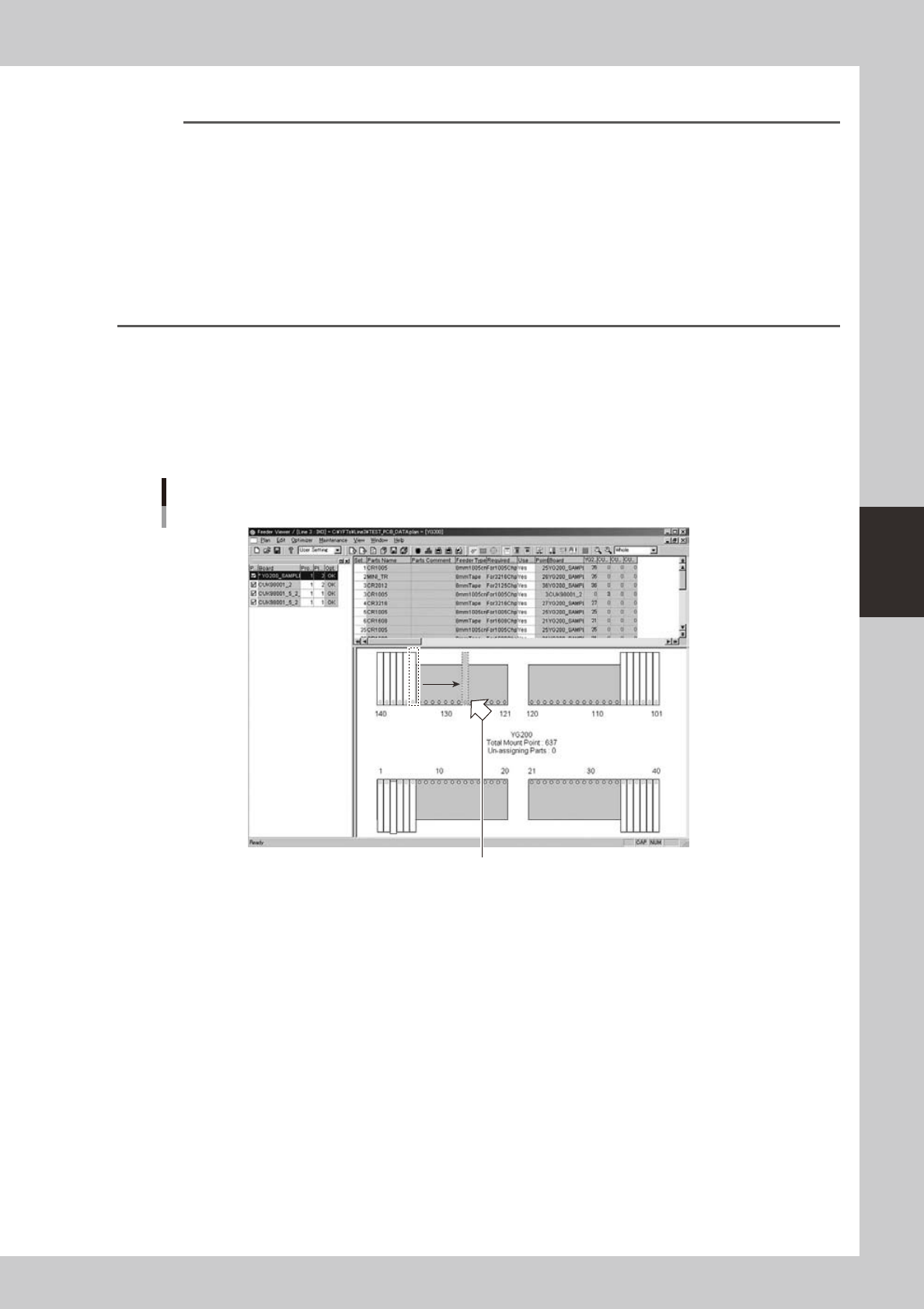
Change the feeder set positions of the divided parts.
The feeders for divided parts are displayed on the feeder plate layout by overlaying the divided feeder
on the source part feeder. Move the feeders for divided parts to other positions.
Moving the divided parts feeder
Move the feeder by drag and drop.
64455-S0-00
4
Save the data.