P-TOOL说明书.pdf - 第31页
1-17 1 Installation of Factor y T ools 2.3 Uninstallation of hardware key The following explains the method for uninstalling the hardware key driver. c C A UTION Be sure to remo ve the hardw are ke y before uninstalling …
1-16
1
Installation of Factory Tools
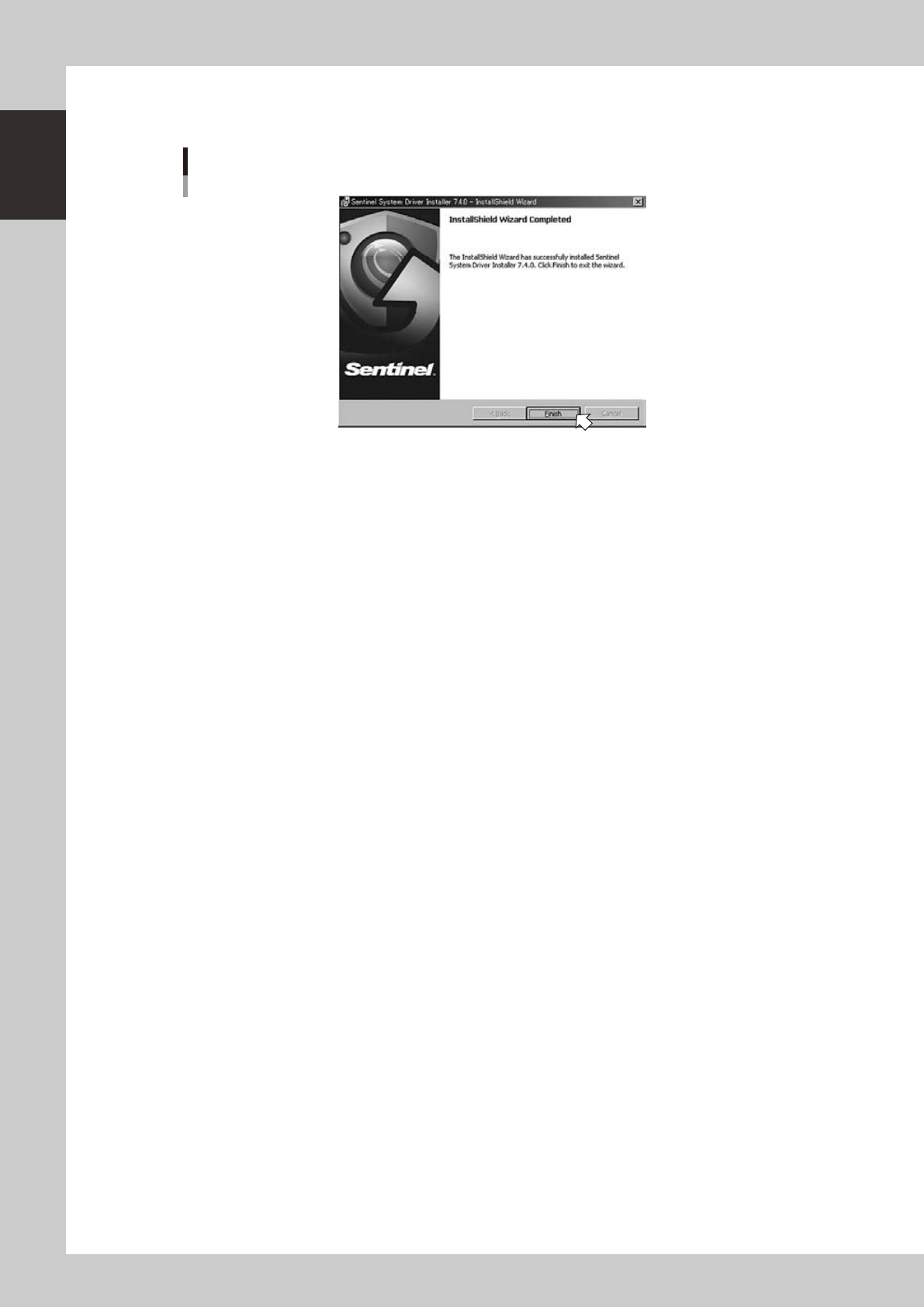
6. "InstallShield Wizard Completed" dialog box will appear when the installation is completed.
Click the [Finish] button to quit the "InstallShield Wizard".
“InstallShield Wizard Completed” dialog box
64116-S0-00
Upgrade of the hardware key driver is now completed.
1-17
1
Installation of Factory Tools
2.3 Uninstallation of hardware key
The following explains the method for uninstalling the hardware key driver.
c
CAUTION
Be sure to remove the hardware key before uninstalling the hardware key driver.
Reference
The following procedure is an example of uninstallation when the setup application is used whose version is the same
as that of the installed driver.
Uninstallation can also be conducted with “Control Panel” - “Add/Remove program” of the Windows “Setting” file.
1
Start the installer.
1. Set the CD-ROM to the PC.
2. Double-click the “My Computer” icon of the PC and select the CD-ROM drive.
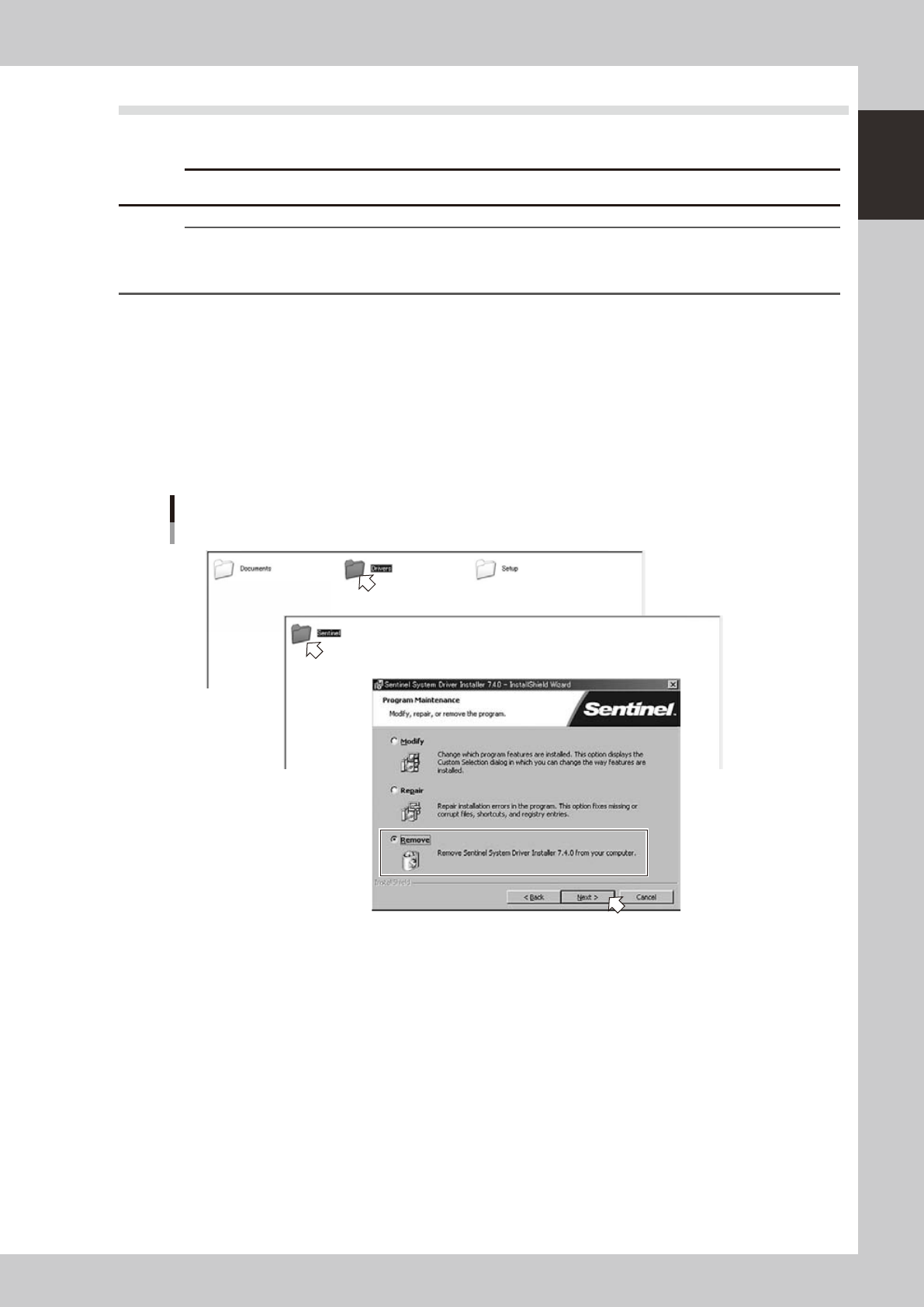
3. Open the "Driver" folder and double-click the "Sentinel System Driver Installer XXX.exe".
The "Program Maintenance" will start.
2
Uninstall the hardware key driver.
1. Tick the "Remove" radio button in the "Program Maintenance" dialog box and click the [Next] button.
Setup application
Step1
Step1
64119-S0-00
1-18
1
Installation of Factory Tools
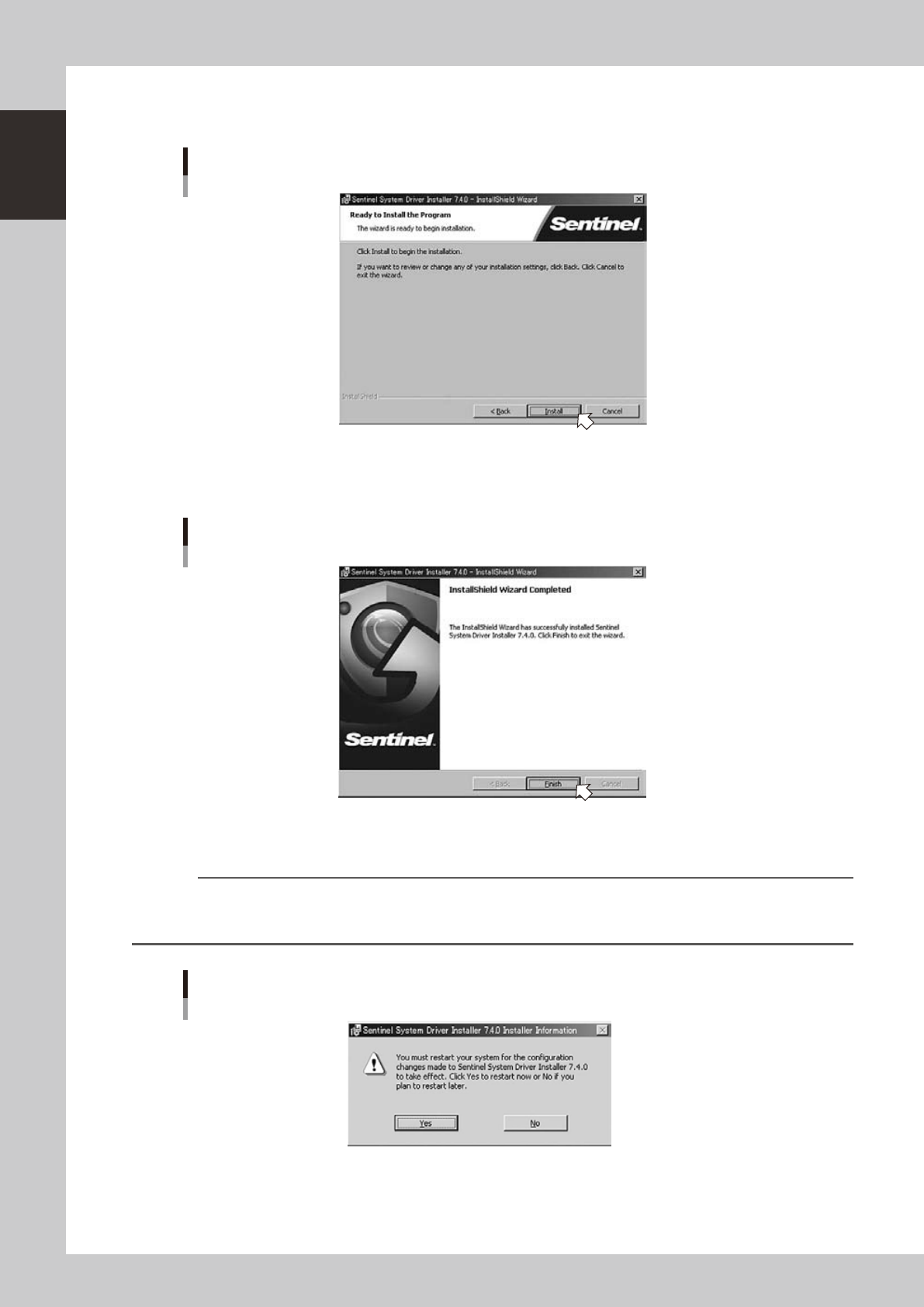
2. When the "Ready to Install the Program" dialog box appears, click the [Remove] button. Uninstallation
of the hardware key driver will start.
“Ready to Install the Program” dialog box
64115-S0-00
3. "InstallShield Wizard Completed" dialog box will appear when the uninstallation is completed.
Click the [Finish] button to quit the "InstallShield Wizard".
“InstallShield Wizard Completed” dialog box
64116-S0-00
Uninstallation of the hardware key driver is now completed.
Reference
Depending on the setup of your PC, it may be necessary to restart the system after uninstallation.
The following screen will be indicated in that case. Click the [Yes] button to immediately restart or the [No] button to
restart later.
“Sentinl System Driver Installar Information” dialog box
64121-S0-00