P-TOOL说明书.pdf - 第32页
1-18 1 Installation of Factor y T ools 2. When the "Ready to Install the Progr am" dialog box appears , click the [Remo ve] button. Uninstallation of the hardw are ke y driver will start. “Ready to Install the …
1-17
1
Installation of Factory Tools
2.3 Uninstallation of hardware key
The following explains the method for uninstalling the hardware key driver.
c
CAUTION
Be sure to remove the hardware key before uninstalling the hardware key driver.
Reference
The following procedure is an example of uninstallation when the setup application is used whose version is the same
as that of the installed driver.
Uninstallation can also be conducted with “Control Panel” - “Add/Remove program” of the Windows “Setting” file.
1
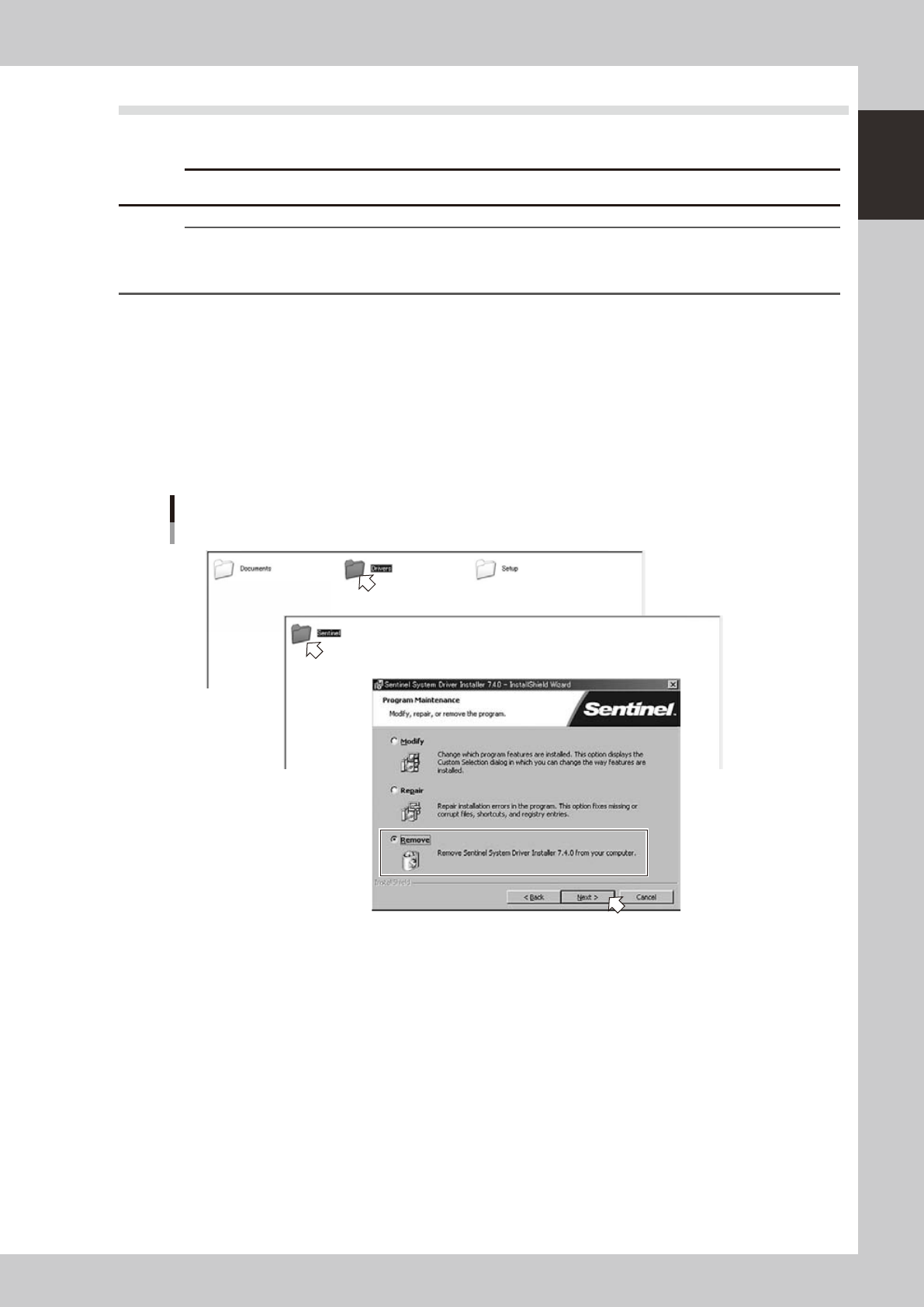
Start the installer.
1. Set the CD-ROM to the PC.
2. Double-click the “My Computer” icon of the PC and select the CD-ROM drive.
3. Open the "Driver" folder and double-click the "Sentinel System Driver Installer XXX.exe".
The "Program Maintenance" will start.
2
Uninstall the hardware key driver.
1. Tick the "Remove" radio button in the "Program Maintenance" dialog box and click the [Next] button.
Setup application
Step1
Step1
64119-S0-00
1-18
1
Installation of Factory Tools
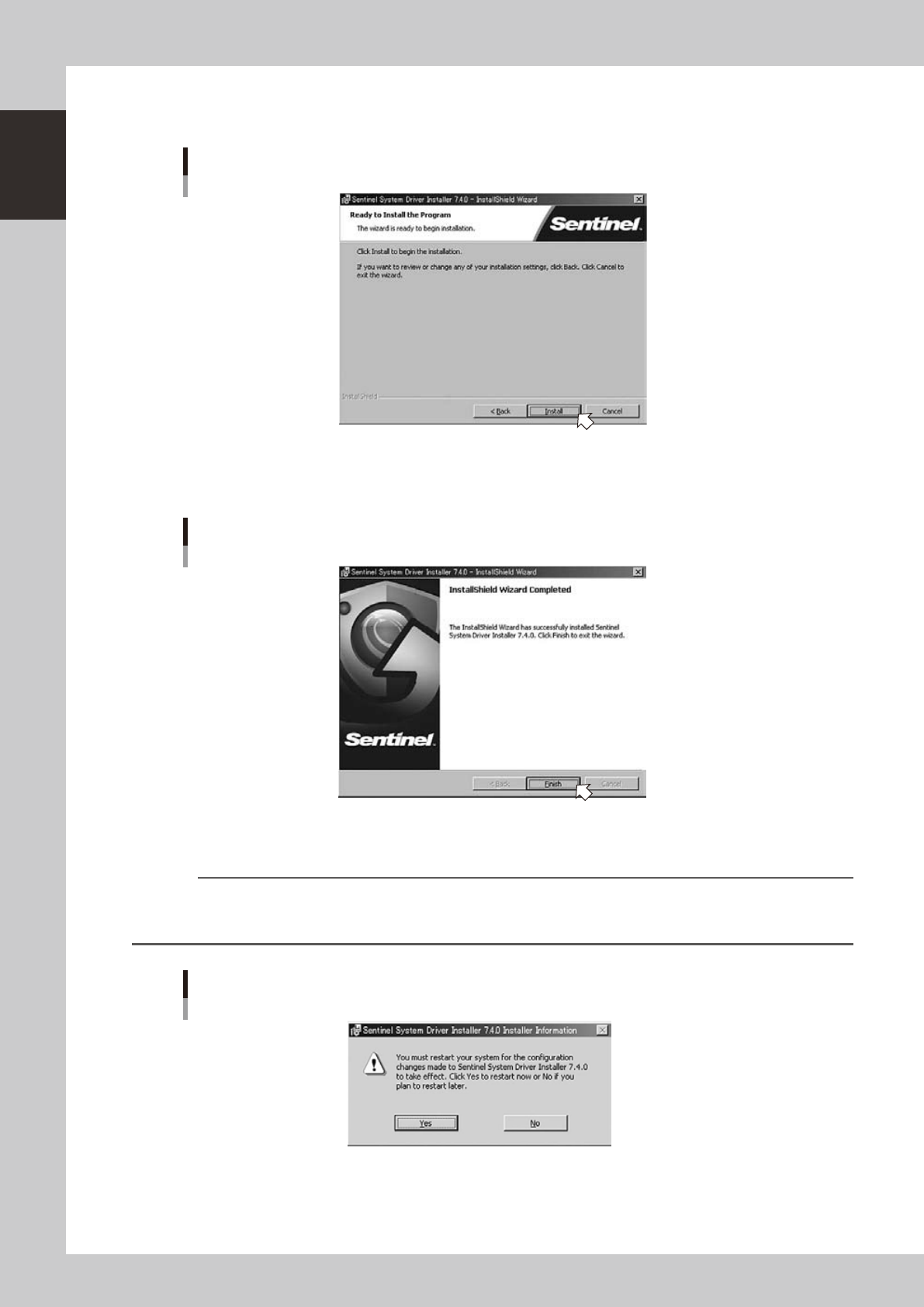
2. When the "Ready to Install the Program" dialog box appears, click the [Remove] button. Uninstallation
of the hardware key driver will start.
“Ready to Install the Program” dialog box
64115-S0-00
3. "InstallShield Wizard Completed" dialog box will appear when the uninstallation is completed.
Click the [Finish] button to quit the "InstallShield Wizard".
“InstallShield Wizard Completed” dialog box
64116-S0-00
Uninstallation of the hardware key driver is now completed.
Reference
Depending on the setup of your PC, it may be necessary to restart the system after uninstallation.
The following screen will be indicated in that case. Click the [Yes] button to immediately restart or the [No] button to
restart later.
“Sentinl System Driver Installar Information” dialog box
64121-S0-00

Chapter 2 Board Explorer
Contents
1. Starting and quitting the Board Explorer 2-1
1.1 Starting the Board Explorer 2-1
1.2 Quitting the Board Explorer 2-2
2. Basic operation 2-3
2.1 About the Board Explorer 2-3
2.2 Board Explorer window 2-5
3.
Registering or deleting “lines” and “machines”
2-12
3.1 Registering “lines” and “machines” 2-12
3.2 Deleting the lines and machines 2-18
4. Factory Tools option settings 2-19
4.1 Option setting 2-19
4.1.1 Changing the language 2-19
4.1.2 [Database] tab 2-20
4.1.3 [Option] tab 2-21
4.1.4 [Special Setting] tab 2-21
4.2 Inspection program conversion setting 2-22
4.2.1 Conversion of Inspection program 2-22
4.2.2 Type compatibility table 2-30
4.2.3 About “FAST” 2-31
4.2.4 How to set up 2-35
4.2.5 Restrictions 2-42
5. Managing the board data 2-43
5.1 Editing board data 2-43
5.1.1 Copying board data 2-43
5.1.2 Renaming board data 2-45
5.1.3 Duplicating board data 2-46
5.1.4 Deleting board data 2-47
5.2 Converting the data type 2-48
5.3 Comparison between folders 2-50
5.4 Database Utility 2-53
5.4.1 Detailed explanation of operation 2-53
5.4.2 Settings 2-64
5.4.3 Limitations 2-64
5.5
'Database Set All' function when Board data is copied from Board Explorer to floppy disk
2-65