P-TOOL说明书.pdf - 第37页
2-3 2 Board Explorer 2. Basic operation 2.1 About the Board Explorer When the Board Explorer starts up, you will see a window divided into two panes as shown below. The left pane is the tree view showing “Factory Folder”…
2-2
2
Board Explorer
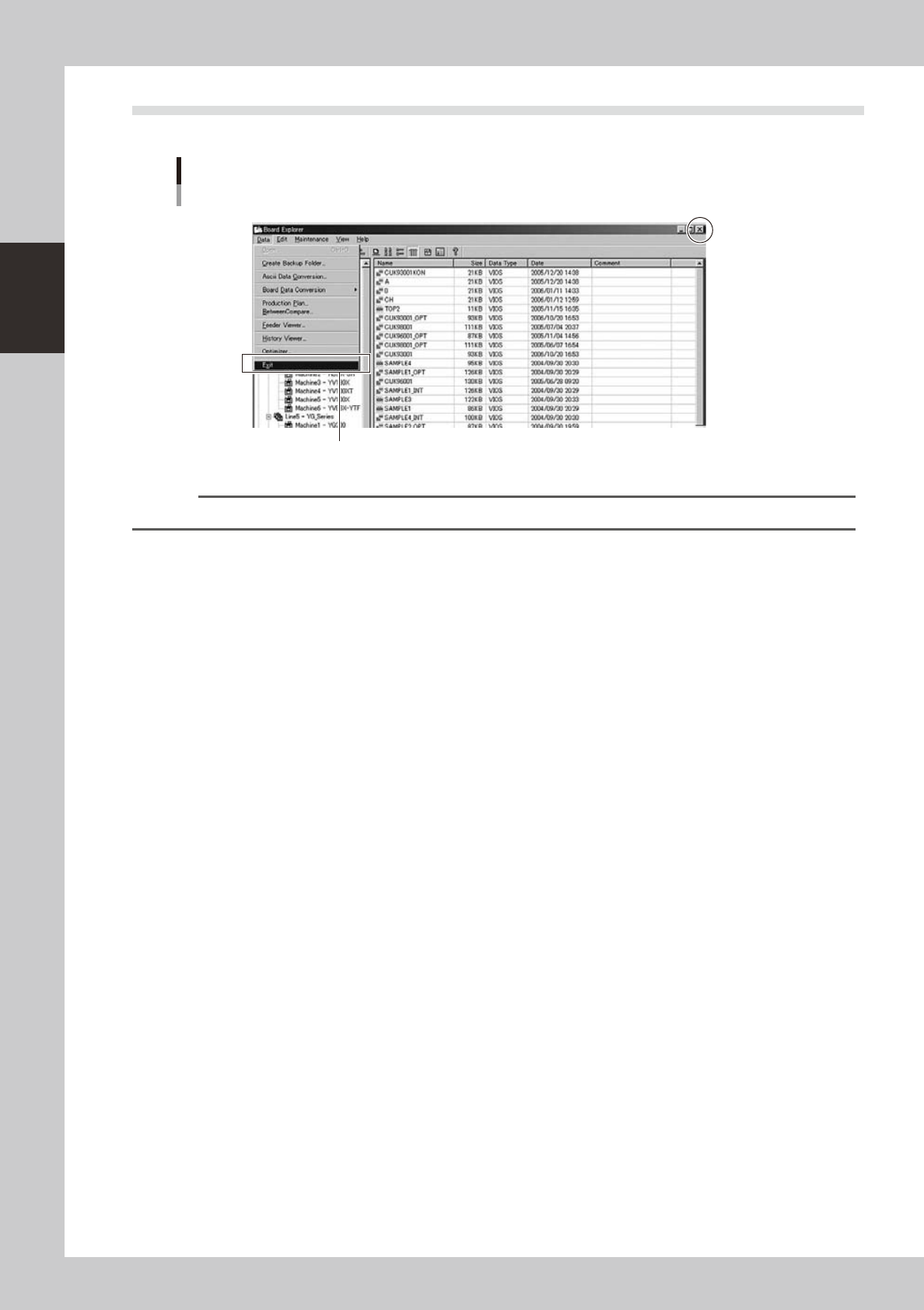
1.2 Quitting the Board Explorer
Select “Exit” from the Data menu to quit the Board Explorer.
Data menu
Exit
Close button
Select "Exit" from Data menu.
64202-S0-00
Reference
You can click the "Close (x)" button in the top right corner of the application window to quit the Board Explorer.
2-3
2
Board Explorer
2. Basic operation
2.1 About the Board Explorer
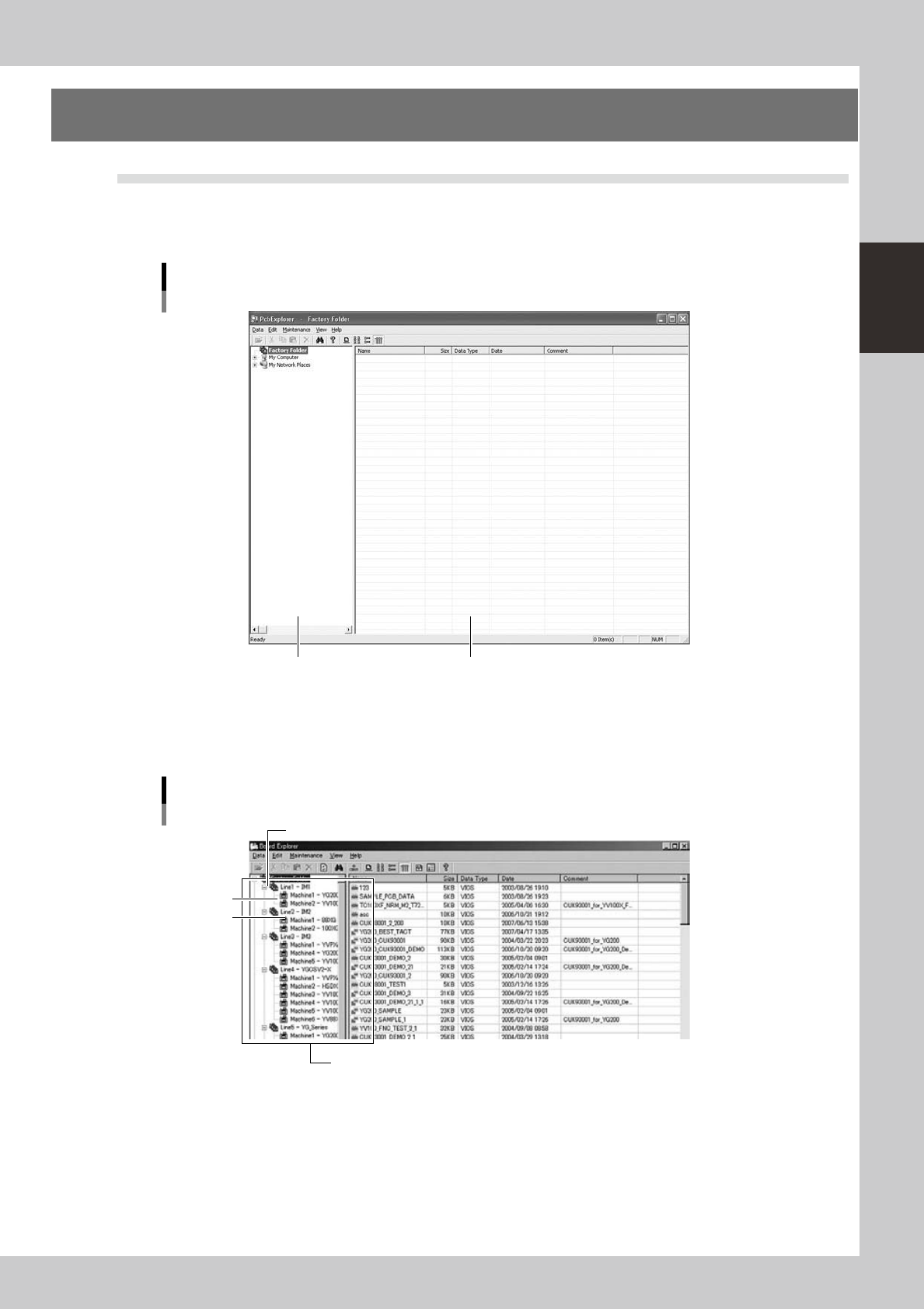
When the Board Explorer starts up, you will see a window divided into two panes as shown below. The left
pane is the tree view showing “Factory Folder” that contains “line (production line)” and “machine” folders
and the right pane is the main view showing the contents of each folder selected in the tree view.
1
2
Board Explorer
64203-S0-00
1. Tree view
Displays information on the “lines” that are currently registered as folders in a tree structure (hierarchical structure) along
with the folder icons.
Line folder
Machine icon
Tree view
Shows registered "lines" and "machines" as well as information on PC.
Factory folder
64204-S0-00
Factory folder
Contains the “line” and “machine” data that can be edited with the Factory Tools.
Double-clickingthisfolderdisplaystheregisteredlinesandmachinesinthetreeview.
Line folder
Displays the icon and name of the registered “line”.
When you click the line folder, a list of all board data registered for that line is displayed in the main view (right pane).
2-4
2
Board Explorer
Machine icon
Shows the icons and names of the registered “machines”.
When you click a machine icon, a list of board data registered for that machine is displayed in the main view (right
pane).
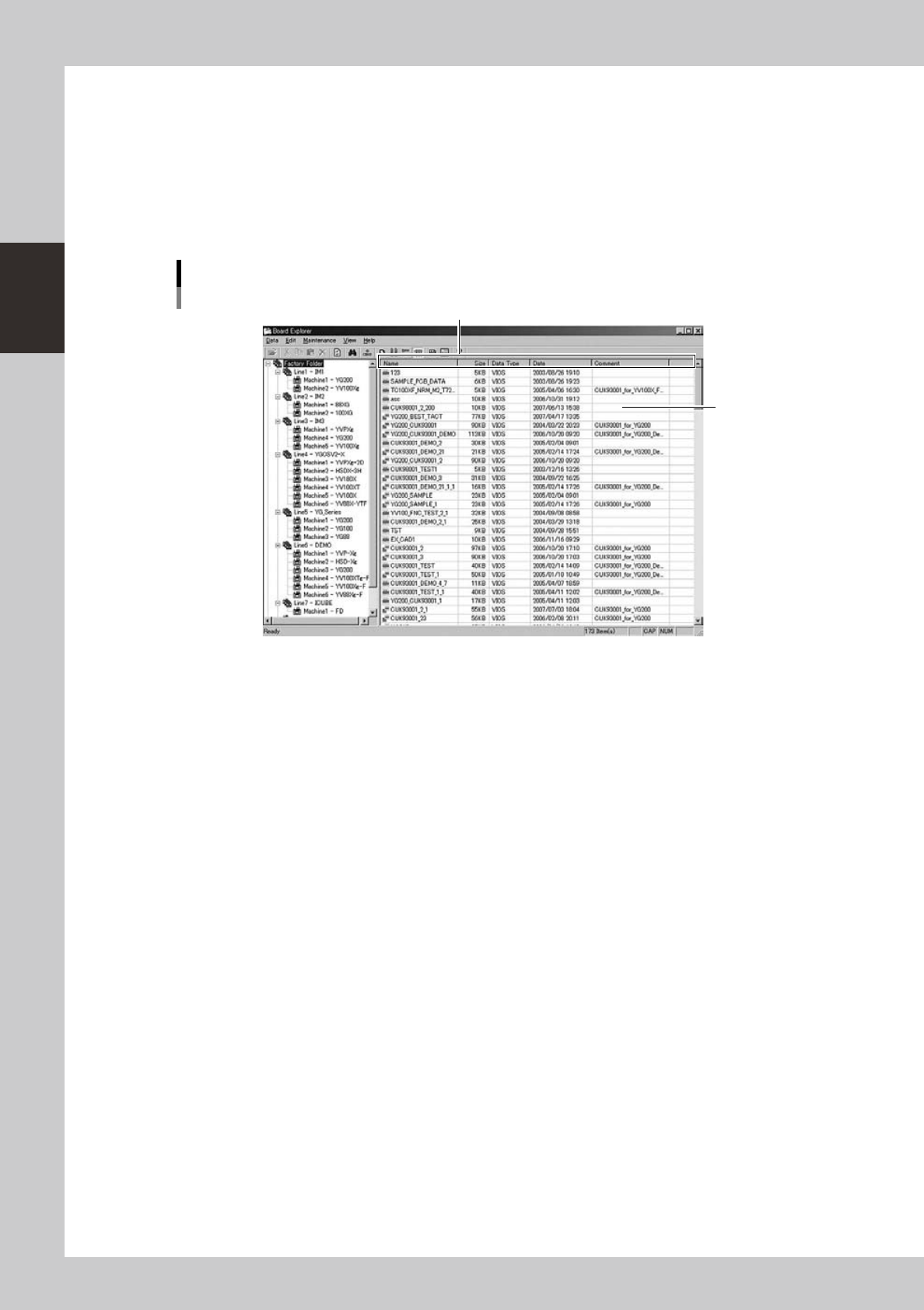
2. Main view
Displays a list of board data registered for the line or machine being selected in the tree view. This list shows the board
data name, data size, data type, update time and comment as shown below.
Clicking on the column header will sort the displayed data in ascending or descending order.
Main view
Main view
Column headers
64205-S0-00