P-TOOL说明书.pdf - 第52页
2-18 2 Board Explorer 3.2 Deleting the lines and machines When you want to delete a registered line or machine, select the line or machine and press the right mouse button to display the context menu. T o delete a line: …
2-17
2
Board Explorer
8
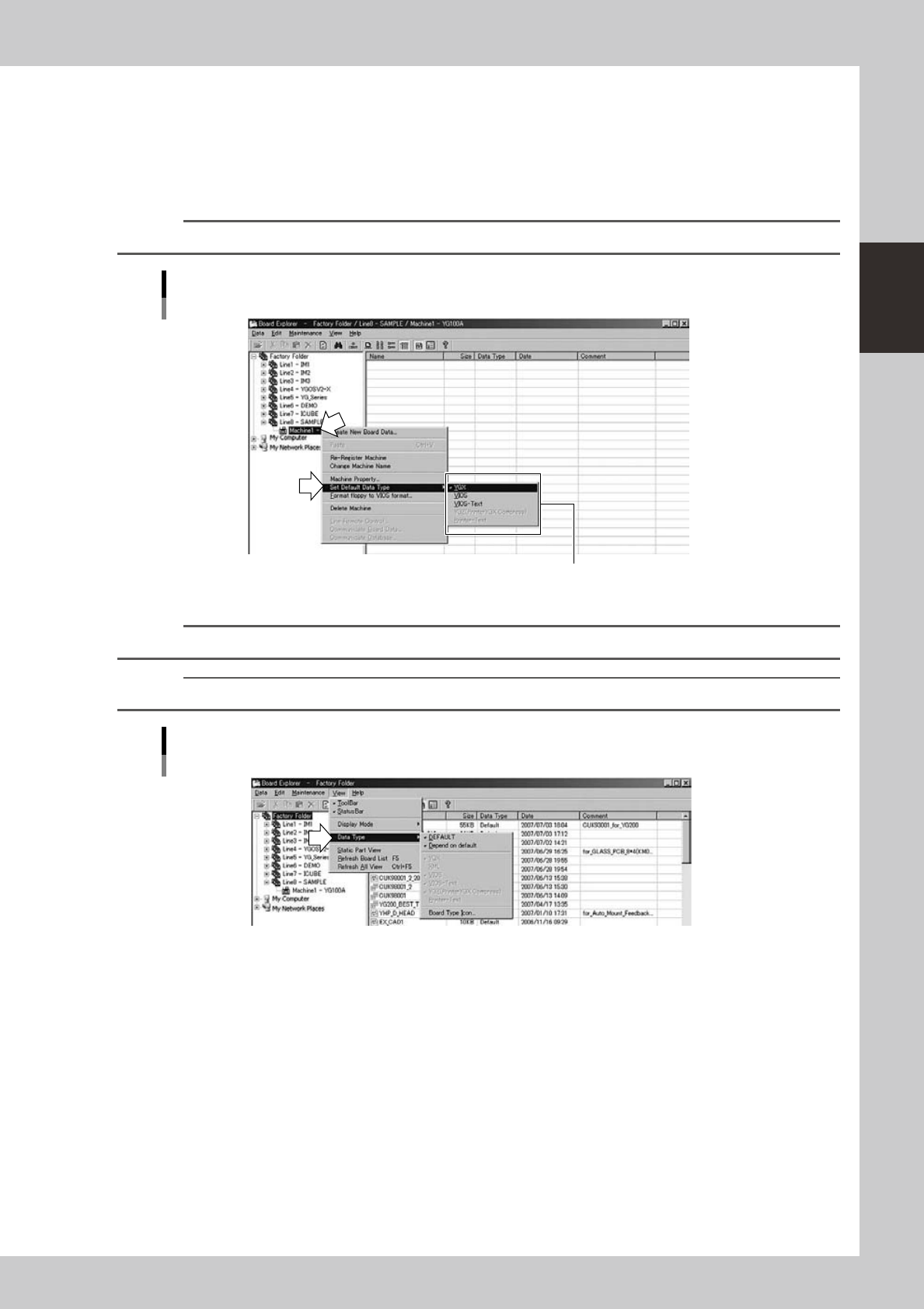
Check the default data type for the machine.
1. Click the right mouse button on the registered machine to display the context menu.
2. Select "Set Default Data Type" from the menu to display the submenu.
3. Check the default data type on the submenu.
A check mark appears at the beginning of the data type you selected in step 6.
n
NOTE
If you want to change the data type, select the desired data type from the submenu.
Default data type setting
Select data type.
64227-S0-00
n
NOTE
YGX (Combined) is not displayed for data type initialisation. Please select YGX Multi Lane Machine.
Reference
Data type can be changed by selecting it form the "Data Type" submenu in the View menu.
Changing the data type
64228-S0-00
You can perform the following operations regarding machine registration.
●
Registration of all machines
You can reregister all machines at a time, which have been registered under the “Factory Folder” except for those
registered without using floppy disks.
Select“AllMachinere-registration”fromtheMaintenancemenuandfollowtheinstructionsinthedialogboxthat
appears.
●
Creation of Board data disk
When using a floppy disk to copy board data from the machine or load it into the machine, you need a board data disk.
To create a board data disk, select the machine icon in the tree view, press the right mouse button to display the context
menu and select “Format floppy to VIOS format”.
2-18
2
Board Explorer
3.2 Deleting the lines and machines
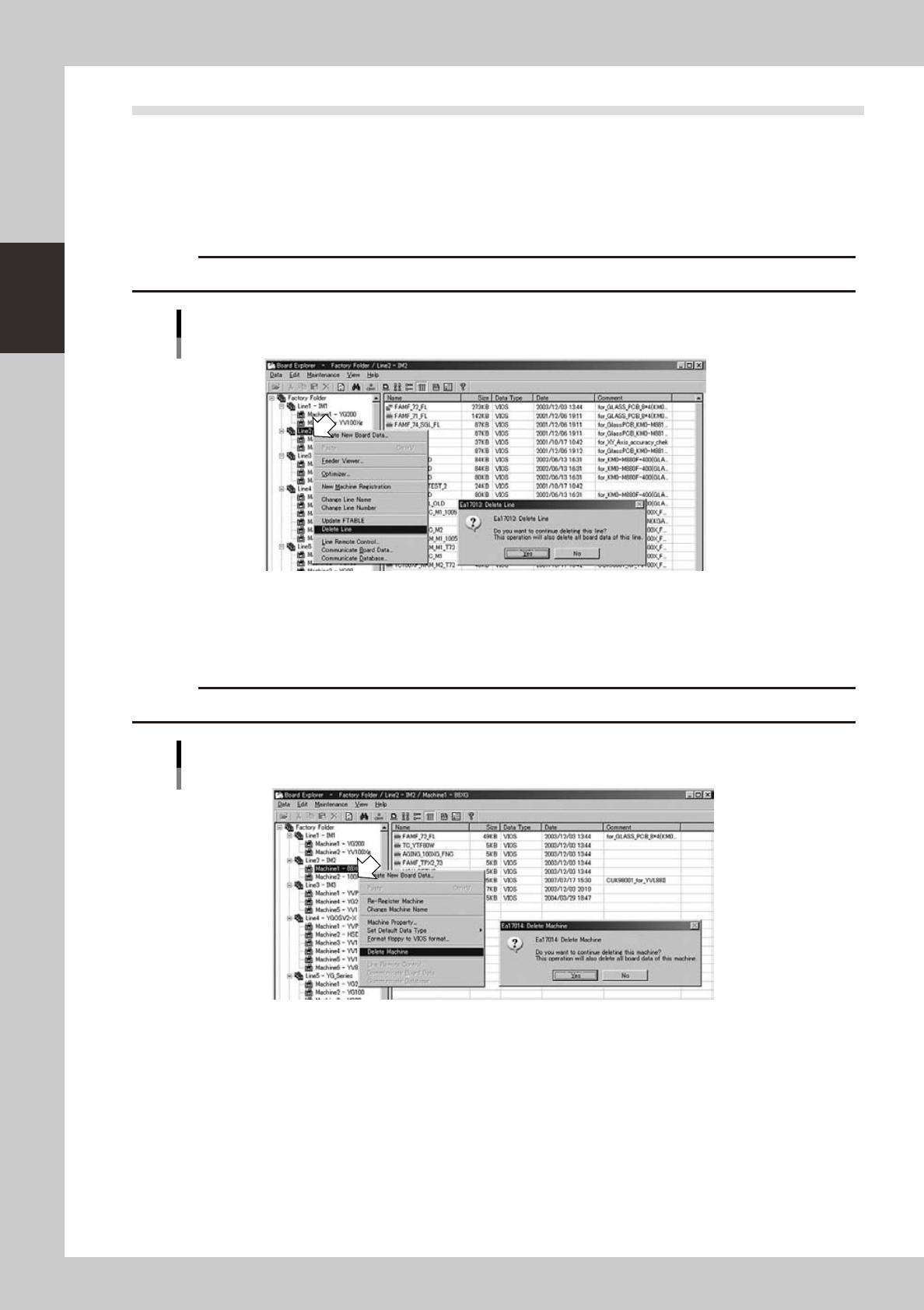
When you want to delete a registered line or machine, select the line or machine and press the right mouse
button to display the context menu.
To delete a line:
1.Select“DeleteLine”fromthecontextmenu.
2.Aconfirmationdialogboxappears.Click[Yes]todeletetheselectedline.
c
CAUTION
If a line is deleted, then all machines, machine data and all board data registered with that line will also be deleted.
Deleting a line
64229-S0-00
To delete a machine:
1.Select“DeleteMachine”fromthecontextmenu.
2.Aconfirmationdialogboxappears.Click[Yes]todeletetheselectedmachine.
c
CAUTION
If a machine is deleted, then machine data and board data registered for that machine will also be deleted.
Deleting a machine
64230-S0-00
2-19
2
Board Explorer
4. Factory Tools option settings
Use the Factory Tools option settings when selecting the language to display menus and messages or
specifying other optional functions.
The Factory Tools option settings can be changed from the Board Explorer, Board Editor and the Factory
Tools Start menu. This section explains the option setting from the Board Explorer.
4.1 Option setting
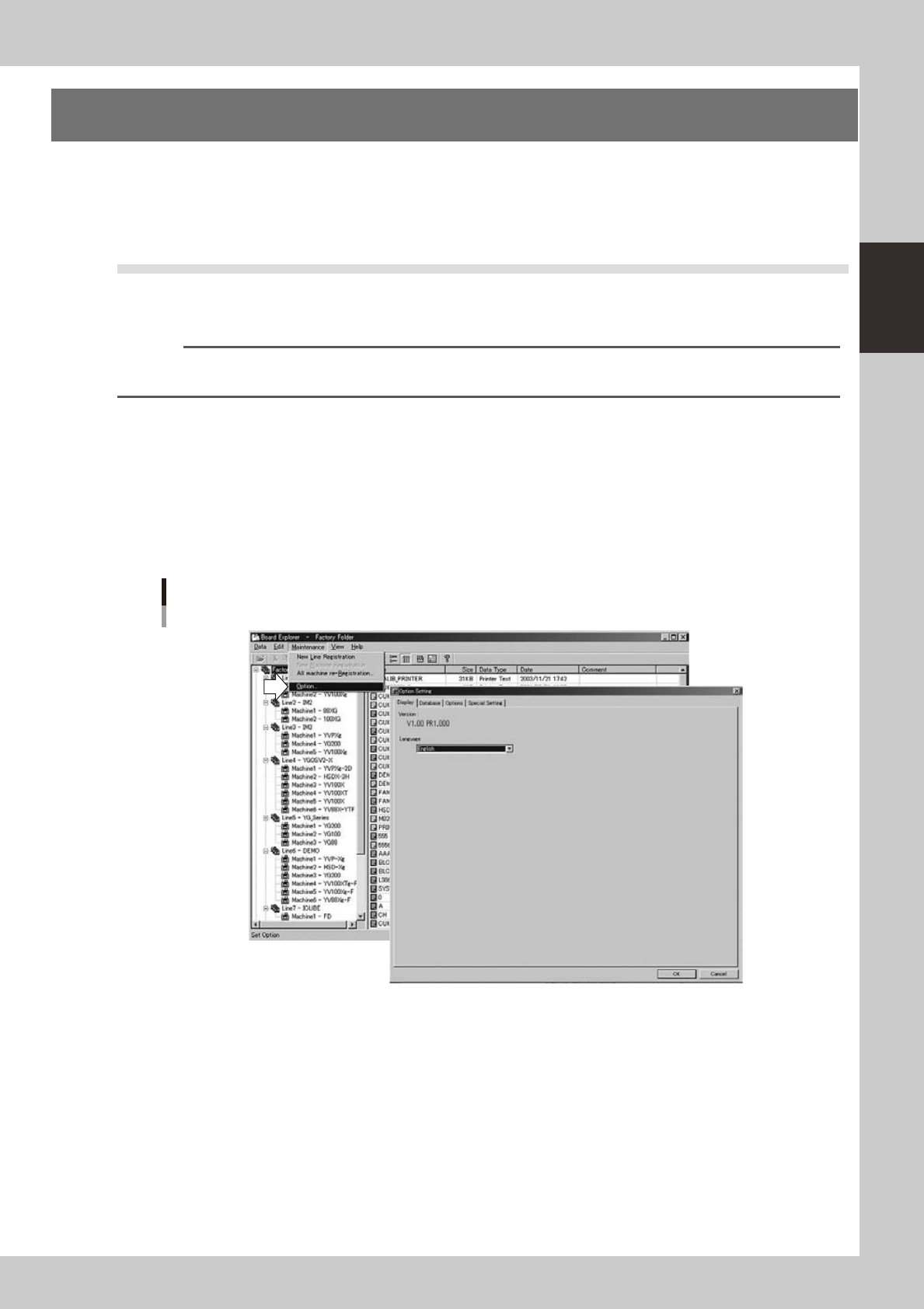
In the Board Explorer window, selecting “Factory Tools Option” from the Maintenance menu displays the
“Option Setting” dialog box. Click the tab for the option you want to check and make the necessary changes.
n
NOTE
To enable the changes you have made here, click the [OK] button to close the "Option Setting" dialog box and then
restart the Board Explorer.
4.1.1 Changing the language
The Factory Tools allows you to switch the display language between Japanese and English. To change the
display language, follow these steps.
1
Start the Board Explorer.
2
Select “Factory Tools Option” from the Maintenance menu.
The "Option Setting" dialog box appears.
Maintenance menu
Selecting "Factory Tools Option"
64231-S0-00