P-TOOL说明书.pdf - 第54页
2-20 2 Board Explorer 3 Change the language. Select the desired language fr om the Language dr op-down list. 4 Click the [OK] button. The change y ou have m ade is enabled after restarting the Board Explorer . "Opti…
2-19
2
Board Explorer
4. Factory Tools option settings
Use the Factory Tools option settings when selecting the language to display menus and messages or
specifying other optional functions.
The Factory Tools option settings can be changed from the Board Explorer, Board Editor and the Factory
Tools Start menu. This section explains the option setting from the Board Explorer.
4.1 Option setting
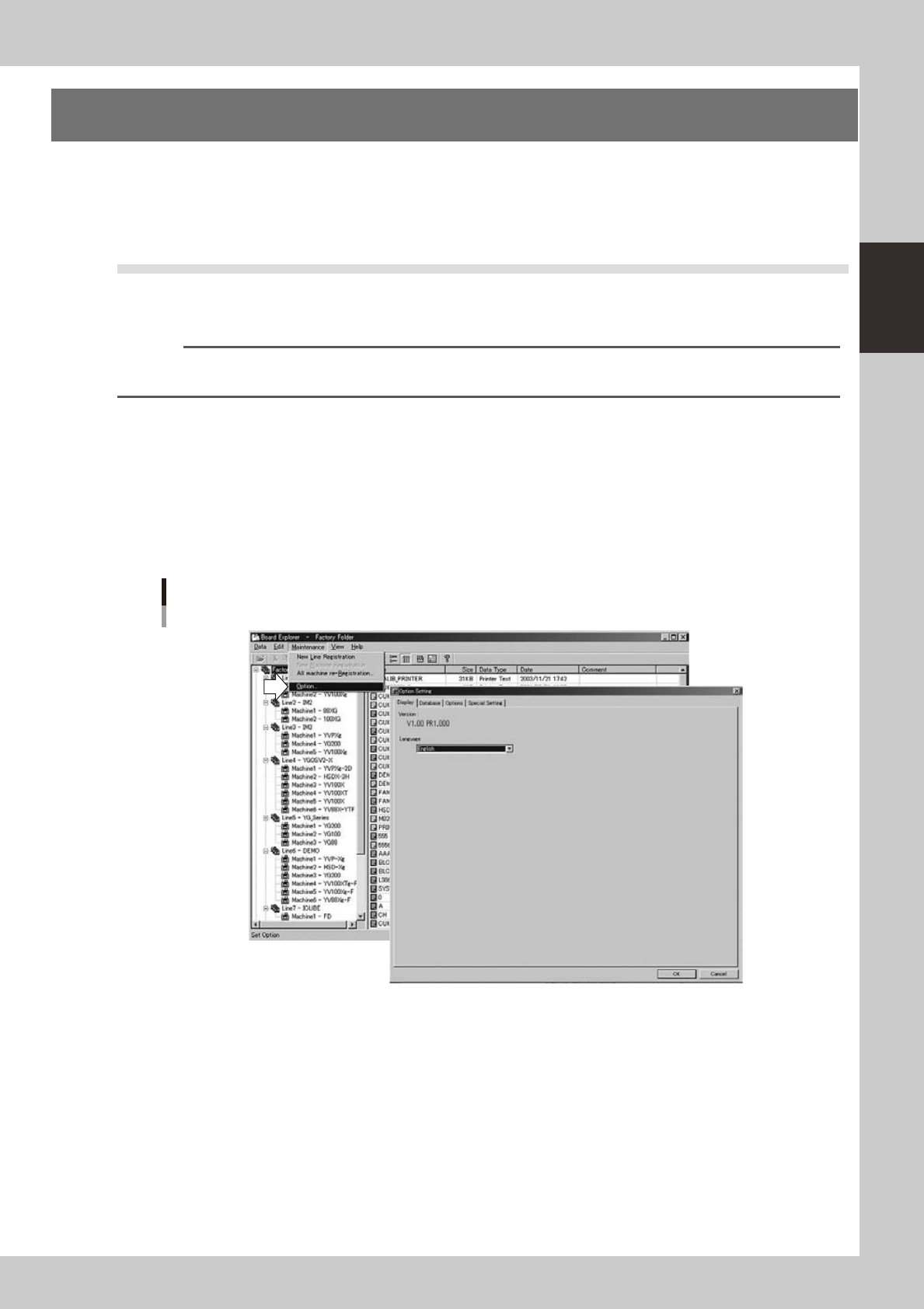
In the Board Explorer window, selecting “Factory Tools Option” from the Maintenance menu displays the
“Option Setting” dialog box. Click the tab for the option you want to check and make the necessary changes.
n
NOTE
To enable the changes you have made here, click the [OK] button to close the "Option Setting" dialog box and then
restart the Board Explorer.
4.1.1 Changing the language
The Factory Tools allows you to switch the display language between Japanese and English. To change the
display language, follow these steps.
1
Start the Board Explorer.
2
Select “Factory Tools Option” from the Maintenance menu.
The "Option Setting" dialog box appears.
Maintenance menu
Selecting "Factory Tools Option"
64231-S0-00
2-20
2
Board Explorer
3
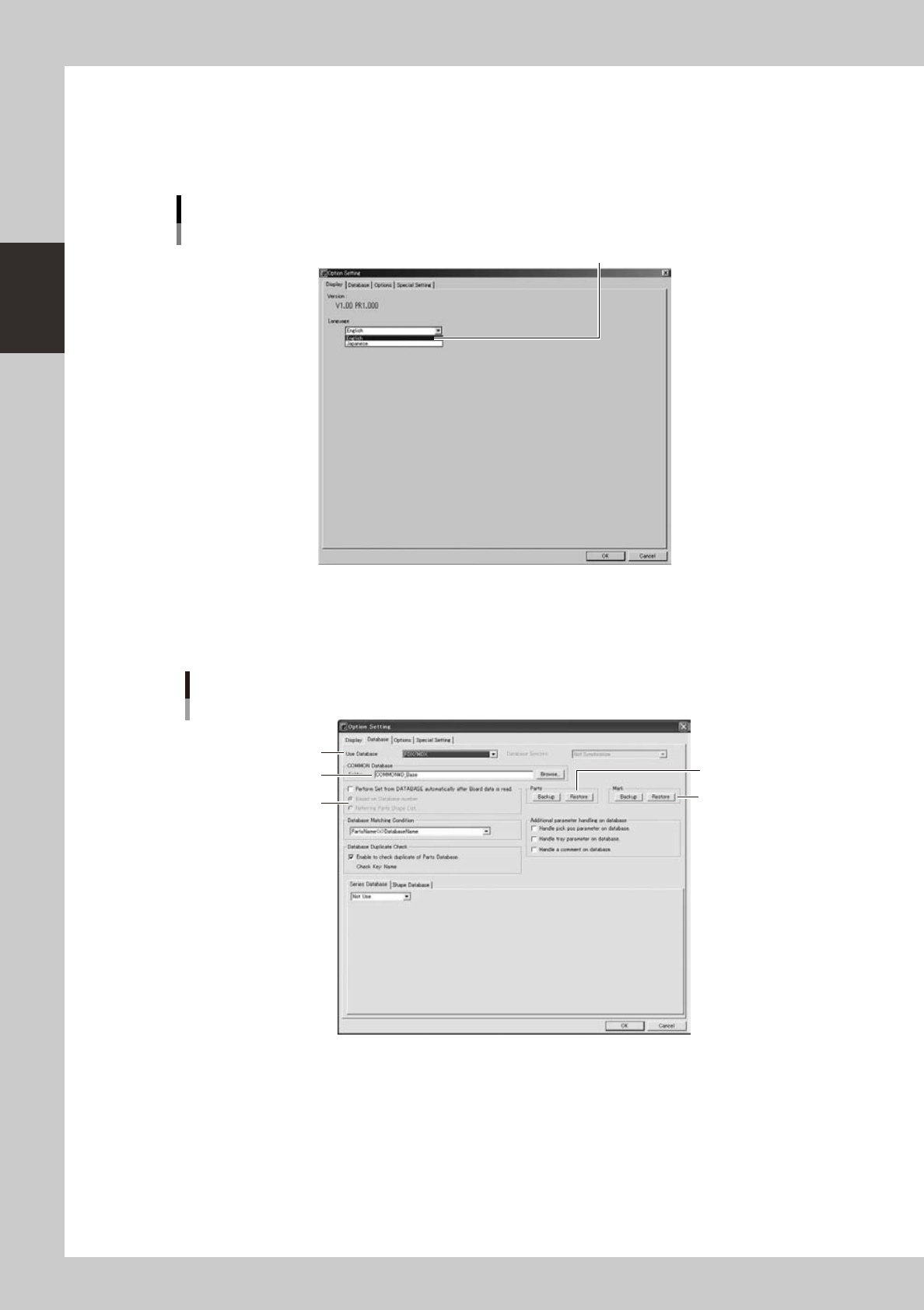
Change the language.
Select the desired language from the Language drop-down list.
4
Click the [OK] button.
The change you have made is enabled after restarting the Board Explorer.
"Option Setting" dialog box
[Display] tab for changing the language
Select the language and click [OK].
64232-S0-00
4.1.2 [Database] tab
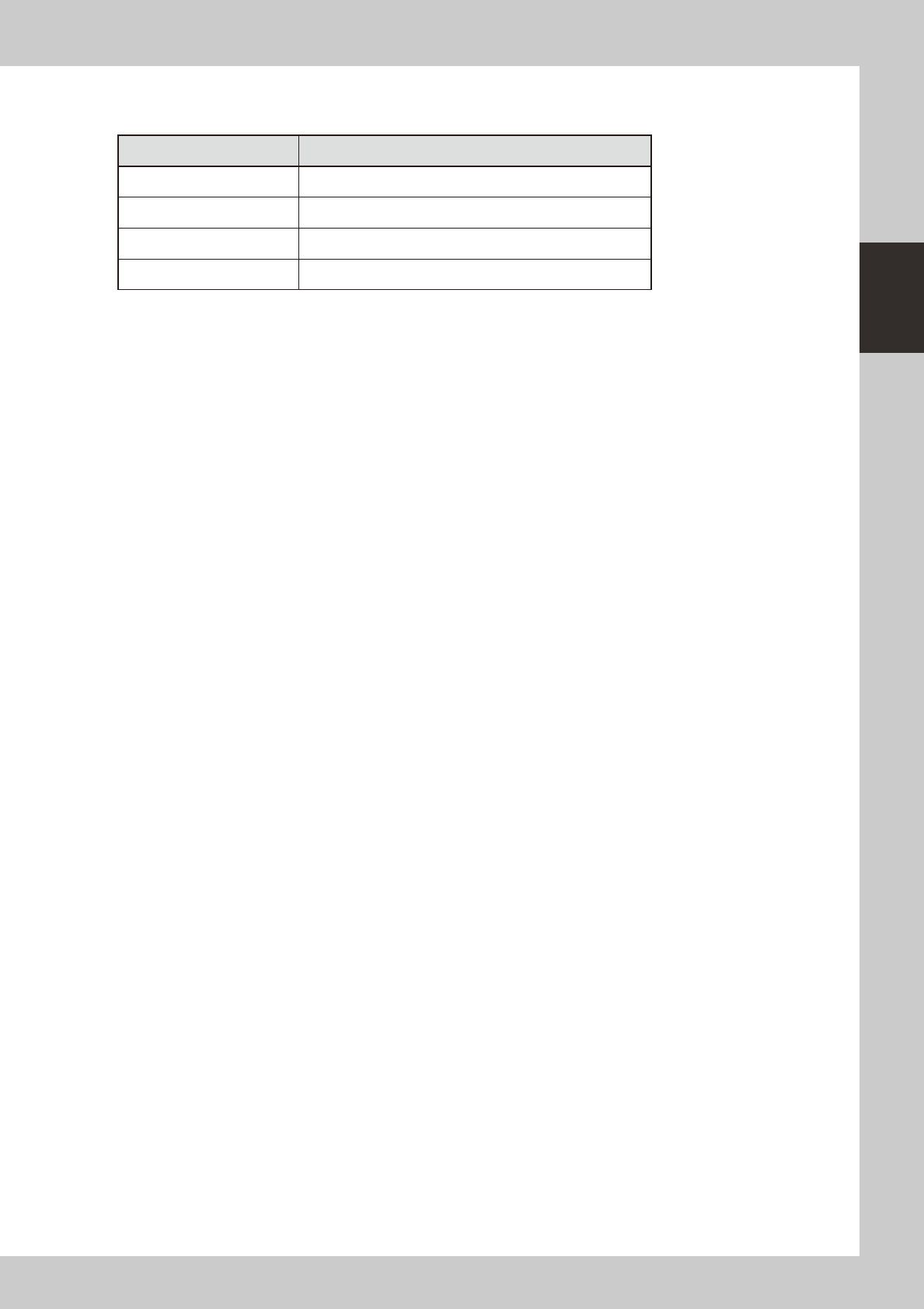
Clicking the [Database] tab opens the following screen for the database option setting.
Factory Tools option setting
[Database] tab
2
1
4
3
5
64233-S0-20
2-21
2
Board Explorer
1. Use Database
Select whether to use the database and the condition from the “Use Database” drop-down list.
Item Description
NotUse Select when not using the database.
FDX/MDX Select when using fdx/mdx database.
FDX/MDX (with saving FD/MS) Select when using both fdx/mdx and fd/md database.
FD/MD Select when using fd/md database.
2. Database folder
Shows the path to the registered database.
You can also use the [Browse] button to check the location where the database is stored.
3. Parts
Backs up and restores Parts database.
4. Mark
Backs up and restores Mark database.
5. Perform All Set
“All Set” is conducted when loading circuit board with editor or when optimization is performed.
6. Database matching condition
Selects whether a name or key is selected as a key term to match parts and database.
7. Synchronous operation setting
Select the use of database synchronization. “Database use” is only valid for “FDX/MDX (also saved on FD/MD)”.
8. Database by models
Select if Database by models is to be used/not to be used. For more information, please refer to P-Tool User's Manual
Chapter 6, Database.
9. Database by types
Select if Database by types is to be used/not to be used. For more information, please refer to P-Tool User's Manual
Chapter 6, Database.
10. Database duplicate check
Select if Database duplicate check is to be used/not to be used. For more information, please refer to P-Tool User's
Manual Chapter 6, Database.
11. Additional parameter database management
Add parameters to be included in the management objects for database setting, setting from board. For more information,
please refer to P-Tool User's Manual Chapter 6, Database.
4.1.3 [Option] tab
Clicking the “Option” tab in the Option Settings window displays the option settings. Hardware key options
and available tools are listed and can be confirmed.
4.1.4 [Special Setting] tab
Clicking the [Special Setting] tab shows a list of special functions available for the Factory Tools.