P-TOOL说明书.pdf - 第79页
2-45 2 Board Explorer 5.1.2 Renaming board data To rename board data, follow these steps. 1 Select the board data. Select the line or m achine in the tree view s o that the board data to be renamed is display ed in the m…
2-44
2
Board Explorer
2
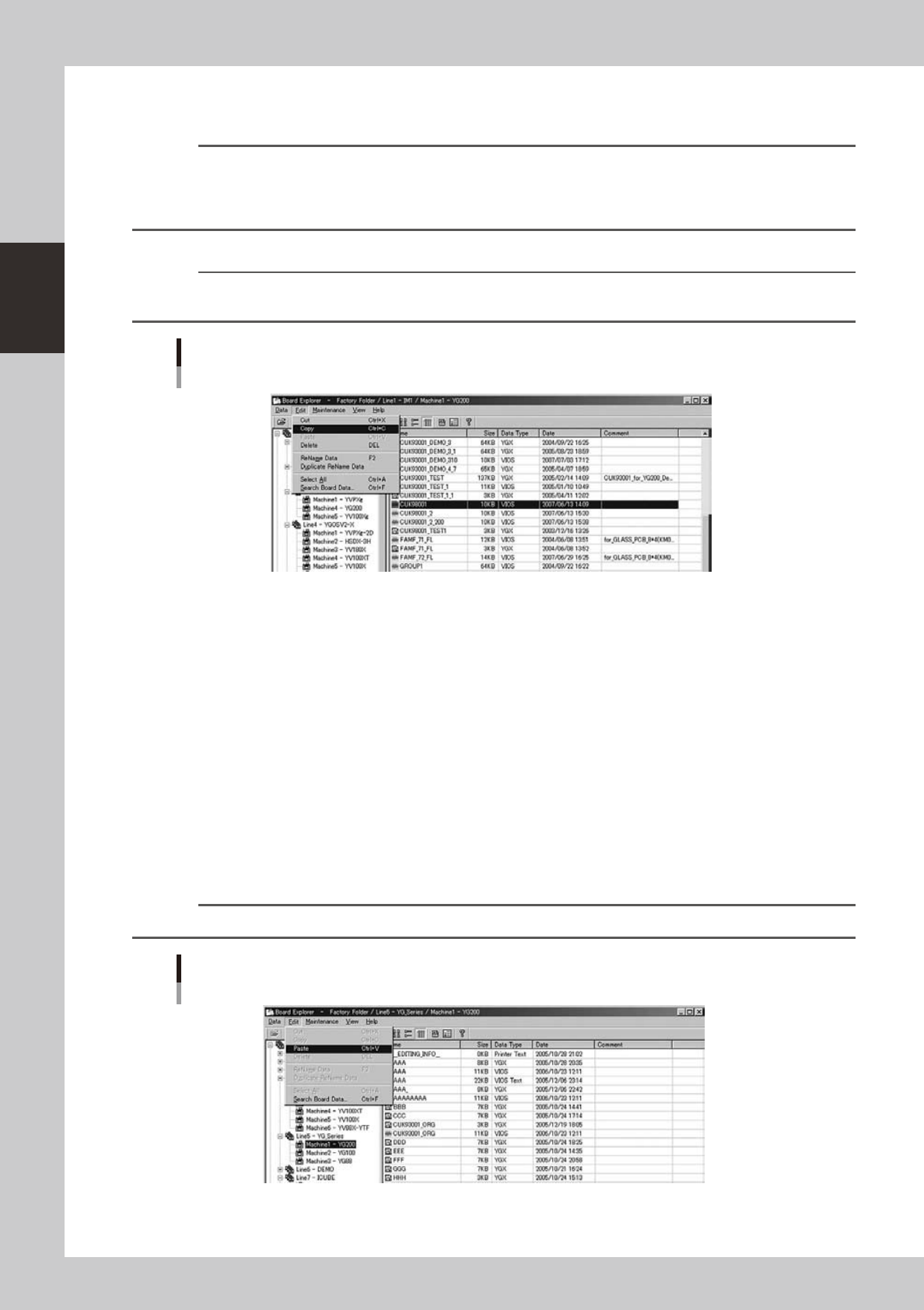
Copy the board data.
1. In the main view, select the board data to be copied.
Reference
To copy all items of board data, select any board data and then select "Select All" from the Edit menu (or press
[Ctrl]+[A]).
To copy two or more items of board data, select one item you want to copy and then select other items while
pressing the [Shift] key or [Ctrl] key.
2. Select "Copy" from the Edit menu.
Reference
After selecting the board data rows, you can select the "Copy" command from the context menu that appears by
clicking the right mouse button.
Edit menu
Selecting "Copy"
64238-S0-00
3
Select the copy destination.
In the tree view, click the location you want to copy to.
• To copy the line data:
Line data can only be copied to a line.
Line data is automatically allocated to the corresponding folders in the destination line. For example,
machine 1 data is stored in the No.1 folder and machine 2 data in the No.2 folder.
• To copy machine's board data:
Board data can be copied in any machine.
• To copy into a machine's board data folder.
Board data can only be copied into the No.1 folder.
4
Paste the copied data.
Select "Paste" from the Edit menu.
The selected board data is copied
Reference
You can select the "Paste" command from the context menu that appears by clicking the right mouse button.
Edit menu
Selecting "Paste"
64239-S0-00
2-45
2
Board Explorer
5.1.2 Renaming board data
To rename board data, follow these steps.
1
Select the board data.
Select the line or machine in the tree view so that the board data to be renamed is displayed in the
main view. Then select the board data to be renamed.
2
Rename the selected board data.
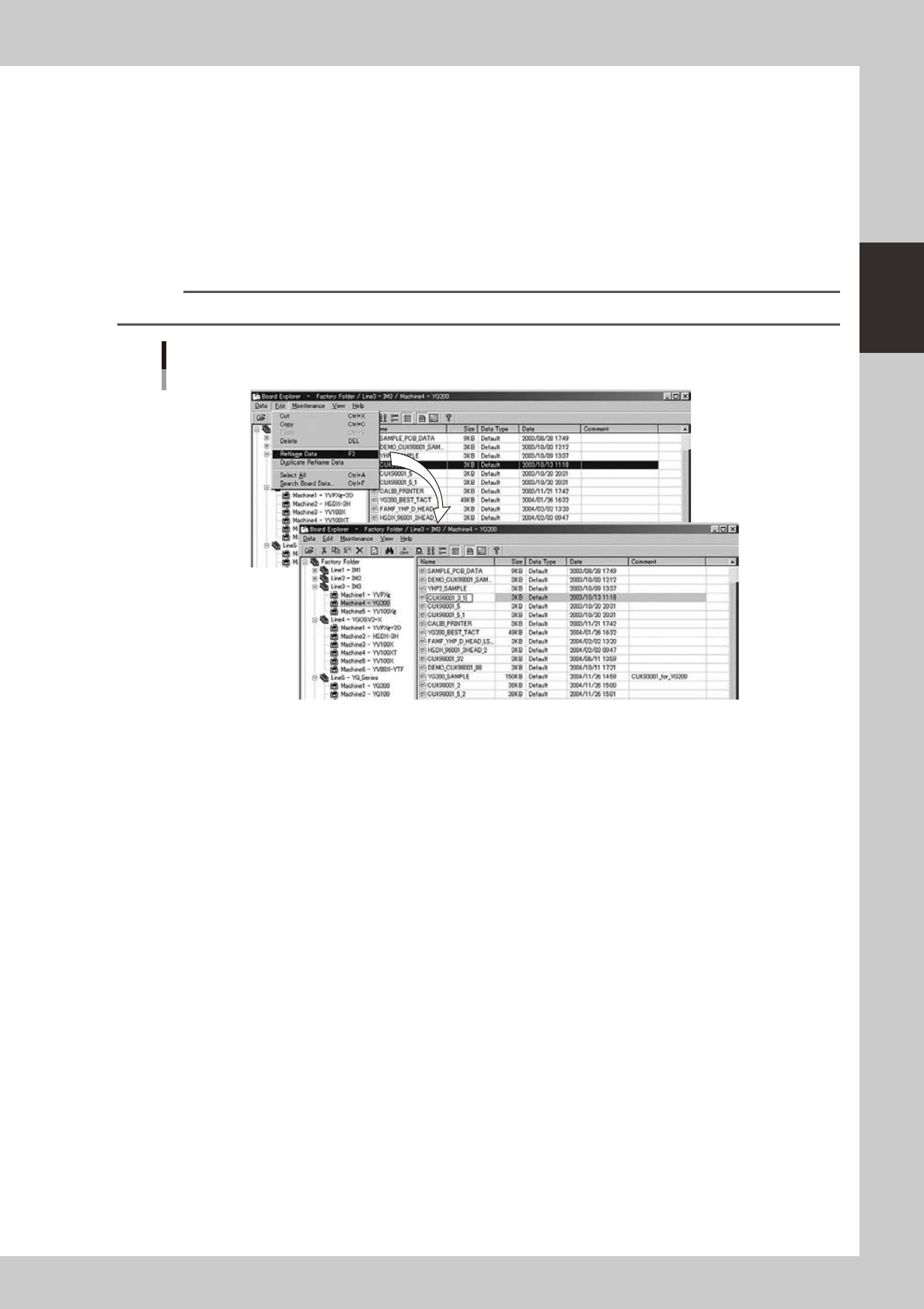
Select "Rename Data" from the Edit menu.
The board data name is now ready to be changed. Change the name, and press the [Enter] key.
Reference
You can select the "Rename" command from the context menu that appears by clicking the right mouse button.
Edit menu
Selecting "Rename Data"
64240-S0-00
2-46
2
Board Explorer
5.1.3 Duplicating board data
To duplicate board data, follow these steps.
1
Select the board data.
Select the line or machine in the tree view so that the board data to be duplicated is displayed in the
main view. Then select the board data to be duplicated.
2
Duplicate the selected board data.
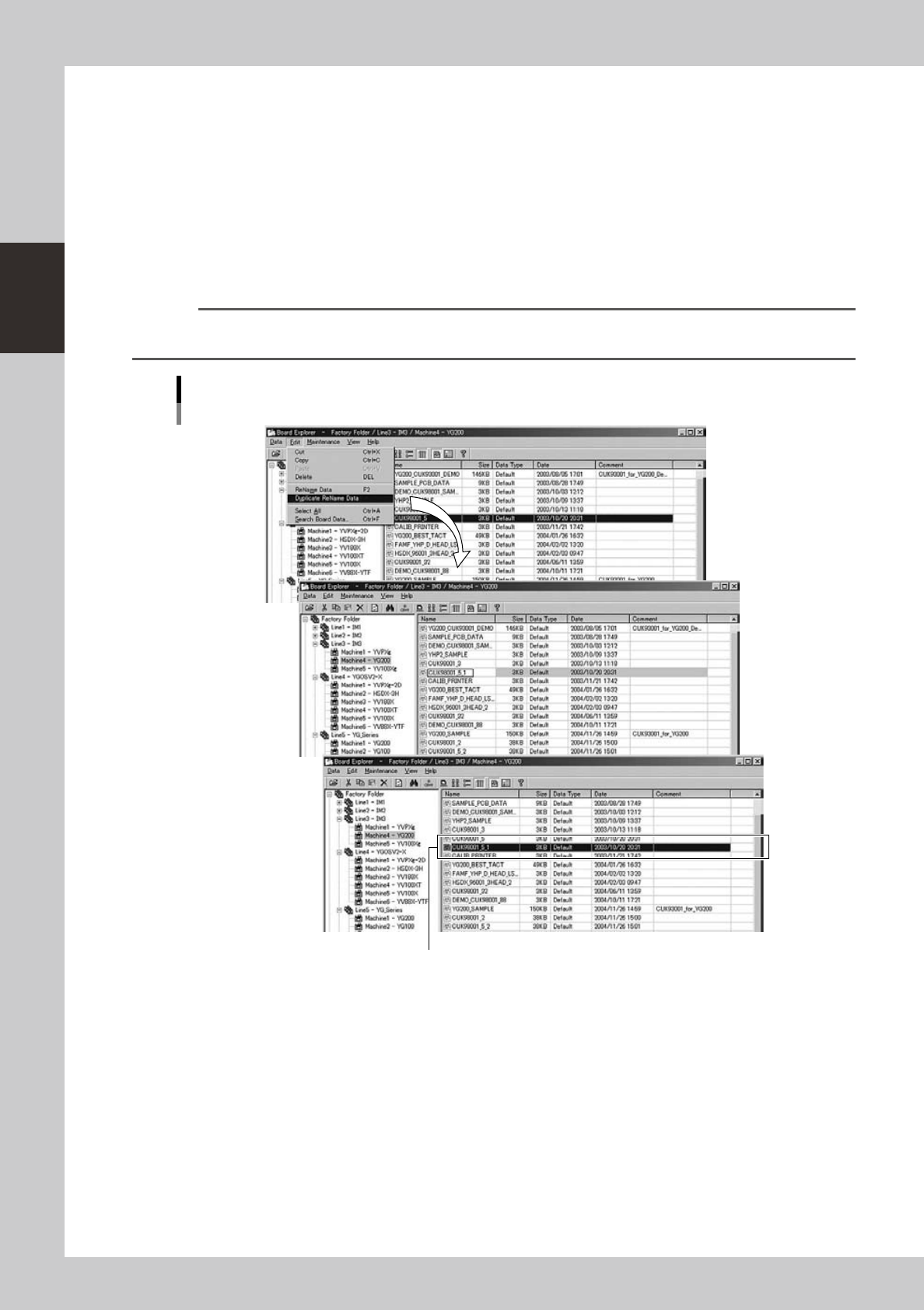
Select "Duplicate Rename Data" from the Edit menu to make the name of the selected board data
editable. Then type the new name you want to give to the duplicated board data and press the [Enter]
key. The duplicated board data with the new name is registered.
Reference
You can select the "Duplicate Rename Data" command from the context menu that appears by clicking the right
mouse button.
Edit menu
Selecting "Duplicate Rename Data"
The duplicated Board data was registered.
64241-S0-00