P-TOOL说明书.pdf - 第81页
2-47 2 Board Explorer 5.1.4 Deleting board data To delete board data, follow these steps. 1 Select the board data. Select the line or m achine in the tree view s o that the board data to be deleted is display ed in the m…
2-46
2
Board Explorer
5.1.3 Duplicating board data
To duplicate board data, follow these steps.
1
Select the board data.
Select the line or machine in the tree view so that the board data to be duplicated is displayed in the
main view. Then select the board data to be duplicated.
2
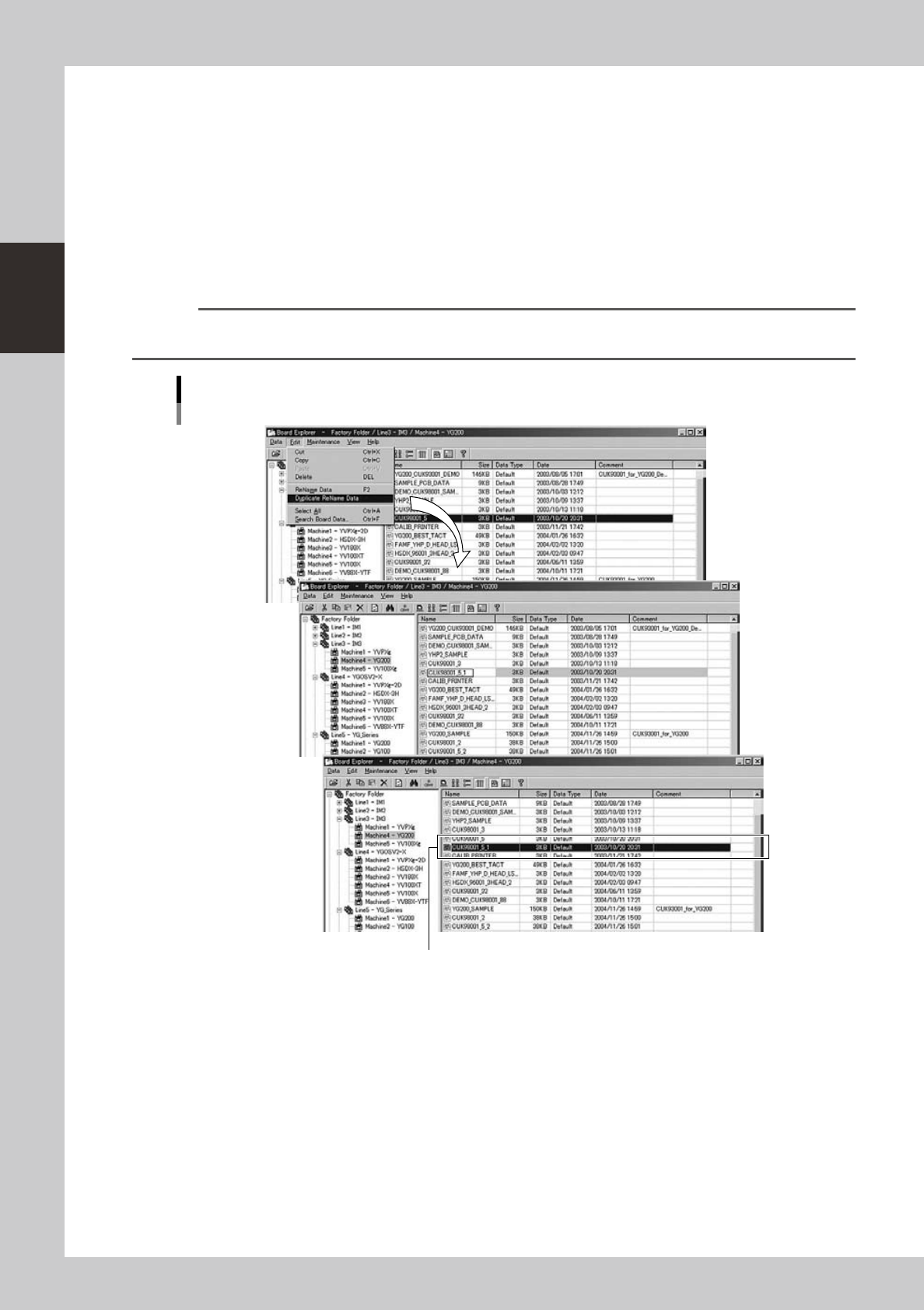
Duplicate the selected board data.
Select "Duplicate Rename Data" from the Edit menu to make the name of the selected board data
editable. Then type the new name you want to give to the duplicated board data and press the [Enter]
key. The duplicated board data with the new name is registered.
Reference
You can select the "Duplicate Rename Data" command from the context menu that appears by clicking the right
mouse button.
Edit menu
Selecting "Duplicate Rename Data"
The duplicated Board data was registered.
64241-S0-00
2-47
2
Board Explorer
5.1.4 Deleting board data
To delete board data, follow these steps.
1
Select the board data.
Select the line or machine in the tree view so that the board data to be deleted is displayed in the main
view. Then select the board data to be deleted.
2
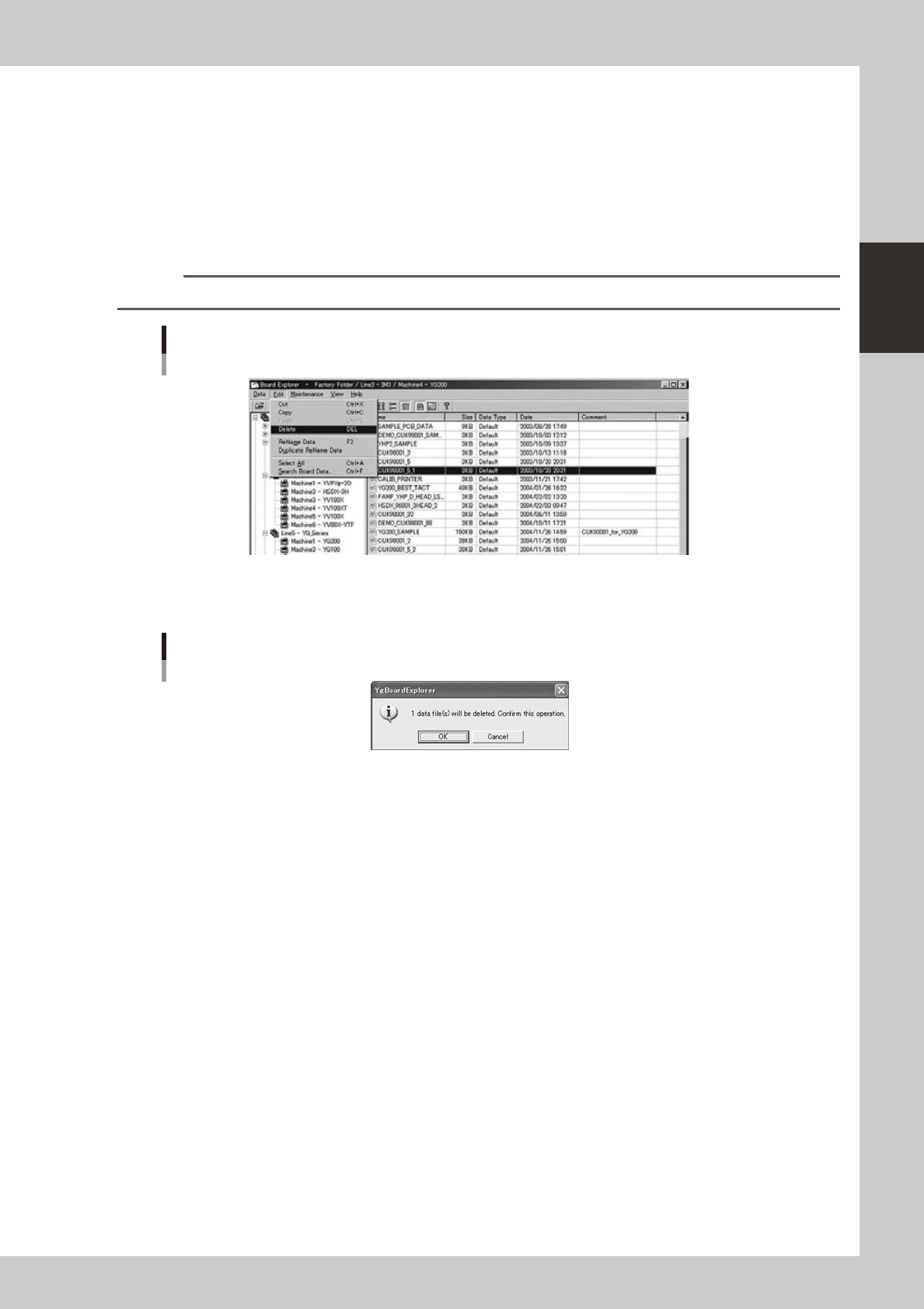
Delete the selected board data.
1. Select "Delete" from the Edit menu.
Reference
You can select the "Delete" command from the context menu that appears by clicking the right mouse button.
Edit menu
Selecting "Delete"
64242-S0-00
2. A confirmation dialog box appears.
Click the [OK] button to delete the selected board data.
Confirmation dialog box
64243-S0-00
2-48
2
Board Explorer
5.2 Converting the data type
The data type of board data can be converted to another data type and saved.
c
CAUTION
“YGX (Combined)”, “Printer text” and “YGZ” cannot be converted to another data type.
In addition, it is not possible to convert other board data types to “YGX (Combined)”.
When converting YGX data to VIOS or VIOS text, not all the information can be saved. Using such board data might
cause unsatisfactory operation, depending on the specifications.
The following explains the method for converting “VIOS” data to “YGX” data.
1
Select the board data.
By manipulating the tree view and main view, select the board data to convert the data type.
Reference
Multiple items of board data can be selected by using the [Shift] and/or [Ctrl] keys.
n
NOTE
When board data registered in a line is selected, it can be saved in any line after data type conversion.
When board data registered in a machine is selected, it can be saved in any machine in any line after data type
conversion.
2
Select the conversion method.
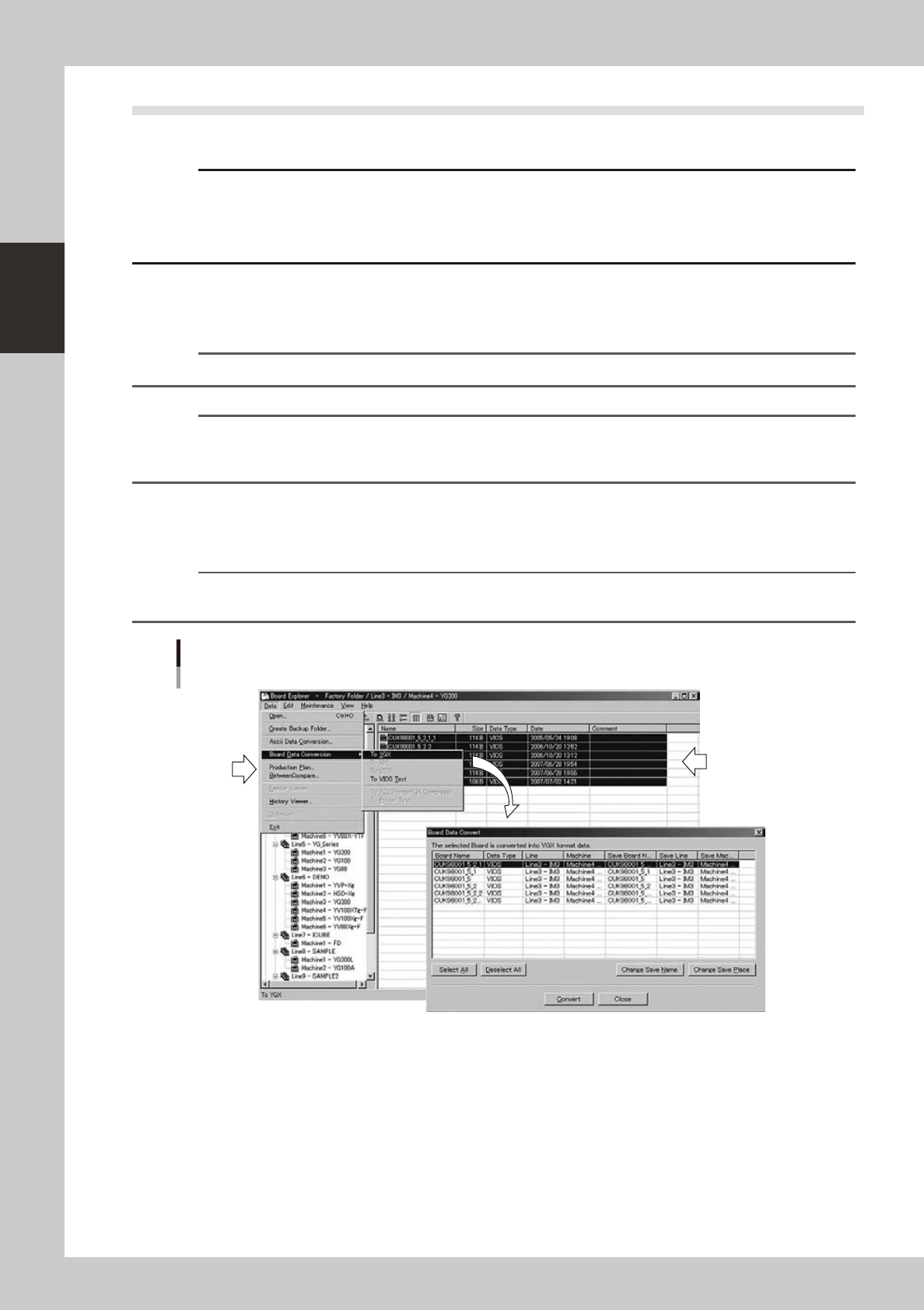
From the Data menu, select "Board Data Conversion" and then select the data type you want to convert
to. The "Board Data Convert" window appears.
Reference
You can also open the "Board Data Convert" window by selecting the data type from the context menu that appears
by clicking the right mouse button on the selected board data.
Selecting the "Board Data Conversion" command
64244-S0-00