00196044-05 - sg x und x4i fse_en.pdf - 第564页
MTC2 Construction and mode of operation Placement Functions S tudent Guide (FSE) SI PL ACE X Series and X4I MTC2 Edition 01/2009 EN 568 14.2.8.4 T erms used for the occup ancy of a cassette Status Status display for th…
MTC2
Placement Functions Construction and mode of operation
Student Guide (FSE) SIPLACE X Series and X4I
Edition 01/2009 EN MTC2
567
14.2.8.2 MTC2 - Placement Functions
In the toolbar of the main view, select the icon for the menu function
Feeders
.
The user interface will switch to the
Empty tracks
view, when the
Feeders
menu is called up for the first
time, after the station computer software has been started.
Select the icon for the MTC2 at location 2 or the icon for the MTC2 at location 4.
The
Matrix-tray changer
view will be shown for the selected location.
See also:
J
14.2.8.3 "Matrix-tray changer" view (Example: location 2) [
J
567]
J
14.2.8.1 Main View with MTC2 [
J
566]
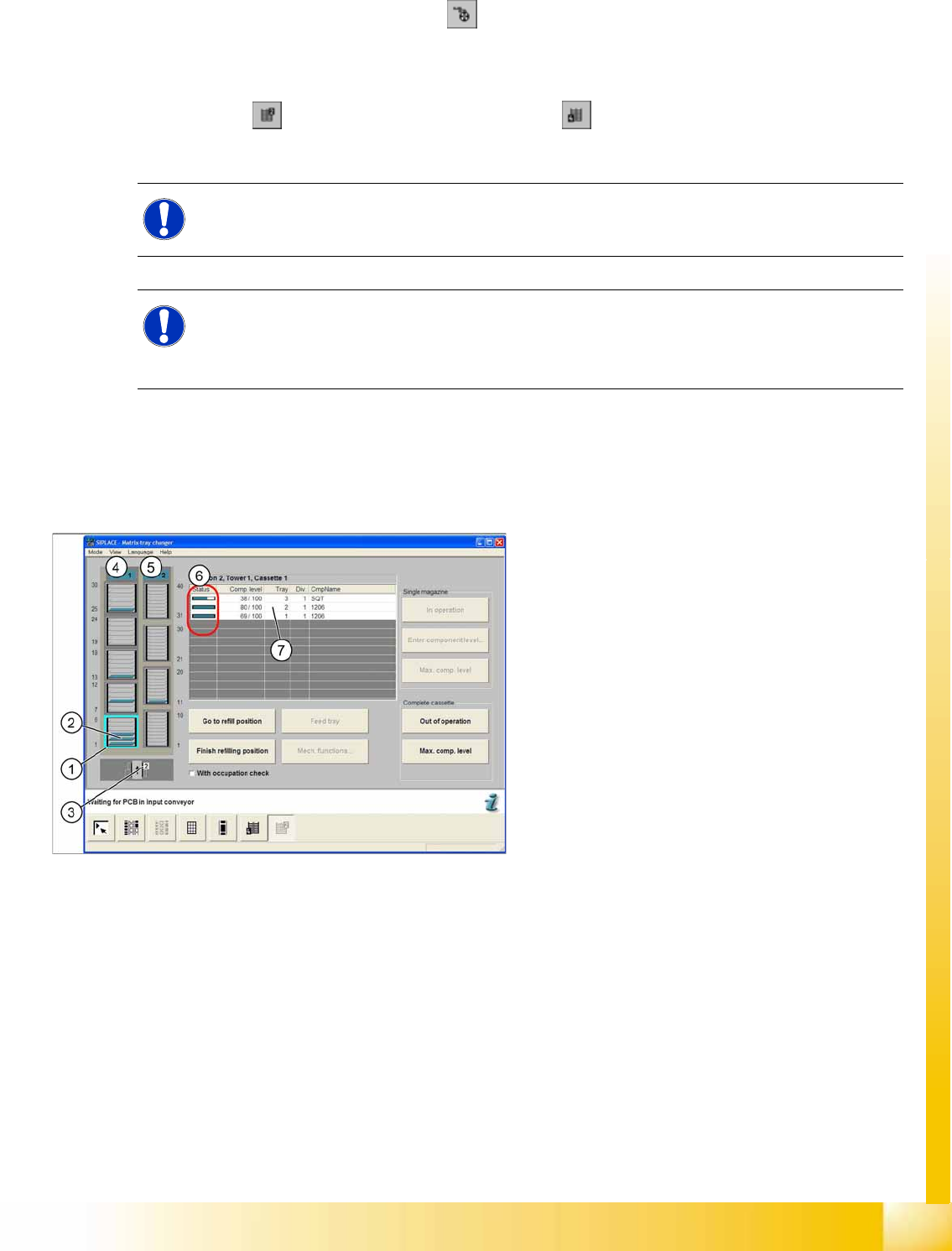
14.2.8.3 "Matrix-tray changer" view (Example: location 2)
NOTE:
The icon for the MTC2 at the relevant location is only displayed if an MTC2 is available there.
NOTE:
If a setup is available for an MTC2 , it will be displayed in the main view of the diagram for the
relevant MTC2 .
Select this to open the
Matrix-tray changer
view for the MTC2 at the selected location.
14-32: "Matrix-tray changer" view
Legend
1. Selected cassette
2. Levels in the cassette
3. View of the location
4. Status indicator for tower 1
5. Status indicator for tower 2
6. Display of component level and occupancy of
the selected cassette
7. Selected list entry for a level

MTC2
Construction and mode of operation Placement Functions
Student Guide (FSE) SIPLACE X Series and X4I
MTC2 Edition 01/2009 EN
568
14.2.8.4 Terms used for the occupancy of a cassette
Status
Status display for the current component level
Component level
Current and maximum component level (is updated approximately every 30 seconds during
placement).
Level
Number of the level
(a cassette is subdivided into 6 or 10 levels)
Division
Number of the component division in the waffle pack tray
(a maximum of 150 divisions can be defined.)
Component name
Name of the corresponding component in the waffle pack tray
14.2.8.5 Functions in the "Matrix-tray changer" view
Button
Go to refill position
The MTC2 moves the tower to the refill position of the selected cassette.
The status indicator of the active tower turns yellow.
Button
Finish refilling position
Refilling is completed and placement with the selected cassette continues.
The status indicator of the active tower turns green.
Button
Prepare level
The selected tray will be moved out to the transfer position.
Button
Mechanical functions...
To call up the individual functions for the MTC2, see Section 13.2.9 "MTC2 - Individual Functions".
Field
Single magazine:
Button
In operation
The waffle pack tray in the selected level is put into operation, which means that components can be
picked up from it. The component filling level for this level is displayed in green in the table.
Button
Enter component level
The following dialog box, in which the component level is shown, will open.
NOTE:
If the checkbox
With occupation check
is selected, the setup of the refilled cassette will be
checked by moving to every level of the selected cassette.
The result of the check is displayed in a separate dialog box.
NOTE:
If there is already a waffle pack tray in the transfer position, it is first moved back to the tower.

MTC2
Placement Functions Construction and mode of operation
Student Guide (FSE) SIPLACE X Series and X4I
Edition 01/2009 EN MTC2
569
Button
Maximum component level
Confirms that the waffle pack tray in the selected level is full.
The component level displayed in the table is updated.
Field
Complete cassette:
Button
Out of operation
All waffle pack trays in the selected cassette are put out of operation, which means that components
can not be picked up from them. A message is displayed, and the component level for this level is
displayed in red in the table.
Button
Maximum component level
Confirms that the waffle pack trays in all levels of the selected cassette are full.
The component level displayed in the table is updated.
14-33: Dialog box Enter component level
entry field
New level
X Enter the value for the actual number of refilled
components.
Confirm your entry with
OK
The component level displayed in the table is
updated.