00196449-04_UM_FCCS_digital_DE_EN.pdf - 第57页
3 Camera Calibration in SW 605.xx Stations 3.1 Preparations Operating Manual / Bedienungsanleitung Camera Calibration FCCS digital Kamerakalibrierung FCCS digital 04/2020 57 3 Camera Calibration in SW 605.xx Stations 3.1…
2 White Balance Process for SIPLACE Digital Vision Camera
2.4 Content of FCCS Tool Digital
56 Operating Manual / Bedienungsanleitung Camera Calibration FCCS digital Kamerakalibrierung FCCS digital 04/2020
●
Avoid contamination of any kind!
●
On machines with the third lane conveyor option remove the option.
NOTICE
Completeness
Please check the whole equipment for completeness when receiving it and before sending
it back by means of the checklist.
3 Camera Calibration in SW 605.xx Stations
3.1 Preparations
Operating Manual / Bedienungsanleitung Camera Calibration FCCS digital Kamerakalibrierung FCCS digital 04/2020 57
3 Camera Calibration in SW 605.xx Stations
3.1 Preparations
NOTICE
Dry run
To ensure the successful camera calibration for the complete line, it is recommended to
perform a dry-run of the camera calibration without saving the calibration values.
This is necessary, because aborting the calibration will lead to different illumination values
for the cameras in the line. The reliable detection of components throughout the whole line
cannot be ensured until the camera in question has been replaced and all cameras in the
line have been re-calibrated.
To ensure that customer setups do not need to be changed, a black calibration tool carrier is
moved into PCB conveyor 1, is optically centered and clamped into place, the presence of the
white balance calibration tools is checked and illumination calibration (white balance process) is
started.
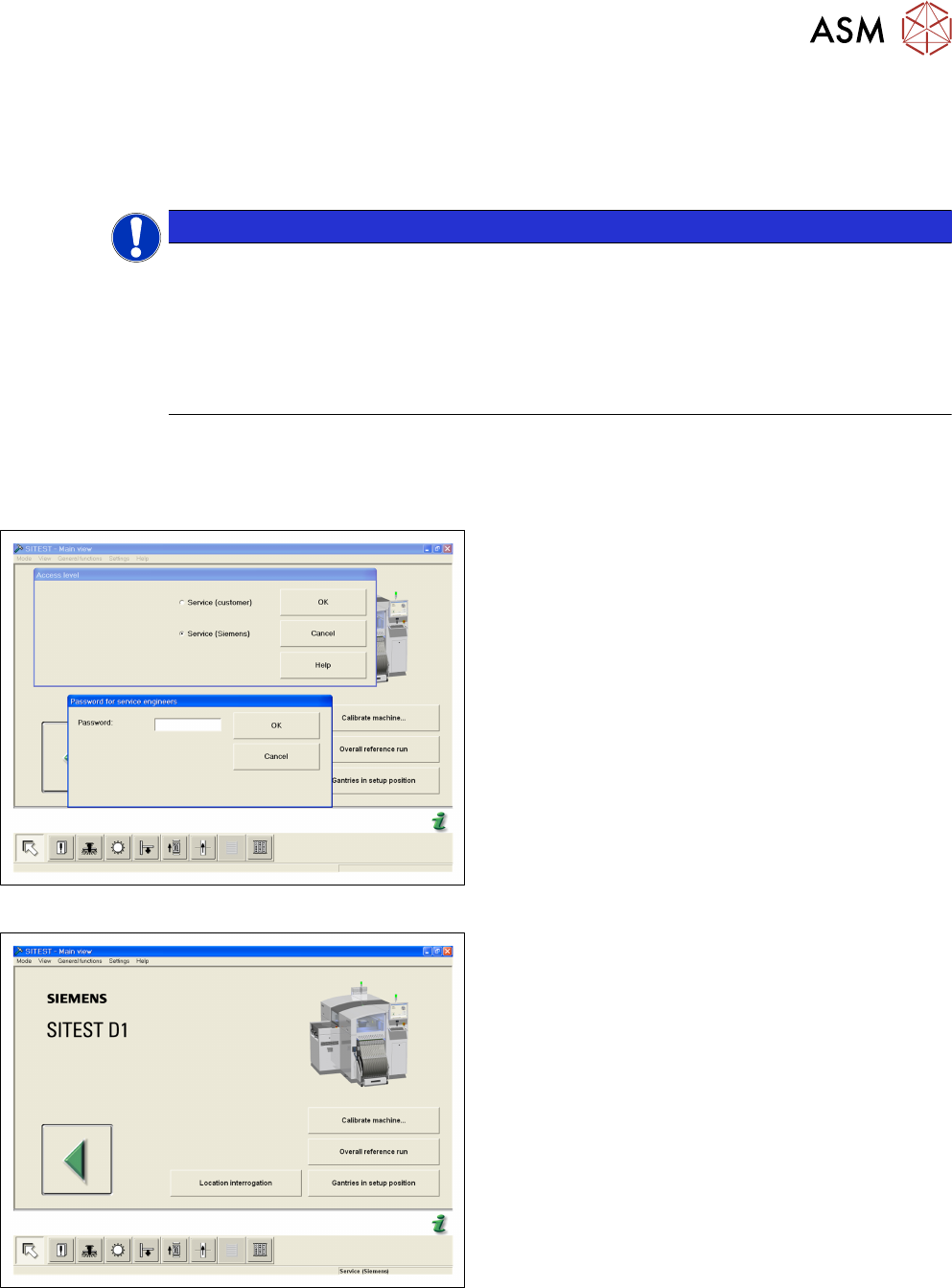
Fig.11: Login SITEST
► Start the SITEST program.
► Log in via the service (SIPLACE) password.
Fig.12: Start OVERALL REFERENCE RUN
► Start the OVERALL REFERENCE RUN.
3 Camera Calibration in SW 605.xx Stations
3.1 Preparations
58 Operating Manual / Bedienungsanleitung Camera Calibration FCCS digital Kamerakalibrierung FCCS digital 04/2020
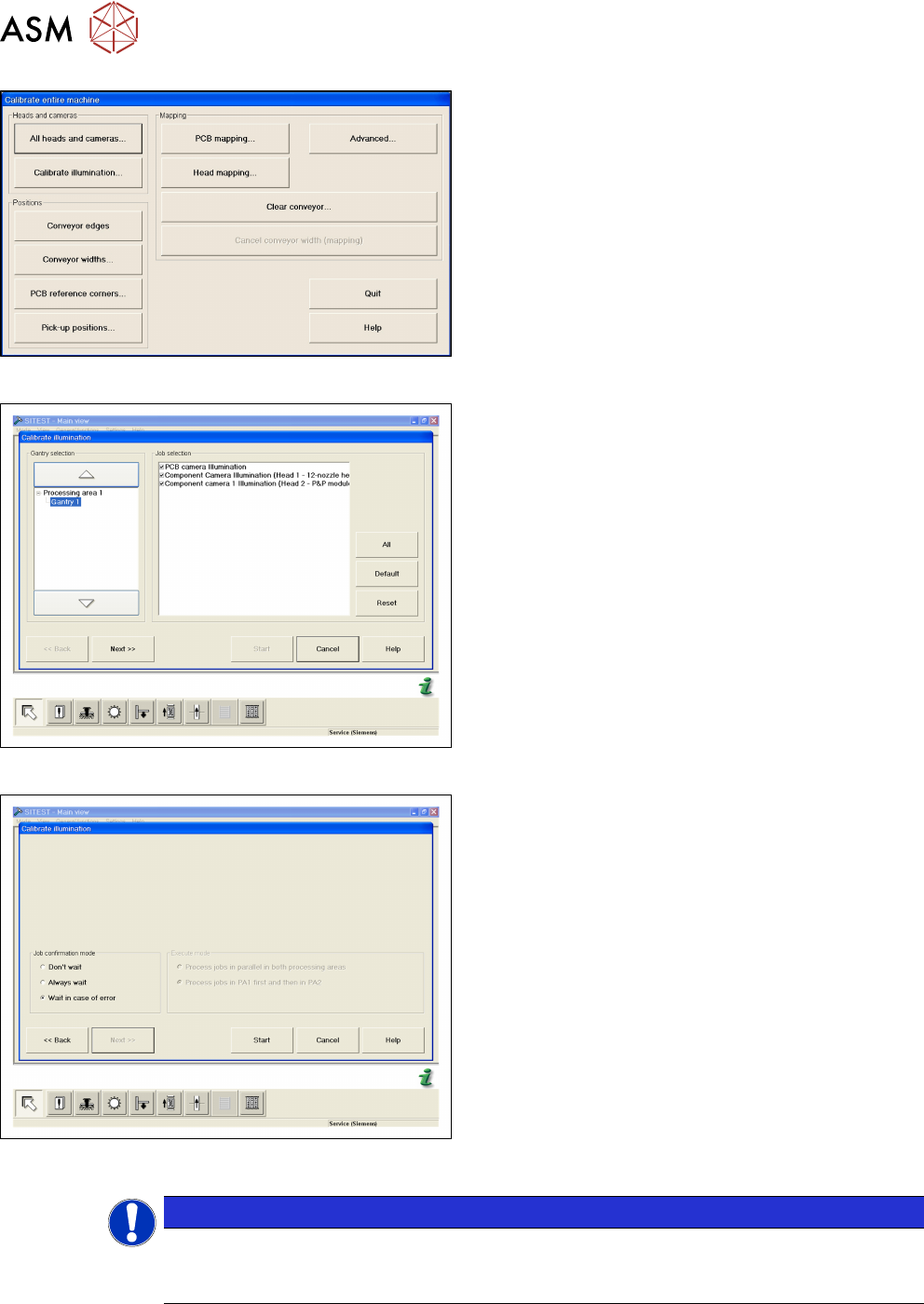
Fig.13: CALIBRATE ILLUMINATION
► Open CALIBRATE ILLUMINATION in the Cali-
brate entire machine menu.
Fig.14: Select cameras and placement areas
► Select the cameras to be calibrated and the rel-
evant placement areas.
► Confirm the selection with NEXT.
Fig.15: Select START
► Select the execution properties during the cali-
bration.
► Confirm the selection with START.
► For the further steps, follow the instructions as
you are guided through the menu.
●
Setting the width adjustment
●
Checking the nozzle configuration
●
Inserting the carrier with the white standard
NOTICE
Nozzle configuration
You can leave the SW wizard at any time in order to pick up the required nozzle types via
the single menus.