00198150-02_SM_TX_en.pdf - 第123页
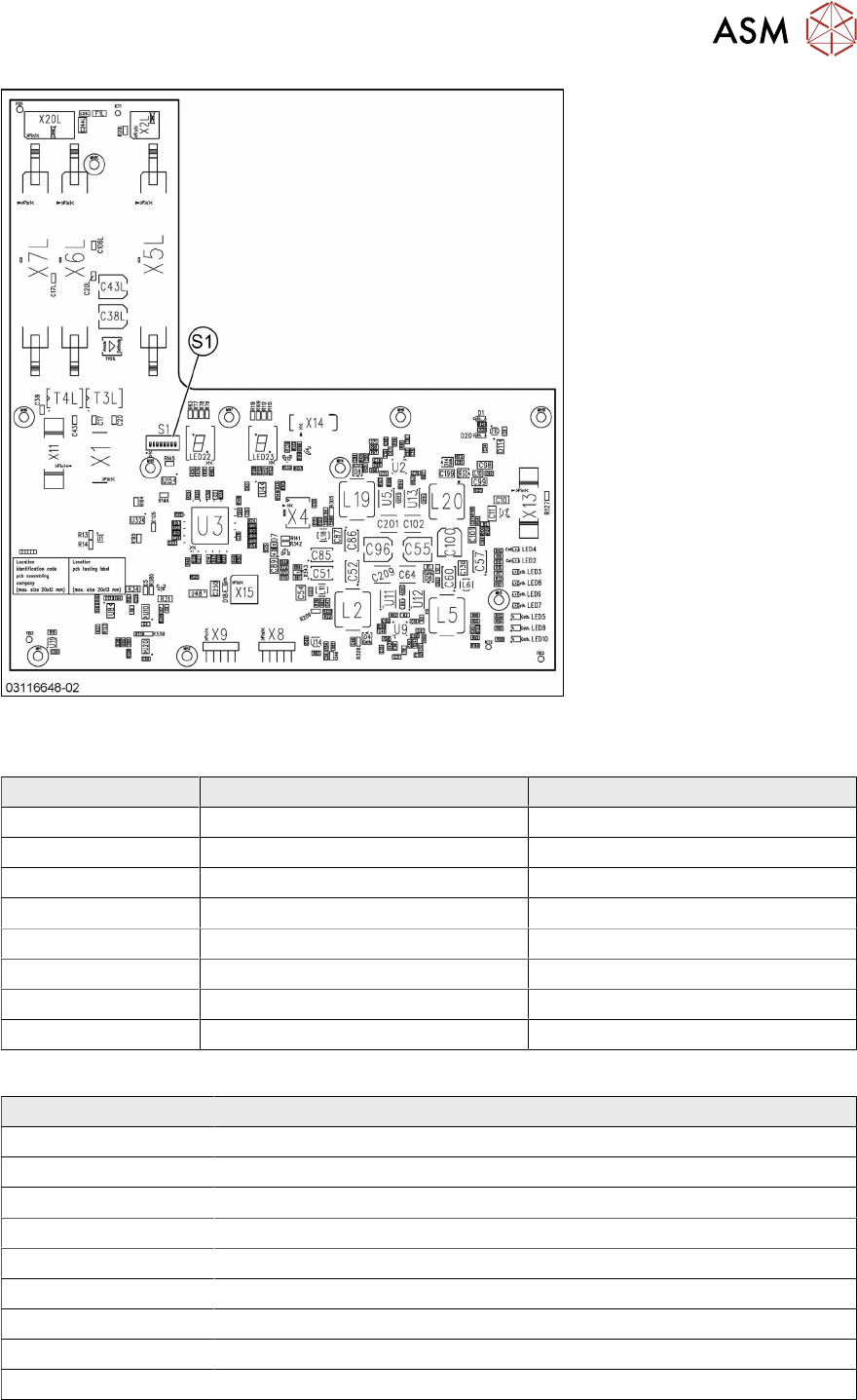
6 Gantries 6.4 MHCU, Boards and Camera Service Manual SIPLACE TX Series 06/2017 123 Fig.157: Head interface 2 TX DIP switch S1 [03114439-02] [03116648-02] DIP switches Gantry 1 Gantry 2 P0 OFF ON P1 OFF OFF BOOT OFF OFF…
6 Gantries
6.4 MHCU, Boards and Camera
122 Service Manual SIPLACE TX Series 06/2017
Installation
► Follow the removal instructions in reverse order for installation. Also observe the following in-
structions:
CAUTION
Installation instructions
► Apply the DIP switch setting (see 6.4.4.1 "Head Interface 1/2" [}122]).
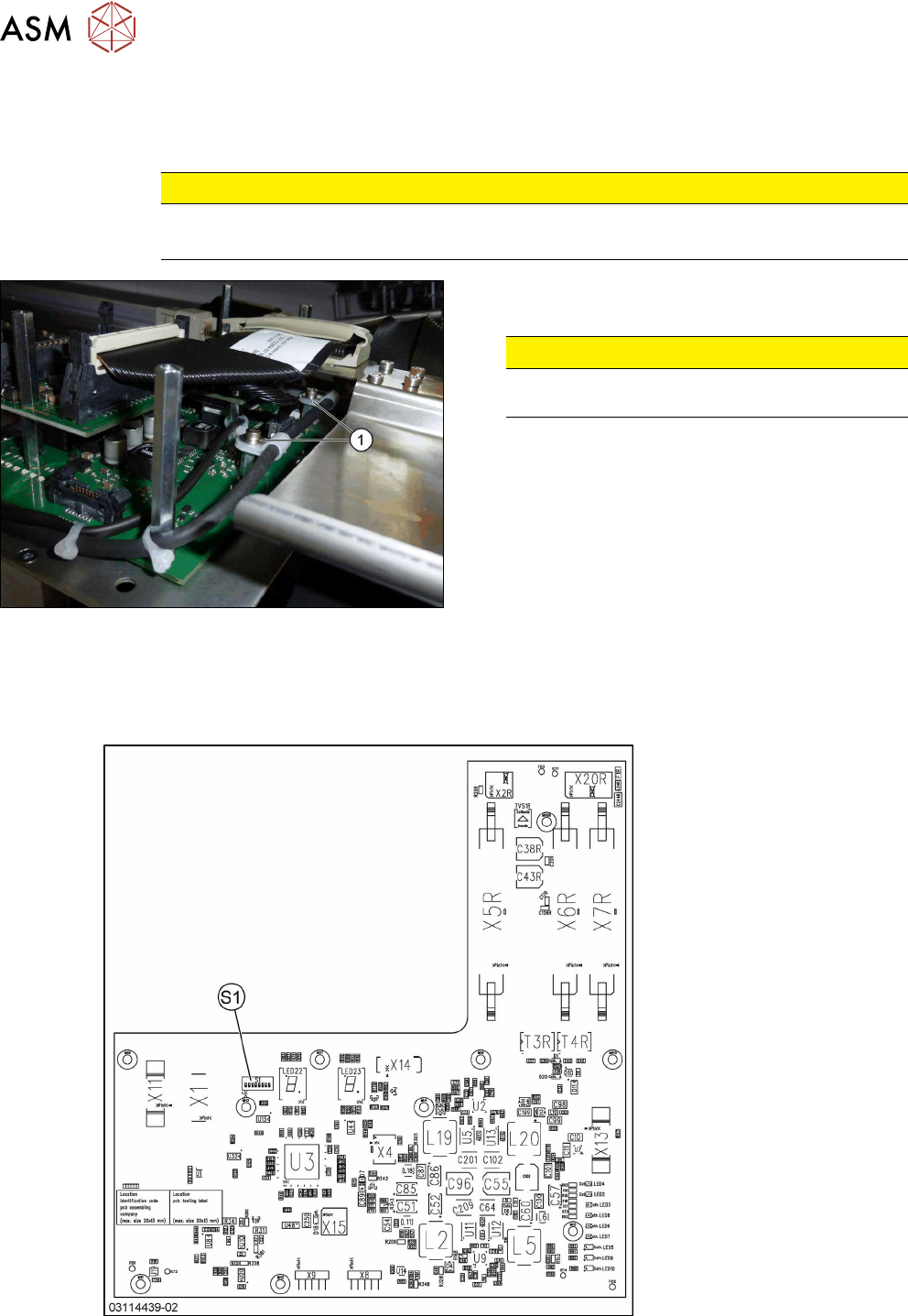
Fig.155: Securing screws
► Secure all screws with plastic cable holders(1)
with Loctite241.
CAUTION!
Do not secure screws with direct contact to
the board.
.
6.4.4.1 Head Interface 1/2
There are two head interface designs. Depending on the gantry, either the head interface 1 or 2 will
be used.
Fig.156: Head interface 1 TX
6 Gantries
6.4 MHCU, Boards and Camera
Service Manual SIPLACE TX Series 06/2017 123
Fig.157: Head interface 2 TX
DIP switch S1 [03114439-02] [03116648-02]
DIP switches Gantry 1 Gantry 2
P0 OFF ON
P1 OFF OFF
BOOT OFF OFF
RES2 OFF OFF
RES1 OFF OFF
FAN OFF OFF
V-OFF OFF OFF
HCU_1 OFF OFF
LED [03114439-02] [03116648-02]
LED Description
X_TEMP X motor temperature
PF_BASE Power fail base
EM_STOP Emergency stop – safety circuit not closed
PF_LOC Power fail location
HCV1_ER MHCU1 error
HCV2_ERR MHCU2 error (only for Twin head)
HCV1_OK MHCU1 has booted and is ready
HCV2_OK MHCU2 has booted and OK
FPGA_OK FPGA booted and OK
The 7 segment display next to the DIP switch S1 provides information about MHCU1, the other 7
segment display is for MHCU 2 (if a Twin head is present).
6 Gantries
6.4 MHCU, Boards and Camera
124 Service Manual SIPLACE TX Series 06/2017
6.4.5 Replacing the PCB Camera
Parts, equipment and tools
●
PCB camera (type 34) 28 GigE [03101402‑xx]
●
Loctite 241 [02101037‑xx]
Overview
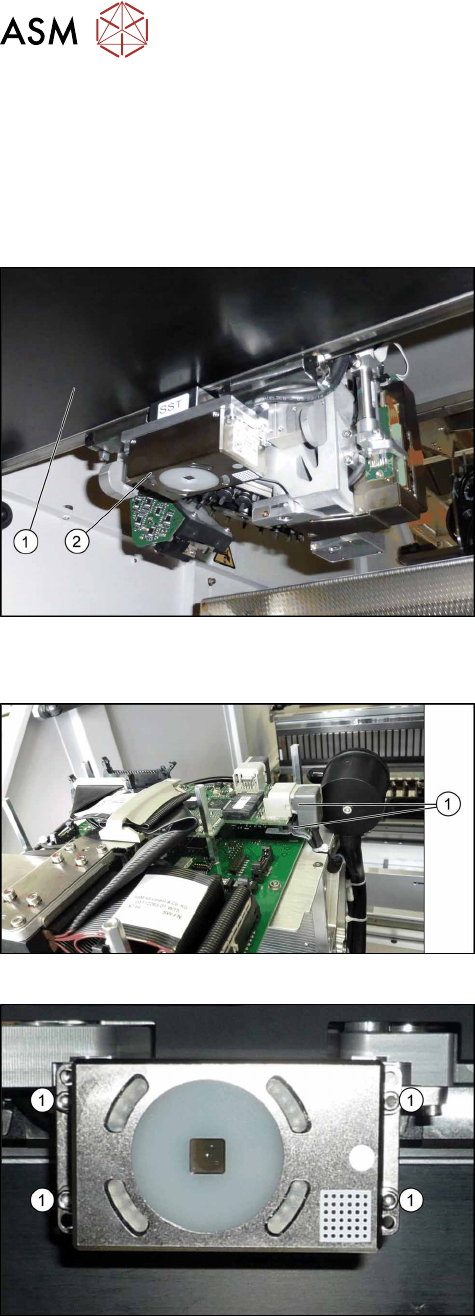
Fig.158: PCB camera on the gantry
1. Gantry
2. The PCB camera
The PCB camera is located on the underside of the
gantry, on the head mount.
Removal
Fig.159: Vision board
► Unplug the two connection cables X2 and X6(1)
from the VHI.
► Unthread the two cables as far as the PCB cam-
era.
Fig.160: PCB camera
► Remove the four screws (1) holding the PCB cam-
era. Mark their positions to make clear assignment
easier later on.
Installation
► Install the new PCB camera on the mount. Secure the screws with Loctite 241.
► Run the connection cable to the VHI and reconnect to the electrical system.
► After replacing the PCB camera, you will need to recalibrate the machine zero point and the
camera offset. Use the relevant software function in the Service menu.