PPS-Pro 70 中文Manual - 第5页
- 5 - 1.4.3 Step 3 of 3 => 按確定 & 解說 : J 全部的設定都會列出來 圖 2 - 6 PPS – New project wizard 1.5 Select file => Copy file & 解說 : J 這個功能是把你所需要 的檔案都 Copy 到現在這 個 Project 中的目錄下 圖 2 - 7 PPS - Select file 1.6 Import Data …
- 4 -
1.4
File => New project
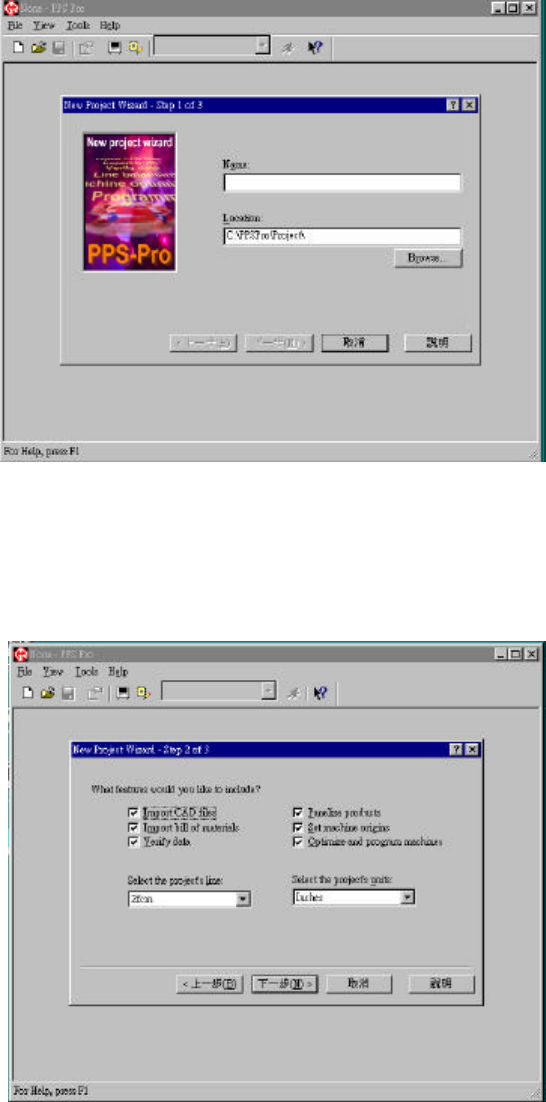
1.4.1 Step 1 of 3 => 輸入 name 和 location
& 解說:
J 你在Name 裡輸入名字
後, PPS自已會在Location
中產生跟你輸入名字一樣
的子目錄
圖
2-4 PPS – New Project
1.4.2 Step 2 of 3
1.4.2.1 What feature would you like to include => 選 Import CAD files => Import bill of
material => verify data => Panelize products => Optimize and program machines
1.4.2.2 Select the project ‘s line => Ale file 中 line 的名稱
1.4.2.3
Select the project’s units => millimeters
& 解說:
J 如果你不是用Philips 的
機器就要選 Set machines
origins
J 你選擇單位是指 Select
Product中 MDF 的單位
J 功能的解說將會在其他
的章節中一一為您介紹
圖 2-5 PPS – New project wizard
- 5 -
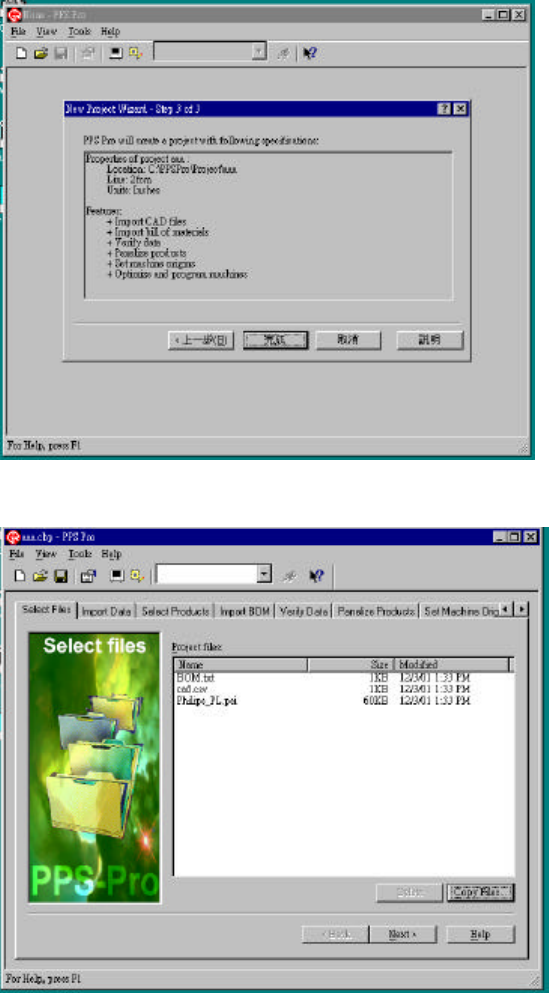
1.4.3 Step 3 of 3 => 按確定
& 解說:
J 全部的設定都會列出來
圖 2-6 PPS – New project wizard
1.5
Select file => Copy file
& 解說:
J 這個功能是把你所需要
的檔案都 Copy 到現在這
個 Project 中的目錄下
圖 2-7 PPS- Select file
1.6
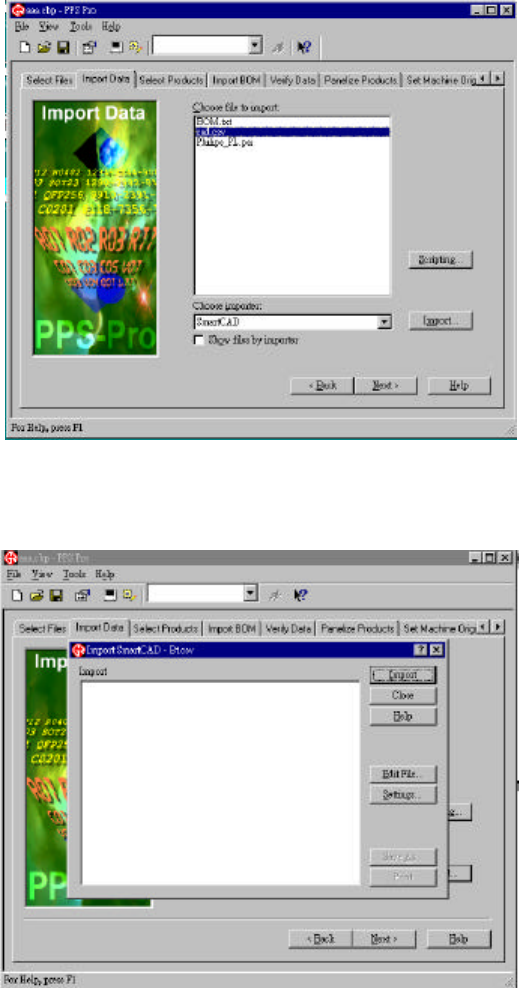
Import Data
1.6.1 Choose file to import => CAD file
1.6.2 Choose importer => Importer (例如: P-Cad or Smart Cad)
1.6.3 Import
- 6 -
& 解說:
J Importer 會根據你的 Cad
file 而變動但是你也可以選
擇你所想要的 Importer 去
Import
J 如果 Importer 是選擇
SmartCad 就會有另外的設
定需要做, 其他的 Importer
都不需要, 直接 Import就可
圖 2-8 PPS – Import Data
1.6.4 Import => Import Cad file
& 解說:
J 如果 Importer 是
SmartCad 的就必須做
2.6.4.1 的設定, 如果不是就
不用做設定直接 Import, 就
會產生 Cad file 的 MDF(請
參考2.7節)
圖 2-9 PPS- Import Data