00197190-03_VD_SIPLACE_Pro_10_1_SP1_DE_EN - 第35页
SIPLAC E Pro V10. 1 SP1 / Softwar e Version Desc ripti on Ausgabe 02/2013 Edit ion 35 5.12 A lter nati ve Components on <7 05.x x Platform s As of this SIPLAC E Pro vers ion, the func tiona lity of alternati ve com po…
SIPLACE Pro V10.1 SP1 / Software Version Description Ausgabe 02/2013 Edition
34
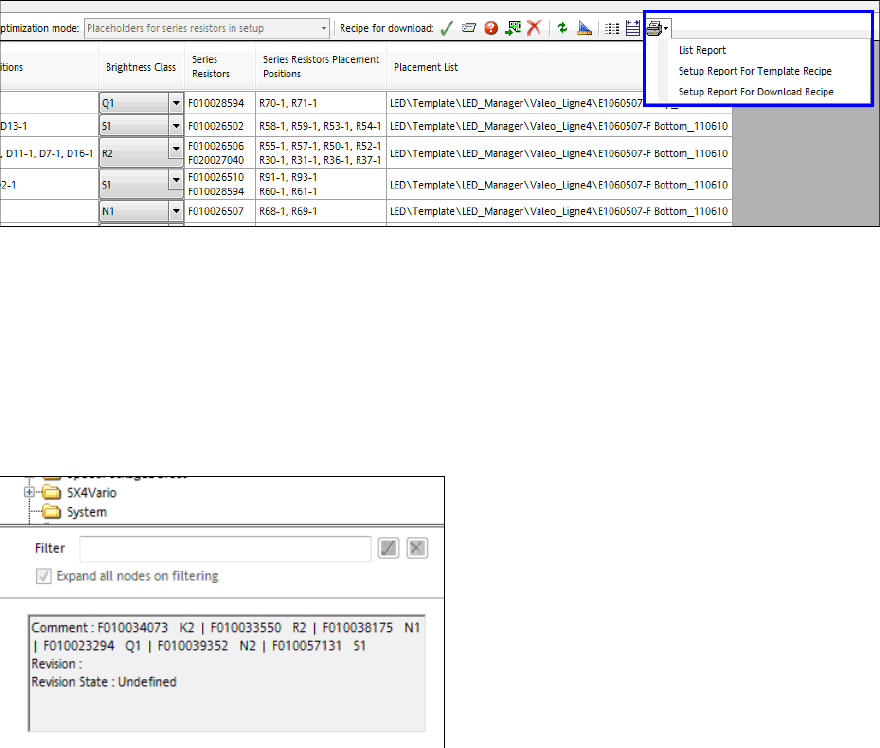
– The setup report can be started either in SIPLACE Pro Desk or in the Production view in
SIPLACE LED Pairing, as well.
Figure 4-21: Starting setup report
– Multiple recipes can be simultaneously selected to be deleted in the Production view in
SIPLACE LED Pairing.
– If a recipe is prepared to be downloaded, a new setup will be created. If the brightness class is
changed afterwards and a second recipe is prepared to be downloaded, the first created recipe
will be used as template, to avoid unnecessary changes.
– In SIPLACE Pro Desk, the selected brightness class is displayed as a comment to the recipes
and boards that have been created for download.
Figure 4-22: Brightness class as comment

SIPLACE Pro V10.1 SP1 / Software Version Description Ausgabe 02/2013 Edition
35
5.12 Alternative Components on <705.xx Platforms
As of this SIPLACE Pro version, the functionality of alternative components can also be used in
lines that entirely or partly consists of stations using station software versions <705.03.
For this, the Alternative Components tool has been implemented in the SIPLACE Pro Line
Control GUI as a function. With this function a copy of a recipe can be created in which the
components will be replaced by alternative components.
The context menu of the recipes in the Line Control GUI has been enhanced by the Generate
Recipe menu item.
In the tool bar of the recipe list in the Line Control GUI, recipe copies can be created or deleted
with the new Generate Recipe and Delete Recipe buttons.
In the main menu of the Line Control GUI, the recipe copies can be deleted in the Delete Recipes
dialog.
These menu items and icons are only displayed if the Activate Alternative Component
Functionality setting is enabled in the configuration menu of the Line Control GUI.
Detailed information can be found in the Alternative Components User Manual,
item no. [00196839-xx].
5.12.1 Creating a Recipe Copy
Prerequisites:
If security is enabled in SIPLACE Pro, the operator needs the following authorizations:
In the target directory
– Create, rename and move recipes, setups, tables, boards, placement lists
– Create folders
– Edit boards, tables, setups
For the selected production schedule
– Edit
► Select the Open Dialog for Alternative Components function from the context menu of a
recipe or from the tool bar of the recipe list.
SIPLACE Pro V10.1 SP1 / Software Version Description Ausgabe 02/2013 Edition
36
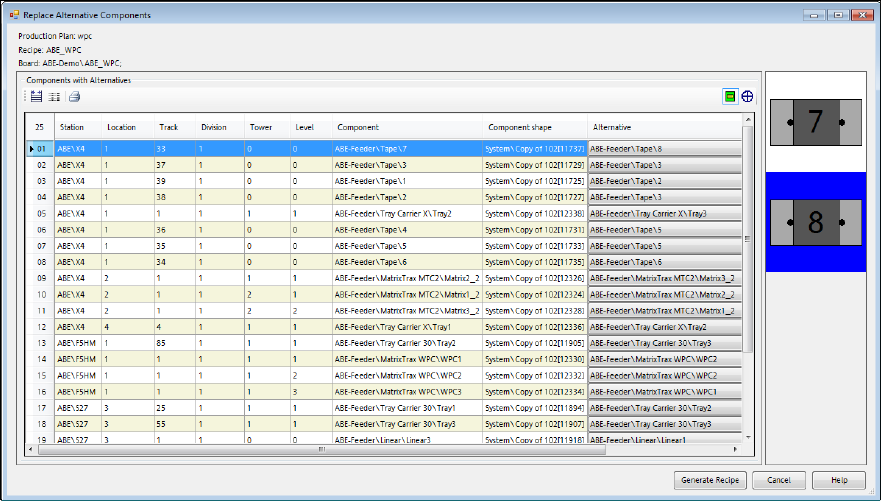
The following dialog is displayed.
Figure 4-23: Creating recipe copy
All components for the selected recipe are displayed with alternatives.
► Select an alternative for each component from the respective selection menu in the Alternative
column.
If a component with alternatives exists on several positions in the setup, the same alternative has
to be used on all positions. Changing an alternative on one track will automatically result in a
change of all other tracks for this component. A mixed setup is not possible. For such tracks, the
Don't use track option may be used. In this case, no component will be set-up on this track.
► Click on the Generate Recipe button to create a recipe copy.
A copy of the entire recipe tree is created from the original recipe with alternative components. All
copied objects and their directory structures are created in the configured target directory. The
objects will be distinctly named according to the setting in the configuration menu.
The components are replaced by the selected alternatives in the copied boards, recipe and setup.
The alternative components list will be deleted from the copied boards.
Depending on the configuration, the created recipe replaces the original recipe in the production
schedule or is added to it.