00196800-02_InstallGuide_EN.pdf - 第40页
3 In stal ling SIPLA CE Ex plore r Ins tall ati on and Confi gurat ion Guid e SIPL ACE Exp lor er 3.4 S tartin g SIPLACE Exp lorer E d iti on 06 /2 01 1 E N 40 3 Fig . 3 - 15 RTE Wind ows S ta rt menu The following optio…
Installation and Configuration Guide SIPLACE Explorer 3 Installing SIPLACE Explorer
Edition 06/2011 EN 3.4 Starting SIPLACE Explorer
39
3.4 Starting SIPLACE Explorer
SIPLACE Explorer can be started by selecting Programs SIPLACE Explorer 2.9 from the
Windows menu and will be loaded to correspond with your selected installation options.
SIPLACE Explorer V.2.9 Runtime Environment:
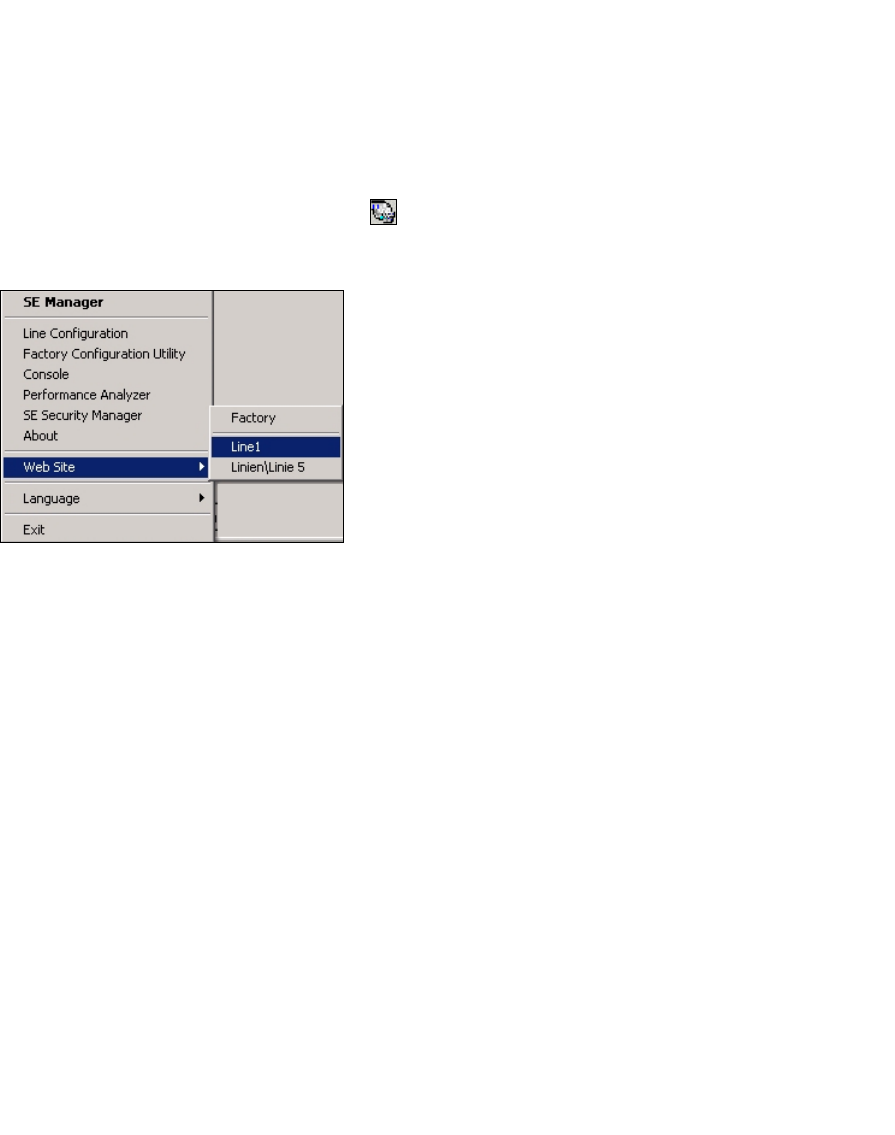
"Runtime Environment" runs as a Windows service and is automatically started whenever you
reboot your computer. You will see the icon in your console. Right-click with the mouse to
open other applications and tools. 3
3
Fig. 3 - 14 RTE Windows Start menu
The following options are available: 3
– SE Manager
– Line Configuration
– Factory Configuration Utility
–Console
– Performance Analyzer
– SE Security Manager
– About
– Website:
Wit this menu, you can open the websites as well as the factory website.
– Language
–Exit
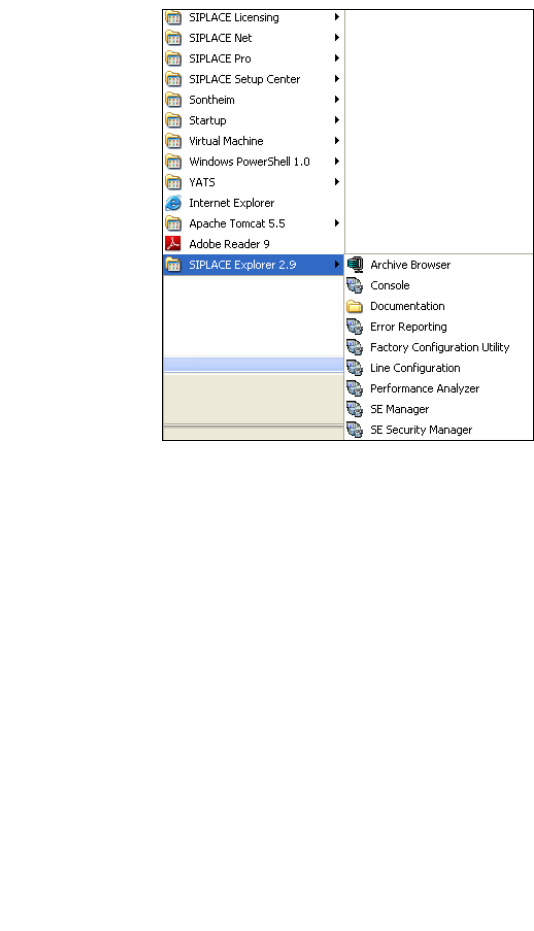
These additional applications and tools can also be started via the Programs SIPLACE
Explorer 2.9 menu in Windows. 3
3 Installing SIPLACE Explorer Installation and Configuration Guide SIPLACE Explorer
3.4 Starting SIPLACE Explorer Edition 06/2011 EN
40
3
Fig. 3 - 15 RTE Windows Start menu
The following options are available: 3
– Archive Browser
–Console
– Documentation
– Error Reporting
– Factory Configuration Utility
– Line Configuration
– Modify-Uninstall
– Performance Analyzer
– SE Manager
– SE Security Manager
Installation and Configuration Guide SIPLACE Explorer 3 Installing SIPLACE Explorer
Edition 06/2011 EN 3.4 Starting SIPLACE Explorer
41
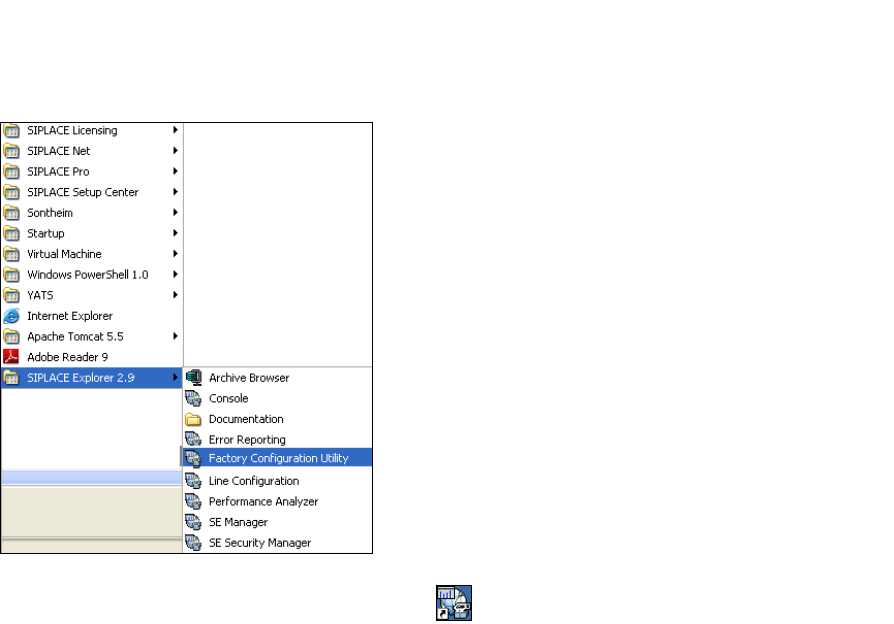
SIPLACE Explorer V.2.9 Factory Configuration Utility
Start the Factory Configuration Utility via the Programs SIPLACE Explorer 2.9 Factory
Configuration Utility menu in Windows. 3
3
Fig. 3 - 16 Factory Configuration Utility Windows Start menu
Or click on the Factory Configuration Utility icon on your desktop.