00196800-02_InstallGuide_EN.pdf - 第45页
In st al la tio n an d Co nf ig ura t ion G ui de SIP LACE E x pl ore r 3 I n st alli ng S IP LAC E Ex pl or e r Edi tio n 06/201 1 EN 3.7 Tom c at Confi gu r at ion 45 3. 7 T omca t C on fig u ratio n 3.7. 1 Using Windo…
3 Installing SIPLACE Explorer Installation and Configuration Guide SIPLACE Explorer
3.6 MS SQL Server Configuration Edition 06/2011 EN
44
3
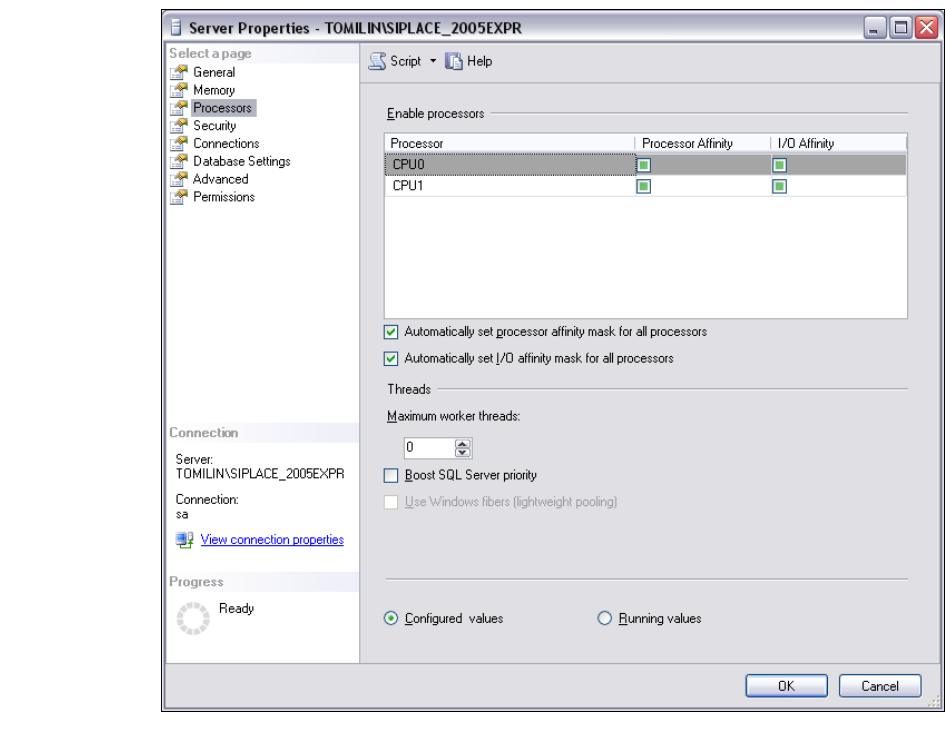
Fig. 3 - 19 MS SQL Server Properties
Select Processors.
Enable the following check boxes:
– Automatically set processor affinity mask for all processors
– Automatically set I/O affinity mask for all processors
Confirm with OK.
Start the MS SQL Server again.
Installation and Configuration Guide SIPLACE Explorer 3 Installing SIPLACE Explorer
Edition 06/2011 EN 3.7 Tomcat Configuration
45
3.7 Tomcat Configuration
3.7.1 Using Windows 2003 Server
If you have installed Windows 2003 Server as your operating system, you will need to reconfigure
the web server (Tomcat) before using SIPLACE Explorer V2.9. This configuration will be done via
Internet Explorer. 3
Select the menu Tools Options.
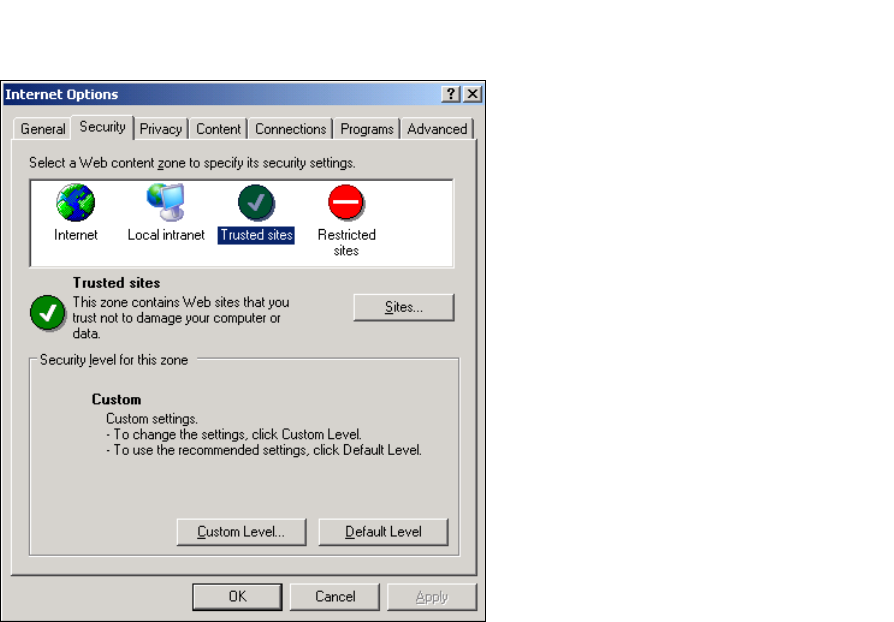
The Internet Options dialog box will open:
3
Fig. 3 - 20 Internet Options
Select the Security tab.
Click on the Trusted Sites icon and click on Sites.
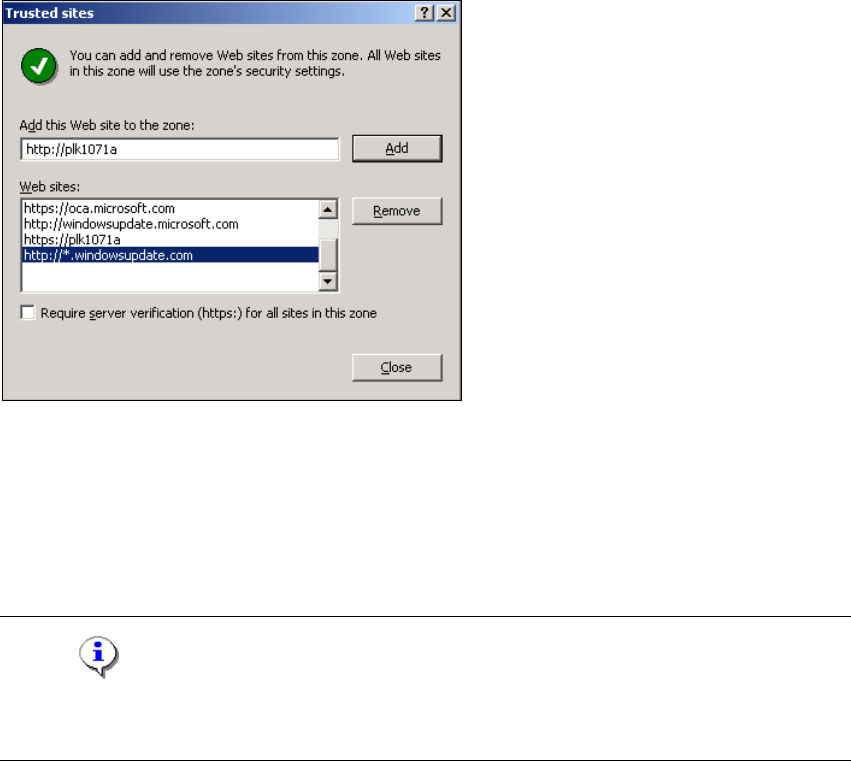
The Trusted Sites dialog box will open:
3 Installing SIPLACE Explorer Installation and Configuration Guide SIPLACE Explorer
3.7 Tomcat Configuration Edition 06/2011 EN
46
3
Fig. 3 - 21 Internet Options
Specify the URL or the web server (Tomcat) name. Confirm with Add.
Close the Trusted Sites dialog box with Close.
3.7.2 Port Configuration after Changing Tomcat Port Number
NOTE
By default, Tomcat is installed on port 8080. This means that your users will access your website
as follows: http://yourServerName:8080/yourWebsite. 3
The Tomcat port number needs to be changed (as described below) in the following cases: 3
– When the port is changed to generate a website e.g. via line configuration.
– If the default port number 8080 is already otherwise occupied and you do not want to
additionally use it for this purpose (access to the websites).
To change the port number, find the following lines in the file
<Tomcat-location>\conf\server.xml
Change the port number and change 8080 to your choice of port number as shown below:
<!-- Define a non-SSL Coyote HTTP/1.1 connector on the port specified 3
during installation --> 3
<Connector port="8080" maxThreads="150" minSpareThreads="25" maxSpare-
Threads="75" enableLookups="false" redirectPort="8443" accept-
Count="100" debug="0" connectionTimeout="20000"
disableUploadTimeout="true" /> 3
3