00196800-02_InstallGuide_EN.pdf - 第66页
4 Co nfi gura tio n Ins tall ati on and Con figu rati on Gu ide S IPLA CE Exp lorer 4.1 Standa rd Monit ori ng A ppl icatio n ( SMA) Ed iti on 01 /2 01 1 EN 66 4.1. 1.7 Step 6 - M odif y Applicat ion Parameters Paramet…
Installation and Configuration Guide SIPLACE Explorer 4 Configuration
Edition 01/2011 EN 4.1 Standard Monitoring Application (SMA)
65
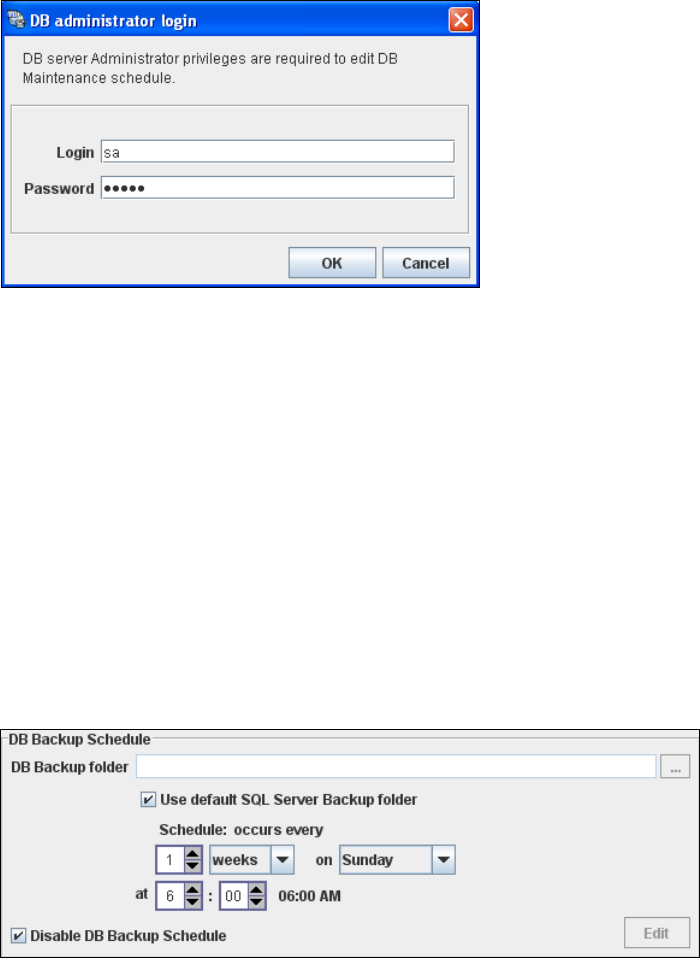
In the DB Backup Schedule panel click on the Edit button.
The DB Administrator Login dialog box will open.
4
Fig. 4 - 22 DB administrator login
Enter the access data here and confirm your entries with OK.
The input fields in the DB Maintenance dialog box will be enabled. The following details
can be defined:
– The file and path for the saved data
– A schedule specifying the intervals and times when data is to be removed from the line
system database and stored in the archive.
– When to execute the backup schedule.
– The backup schedule defined here will be stored in the database and can be called up
when required.
– Database compression with the next database maintenance.
4
Fig. 4 - 23 DB backup
Check your entries and confirm with OK.
Once you have defined all settings in Step 5, click on Next to continue with the next step.
4 Configuration Installation and Configuration Guide SIPLACE Explorer
4.1 Standard Monitoring Application (SMA) Edition 01/2011 EN
66
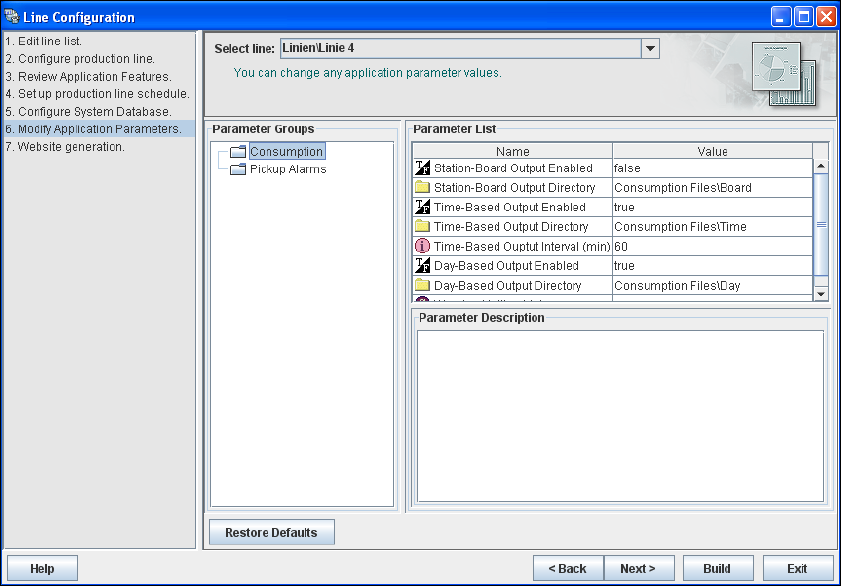
4.1.1.7 Step 6 - Modify Application Parameters
Parameters for the application you have created can be checked and edited here.
4
Fig. 4 - 24 Step 6: modify application parameters
Once you have made all modifications, click on Next to continue with the next step.
Installation and Configuration Guide SIPLACE Explorer 4 Configuration
Edition 01/2011 EN 4.1 Standard Monitoring Application (SMA)
67
4.1.1.8 Step 7: Website Generation
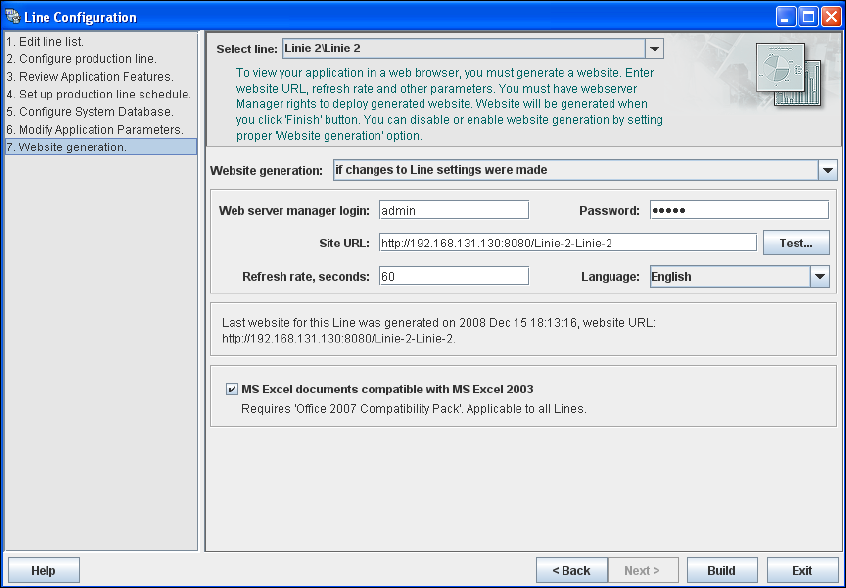
In order to monitor your production line in the web browser, you will need to generate a website.
For this purpose, you require web server manager privileges (Tomcat administrator) and the
corresponding password. If you have imported a production line from the OIS the webserver
access data are automatically adopted.
4
Fig. 4 - 25 Step 8: generating the website
At Website Generation, specify whether and when the website is to be generated. The
following options are available:
– Generate line website
The website will be generated for the selected line.
– If changes to line settings were made
A website will only be generated if changes have been made to the line configuration.
– Do not generate line website
Website generation will not be performed. This can be performed later, while editing the
generated application.
Specify the access data for the Tomcat administrator. If you entered admin and an empty
password during Tomcat configuration, this data will be automatically used as a default login.
If this is not the case, use the data you specified during Tomcat configuration. If you have
imported a production line from the OIS the webserver access data are automatically adopted.