00196800-02_InstallGuide_EN.pdf - 第70页
4 Co nfi gura tio n Ins tall ati on and Con figu rati on Gu ide S IPLA CE Exp lorer 4.1 Standa rd Monit ori ng A ppl icatio n ( SMA) Ed iti on 01 /2 01 1 EN 70 4 F ig. 4 - 2 8 B ui ld co nf ig ura tio n At th is point, t…
Installation and Configuration Guide SIPLACE Explorer 4 Configuration
Edition 01/2011 EN 4.1 Standard Monitoring Application (SMA)
69
NOTE
We recommend activating this DB compression step, when the user has restored the
SIPLACE Explorer line database or has moved the raw database files to another disk or to
another computer.
With the DB compression it is possible to avoid extended access times of the websites.
The DB compression may take up to one hour, this time depends on the size of the database
and the performance of the computer. 4
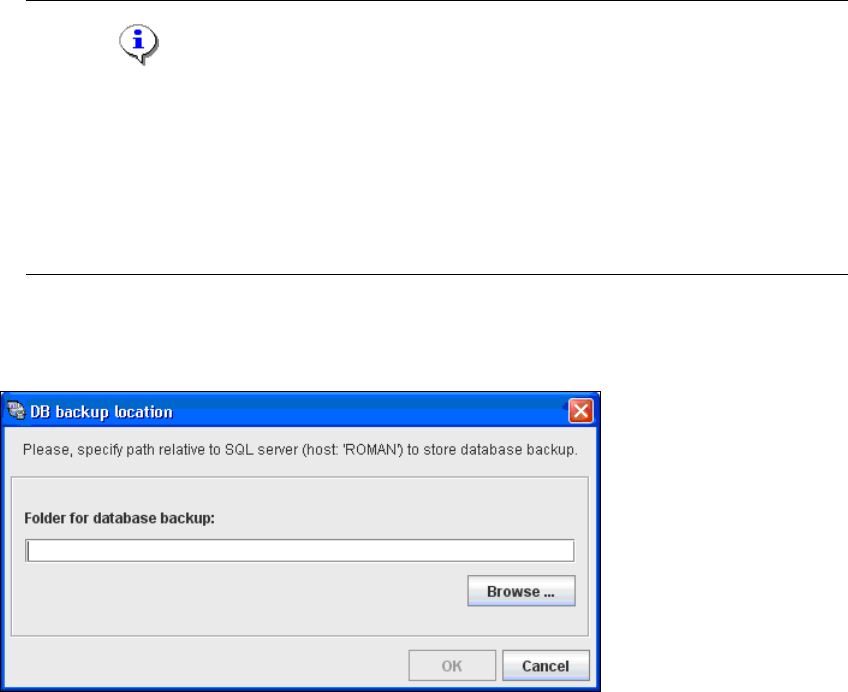
If you have enabled the Backup database option, the DB backup location dialog box will
open.
4
Fig. 4 - 27 DB backup location
If enabled, before performing the compression, the system creates a backup file of the
database. Specify the folder for this file in the Folder for database backup field. Click on the
Browse ... button to select an existing folder.
Confirm your choice with OK. The DB compression will be started.
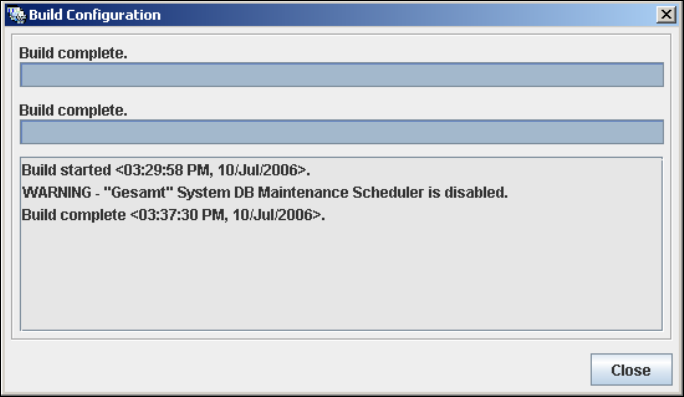
An information box will appear, showing the DB compression and the website generation.
4 Configuration Installation and Configuration Guide SIPLACE Explorer
4.1 Standard Monitoring Application (SMA) Edition 01/2011 EN
70
4
Fig. 4 - 28 Build configuration
At this point, the application is generated automatically and is loaded into SIPLACE Explorer.4
Once the website has been fully generated, click on Close. The SMA has been completed.
Click on the Exit button in the Line Configuration - Website Generation dialog box.
Installation and Configuration Guide SIPLACE Explorer 4 Configuration
Edition 01/2011 EN 4.2 Configuring the Factory Configuration Utility
71
4.2 Configuring the Factory Configuration Utility
4.2.1 Starting the SIPLACE Factory Configuration Utility
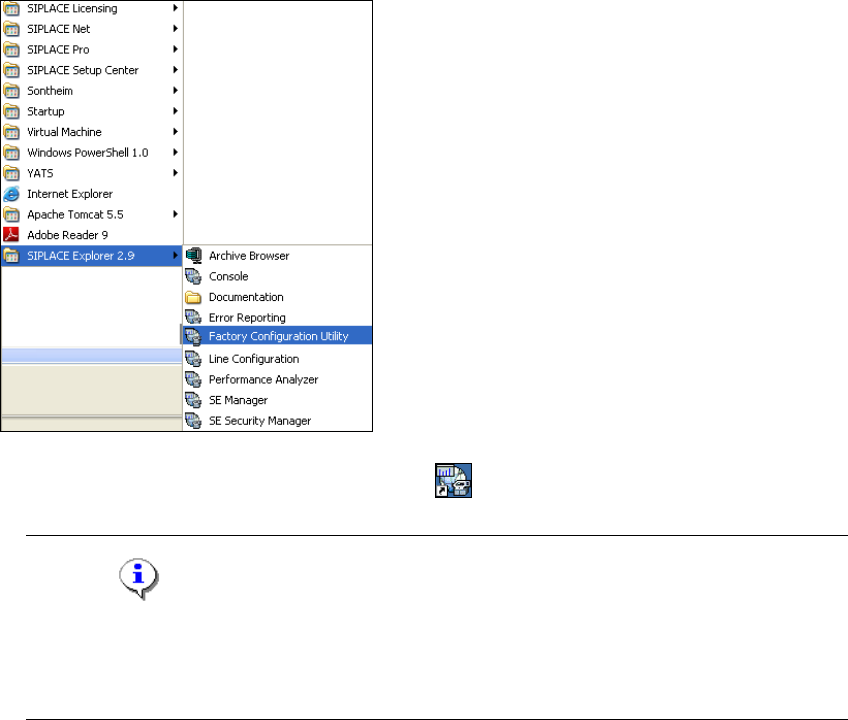
Start the SIPLACE Factory Configuration Utility via the Programs SIPLACE Explorer
2.9 Factory Configuration Utility menu in Windows.
4
Fig. 4 - 29 RTE Windows Start menu
Or click on the Factory Configuration Utility icon on your desktop.
NOTE
Access to the Runtime Environment tools is restricted or permitted as required, by using the
SE Security Manager. For details of the relevant settings in the SE Security Manager, refer
to the Getting Started for SIPLACE Explorer 2.9. 4