00196800-02_InstallGuide_EN.pdf - 第90页
4 Co nfi gura tio n Ins tall ati on and Con figu rati on Gu ide S IPLA CE Exp lorer 4. 2 C on fig uri ng th e Fa ct or y Co nfi gu rat ion U t il ity E d iti on 01 /2 01 1 E N 90 4.2. 8 How to Genera te a Factory Website…
Installation and Configuration Guide SIPLACE Explorer 4 Configuration
Edition 01/2011 EN 4.2 Configuring the Factory Configuration Utility
89
4
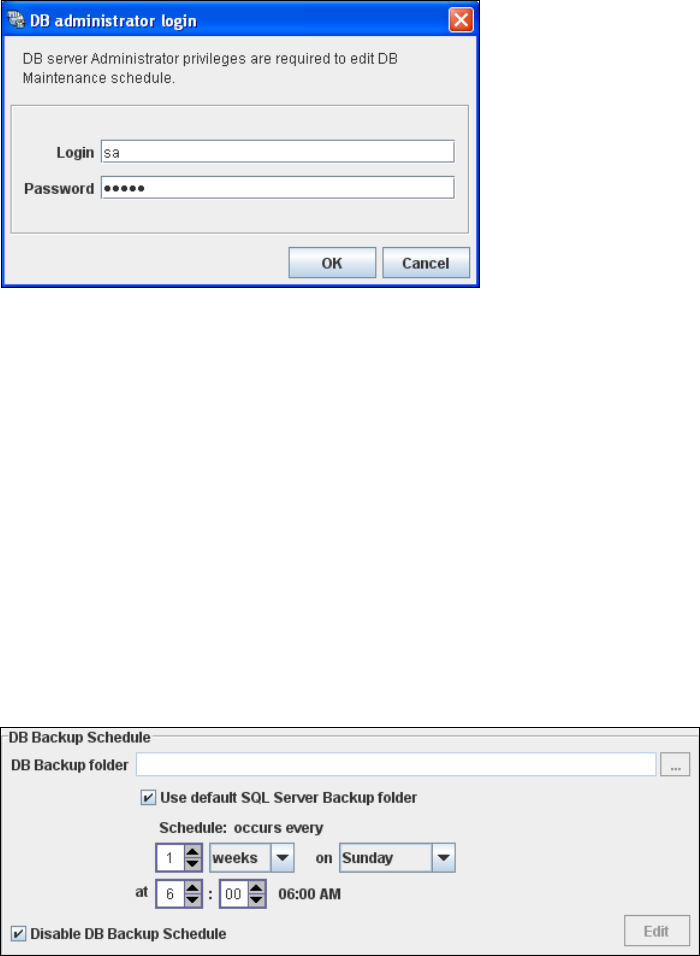
Fig. 4 - 52 DB administrator login
Enter the access data here and confirm your entries with OK.
The input fields in the DB Maintenance dialog box will be enabled. The following details can
be defined:
– The file and path for the saved data
– A schedule specifying the intervals and times when data is to be removed from the line
system database and stored in the archive.
– When to execute the backup schedule.
– The backup schedule defined here will be stored in the database and can be called up when
required.
– Database compression with the next database maintenance.
4
Fig. 4 - 53 DB backup
Check your entries and confirm with OK.
4 Configuration Installation and Configuration Guide SIPLACE Explorer
4.2 Configuring the Factory Configuration Utility Edition 01/2011 EN
90
4.2.8 How to Generate a Factory Website
NOTE
To generate a factory website, you require web server manager privileges (Tomcat administrator)
and the corresponding password. 4
Select the function Generate Web Site ... from the File menu.
4
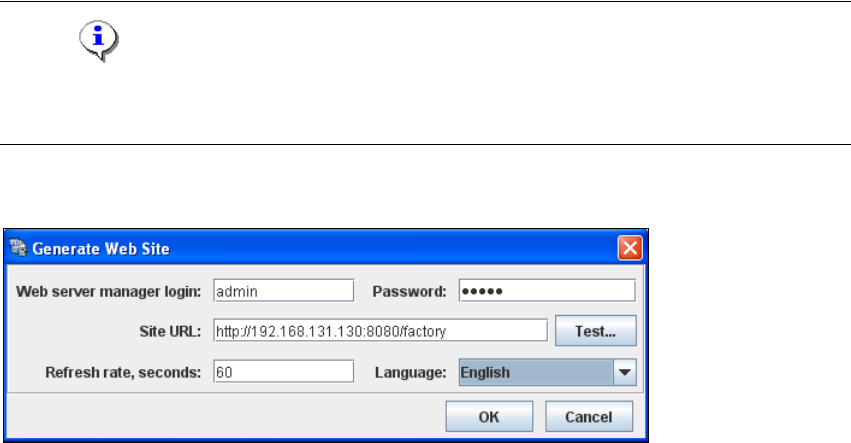
Fig. 4 - 54 Factory Configuration Utility - generate website
Specify the access data for the Tomcat administrator. If you entered admin and an empty
password during Tomcat configuration, this data will be automatically used as a default login.
If this is not the case, use the data you specified during Tomcat configuration.
Please specify the following information:
– URL site
This URL contains a port number, which applies to the web server (Tomcat 5.5) e.g. "8080".
If you change the port number here, you will also need to update the port number of the web
server see “Port Configuration after Changing Tomcat Port Number” on page 46.
– Refresh rate
For capacity purposes, we recommend a refresh rate of at least one minute (60000 ms).
– Factory website language
Check your entries and confirm with OK.
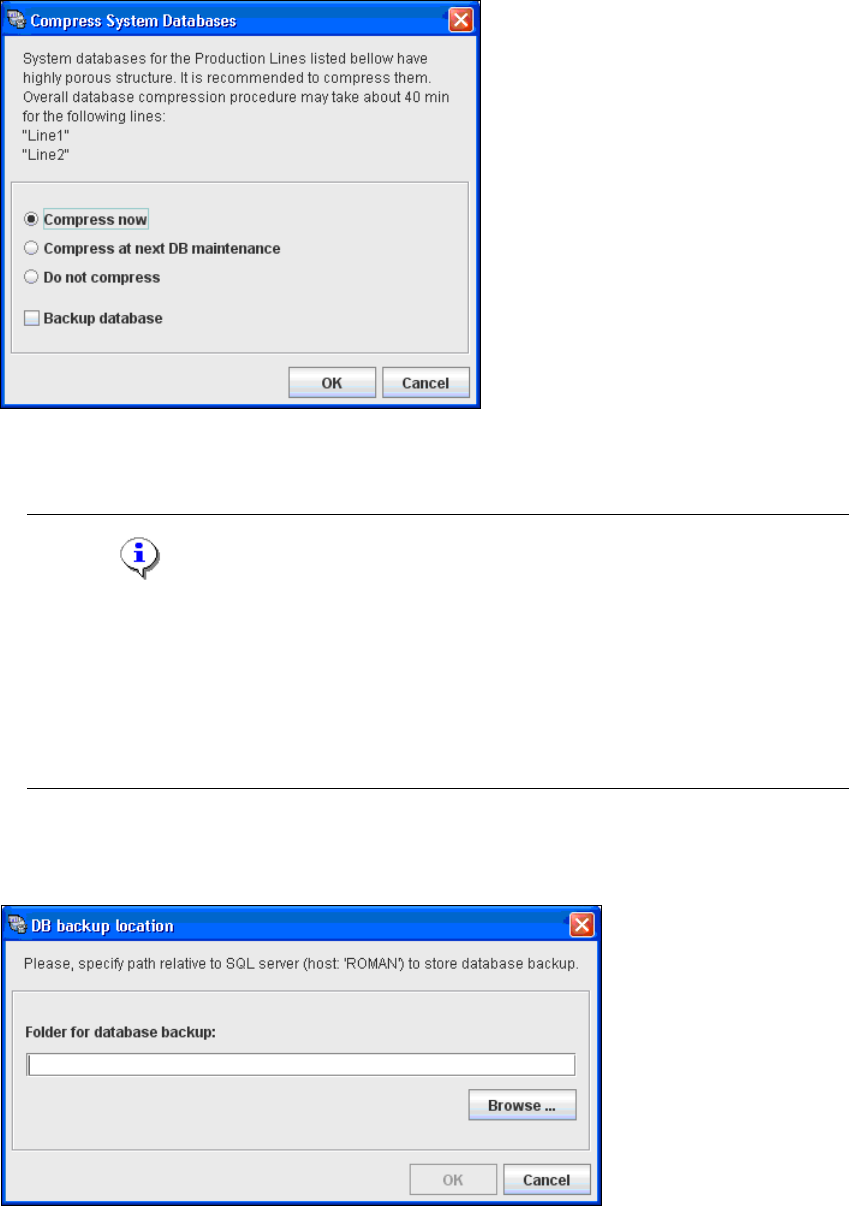
Dependent of the database size, you can compress the database. The Compress System
Database dialog box will open.
Installation and Configuration Guide SIPLACE Explorer 4 Configuration
Edition 01/2011 EN 4.2 Configuring the Factory Configuration Utility
91
4
Fig. 4 - 55 Compress DB
If you want to compress the DB now, select the Compress now option. Confirm with OK.
NOTE
We recommend activating this DB compression step, when the user has restored the
SIPLACE Explorer factory database or has moved the raw database files to another disk or
to another computer.
With the DB compression it is possible to avoid extended access times of the websites.
The DB compression may take up to one hour, this time depends on the size of the database
performance of the computer. 4
If you have enabled the Backup database option, the DB backup location dialog box will
open.
4
Fig. 4 - 56 DB backup location