EUKYX-199-2100_G5S2_Instruction_Vol2_E.pdf - 第177页
EUKYX 3-1 199-2100 1. Selection of Component IDs 1 . Selec ti on of C ompon en t ID s When the component li brary data is to be edit ed, select the component ID to be edited and edit it in the "Component Li brary&qu…

199-2100
Chapter 3
Component Library
This chapter describes the operation procedure in each of the
component library windows. Refer to the separate Instruction
Manual “Vol. 6. Component Library” for the component library
data description and creation procedure.
1. Selection of Component IDs
2. “Temp Chng Comp Lib” Window
3. “Alt Comp ID List”
Window
EUKYX
EUKYX
3-1199-2100
1. Selection of Component IDs
1. Selection of Component IDs
When the component library data is to be edited, select the component ID to be edited and edit it
in the "Component Library" window.
Refer to “Volume 6 : Component Library” for the description of component library data and
data creation procedure.
1.1 List of Component IDs
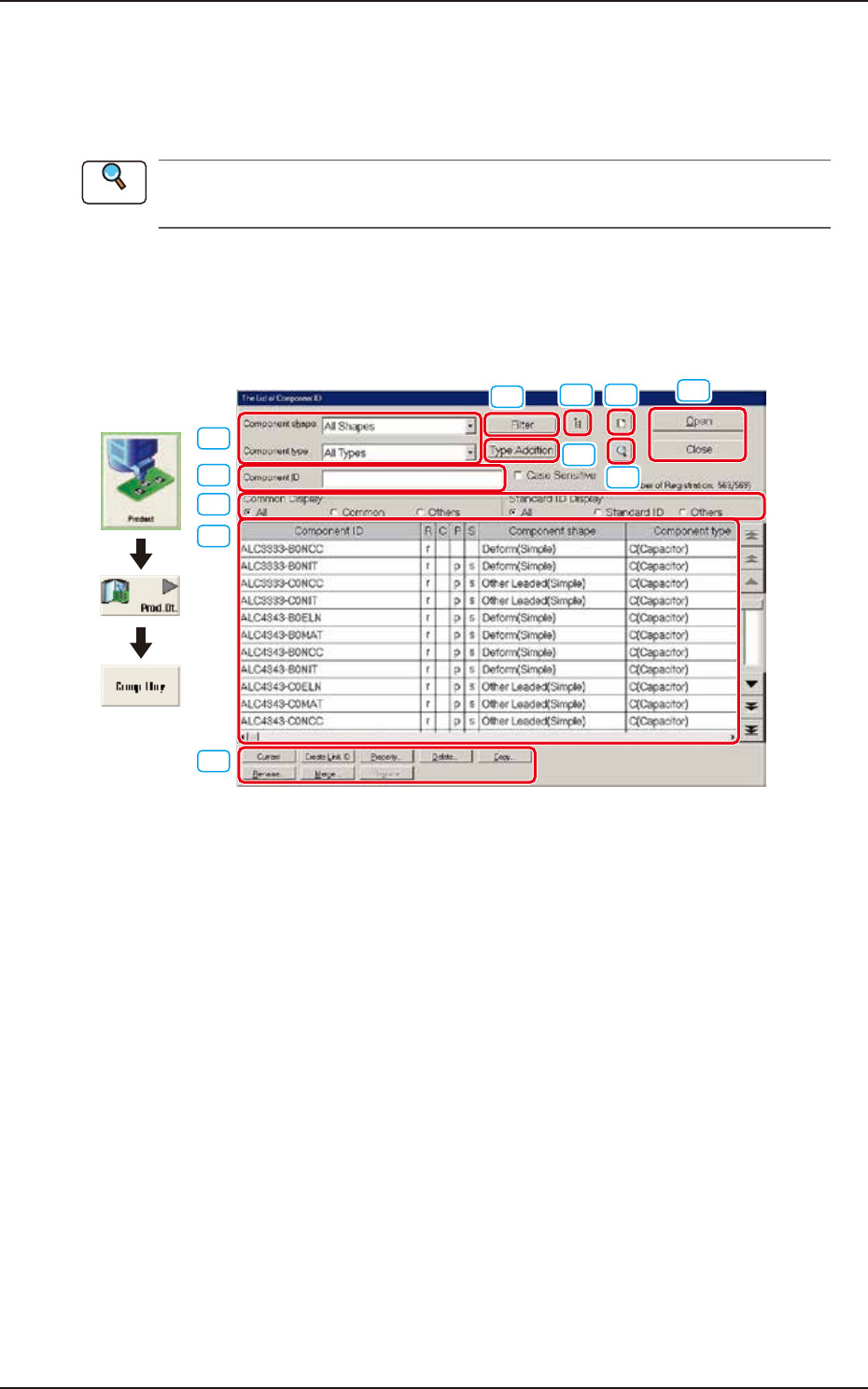
In this window, the component library data list is displayed. When the component library data is to
be edited, select the component ID to be edited and edit it in the "Component Library" window.
[10]
[3]
[4]
[1]
[5]
[6] [7]
[8]
[9]
[2]
[11]
Graphic
Development
F2C1
[1] Component ID
Displayed is the component ID selected in "[3] List of Component ID".
[2] Component Shape and Type
Select the desired component shape and type. The component IDs based on the selected shape and
type are displayed in "[3] List of Component ID”.
Reference
EUKYX
3-2199-2100
1.1 List of Component IDs
[3] "List of Component ID" list
A list of component IDs is displayed.
Select the component ID whose data should be displayed in the "Component Library" edit window
or the component ID to be deleted, copied, or renamed.
Component ID : Component IDs are displayed.
R : When "r" is set, it indicates that the component ID is a root one.
A root ID is an original component ID for linking, copying, etc.
C :
When "c" is set, it indicates that the component ID is registered as a common one.
P : When "p" is set, it indicates that the component ID is protected.
S : When "s" is set, it indicates that the component ID is a standard one.
Component shape
: Component shapes are displayed.
Component type
: Component types are displayed.
Update time : Update time (date and time) is displayed
Nozzle Type : Nozzle types are displayed.
Placeable Data : Placement Available/Unavailable history in the SIGMA-G5SII, is displayed in this
data box.
By pressing one of the titles (the labels arranged on top of the list), the step lines (parameters)
are sorted by ID, update time, etc., and reorganized, depending on which title is selected.
[4] "Common Display" and "Standard ID Display" Group Boxes
Select the desired option buttons. Depending on which option buttons are selected, a list of
component IDs having specific attributes appears in “[3] List of Component ID”.
[5] [Filter] Button
When pressed, this button opens the "Filter" window, enabling you to select a component shape, a
component type, a common display, and a standard ID display for filtering.
[6] [Link ID Tree Display] Button
When pressed, this button displays the link and root IDs that are arranged side by side in the
hierarchical (tree) file system.
[7] [New] Button
When pressed, this button opens a new "Component Library" edit window with default values.
Note