EUKYX-199-2100_G5S2_Instruction_Vol2_E.pdf - 第180页
EUKYX 3-4 199-2100 1.2 Basic Operations in "Selection of component ID" Window 1 . 2 Basic Oper ations i n "Selection of co mponent ID " W indo w 1 .2 . 1 T ype Addition When the [ T yp e Addit ion] bu…
EUKYX
3-3199-2100
1.1 List of Component IDs
[8] [Open] and [Close] Buttons
[Open] Button
When pressed, the "Component Library" edit window of the selected component ID opens.
[Close] Button
When pressed, this button closes the “List of Component ID”.
[9] [Type Addition] Button
When pressed, the "Type Addition" dialog box opens to add a component type.
Refer to “1.2.1 Type Addition” for the "Type Addition" dialog box.
[10] Various Operation Buttons
[Current] Button
When pressed, this button displays the component IDs used in the last pattern program
(the last selected program) in “[3] List of Component ID”.
[Property...] Button
When pressed, the "Property" window of the selected component ID opens.
Refer to “1.2.7 Property of Component ID” for the details of the "Property" window.
[Delete...] Button
When pressed, this button deletes the selected component ID.
[Copy...] Button
When pressed, this button opens the "Copy Component ID" window to make a copy of the
selected component ID.
[Rename...] Button
When pressed, this button opens the "Rename" window to change the ID (name) of the
selected component.
[Create Link ID] Button
When pressed, this button opens the "Create Link ID" window to create a link ID for the
selected component ID.
[Replace] Button
When the alternative component with the same name is selected, this button is enabled.
The data for the original component ID is replaced by this data.
[Merge...] Button
When pressed, this button opens the “Merge” window, enabling you to merge the selected
component ID.
[11] [Search] Button
When the component ID is input, the searching operation is started.
Reference
Reference
EUKYX
3-4199-2100
1.2 Basic Operations in "Selection of component ID" Window
1.2 Basic Operations in "Selection of component ID" Window
1.2.1 Type Addition
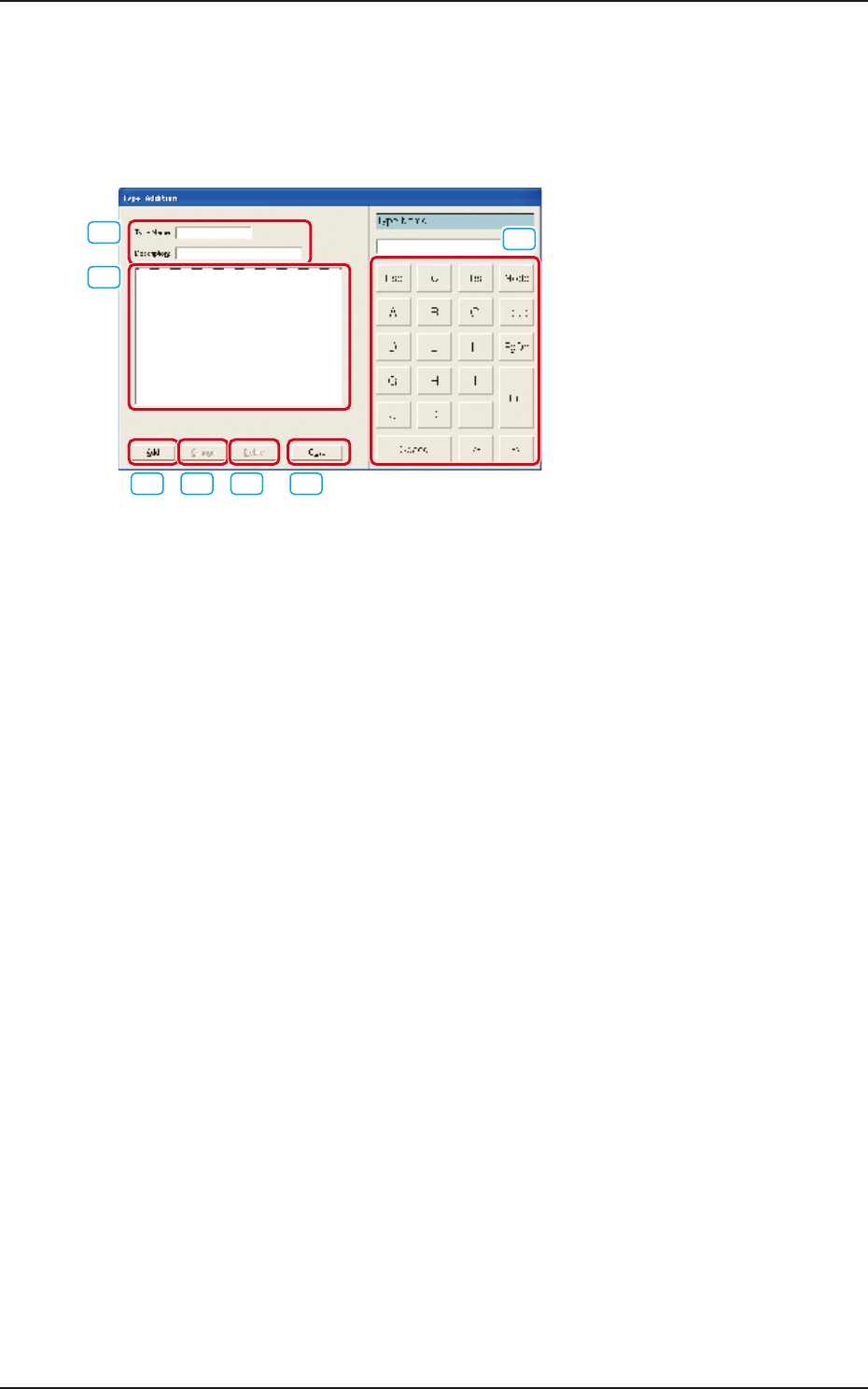
When the [Type Addition] button is pressed, the following "Type Addition" dialog box opens. By
adding a type, the list of component IDs is displayed after being filtered.
[1]
[2]
[3] [4] [5] [6]
[7]
F2C2
[1] "Type Name" and "Description"
Enter parameters in these text boxes.
[2] "List of Component Types" Pane
Newly created component types are displayed in this pane.
[3] [Add] Button
When this button is pressed, a type entered in the "Type Name" text box is added as a new type.
[4] [Change] Button
When this button is pressed, a component type is changed to the contents entered in the "Type
Name" and "Description" text boxes.
[5] [Delete] Button
When this button is pressed, the component type selected in "[2]" is deleted.
[6] [Close] Button
When this button is pressed, the "Type Addition" dialog box closes.
[7] Touch Panel for Data Editing
Data can be entered from the touch panel or with the mouse.
EUKYX
3-5199-2100
1.2 Basic Operations in "Selection of component ID" Window
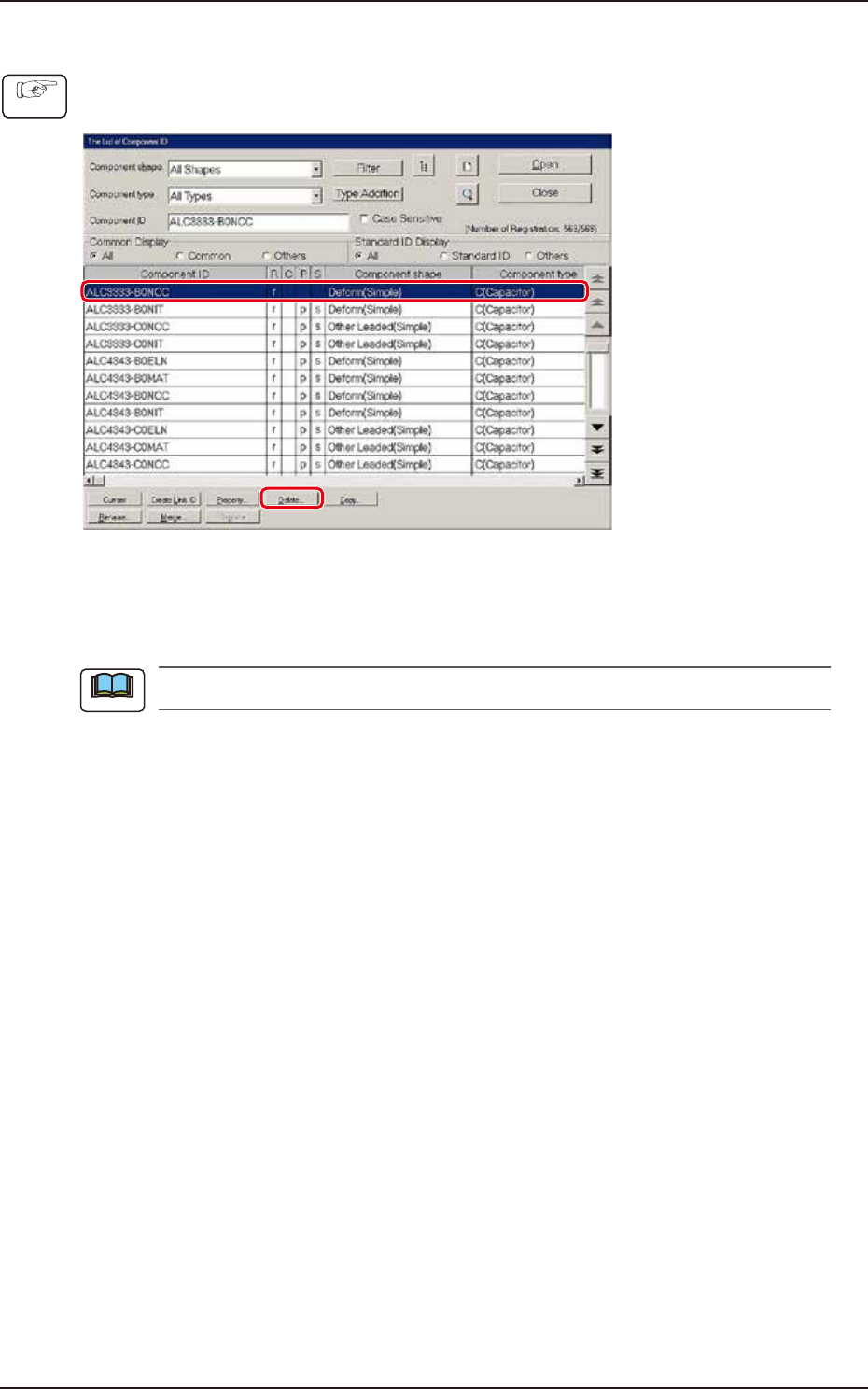
1.2.2 Deleting the Component ID
(1) Select the component ID to be deleted.
(The selected component ID turns blue, indicating that it is selected.)
F2C3
(2) Press the [Delete...] button.
(The "Confirmation" dialog box opens. When the [YES] button is pressed, the component
ID is deleted.)
Pressing the [NO] button cancels the deletion of the component ID.
Procedure
Note