EUKYX-199-2100_G5S2_Instruction_Vol2_E.pdf - 第249页
EUKYX 6-12 199-2100 4.1 Collecting PCB Support Pins/Setting up Conveyor Width 4. 1 . 1 Notes on A t tachment / Detachment of PCB Suppor t Pins Be sure to insert the PCB support pins at righ t angles . • When a PCB supp o…
EUKYX
6-11199-2100
4.1 Collecting PCB Support Pins/Setting up Conveyor Width
• For Support Pin Automatic Change
(1)
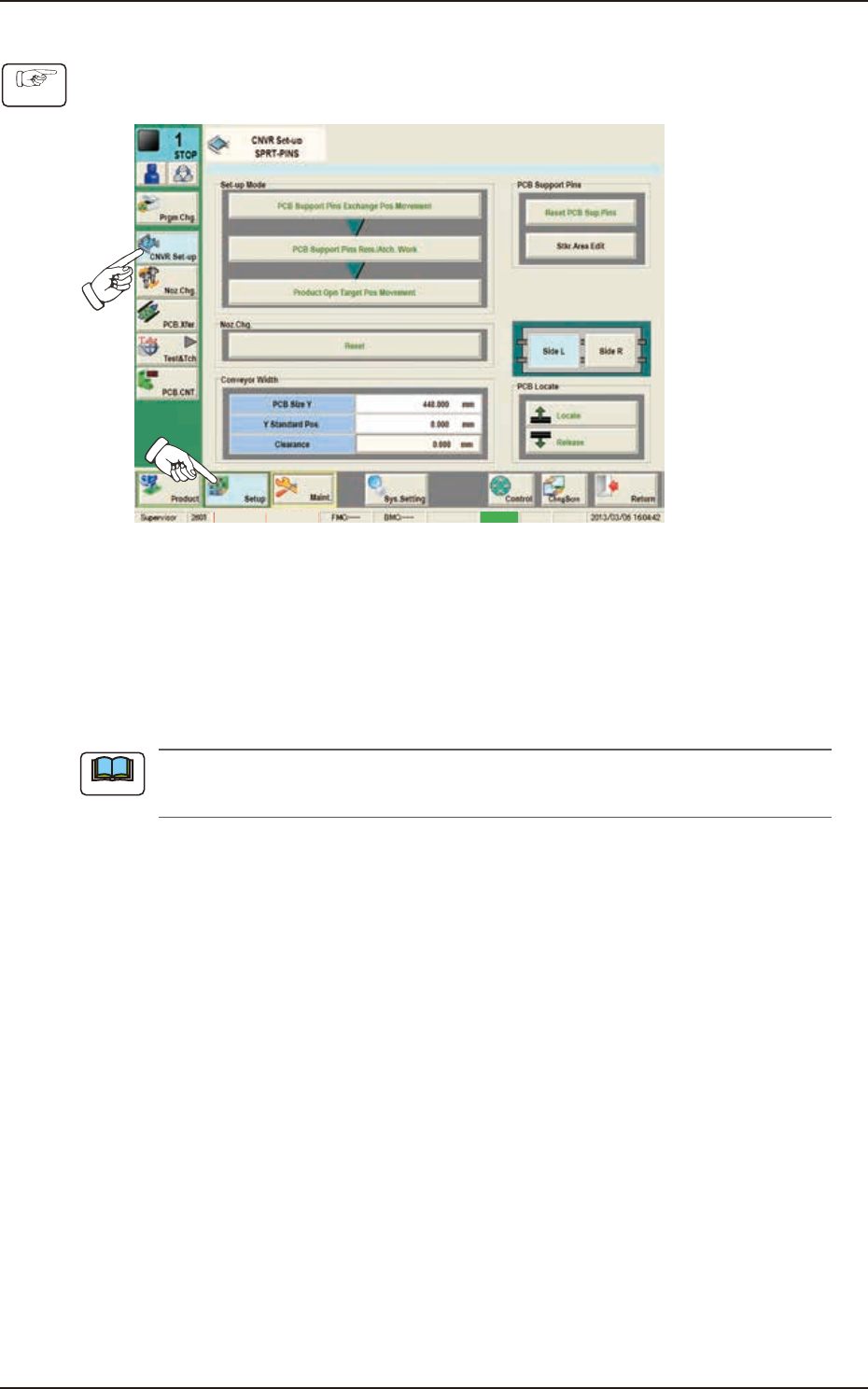
Press the [Setup] button and [CNVR Set-up] button to display the “CNVR Set-up SPRT-PINS“
window.
MTN:NotRdy RCG:NotRdy Cover
F2F12
(2)
Press the [PCB Support Pins Exchange Pos. Movement] button.
After that, press the [START] button on the operation panel within 10 seconds. (The
machine retracts the head and maximizes the conveyor width.)
(3)
Press the [PCB Support Pins Rem./Atch. Work] button and within 10 seconds, press the
[START] button on the operation panel.
(The support pin attachment or removal will be performed automatically).
When the support pins are to be changed automatically, prepare the nozzle (PK01) in the
nozzle stocker.)
(4)
Press the [Product Opn Target Pos Movement] button and within 10 seconds, press the
[START] button on the operation panel.
(The conveyor width will be changed according to the selected pattern program).
Procedure
Note
EUKYX
6-12199-2100
4.1 Collecting PCB Support Pins/Setting up Conveyor Width
4.1.1 Notes on Attachment / Detachment of PCB Support Pins
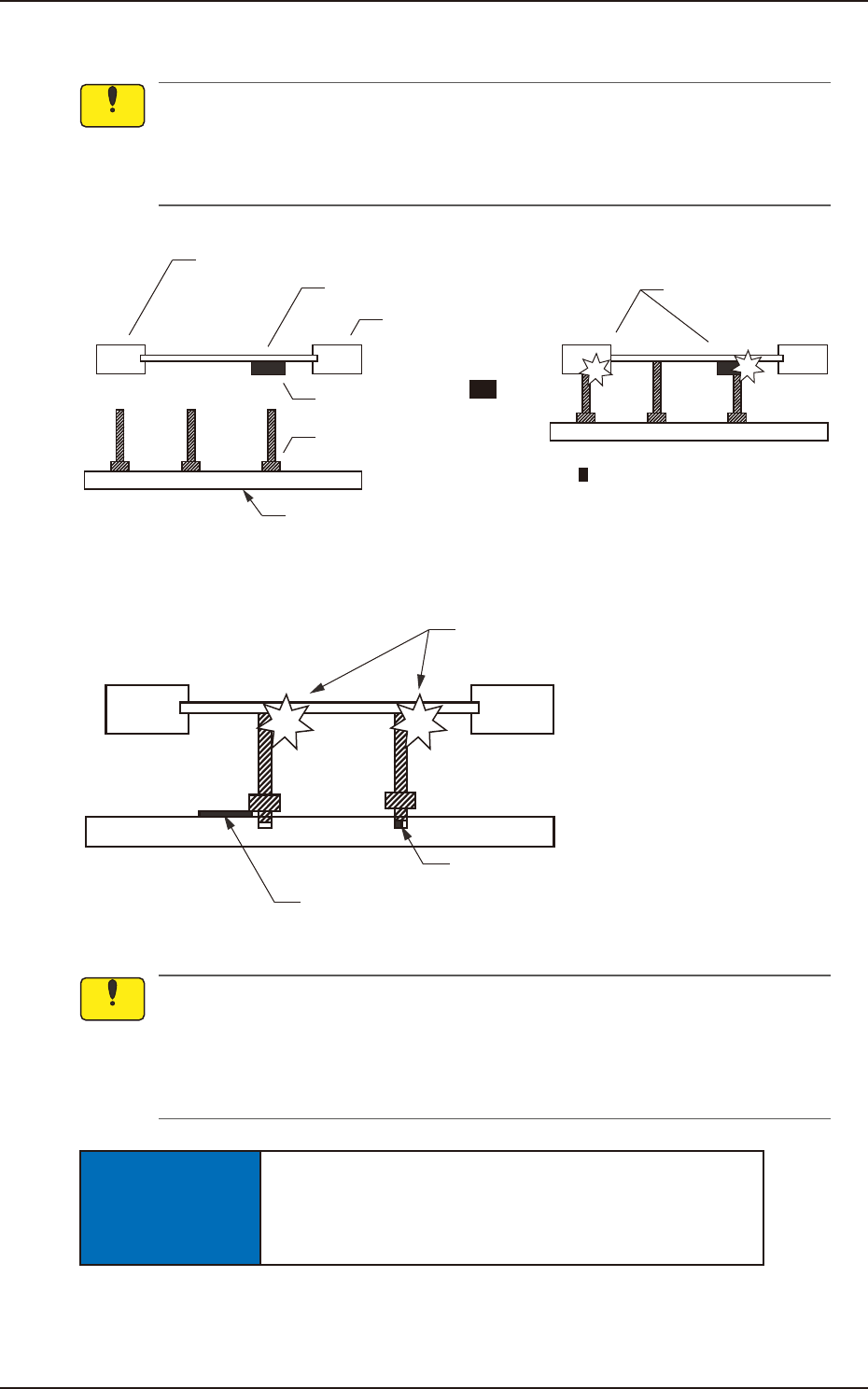
Be sure to insert the PCB support pins at right angles.
• When a PCB support pin is inserted at the bottom side of the chute, it may collide with
the backup base while the backup base is moving up.
• If the pins are inserted improperly, the machine will break down.
Chute
PCB
Previously Placed
Component
Chute
PCB Support Pin
Backup Base
Collision!
Backup Base Up Movement
Improper Pin Insertion
F2F13
Collision!
Foreign Substance on Backup Base
Foreign Substance such
as a component trapped in the hole
F2F14
(a) When a component is trapped or dust has accumulated on the backup base, the PCB
support pins cannot be set correctly. In this case, remove the component or the dust with
a vacuum cleaner, etc. (Air Blowing Prohibited).
(b) Do not put your hand or any heavy object on the backup base while working with the
backup base. Otherwise, the backup base may be deformed due to an excessive load.
NOTICE
When some components are previously placed on the back
of the PCB, the PCB support pins must be inserted such
that they do not touch any component.
Notice
Notice
EUKYX
6-13199-2100
4.2 "Stkr.Area Edit" Window
4.2 "Stkr.Area Edit" Window
F2F15
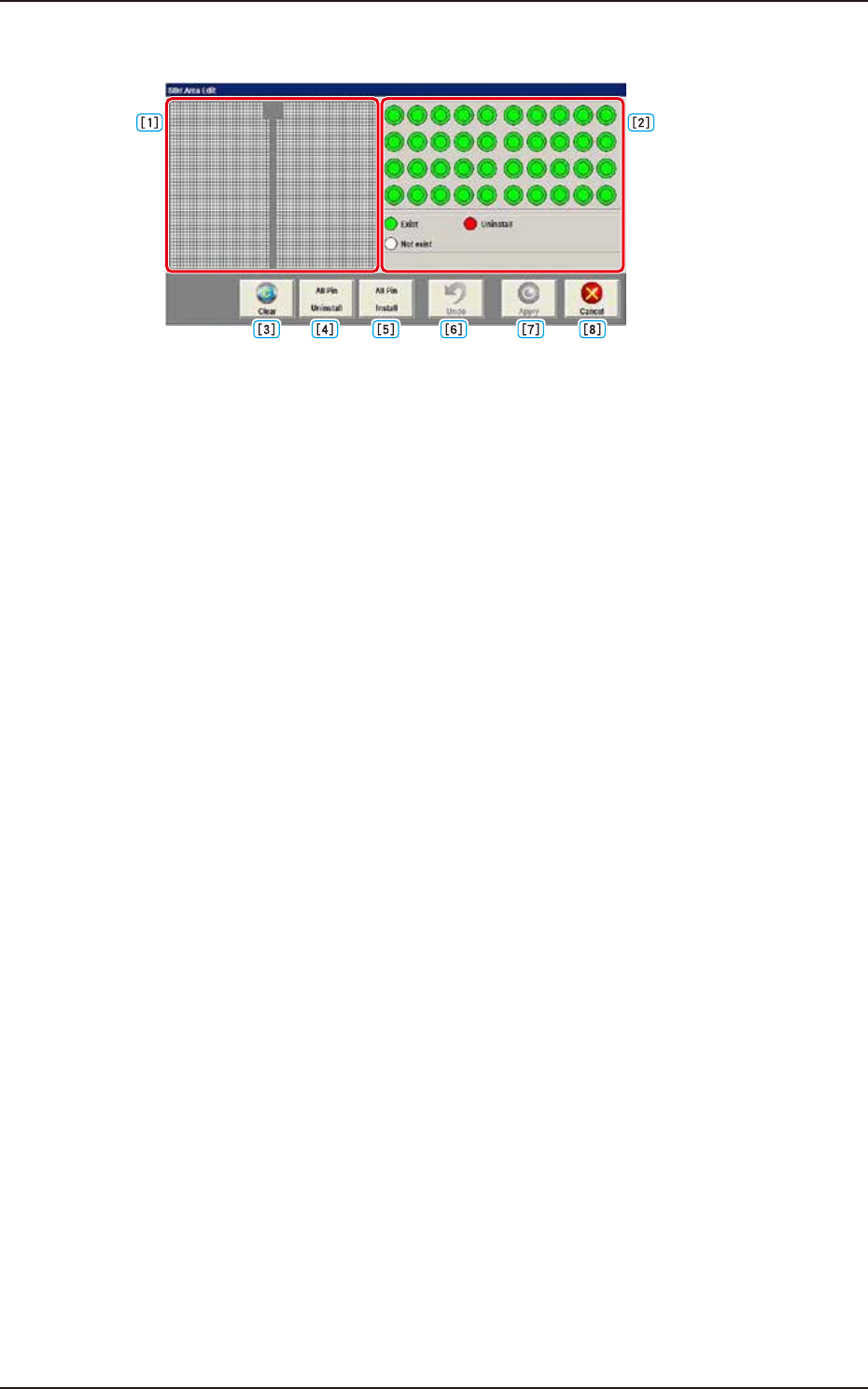
[1] PCB Support Pin Position Display Pane
The backup base is displayed as an image in this pane.
The arrangement condition of the PCB support pins is displayed.
[2] Stock Area Image Display Pane
The stock area for the PCB support pins is displayed as an image.
When any pin is clicked, "pin presence" and "pin absence" is toggled for the corresponding pin.
Green : Exist
Red : Uninstall
White : Not exist (If pins are arranged on the backup base, it is regarded as “No exist“.)
[3] [Clear] Button
When pressed, the arrangement parameters for the PCB support pins arranged on the backup base,
is cleared.
[4] [All Pin Uninstall] Button
When pressed, the arrangement parameters for all the support pins for the stock area, is changed to
ones for “pin absence”.
[5] [All Pin Install] Button
When this button is pressed, the stock area arrangement data is changed to one for all pins
placement.
[6] [Undo] Button
When pressed, the parameters are returned to the original ones before the change is applied.
[7] [Apply] Button
When pressed, the changed arrangement parameters in the stock area are applied.
[8] [Cancel] Button
When pressed, the editing operation is ended.
Any arrangement parameter that has not been applied is cancelled.