EUKYX-199-2100_G5S2_Instruction_Vol2_E.pdf - 第291页
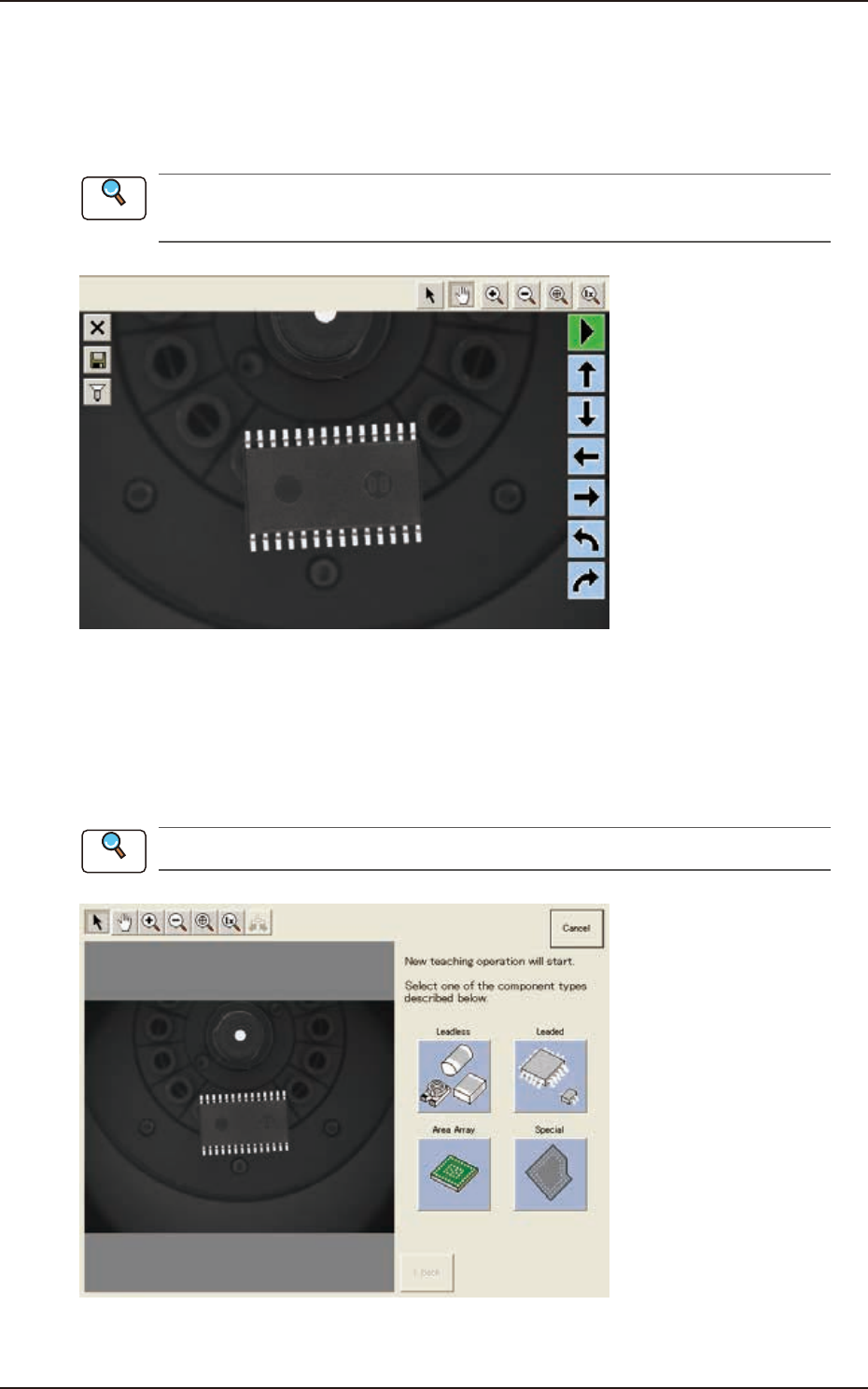
EUKYX 6-54 199-2100 7 .3.6. 1 Explanation of "Component Librar y T eaching" Window [1] [2] [3] [4] [5] [6] [7] F2F57 [ 1 ] [ ] But t on Press this button to ex it from the component l ibra r y teac hi ng se ssi…
EUKYX
6-53199-2100
7.3.6 Windows displayed with [Teach] button
■
“Component Library Teaching” Window
The “Component Library Teaching“ window is displayed by pressing the [Recog] button or [Teach]
button on the “COMP RCG“ window.
See “7.3.6.1 Explanation of “Component Library Teaching” Window” in this chapter for
"Component Library Teaching" Window.
F2F56A
■
“Create teach wizard” Window
Create a new component data for recognition test on “Library Teaching New Creation” tab on the
“Comp Recog“ window. Then press the [Next] button. The component recognition test execution
window appears. When the [Recog] or [Teach] is pressed on the window, the following “Create
teach wizard” window appears. Proceed the operation according to the instructions on the window.
See “7.3.7 “Create Teach” Wizard” in this chapter for “New teaching wizard” window.
F2F56
Reference
7.3 "COMP RCG" Test Window
Reference
EUKYX
6-54199-2100
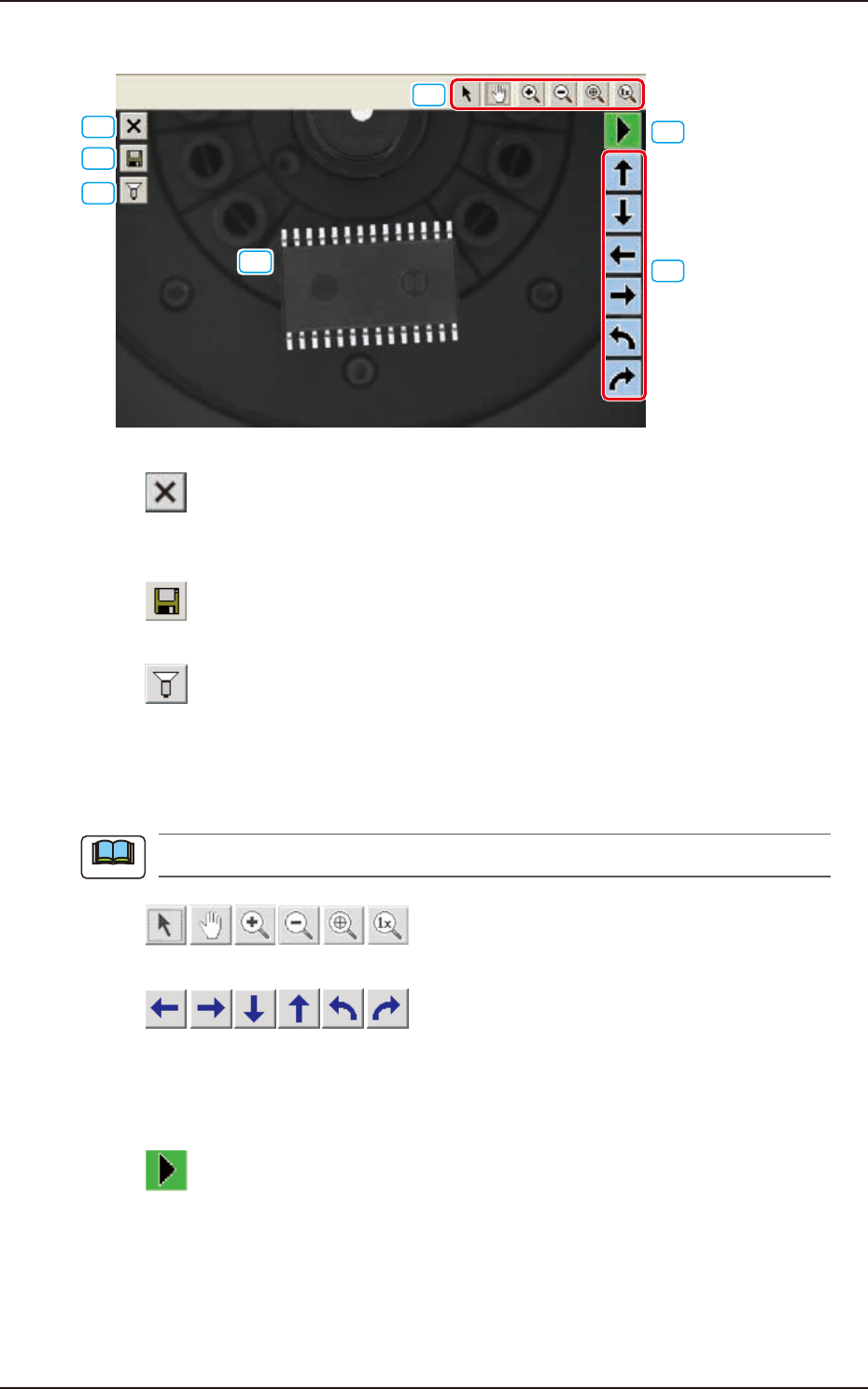
7.3.6.1 Explanation of "Component Library Teaching" Window
[1]
[2]
[3]
[4]
[5]
[6]
[7]
F2F57
[1] [ ] Button
Press this button to exit from the component library teaching session.
To save the edited data, press the [Yes] button. Pressing the [No] button aborts the data.
[2] [
] Button
This saves the edited data.
[3] [
] Button
This opens an image capture dialog box, making it possible to capture an image according to the
specified condition.
At the time of "New Teaching" or "Modification Teaching", the captured image is used for the
teaching operations.
The lighting pattern specified in this dialog box is not reflected on the library data.
[4] [
] Buttons
These buttons move the displayed image.
[5] [
] Buttons
When one of these arrow buttons is selected, the selected graphic moves or rotates slightly in the
selected direction.
When the coordinate system, the mold size, or the outward length is selected, the whole graphic
moves or rotates slightly in the selected direction.
[6] [
] Button
When this button is pressed the graphic image movement speed is changed.
Note
7.3 "COMP RCG" Test Window
EUKYX
6-55199-2100
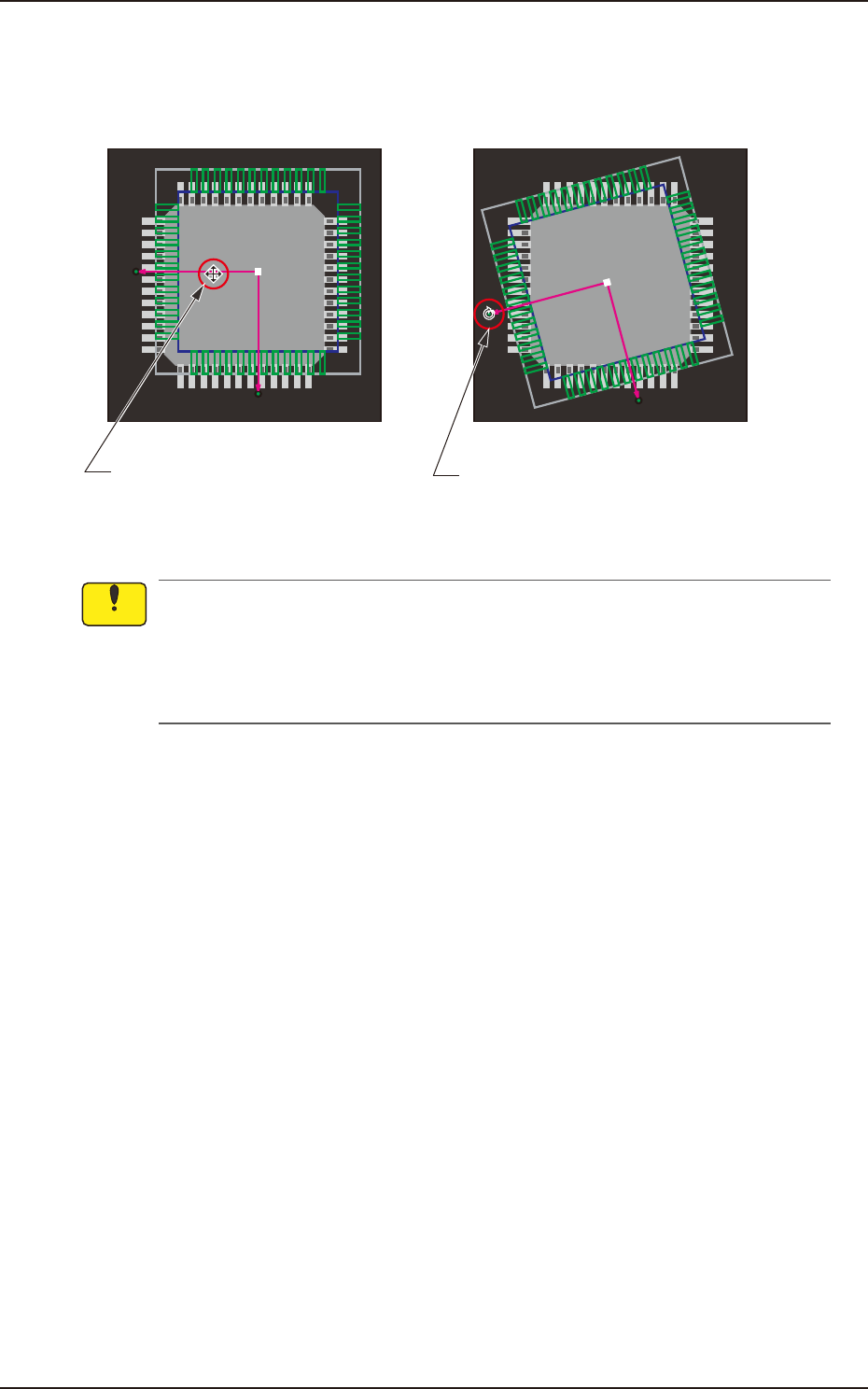
[7] This shows the coordinate system of the component library.
When you click the coordinate graphic and drag the arm portion of the coordinates, the whole
graphic moves. Dragging the end of the arrow mark of the coordinates makes the whole graphic
rotate.
Dragging the line segment of the
arrow extended from the coordinate
point moves the whole graphic.
Dragging the arrowhead rotates
the whole graphic.
F2F58
(a) The coordinate system of the component library is described as "Upper +" and "Right +"
in the instruction manuals, etc. However, as the image of a component is captured from
under the component, it should be noted that the direction of the X axis is reversed (Left +).
(b) Note that dragging a lead, an electrode, etc., other than a graphic coordinate segment
changes the component library data.
Notice
7.3 "COMP RCG" Test Window