m220_383_02_process_manual工艺手册.pdf.pdf - 第85页
OPERATION INSTRUCTIONS P ROCESS M ANU AL 5) select New screen to create a new display 6) previously defined Operations Screens from the sa me or other tubes can be copied alter natively Note: It is recommended to use uni…
OPERATION INSTRUCTIONS
P
ROCESS MANUAL
5.10.2 TSC-2
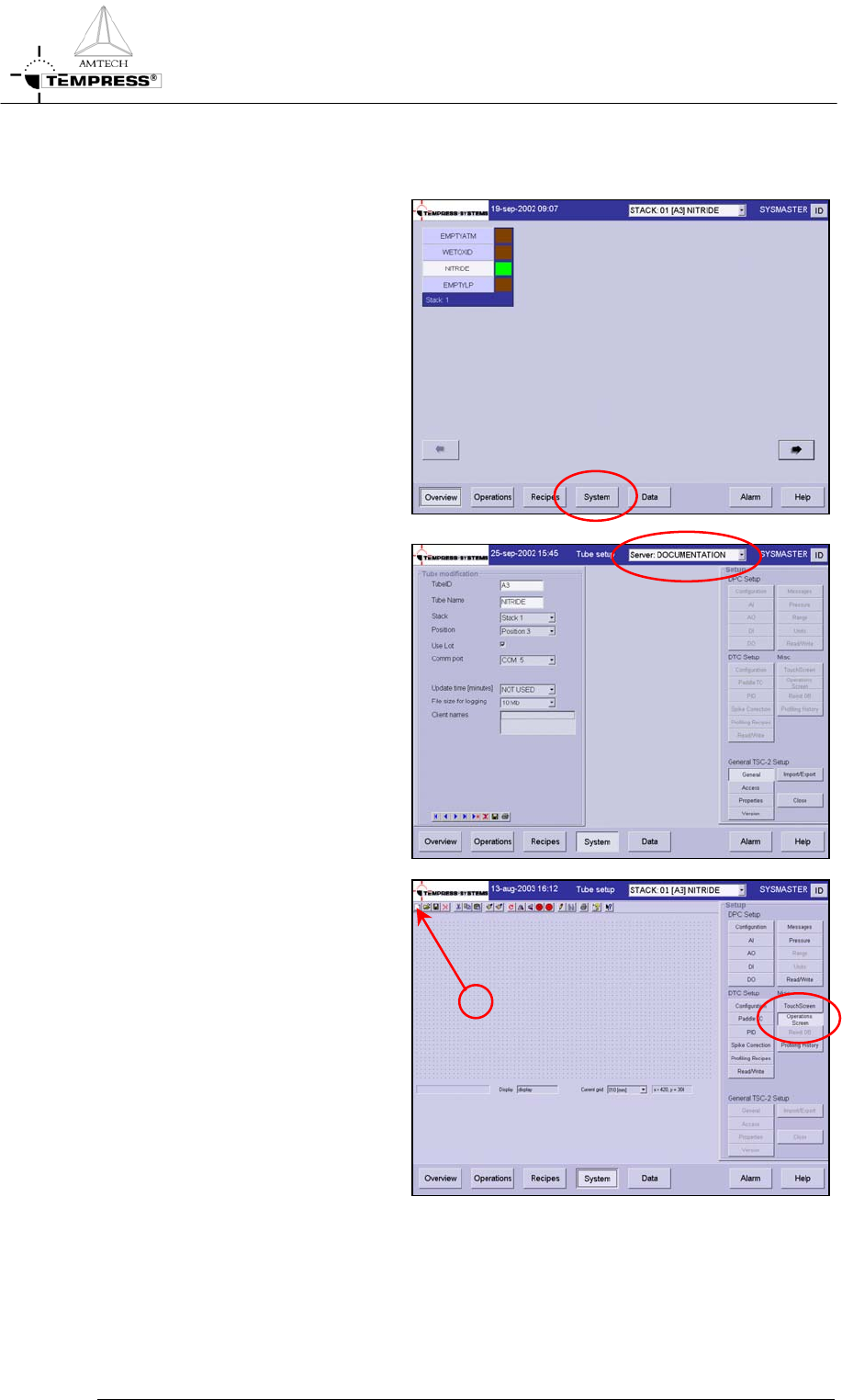
1) return to the main overview
screen
2) select ‘System’ in the navigation
bar to access the system
overview screen
3) select the desired tube from the
pull-down menu or from the
previous ‘Overview’ screen.
4) select ‘Operations Screen’ to
access the operations screen
editor.
Ne
w
5.10-2
OPERATION INSTRUCTIONS
P
ROCESS MANUAL
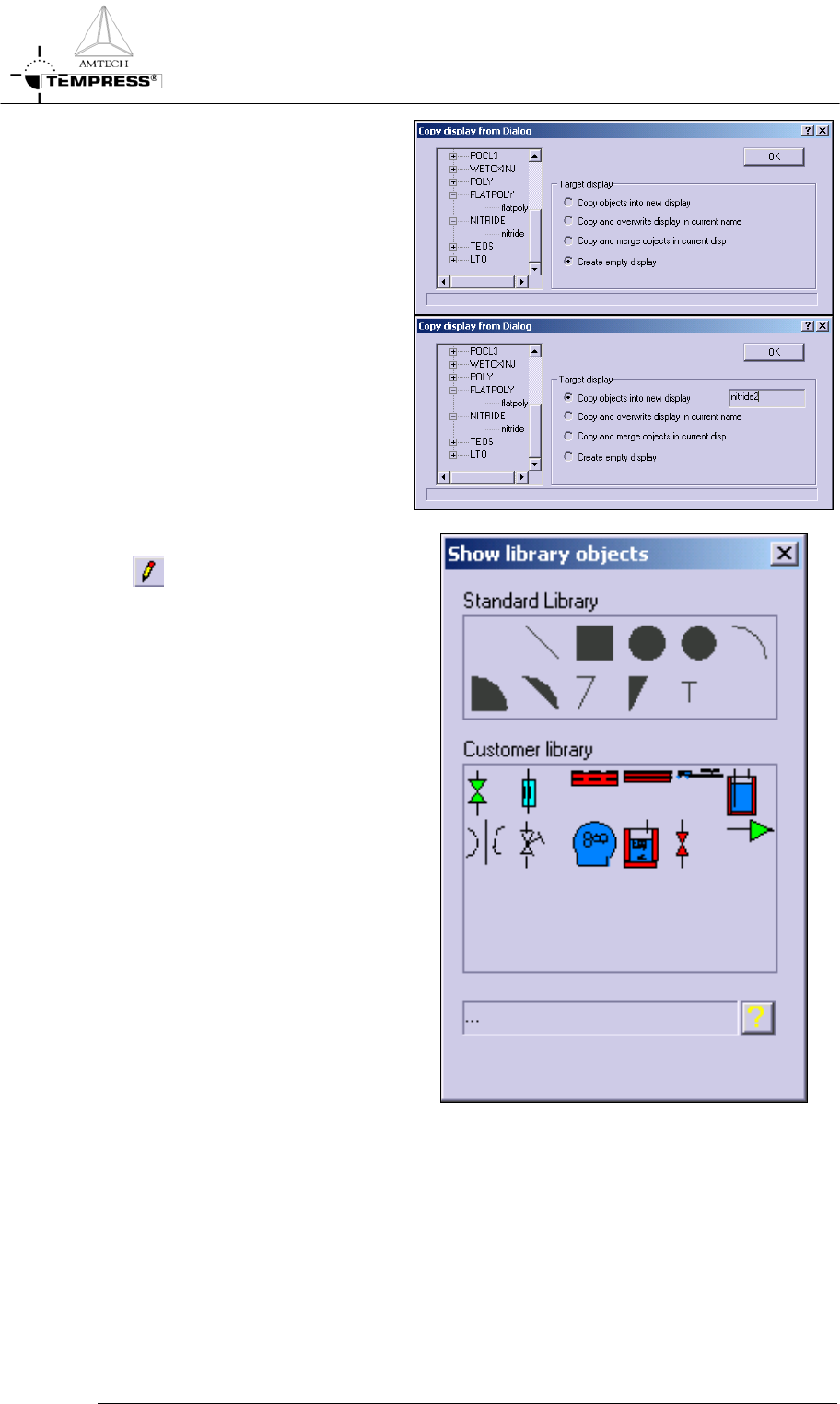
5) select New screen to create a
new display
6) previously defined Operations
Screens from the same or other
tubes can be copied alternatively
Note: It is recommended to use
unique display names among tubes
by including tube numbers
7) select the Object Library button
to gain access to predefined
objects
8) standard objects include line,
square, circle, ellipse, arc and text
objects
9) customer objects include valve,
MFC, 3- or 5-zone furnace,
loader, bubbler, orifice, needle
valve, pump and 3-way valve
objects
10) select the desired object by
clicking once and place it on the
display editor grid
Note: objects can be resized, rotated
and repositioned at any time
5.10-3
OPERATION INSTRUCTIONS
P
ROCESS MANUAL
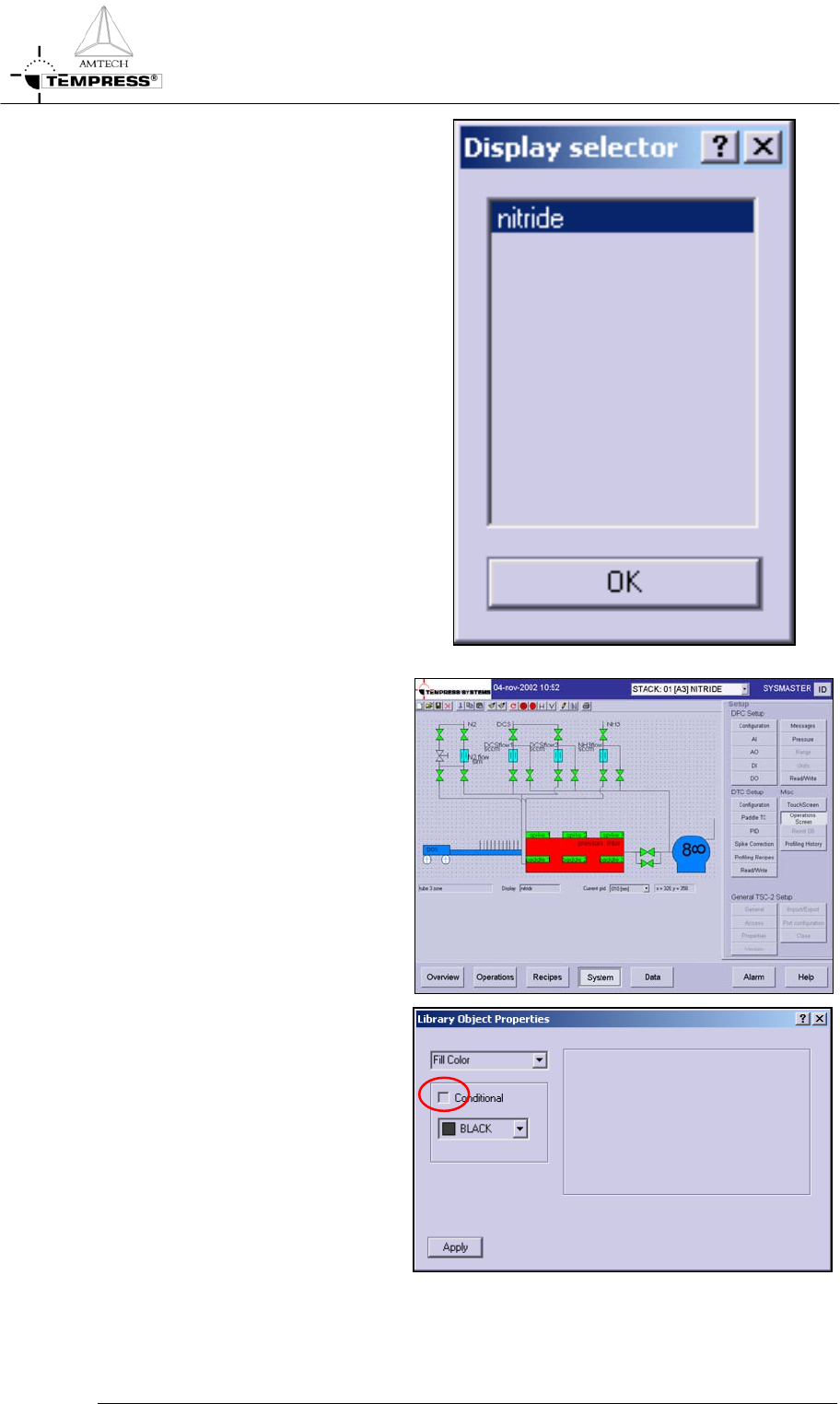
11) select the Open Dialog button to
edit an existing screen
12) an example screen is presented
next
13) connect object properties to
DPC or DTC parameters by
selecting the object and pressing
the RMB.
14) Check the conditional box and
the condition dialog appears
5.10-4