00198622-04_IM_WES7_WIN10_EN-DE - 第12页
WES7 / Win10 - Inst allation Manual 09/2020 Edition 12 4 Installation 4.1 Overview Choose computer configuration SIPLACE WES7 Configurator SIPLACE Win10 Configurator Install and calibrate Touchscreen BIOS settings on the…

WES7 / Win10 - Installation Manual 09/2020 Edition
11
Name
iBASE ABP 102-A
CPU / clock frequency
Celeron® Dual Core T3100 / 1.9 GHz
RAM
2 GB
Hard disk
HDD
Serial interfaces
1
USB interfaces
Yes
Network
2x 1000 MBit
Table 3-10: iBASE ABP 102-A
Name
iBASE ABP 402-A
CPU / clock frequency
Intel® Celeron® CPU 1020E/ 2.2 GHz
RAM
4 GB
Hard disk
SSD (SX), HDD (E by SIPLACE)
Serial interfaces
2
USB interfaces
Yes
Network
2x 1000 MBit
Table 3-11: iBASE ABP 402-A
WES7 / Win10 - Installation Manual 09/2020 Edition
12
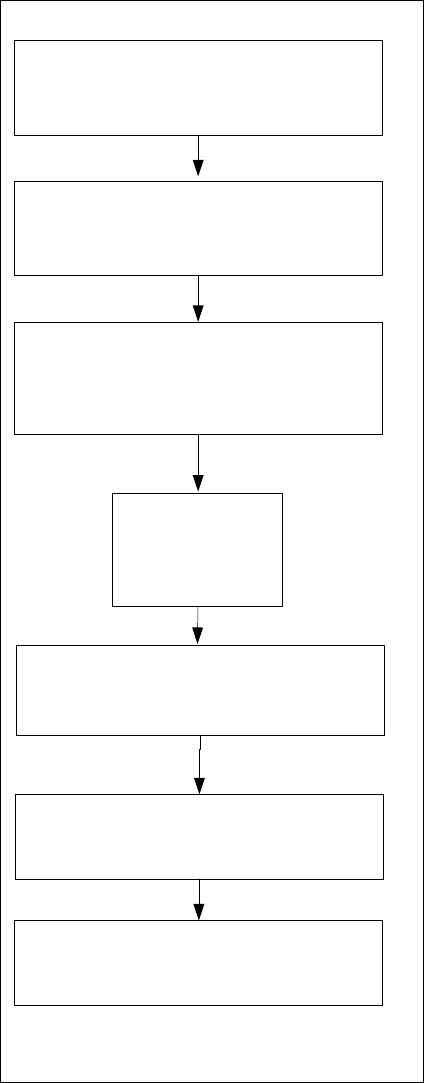
4 Installation
4.1 Overview
Choose computer configuration
SIPLACE WES7 Configurator
SIPLACE Win10 Configurator
Install and calibrate Touchscreen
BIOS settings on the Station / Coplan /
BulkFeeder X computer
Perform BIOS settings
Back up the machine data
BIOS update on the Station / Coplan /
BulkFeeder X computer
Perform BIOS update
Install WES7/Win10
(DVD or USB stick
suitable for the
computer)
Restore the initial configuration
See section 4.2.
See section 4.2.
Installing the operating system, see section 4.3.
See section 4.3.3.
See chapter 5.
Figure 4-1: Installation

WES7 / Win10 - Installation Manual 09/2020 Edition
13
4.2 BIOS Update/Settings
A BIOS update shall only be performed if requested. No BIOS updates have to be performed on
the current computers at present.
► Perform the BIOS settings as follows.
The following steps have to be performed before installing the operating system:
► Press the F2 key to access BIOS after the computer has started.
► Press the F9 key (Setup Default) to set the default settings.
► Change the BIOS settings as described in the following section.
4.2.1 BIOS Settings for SIMATIC BoxPCs 627B / 827B
► Set the following values in BIOS:
Under Main / Hardware Options:
PCI-MPI/DP [ Disabled ]
Safecard Functions [ Disabled ]
Fan Control [ Enabled ]
Under Advanced / SATA/PATA Configuration:
SATA Controller Mode [ Compatible ]
Under Advanced:
Core Multi-processing [ Enabled ]
Under Boot the following boot priority sequence:
1: USB CDROM: 2: SATA0: xxxxxxxxxx 3: ......
Under Exit / Profile:
Profile: [User]
► Exit BIOS with Exit / Exit saving changes / Yes.