00196056-0102 RI Shutterless 3x8 SL.pdf - 第32页
Installing the Software Performing the Installation 32 Nachrüstanleitung / Retrofit In structions Feeder Module 3x8 mm S 0201/0402 to 6.3 Performing the Inst allation You will now see the we lcome window of the installat…
Installing the Software
System Requirements
Nachrüstanleitung / Retrofit Instructions Feeder Module 3x8 mm S 0201/0402 to Shutterless (3X8 mm SL)
31
6 Installing the Software
After the conversion, the information which converts the feeder into a shutterless feeder needs to be
saved in the EEPROM of the feeder. The feeder is assigned a new feeder ID. To do this, you need to
connect the feeder to a PC, on which the software for reprogramming the EEPROM is installed: Set-SL-
ID.
The following description outlines how to install the Set-SL-ID software.
6.1 System Requirements
To install and operate the Set-SL-ID software, your PC must fulfill the following minimum requirements:
6.2 Starting the Installation
X Place the software CD in the CD drive of your computer.
X In the File Explorer, switch over to the CD drive and double-click on the file setup_3x8mm_sl.exe.
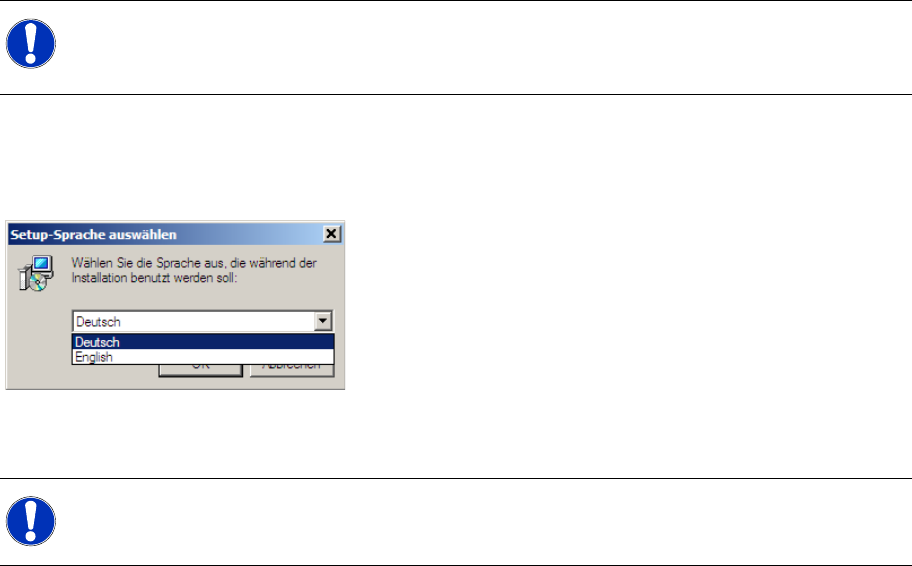
The installation procedure will begin and the following dialog box will open.
X Select the required language for the user interface of the installation program and confirm your
choice with OK.
Operating system: Windows 98 or higher
Memory capacity: 1.4 MB memory
Interfaces: 1 free COM port (RS-232)
NOTE:
Before you can begin the installation of the Set-SL-ID software, close all other applications.
To install the Set-SL-ID software, you need to have administrator rights for your PC.
NOTE:
The user interface of the Set-SL-ID software itself is in English and can not be changed.
Installing the Software
Performing the Installation
32 Nachrüstanleitung / Retrofit Instructions Feeder Module 3x8 mm S 0201/0402 to
6.3 Performing the Installation
You will now see the welcome window of the
installation program.
X To continue with the installation of Set-SL-ID,
click on the Next > button.
In this dialog box you can select the folder in which
the Set-SL-ID software is to be installed.
X If you want to use the preset path, click on the
Next > button.
X If you want to select another folder, click on the
Browse button and mark the folder of your
choice.
To continue with the installation, click on the
Next > button.
In this dialog box you can determine the
designation and the position of Set-SL-ID in the
start menu. If you do not change the folder, the
program link for Set-SL-ID will be entered in the
start menu at Programs.
X Click on the Next > button to confirm the
settings.
X If you want to enter a different designation,
specify this in the text field.
If you want to select another folder in the start
menu, click on the Browse button and mark
the folder of your choice.
To continue with the installation, click on the
Next > button.
This dialog box shows the folder and designation
which have been set for installation of the Set-SL-
ID software.
X If you want to continue the installation
procedure with the specified settings, click on
the Install button.
X If you want to change the settings, click on the
< Back button.You can then define another
folder and/or other designation.
This dialog box will be shown once the installation
of the SET-SL-ID software has been completed.
X To exit the installation program, click on the
Finish button.
Installing the Software
Checking the Connection
Nachrüstanleitung / Retrofit Instructions Feeder Module 3x8 mm S 0201/0402 to Shutterless (3X8 mm SL)
33
6.4 Checking the Connection
As a standard, the installation procedure for the SET-SL-ID software sets COM port 1 for the
communication between the PC and feeder. To check whether this connection functions properly,
proceed as follows. If necessary, you can set another COM port with SET-SL-ID, for communication to
the feeders.
X Connect the interface unit to the PC.
(See
section ( 8.1 Connecting the Interface Unit [J43]) )
X Connect a 3x8 mm feeder to the interface unit.
(See
section ( 8.2 Connecting the Feeder [J44]) )
X Switch on the power pack and the interface unit.
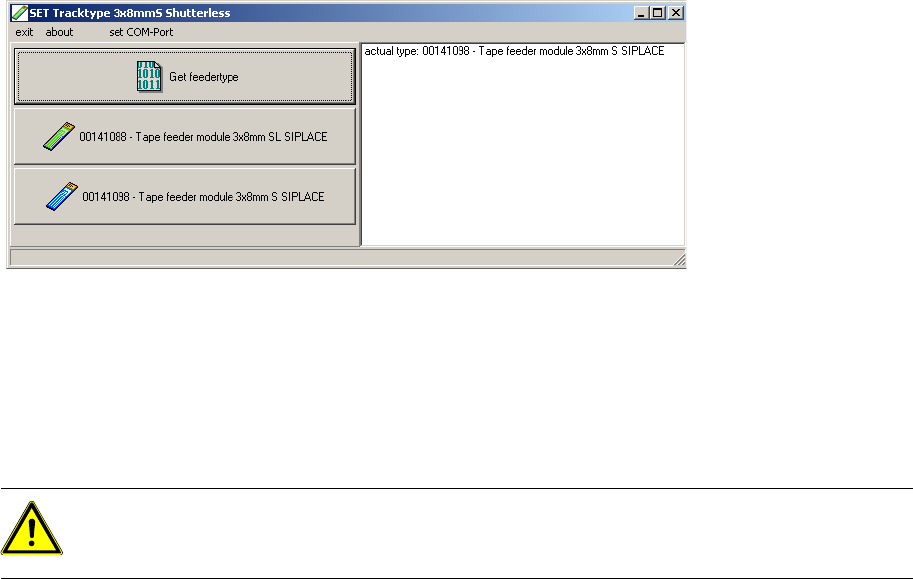
X To start the SET-SL-ID software, click on the corresponding icon on your desktop.
When you start the SET-SL-ID software, it immediately tries to read out data from the connected feeder.
If all devices have been correctly connected, the output field on the right-hand side of the dialog box will
show the ID of the feeder, plus the full text.
If an error message is shown in the output field, check whether all cables have been correctly connected
and whether the interface unit has been connected to COM port 1.
If you have connected the interface unit to another COM port (not COM port 1), change the COM port
setting in the Set-SL-ID software.
CAUTION:
The software described here is only suitable for processing 3x8 mm feeders. Make sure that you
only use 3x8 mm feeders with this software.