KE2040Instruction Manual Ver2.01,REV04.2003.6.25.pdf - 第101页
3 − 25 3.6.7.4 Machine M anagement Informat ion This comm and prints the machine oper ation inf ormat ion. W hen you select the [File] com mand on the menu bar , the [ Print] comm and on the displayed menu, then the [ Ma…
3 − 24
<Print> When you click this button, the system starts printing.
<Save to file> When you click this button, the “File Save” dialog box appears on
the screen. Specify the path and file name, then click the <Save>
button. The specified data is output as a text file.
<Cancel> When you click this button, the display returns to the screen
displayed before you selected the [Print] command.
3.6.7.3 Production Management Data
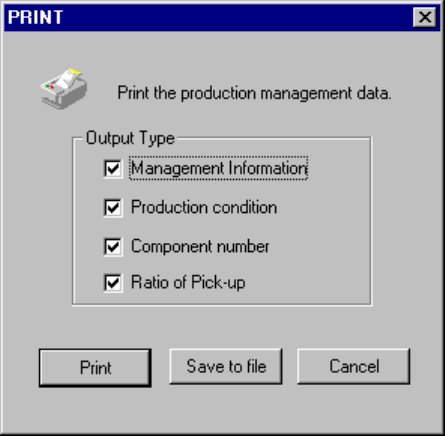
This command prints the production management information.
When you select the [File] command on the menu bar, the [Print] command on the
displayed menu, then the [Production Management Data] command, the dialog box
appears on the screen as shown in the figure below.
Figure 3.6.7.3.1 "Print production management data" dialog box
− The item checked with a "V" mark is enabled (turned on).
- Select data to be output, then click the <Print> button. The system starts
printing the production management information.
- When you select the output type, or data to be output, and click the <Save to
file> button, the dialog box for saving a file appears on the screen. Specify
the path and file name, then click the <Save> button. The specified file is
output as a text file.
- When you click the <Cancel> button, the system returns to the condition
before you clicked the [Print] command.
3 − 25
3.6.7.4 Machine Management Information
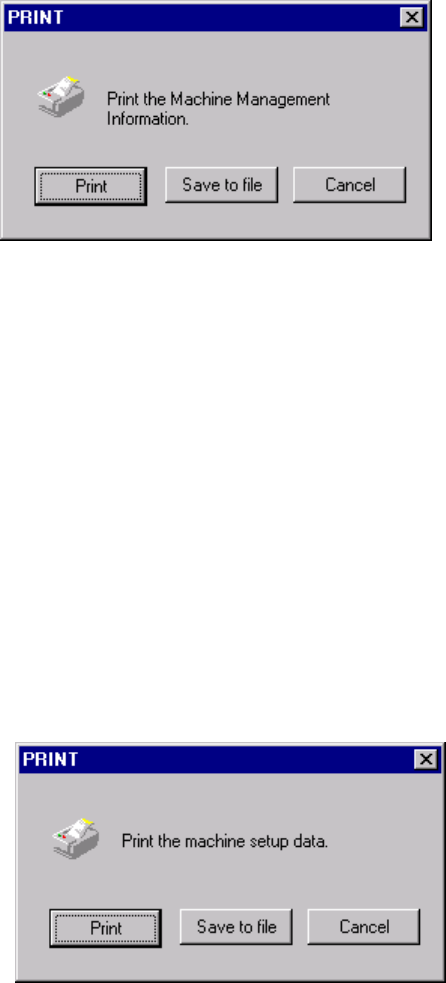
This command prints the machine operation information.
When you select the [File] command on the menu bar, the [Print] command on the
displayed menu, then the [Machine Management Information] command, the dialog
box appears on the screen as shown in the figure below.
- When you click the <Print> button, the system starts printing the machine
operation information.
- When you select the output type, or data to be output, and click the <Save to file>
button, the dialog box for saving a file appears on the screen. Specify the path
and file name, then click the <Save> button. The specified file is output as a text
file.
- When you click the <Cancel> button, the system returns to the condition before
you clicked the [Print] command.
3.6.7.5 Machine Setup Data
This command prints the machine setup information.
When you select the [File] command on the menu bar, the [Print] command on the
displayed menu, then the [Machine Setup Data] command, the dialog box appears
on the screen as shown in the figure below.
- When you click the <Print> button, the system starts printing the machine setup
information.
- When you select the output type, or data to be output, and click the <Save to file>
button, the dialog box for saving a file appears on the screen. Specify the path
and file name, then click the <Save> button. The specified file is output as a text
file.
- When you click the <Cancel> button, the system returns to the condition before
you clicked the [Print] command.
)
)
3 − 26
3.6.7.6 Operational Setting Data
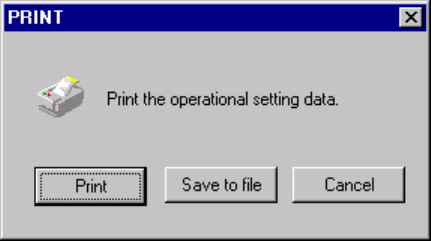
This command prints the operation options information.
When you select select the [File] command on the menu bar, select the [Print]
command on the displayed menu, then the [Operational Setting Data] command, the
dialog box appears on the screen as shown in the figure below.
When you click the <Print> button, the system starts printing the operation options
information.
When you select the output type, or data to be output, and click the <Save to file>
button, the dialog box for saving a file appears on the screen. Specify the path and
file name, then click the <Save> button. The specified file is output as a text file.
When you click the <Cancel> button, the system returns to the condition before you
clicked the [Print] command.