KE2040Instruction Manual Ver2.01,REV04.2003.6.25.pdf - 第323页
4 – 213 4.12.3.4. 2 Visi on recogniti on inspection operat ion (1) Vision recognition oper ation W hen you select the [ Vision recognit ion] comm and, the f ollowing dialog box appears on the screen. Figure 4.12.3. 4.2 “…
4 – 212
4.12.3.4 Check operation with vision recognition
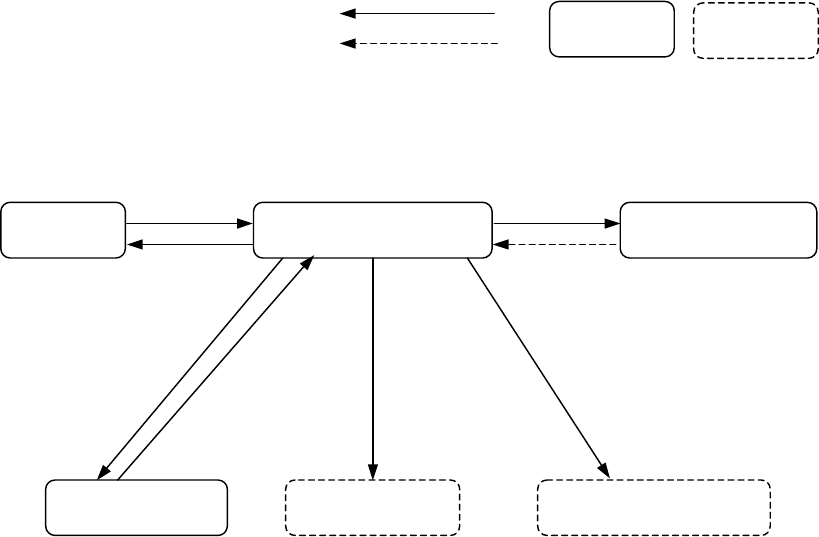
4.12.3.4.1 Operation transition during checking a component with vision recognition
The displayed screen and the system state are changed during checking a
component with the vision recognition function as shown below.
Figure 4.12.3.4.1 State transition while the system is checking a component with
vision recognition
User operation
Process
Dialog box
Process
onl
y
Check of a
component with
vision reco
g
nition
Selection
“Vision inspection” dialog
b
Return.
Check
“Executing inspection”
dialog box box
Correct/Error
Teaching
HOD device key
Feeder
ENTER/
CANCEL
PREV/NEXT
Feeder knock
Change of a component
p
ick-u
p
p
osition
4 – 213
4.12.3.4.2 Vision recognition inspection operation
(1) Vision recognition operation
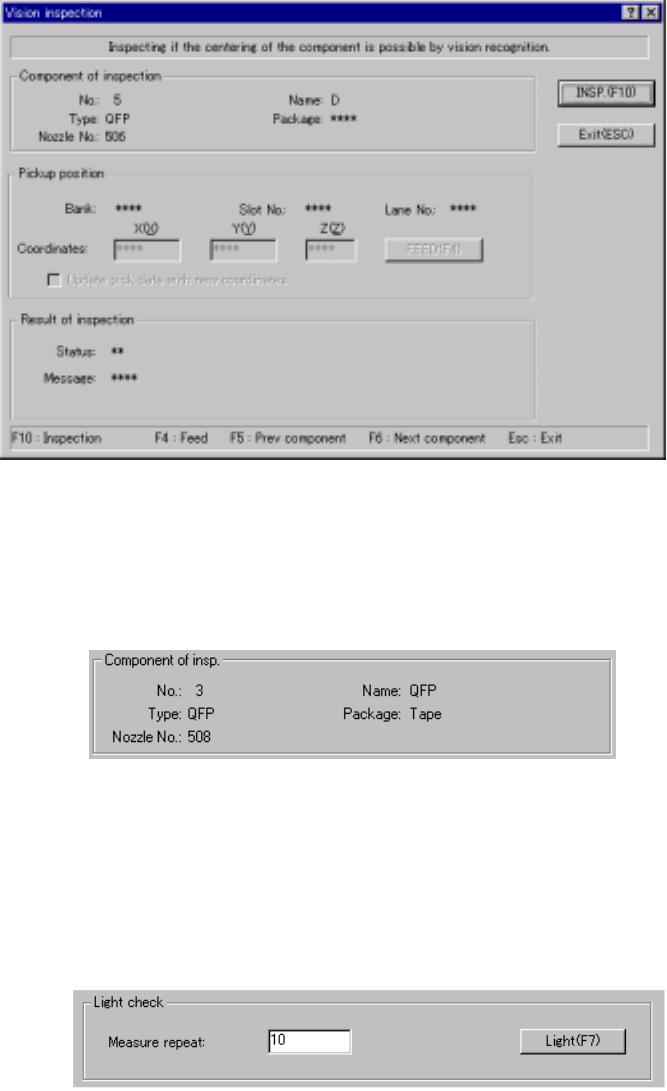
When you select the [Vision recognition] command, the following dialog box
appears on the screen.
Figure 4.12.3.4.2 “Vision inspection” dialog box
1) Component of insp. (inspection)
Component data required to perform the vision recognition inspection
appears on the dialog box.
Figure 4.12.3.4.3 “Component of insp.” Section
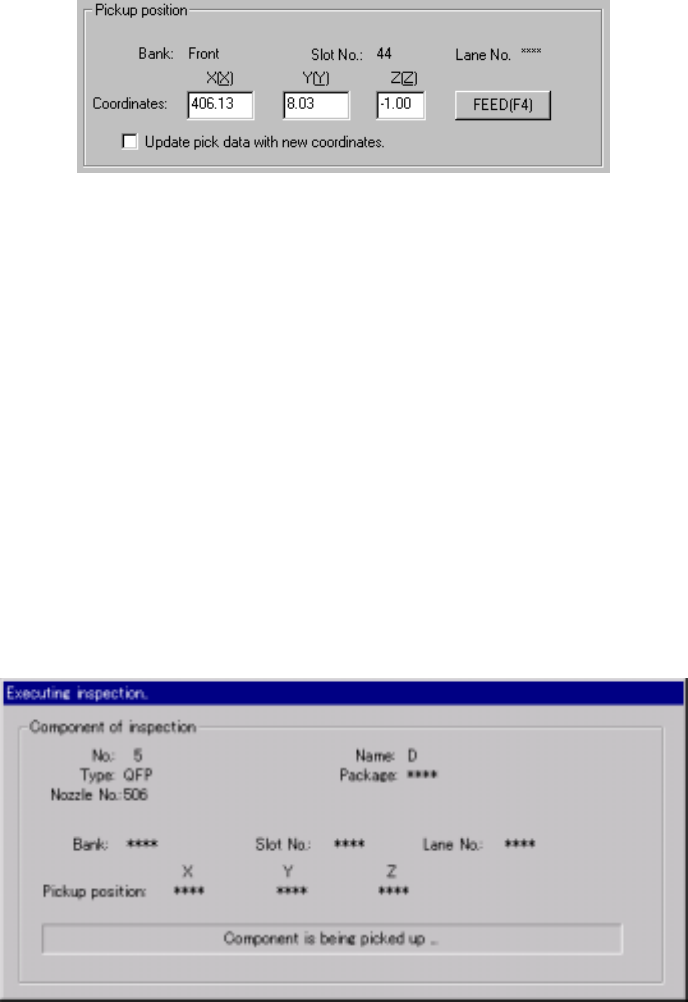
2) Light check
This button allows you to obtain the optimal brightness of the light to
improve the component recognition rate.
The system will recognize a component at least three times of the number
you set in the “Measure repeat” field.
Figure 4.12.3.4.4 <Light> button
(Note) When the system is set to measure the light according to the light
pattern (specified with the Light type Light style of the vision control
data) other than the default pattern, it may not measure the light.
4 – 214
3) Pickup position
Data on the component pick-up position appears on the dialog box. You
can change the component pick-up position to the previous or next
alternate component position also. If there is no Pick data created, or if
“MTC” is specified as a feeder, each item on this section is not displayed,
so you cannot change the component pick-up position, perform the
feeder-knock operation or teaching operation.
Figure 4.12.3.4.5 Pick-up position of a component to be checked
① <FEED> button
This button knocks a feeder once to feed a component (except a
32-mm paper tape).
② “Update pick data with new coordinates”
Check this check box to use the HOD device and store the taught
result in Pick data.
If you do not check this box, the taught coordinates are applied to the
current pick-up operation only.
4) “Executing inspection” screen
While the system is checking a component with the vision recognition
function, the following dialog box appears on the screen. On this dialog
box, data on a component being inspected and its pick-up position are
displayed. The process being performed is also displayed.
Figure 4.12.3.4.6 “Executing inspection” screen