KE2040Instruction Manual Ver2.01,REV04.2003.6.25.pdf - 第328页
4 – 218 4.12.4 Confirmation 4.12.4.1 Mark - BO C This command r ecognizes a BOC mar k, then saves the measured coordinat es of the recognized BOC mar k t o the main unit . T hese measured coor dinates are used to correct…
4 – 217
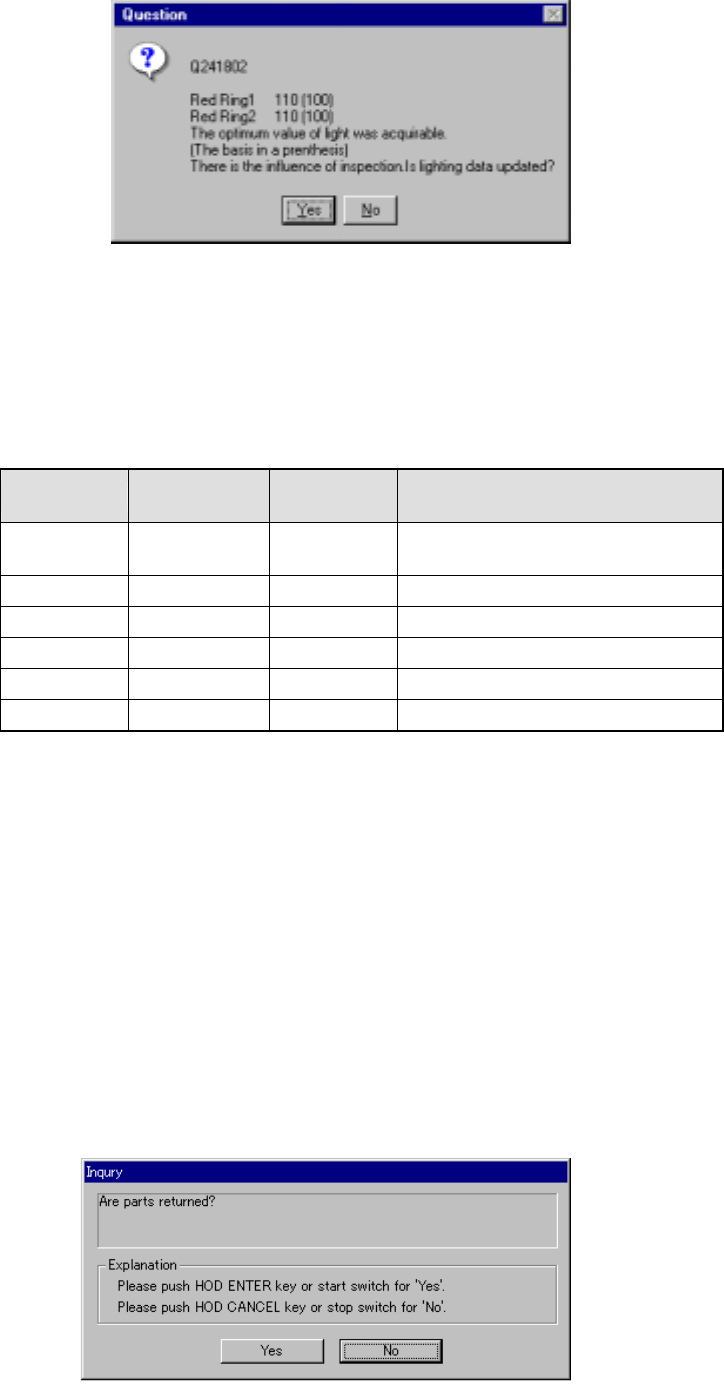
Figure 4.12.3.4.11 “Question” dialog box – Light measurement result 2
6) Short-cut keys
The following short-cut keys are available on the “Vision inspection”
screen.
Table 4.12.3.4.1 Available short-cut keys
Keyboard
Operation
panel key
HOD key Action
F10 ENTER Starts checking a component with the
vision recognition function.
F4 Knocks a feeder.
F5 PREVIOUS Previous alternate component
F6 NEXT Next alternate component
ESC CANCEL Returns to the previous screen.
F7 Light check
4.12.3.4.3 Holding a component
If the system fails to recognize a vision of a component with the vision recognition
inspection, and repeats picking up and returning the component several times, a
lead of the component may be bent. Therefore, this function is provided to allow
you to modify Vision data while holding a component after vision recognition
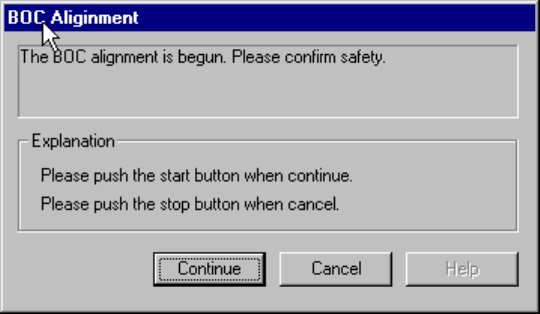
inspection to perform this inspection again. When you click the <No> button on
the “Question” dialog box that asks you whether to return a component when the
system finishes the vision inspection, the system quits the inspection dialog box
with continuing picking up the component. When you click the <Yes> button on
this dialog box, the system returns the component to its original position. The
“Question” dialog box described here appears on the screen when the system
finishes the vision recognition inspection while holding the component or when it
quits the Program Editor.
Figure 4.12.3.4.12 “Question” dialog box that asks you whether to return a component
4 – 218
4.12.4 Confirmation
4.12.4.1 Mark - BOC
This command recognizes a BOC mark, then saves the measured coordinates of the
recognized BOC mark to the main unit. These measured coordinates are used to
correct coordinates during teaching of Placement data.
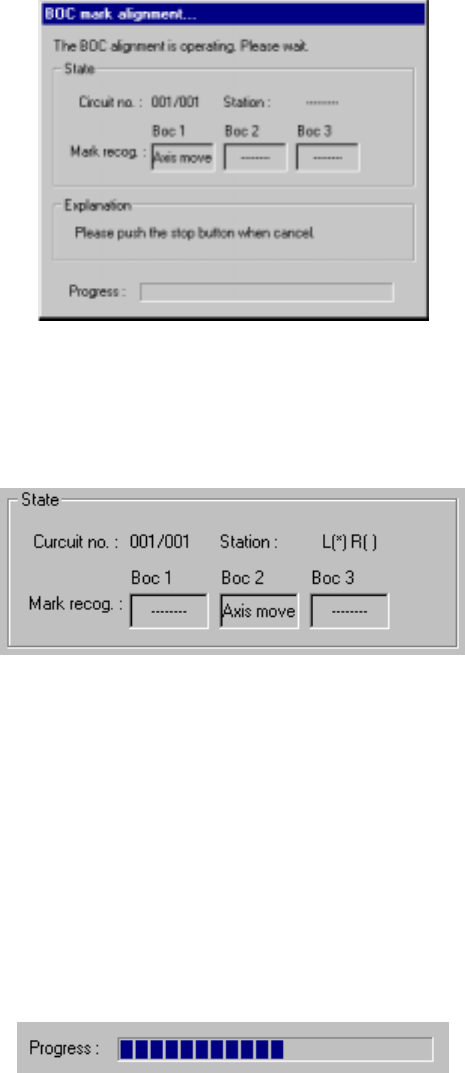
If the safety cover opens after you select the BOC command, the following dialog box
appears on the screen because the function to be invoked operates the axis.
Check the safety of the machine and yourself, then press the <Start> button.
Figure 4.12.4.1.1 BOC alignment - safety confirmation dialog box
4 – 219
When you press the <Start> button, the following dialog box appears on the screen
during BOC alignment operation.
To abort the operation for some reason, press the <Stop> button.
Figure 4.12.4.1.2 “BOC mark alignment” dialog box
1) State
① Circuit no
The number of circuit being recognized is displayed here. This number is
indicated in the format: “current circuit number”/”total number of circuits”.
(Normally, only a BOC of the reference circuit is recognized.)
② Station (available to a KE-2030 only)
The station which is recognizing a BOC mark is displayed here.
2) Progress
The progress bar indicates the progress of the current operation.