KE2040Instruction Manual Ver2.01,REV04.2003.6.25.pdf - 第380页
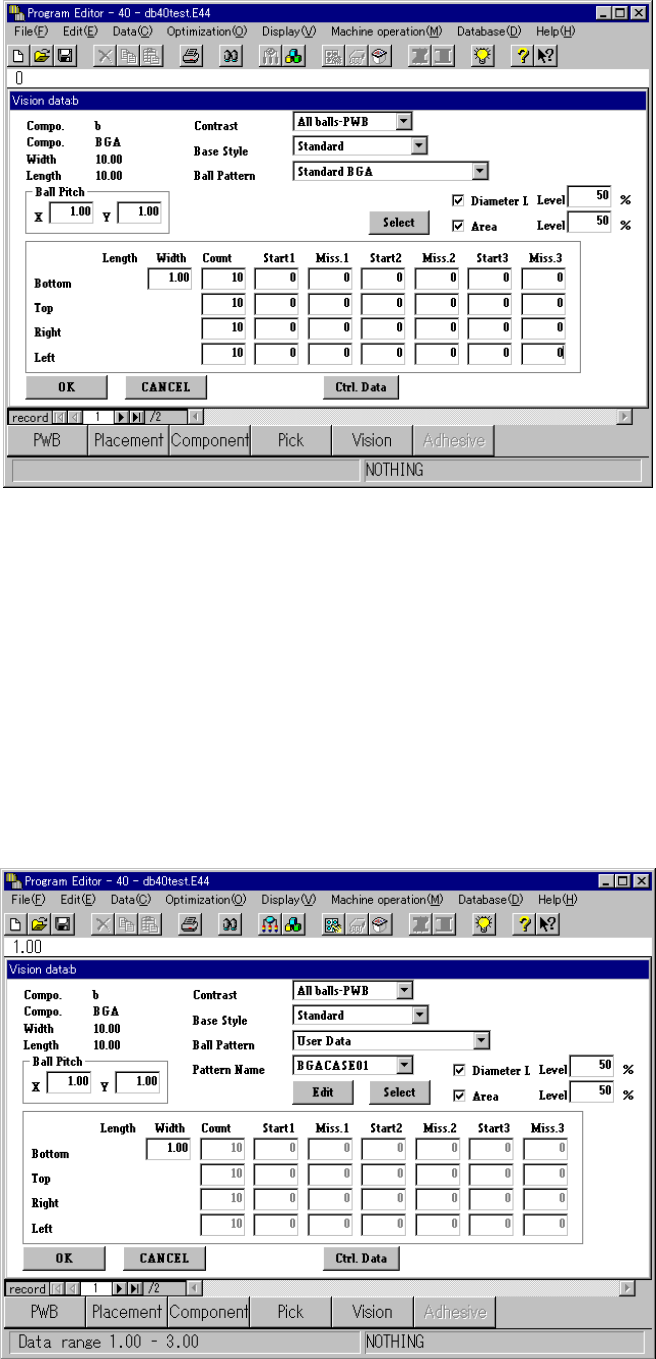
5 − 17 Figure 5.2.2.2. 2-2 Example 1 − − − − When you select “User Data” in the “Ball Pattern” fi eld, t he ball pattern edit function start s up i f you hav e not set t he corresponding user data y et . O therwise, the …
5 − 16
④ Quitting the Vision form screen
When you click the <OK> button, the system validates data and displays the
Vision list screen again.
When you click the <CANCEL> button, the system restores data to the
conditions before your editing without validating it, and opens the Vision list
screen.
When you switch the Vision form screen to another screen with a method
other than the <CANCEL> button (that is, by the menu item or button
displayed on the screen), the system validates the data by assuming that you
click the <OK> button.
⑤ Available “Edit” commands
The commands displayed on the “Edit” menu, [Jump], [Search] and [Change
Component Name] are available. You can use these commands in the same
manner as those on the Vision list screen.
⑥ Entering data
The general flow of data creation is the same as that on the Vision list screen.
See Section 5.2.3 “Detailed description of operation” for the details of how to
enter data.
⑦ Others
When you click the “Ctrl” or “elem.” field, its corresponding edit dialog box
opens on the screen. How to operate each dialog box is the same as that on
the Vision list screen.
−
−−
− Operations for each component type
The displayed menu items may vary depending on the entered component type.
This section describes the differences only.
① Vision data on a BGA component
The screen shown below indicates the Vision form screen of a BGA
component.
◆ When “All land” is selected in the “Contrast” field
“Base Style” and “Ball Pattern”: the menu items “Row” and “Column” are
displayed.
(The menu items “Row” and “Column” are displayed only, and you cannot
change the displayed data.)
When you select “Peripheral BGA” in the “Ball Pattern” menu item, the menu
item [NumLn] appears on the screen.
When you select “All balls” in the “Contrast” field, the check boxes “Diameter L
Level” and “Area Level” are displayed in addition to the menu items described
above. (See Figure 5.2.2.2.2-2 “Example 1.”)
When you put a check mark in the “Diameter L Level” and/or “Area Level”
check box(es), the corresponding input level appears on the screen.
5 − 17
Figure 5.2.2.2.2-2 Example 1
−
−−
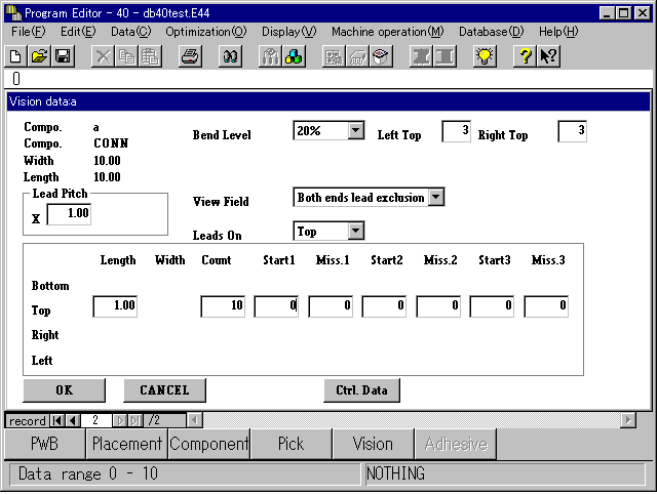
− When you select “User Data” in the “Ball Pattern” field, the ball pattern edit
function starts up if you have not set the corresponding user data yet.
Otherwise, the ball pattern name appears below the <Edit> and <Select>
buttons. (See Figure 5.2.2.2-3 “Example 2.”)
If you click the <Edit> button when another pattern is selected, the ball pattern
edit function starts up also. How to operate this function is the same as that
when you start it up on the Vision list screen.
Figure 5.2.2.2.2-3 Example 2
5 − 18
② Vision data of a lead connector component
When you select “Only the both ends lead” or “Both ends lead exclusion” in
the “View Field” field for a unidirectional lead connector, bi-directional lead
connector or Z lead connector, the “Left Top” and “Right Top” edit boxes
appear on the screen, in which you can enter the number of leads located on
the upper left-hand, upper right-hand, lower left-hand and lower right-hand
sides.
(See Figure 5.2.2.2.4 “Example 3.”)
Enter the number of leads located on the upper left-hand and right-hand sides
for a unidirectional lead connector, or that on the lower left-hand, upper
right-hand, lower left-hand and lower right-hand sides for a bi-directional lead
connector or Z lead connector.
Figure 5.2.2.2.4 Example 3