KE2040Instruction Manual Ver2.01,REV04.2003.6.25.pdf - 第402页
5 − 39 4) Deleting 4-1 Delet ing a reg istered ball patter n This section descr ibes how to delete a regist ered ball pattern. - Select the name of a ball pattern that you want to delete f rom t he list box. - W hen you …
5 − 38
3) Saving
3-1 Quitting the ball pattern editing operation
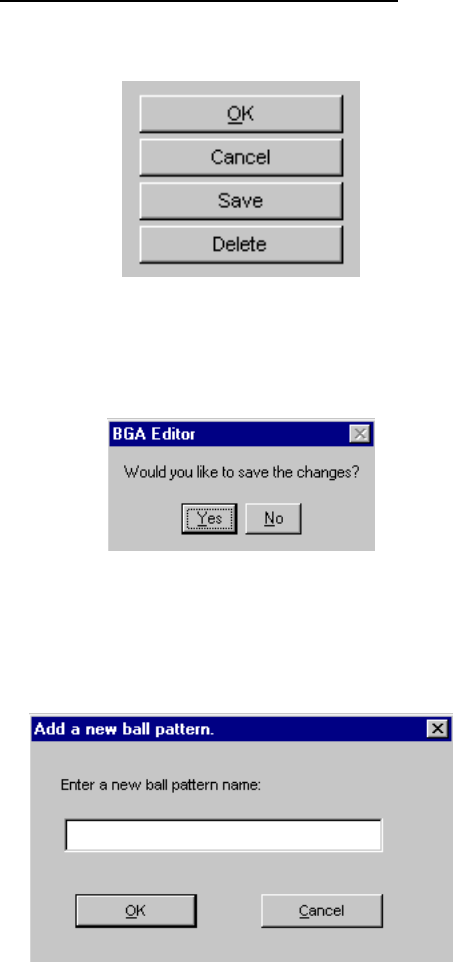
After editing a ball pattern, click the <OK> button.
- The following screen appears.
When you click the <Cancel> button, it cancels your ball pattern
editing.
When you click the <Yes> button, the “Add a new ball pattern” dialog
box appears on the screen.
When you click the <No> button, the edited ball pattern is saved.
♦ - Enter a ball pattern name, then click the <OK> button. The
edited ball pattern is saved.
- When you click the <Save> button, the “Add a new ball pattern”
dialog box appears on the screen. Enter a ball pattern name,
then click the <OK> button. The edited ball pattern is saved.
- When you click the <Cancel> button, the machine cancels your
ball pattern editing.
5 − 39
4) Deleting
4-1 Deleting a registered ball pattern
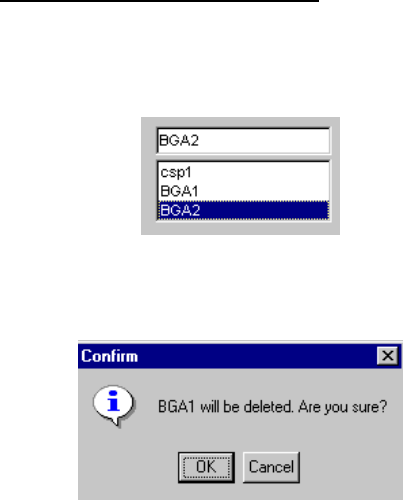
This section describes how to delete a registered ball pattern.
- Select the name of a ball pattern that you want to delete from the list
box.
- When you click the <Delete> button, the following screen appears.
♦ - When you click the <OK> button, the selected ball pattern is
deleted from the list box.
- When you click the <Cancel> button, the machine cancels
deleting of the selected ball pattern.
5 − 40
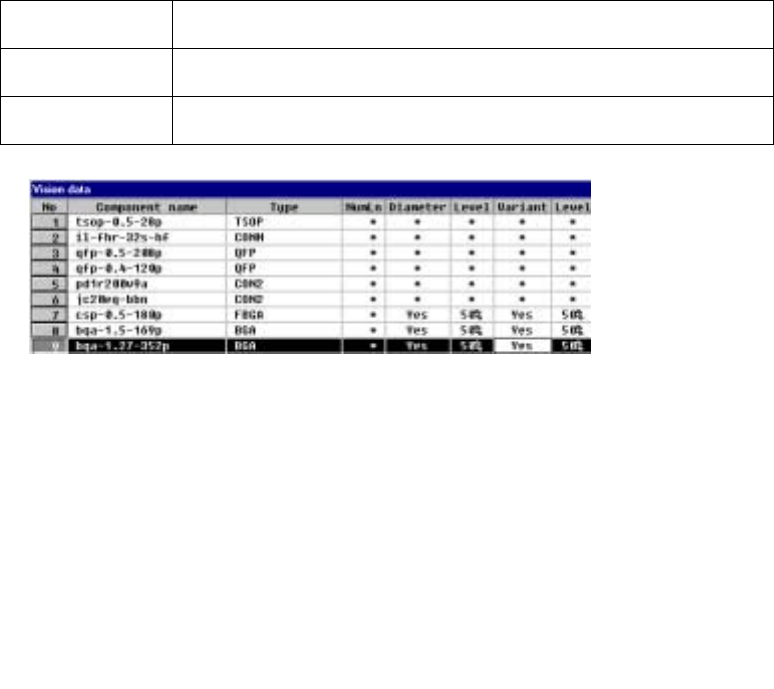
⑭ NumLn (number of lines), Diameter/Level, and Variant/Level
NumLn Set the number of lines on which balls are located with being viewed from the
outside of a peripheral pattern.
Diameter/Level This item is not available when you select “All land” at the “Contrast” setting
item.
Variant/Level This item is not available when you select “All land” at the “Contrast” setting
item.
1) Setting the number of lines on which balls are located for a peripheral
pattern