KE2040Instruction Manual Ver2.01,REV04.2003.6.25.pdf - 第452页
5 − 62 ⑤ Element siz e Ent er the element size. In t he example, the lead leng th is 1.0 m m, and the lead width is 0.2 mm. In this case, enter t he f ollowing values: Size W idth: 0.2 Length: 1. 0 Nor mally , the t oler…
5 − 61
⑥ Missing elements
In the example, there is no missing lead on the element group. If there is/are
a missing element(s), specify this setting item also in the same manner as that
of a QFP.
Up to four blocks of missing leads can be specified per element group.
To specify a block, set the position of the first missing lead and the number of
missing leads located continuously in the same manner when you set those of
a QFP component.
- If three leads are not located from the fifth lead,
Enter “5” to the “Start” field of the “Row” setting item, “3” to the “Count” field.
• Here, you have finished setting an element group. Next, define a recognition
element of this element group.
Only one element can be defined per element group. Even though you define
two or more elements, they are handled as “invalid”.
Click the <Add> button in the “Element” setting field.
1) Element screen
① Type
The lead element types are mainly classified into two: inner leads and outer
leads.
An inner lead refers to a lead whose end faces toward the inside of a
component. An outer lead refers to a lead whose end faces toward the
outside of a component.
- In the example, a component
consists of outer leads.
Select “Outer Lead” from the
“Type” combo box.
Figure 5.2.4.4.8
② Reference pos. (position)
The element origin of a lead element is the lead end as described earlier.
- Select “Center of the bottom” from the “Reference pos.” combo box.
③ Polarity (element polarity)
Specify how bright the image of an element should be.
- Select “Bright” from the “Polarity” combo box because a lead element looks
bright under the reflective light.
④ Offset
Normally, the offset is not used. Set “0” to the “Offset” fields.
Example of
inner leads (of
a socket)
5 − 62
⑤ Element size
Enter the element size. In the example, the lead length is 1.0 mm, and the
lead width is 0.2 mm. In this case, enter the following values:
Size Width: 0.2
Length: 1.0
Normally, the tolerance is not used. Enter “0” to the “Tolerance” fields.
⑥ Outer Lead/Inner Lead
□ Profile (lead shape)
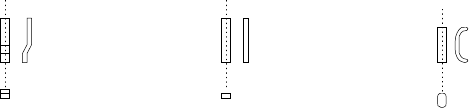
As shown in Figure 5.2.4.4.9, a lead whose shape is flat entirely is called a
“flat lead”, a stepped lead is called a “gullwing lead”, and a J-shaped lead is
called “J-Bend lead”.
* A flat lead is often used for a unidirectional connector.
* A gullwing lead is often used for a QFP and SOP.
* A J-Bend lead is used for a PLCC (QFJ) and SOJ.
Figure 5.2.4.4.9
- In the example, a gullwing lead is shown.
Select “Gullwing” from the “Profile” combo box.
⑦ Cut shape
Specify the shape of a lead end.
All of the settings other than “Flat” are handled in the same manner. When
you select a setting other than “Flat”, set the “Cut width” and “Cut length”
fields.
- In the example, the shape of a lead end is flat.
Select “Flat” from the “Cut shape” combo box.
⑧ Coating
This item is not to be used. Select “Bare” from this combo box.
⑨ Cut width
This item is not to be used. Enter “0” to this field.
⑩ Cut length
Set this item if you select a setting other than “Flat” from the “Cut shape”
combo box.
Enter the length of a not-flat portion measured from the lead end.
- In the example, the shape of a lead end is flat.
Enter “0” to the “Cut length” field.
Gullwing lead
Flat lead
J-Bend lead
5 − 63
⑪ Lead size
For a gullwing lead, enter the lead foot size here.
The “lead foot size” indicates the portion of a gullwing lead which is in contact
with a board.
- In the example, the length of a gullwing lead foot is 0.5 mm.
Enter the following values:
Width: 0.2 (same as the lead width)
Length: 0.4
♦ - Here, you have finished entering element data. When you click the <OK>
button displayed on the lower right corner, the “Element Group” screen
reappears.
- You have finished defining the first element group. When you click the
<OK> button displayed on the lower right corner, the “Extended Vision”
screen reappears.
• When you have the next element group to be defined at this point, click the <Add>
button to define the element group by entering data in the same manner.
In the example, there are four element groups. Define four element groups.
All data to be entered is shown below:
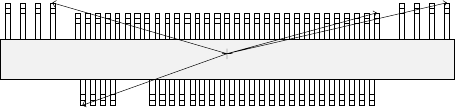
Figure 5.2.4.4.10
Top View
Forth element group
(X, Y): (- 9.50, 5.1) mm
Theta: 180 degrees
Pitch: 0.5 mm, Count: 4
Lead length: 1.2 mm
Lead width: 0.4 mm
Gullwing lead: Flat
Foot length: 0.6 mm
Foot width: 0.4 mm
Third element group
(X, Y): (7.5, 4.9) mm
Theta: 180 degrees
Pitch: 0.5 mm, Count: 31
Lead length: 1.0 mm
Lead width: 0.2 mm
Gullwing lead: Flat
Foot length: 0.4 mm
Foot width: 0.2 mm
Second element group
(X, Y): (13.31, 5.1) mm
Theta: 180 degrees
Pitch: 1.27 mm, Count: 4
Lead length: 1.2 mm
Lead width: 0.4 mm
Gullwing lead: Flat
Foot length: 0.6 mm
First element group
(X, Y): (- 7.25, - 5.1) mm
Theta: 0 degrees
Pitch: 0.5 mm, Count: 30
Missing leads: three from the
fifth lead
Lead length: 1.0 mm
Lead width: 0.2 mm
Gullwing lead: Flat
Foot length: 0.4 mm
Foot width: 0.2 mm