KE2040Instruction Manual Ver2.01,REV04.2003.6.25.pdf - 第785页
10 − 22 W hen you select the [Tool] command on the m enu bar, t hen the [Reset] command or click the <RST > button displayed on the m enu bar while the "VCS Operat ion infor mation" screen is being displa…
10 − 21
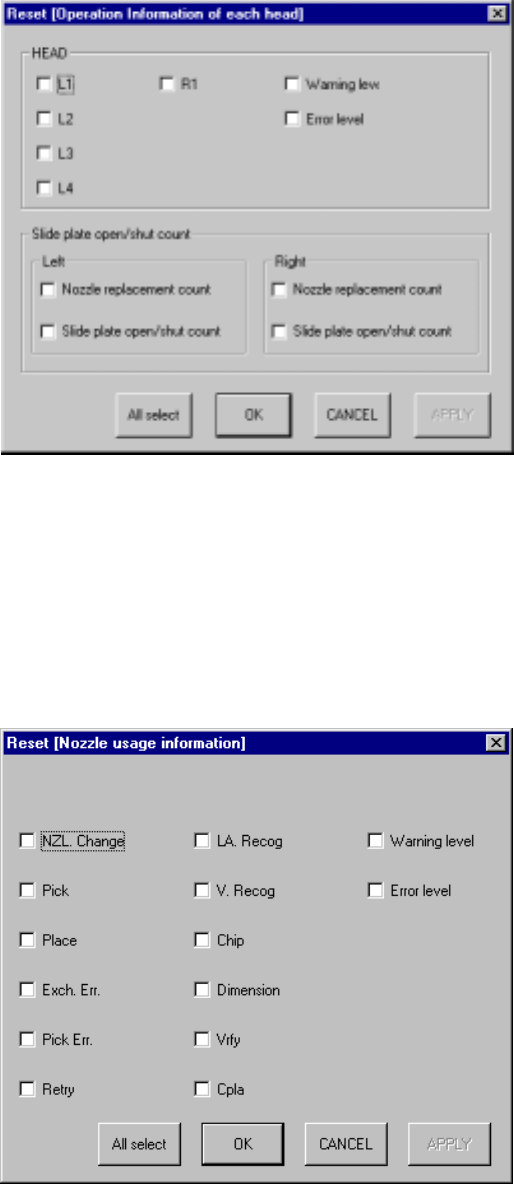
When you select the [Tool] command on the menu bar, then the [Reset] command on
the Tool menu while the "Operation Information of each head" window is being
displayed on the screen, or when you click the <RST> button on the tool bar, the
following dialog box appears on the screen.
Figure 10.4.7.1.3 "Reset [Operation Information of each head] dialog box
When you select the [Tool] command on the menu bar, then the [Reset] command on
the Tool menu while the "Operation Information of each nozzle" window is being
displayed on the screen, or when you click the <RST> button on the tool bar,the
following dialog box appears on the screen.
Figure 10.4.7.1.4 "Reset [Operation Information of each nozzle] dialog box
10 − 22
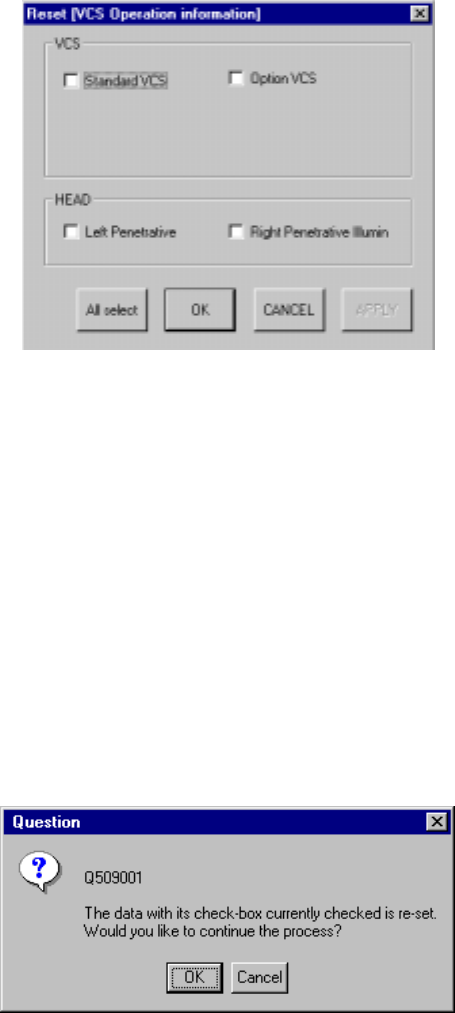
When you select the [Tool] command on the menu bar, then the [Reset] command or
click the <RST> button displayed on the menu bar while the "VCS Operation
information" screen is being displayed, the dialog box appears on the screen as
shown below.
Figure 10.4.7.1.5 Reset [VCS Operation information] dialog box
- When you click the <All select> button on the Reset dialog box above, all of the
check boxes are selected.
- When you click the <CANCEL> button, the machine will not reset any data. If you
clicked the <OK> button before you clicked the <CANCEL> button on the Reset
dialog box, this Reset dialog box will be closed.
- When you click the <APPLY> button, the Reset dialog box remains on the screen.
− On each dialog box above, a check box is displayed next to the data items
respectively. Select the check box of the item to be reset, then click the <OK>
button or <APPLY> button. The following dialog box appears on the screen.
Figure 10.4.7.1.6 Driver operation information resetting confirmation dialog box
- When you click the <OK> button on the dialog box above, data of the item whose
check box is checked on the Reset dialog box is reset.
- When you click the <CANCEL> button, the system does not reset any data: if you
selected the <OK> button on the Reset dialog box, this Reset dialog box closes.
10 − 23
10.5 Operation to Be Performed When a Nozzle Attachment Error
Occurs
If a nozzle is attached on a head at power-on, or if an error occurs is stained when a
nozzle is replaced with another one, information on the nozzle of the head (stored in
the main unit internal memory) may not indicate the nozzle actually attached on the
head. In this case, follow the procedure below.
10.5.1 Semi-automatically returning a nozzle
Press the <ORIGIN> switch on the operation panel to move all axes to their home
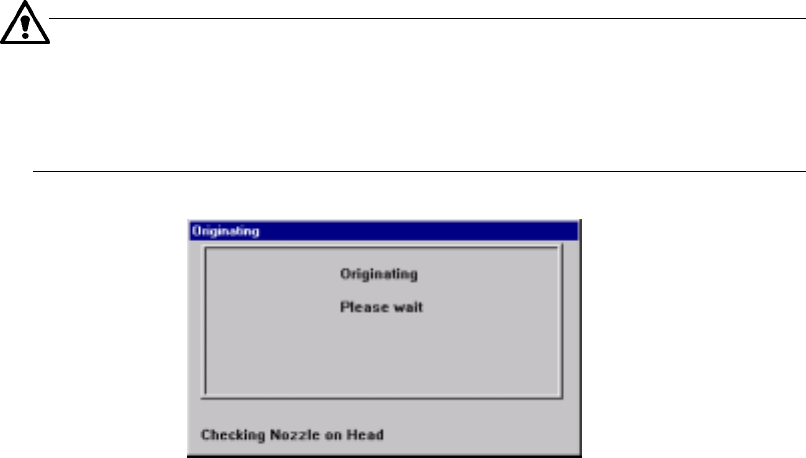
positions respectively. After that, the message “Checking Nozzle on Head” (see
Figure 10.5.1.1) appears on the “Originating” screen.
− The machine performs this axes operation if “the nozzle arrangement for each
head stored in the machine internal memory” does not match the “the actual
nozzle arrangement”.
Normally, the machine does not perform this operation.
If you set the main circuit breaker to off without returning a nozzle to the
ATC and turn on the machine again, or if a nozzle is replaced with another
one although a laser head is stained to cause a nozzle replacement error,
the machine performs this operation.
Figure 10.5.1.1 “Checking Nozzle on Head” message displayed on the screen
(“Originating”)
− Detecting if a nozzle is attached on a head
If “the nozzle arrangement for each head stored in the machine internal memory”
does not match the “the actual nozzle arrangement”, the following screen (see
Figure 10.5.1.2) appears.