KE2040Instruction Manual Ver2.01,REV04.2003.6.25.pdf - 第878页
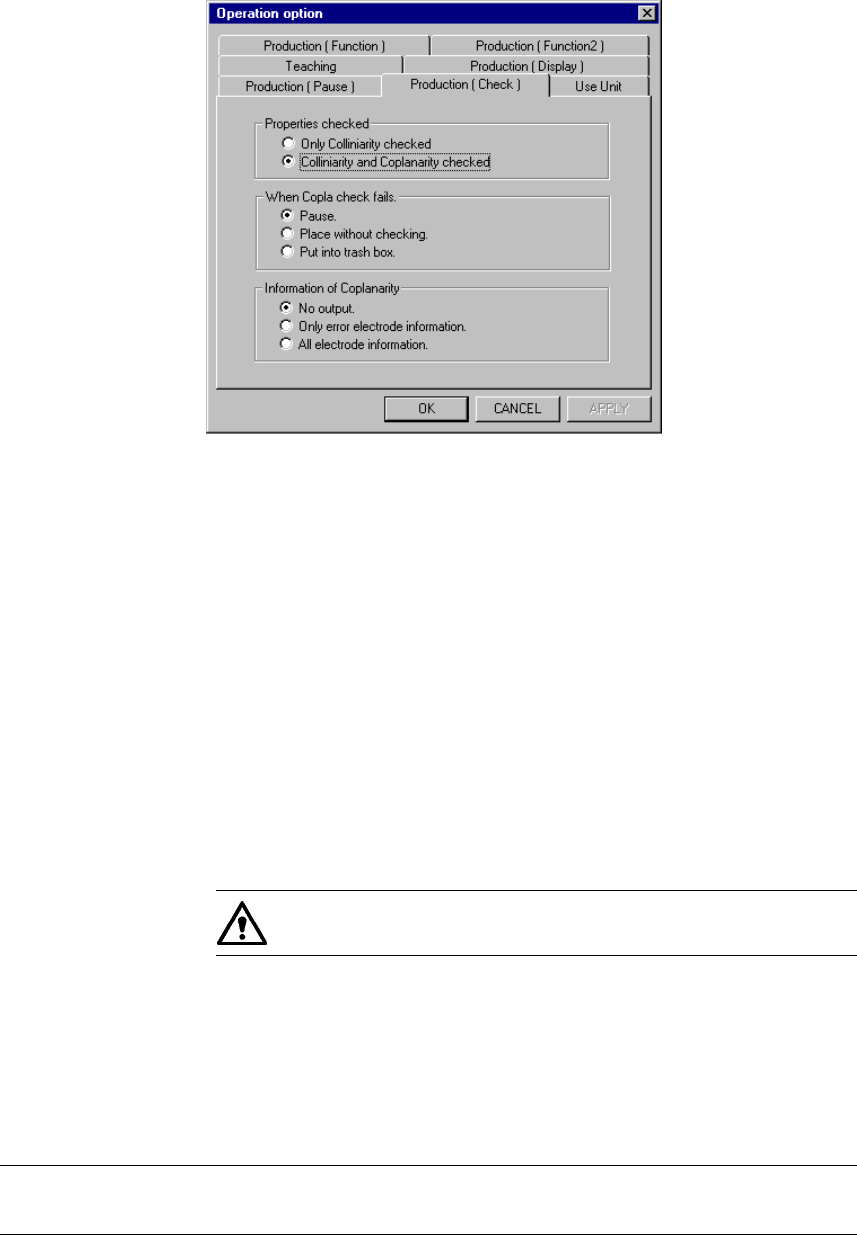
13 − 38 13.13.5 Operation options Select the [Set up] command f rom the menu bar, then the [ Options] and [ Operation option] comm ands in this order. Click the “Pr oduction (Check) ” tab. (For details, see Section 12.4.…
13 − 37
(2) How to set
① Number of Retry
− Specify a value in the range from 0 to 10 (default: 0).
② Measure plane
− With using the radio button, select either “three-Point problem” or “least
squares method” (default: “three-Point problem”).
13 − 38
13.13.5 Operation options
Select the [Setup] command from the menu bar, then the [Options] and [Operation
option] commands in this order. Click the “Production (Check)” tab. (For details,
see Section 12.4.6 “Setting the Production (Check) option” of Chapter 12
“OPTIONS”.)
Figure 13.13.5.1 Production (Check) options settings
(1) How to set each menu item
① Properties checked
− Only Colinearity checked
− Colinearity and Coplanarity checked
Click either of the corresponding radio buttons above.
② When Copla check fails.
− Pause.
− Place without checking.
− Put into trash box.
Click one of the corresponding radio buttons above.
Only when you check the radio button “Pause.”, it allows
you to set the menu item “Information of Coplanarity.”
② Information of Coplanarity
− No output
− Only error electrode information
− All electrode information
Click one of the corresponding radio buttons above.
When you make all of the necessary settings, click the <OK> button. If you do
not have to make/change any setting, click the <CANCEL> button.
13 − 39
13.12.6 Editing data
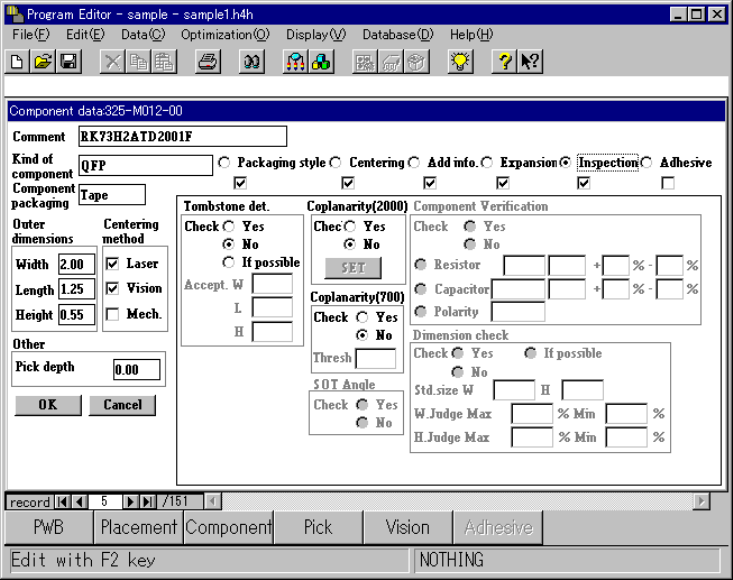
To perform the coplanarity check, make the necessary settings on the screen shown
below.
− Select the [Component data] command, then [Coplanarity (2000)] Command on
the Program Editor screen.
(See 19 Copla of Section 5.2.3 “Detailed operations” of Chapter 5 “VCS”.)
− Check either the radio buttons “Yes” or “No” of the “Coplanarity (2000)” on
the dialog box below to select whether to perform a coplanarity check.
When you check the radio button “Yes”, the <Set> button is enabled.
(See Figure 13.13.6.1 Coplanarity selection screen.)
− Click the <Set> button. The “COPLA CHECK DATA” screen appears. (see
Figure 13.13.6.2 Coplanarity check screen.)
Figure 13.13.6.1 Coplanarity selection screen