KE2010.Instruction Manual.Ver.2.01,Rev.08.pdf - 第106页
3 − 33 Step 3. Shutdow n process ① Pr eparation f or t urning off t he power supply Aft er you quit t he application, the m achine starts the shutdown process f or W indow s NT . Y ou can tur n off t he machine at t his …
3 − 32
− When you select the <CANCEL> button
− When you click the <CANCEL> button, the machine interrupts the current
operation such as PWB production.
In such a case, the current operation is interrupted for several minutes
(approximately 3 minutes as the factory setting), so manually save data and shut
down the system.
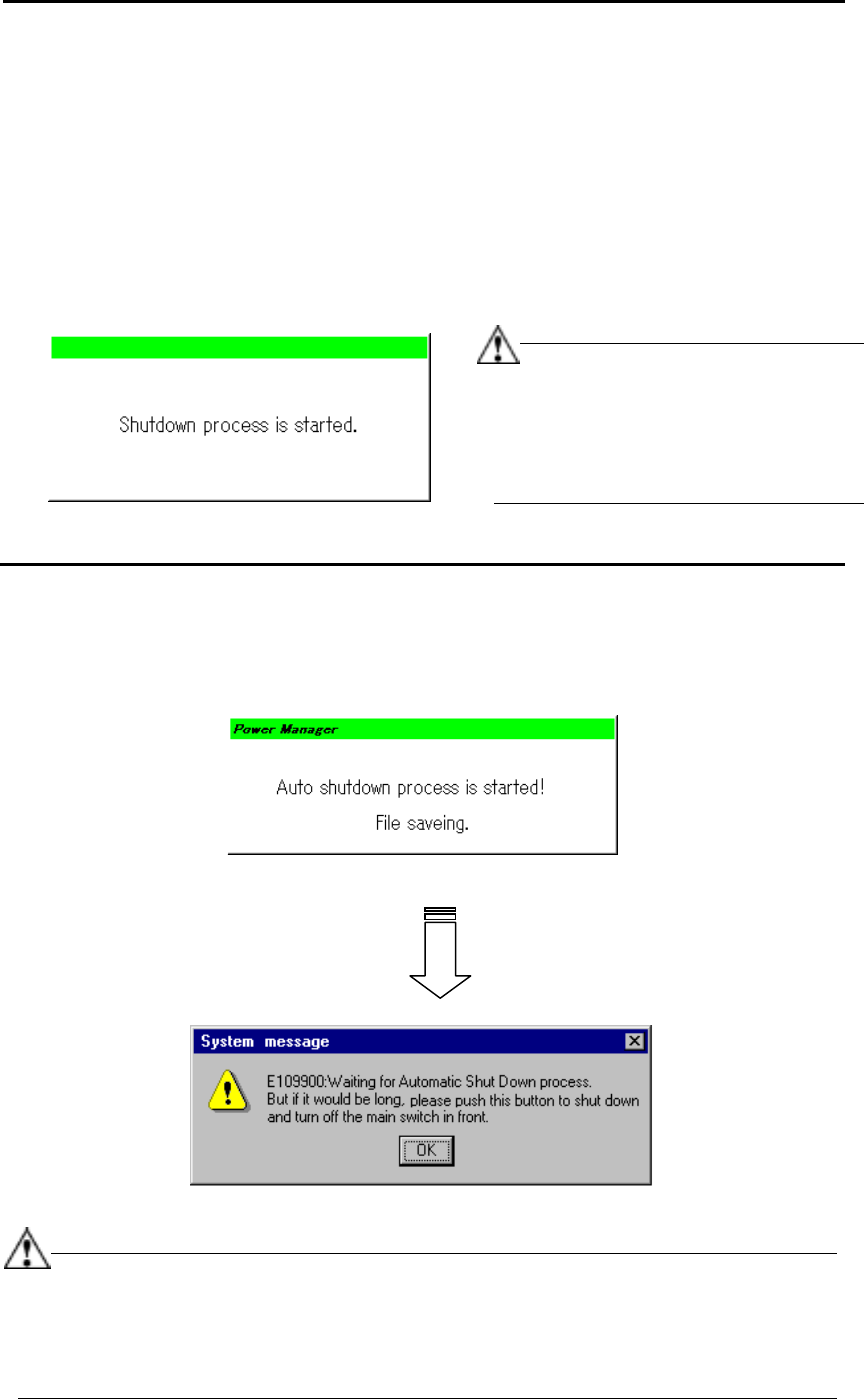
− When you do not start the shutdown process even though the preset time passes,
the machine displays the following dialog box, and then starts the shutdown
process automatically.
Figure 3.7.1.3 Shut down start dialog box
Step 2. Saving a file
After saving the information required to continue the current operation as a temporary
file, quit the application forcibly.
Figure 3.7.1.4 File saving dialog box
(Log off/on → The regulated screen appears.)
Figure 3.7.1.5 System message
−
This file saving operation does not overwrite any user data, but saves data as a
temporary file.
−
When you quit the application forcibly, the system is shut down without displaying
any inquiry message regardless the machine status.
In this case, note that the machine
does not display any message for asking
you whether to save data automatically.
After shut down, the machine operates in
the same manner as when you do not
click the <CANCEL> button.
3 − 33
Step 3. Shutdown process
①
Preparation for turning off the power supply
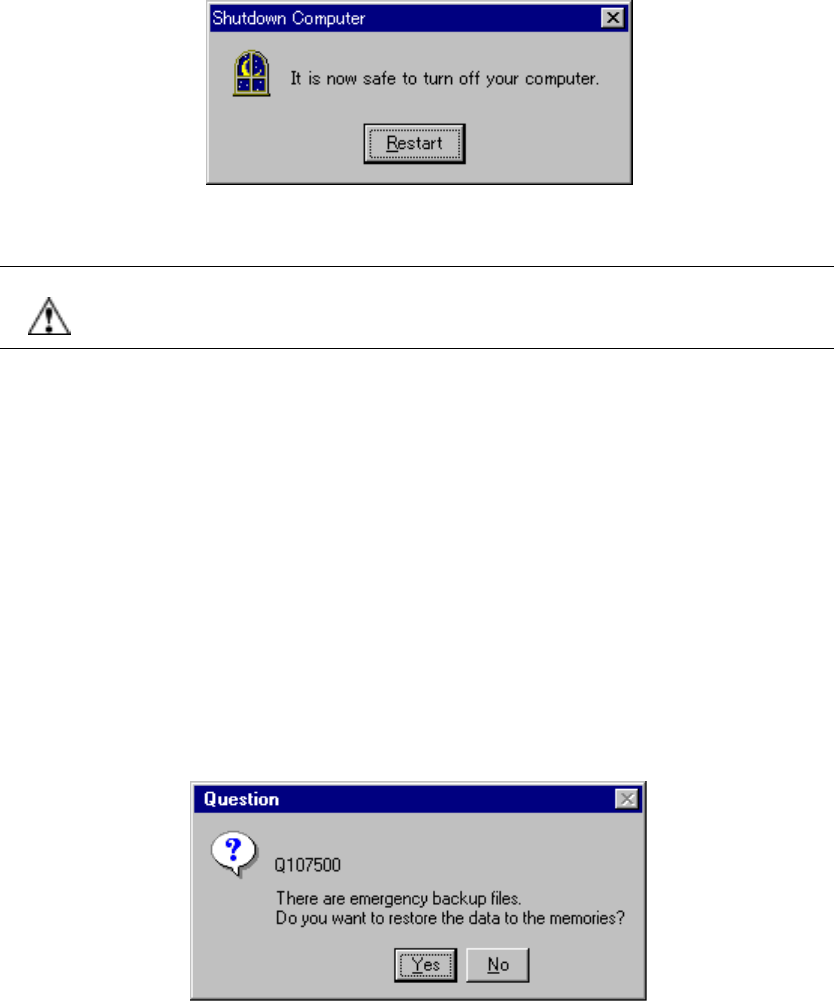
After you quit the application, the machine starts the shutdown process for
Windows NT. You can turn off the machine at this point, and the following
screen appears.
Figure 3.7.1.6 Shutdown screen
CAUTION Even though you click the <Restart> button on the screen above (Figure
3.7.1.6), the system may not start up normally. Never click the <Restart>
button.
②
Turning off the power supply from the UPS
You can turn off the main power supply (KE-2000 main unit) manually. However,
if the main power supply is not turned off at this point, the power supply from the
UPS is turned off automatically after approximately three minutes.
3.7.2 Recovering process after a power failure occurs (turning on the machine)
At start-up of the system, the machine checks the files saved at power failure, and
displays the confirmation dialog box if any file exists.
3.7.2.1 Confirmation message when the machine detects a file saved during power
failure
Figure 3.7.2.1 Emergency backup file confirmation dialog box
Yes: Recovers the data such as a production program and production
management information, and returns the system to the original status.
No: Does not recover the data used before a power failure occurs.
3 − 34
①
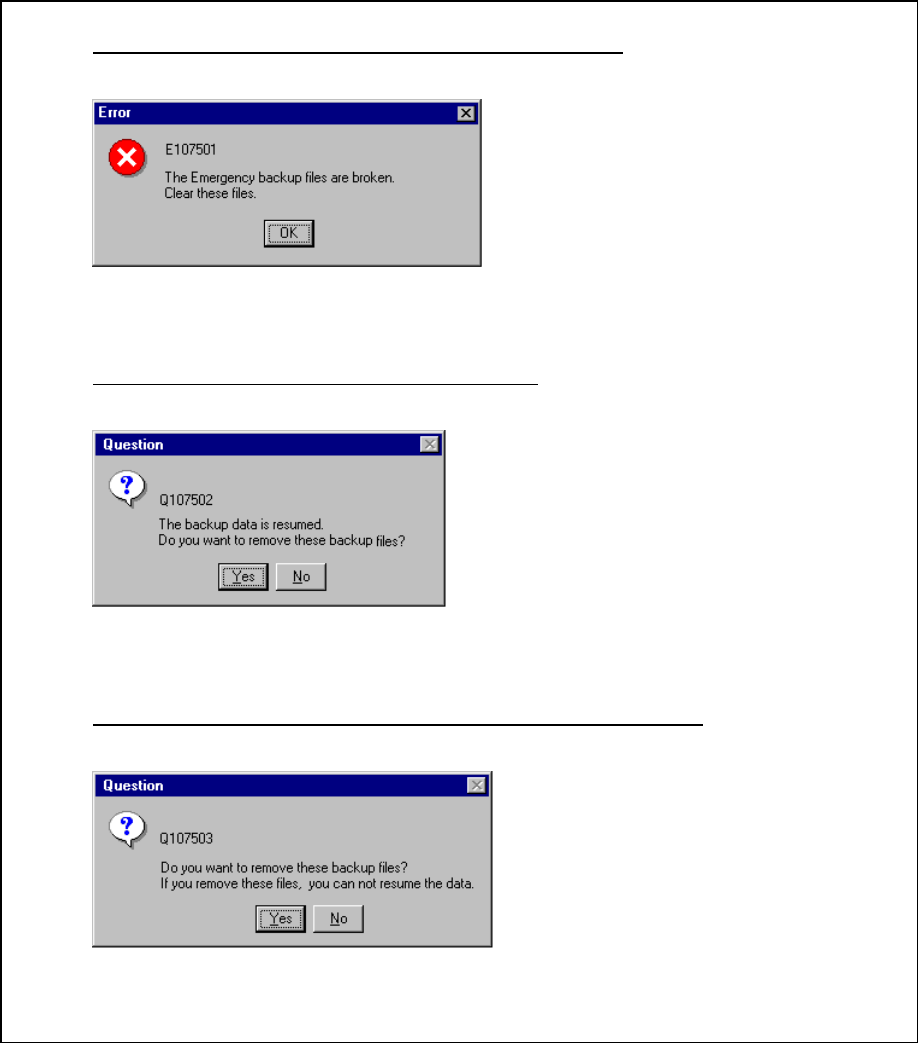
If the machine detects a file error during data recovery
Figure 3.7.2.1.1 Emergency backup file clearing message
②
Confirmation for processing of recovered files
Figure 3.7.2.1.2 Recovered files clear confirmation message
③
Confirmation message if the backed-up files are not recovered
Figure 3.7.2.1.3 Backed-up files clear confirmation message
OK: Deletes all of the files saved
during power failure, and returns
the data to its initial status.
Yes: deletes all of the backed up files.
No: quits the initialization process
without deleting the backed-up
files.
Yes: deletes all of the backed-up files.
No: quits the initialization process
without deleting the backed-up
files
.