KE2010.Instruction Manual.Ver.2.01,Rev.08.pdf - 第107页
3 − 34 ① I f the machine detect s a f ile error dur ing data r ecovery Figure 3.7. 2.1.1 Emergency backup file clearing message ② Conf ir mation f or processing of recovered f iles Figure 3.7. 2.1.2 Recovered files cl ea…
3 − 33
Step 3. Shutdown process
①
Preparation for turning off the power supply
After you quit the application, the machine starts the shutdown process for
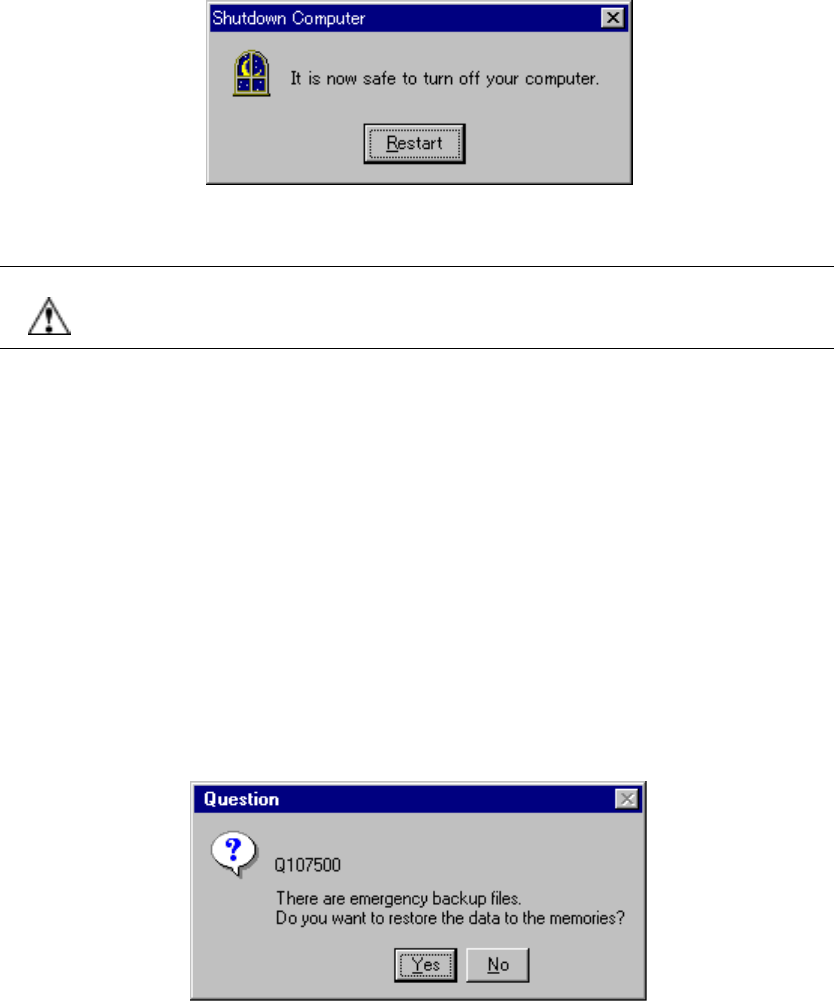
Windows NT. You can turn off the machine at this point, and the following
screen appears.
Figure 3.7.1.6 Shutdown screen
CAUTION Even though you click the <Restart> button on the screen above (Figure
3.7.1.6), the system may not start up normally. Never click the <Restart>
button.
②
Turning off the power supply from the UPS
You can turn off the main power supply (KE-2000 main unit) manually. However,
if the main power supply is not turned off at this point, the power supply from the
UPS is turned off automatically after approximately three minutes.
3.7.2 Recovering process after a power failure occurs (turning on the machine)
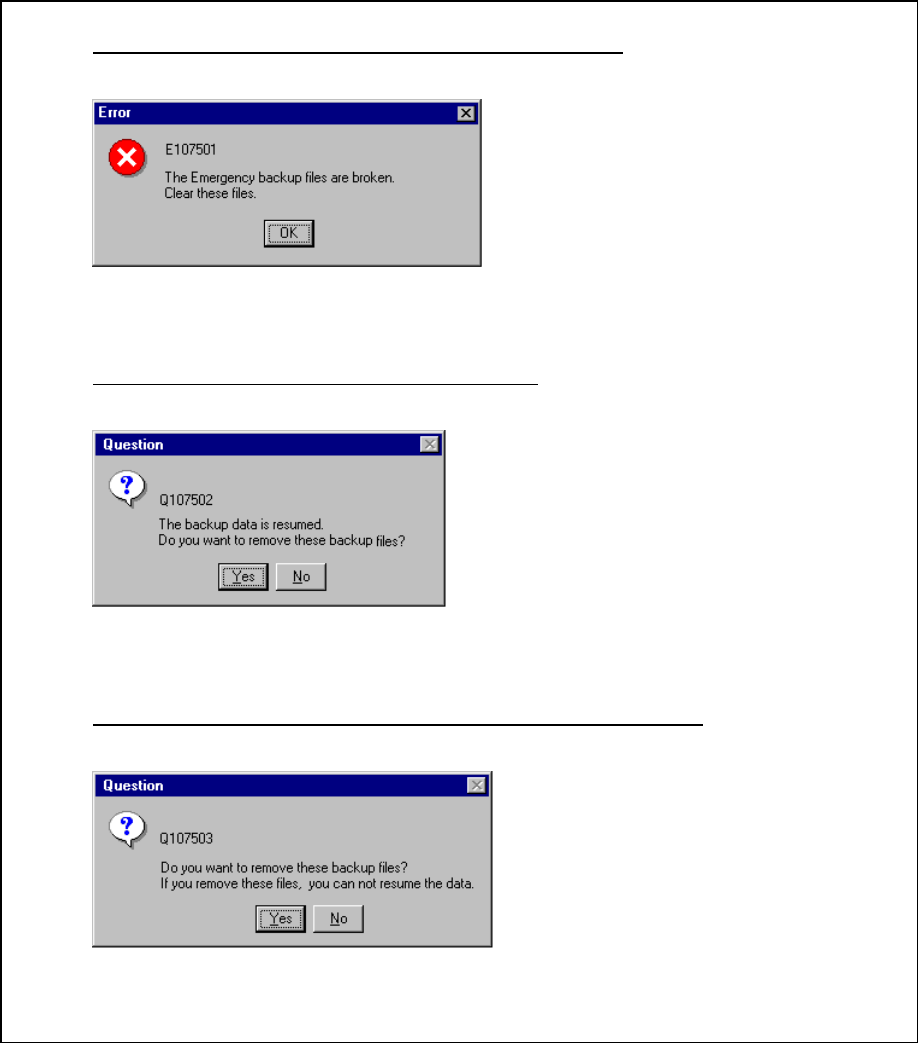
At start-up of the system, the machine checks the files saved at power failure, and
displays the confirmation dialog box if any file exists.
3.7.2.1 Confirmation message when the machine detects a file saved during power
failure
Figure 3.7.2.1 Emergency backup file confirmation dialog box
Yes: Recovers the data such as a production program and production
management information, and returns the system to the original status.
No: Does not recover the data used before a power failure occurs.
3 − 34
①
If the machine detects a file error during data recovery
Figure 3.7.2.1.1 Emergency backup file clearing message
②
Confirmation for processing of recovered files
Figure 3.7.2.1.2 Recovered files clear confirmation message
③
Confirmation message if the backed-up files are not recovered
Figure 3.7.2.1.3 Backed-up files clear confirmation message
OK: Deletes all of the files saved
during power failure, and returns
the data to its initial status.
Yes: deletes all of the backed up files.
No: quits the initialization process
without deleting the backed-up
files.
Yes: deletes all of the backed-up files.
No: quits the initialization process
without deleting the backed-up
files
.
4 − 1
CHAPTER 4 EDITING THE PROGRAM
4.1 Overview
You have to create a production program before producing PWBs. To create or edit
production program data, start up the Program Editing utility, then enter each data.
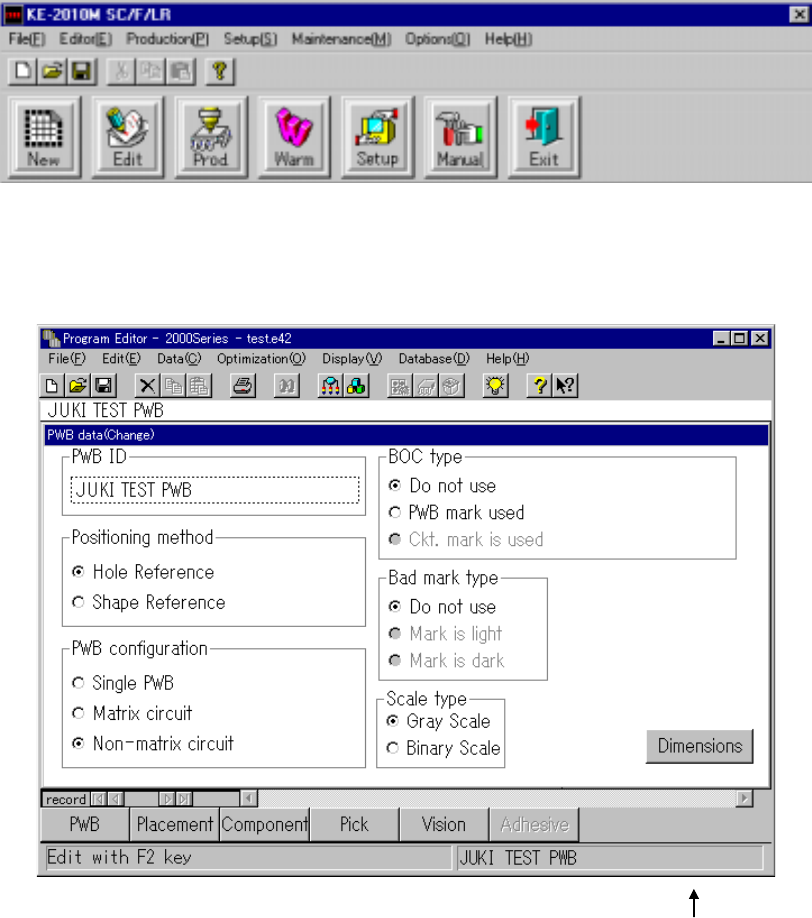
Click the Edit command button to start up the Program Editing utility.
When the Production Program Editing utility starts up, a screen appears as shown
below.
PWB ID
When the Program Editing utility starts up, “UNTITLED” appears on the right side of the
title bar as the program name, and the PWB ID column on the right side of the status
bar becomes blank.
When you display the tool bar from the menu bar, the operability improves.
To create or edit a production program, click the data title to be create/edited, or select
[Data (C)] on the menu bar to open the desired data.