KE2010.Instruction Manual.Ver.2.01,Rev.08.pdf - 第108页
4 − 1 CHA PTER 4 EDITING THE PROGRA M 4.1 Overv iew Y ou have to cr eate a production pr ogram bef or e producing PW Bs. T o cr eate or edit production prog ram dat a, start up the Prog ram Edit ing utilit y , then enter…
3 − 34
①
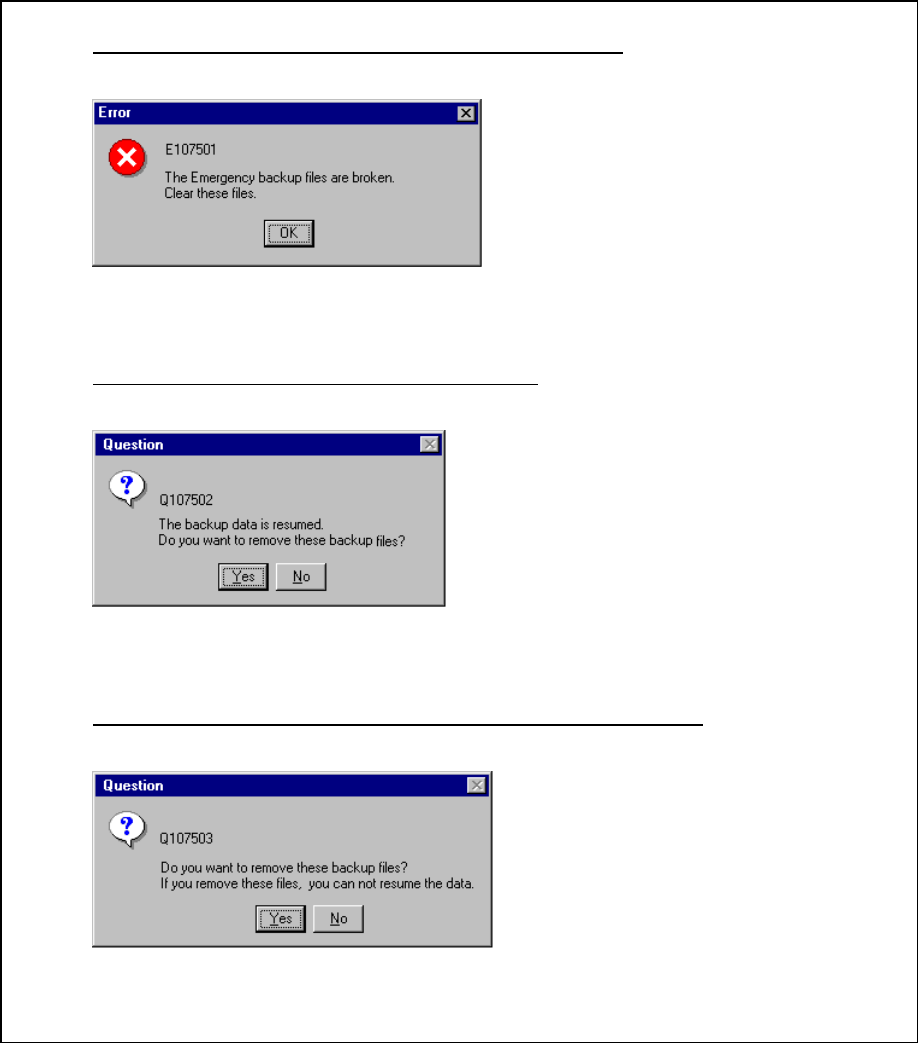
If the machine detects a file error during data recovery
Figure 3.7.2.1.1 Emergency backup file clearing message
②
Confirmation for processing of recovered files
Figure 3.7.2.1.2 Recovered files clear confirmation message
③
Confirmation message if the backed-up files are not recovered
Figure 3.7.2.1.3 Backed-up files clear confirmation message
OK: Deletes all of the files saved
during power failure, and returns
the data to its initial status.
Yes: deletes all of the backed up files.
No: quits the initialization process
without deleting the backed-up
files.
Yes: deletes all of the backed-up files.
No: quits the initialization process
without deleting the backed-up
files
.
4 − 1
CHAPTER 4 EDITING THE PROGRAM
4.1 Overview
You have to create a production program before producing PWBs. To create or edit
production program data, start up the Program Editing utility, then enter each data.
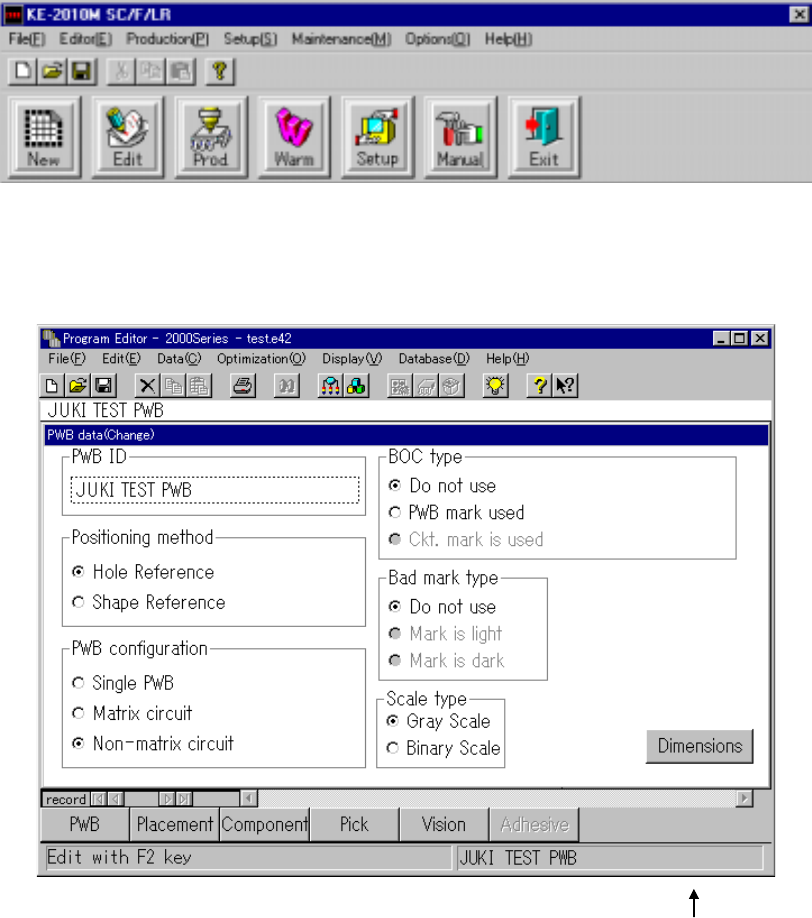
Click the Edit command button to start up the Program Editing utility.
When the Production Program Editing utility starts up, a screen appears as shown
below.
PWB ID
When the Program Editing utility starts up, “UNTITLED” appears on the right side of the
title bar as the program name, and the PWB ID column on the right side of the status
bar becomes blank.
When you display the tool bar from the menu bar, the operability improves.
To create or edit a production program, click the data title to be create/edited, or select
[Data (C)] on the menu bar to open the desired data.
4 − 2
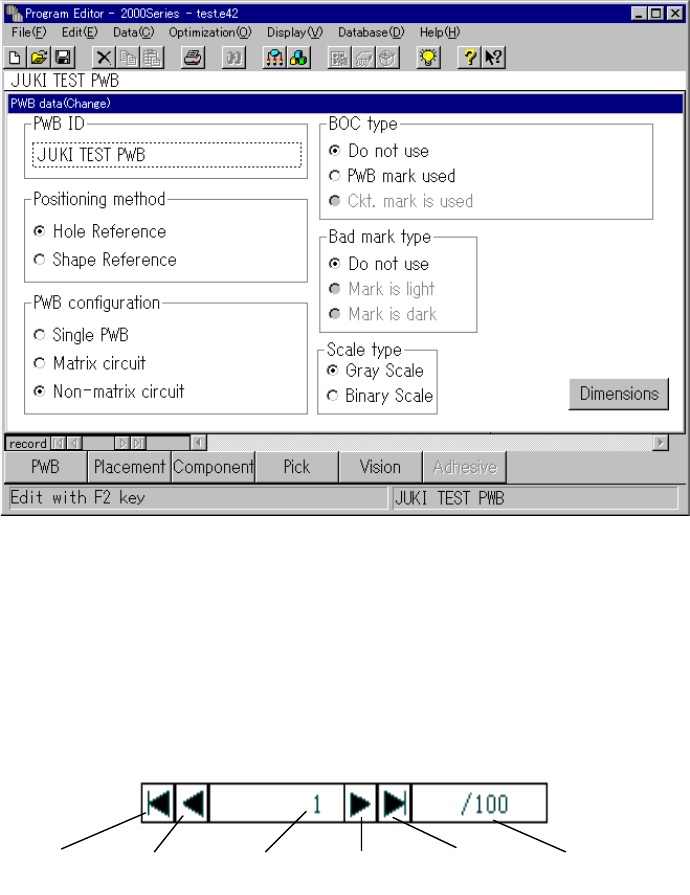
When you display the tool bar, a screen appears as shown below.
On the record box
• Record box position
The record box is displayed on the left side of the horizontal scroll bar in the same
manner as the database is.
Start
button
PREV
button
Record
number
NEXT
button
End
button
Total number of
records
• Record box function on the list screen
Even on the list screen, the record box functions in the same manner as on the form
screen. On the list screen, the PREV and NEXT buttons move up/down the cursor,
the Start and End buttons jump to the start and end positions respectively, and entry
in the record number box jumps to the position specified with your entry.
• Validation when you enter a number directly
When you enter the record number directly, your entry is not reflected on the screen
unless you press the Return key. If you press any other button (such as the Start,
End, PREV and NEXT buttons) before you press the Return key, your entry is not
validated, and the pressed button functions.