KE2010.Instruction Manual.Ver.2.01,Rev.08.pdf - 第112页
4 − 5 4.1.3 Menus and their corresponding guidance messages The guidance m essages displayed on the Prog ram Edit ing menu ar e shown below: Menu Guidance Create New Creates a new production program file. Open Loads a pr…
4 − 4
4.1.1.2 Modifying a created production program
You can open any type of data in any order if a program is created (which satisfies
the requirements above). Open the data to be changed or added, then edit it.
4.1.2 Using the component Database
The component database function is incorporated into the Program Editing utility.
This function stores Component data in a Component database file, then reads the
stored data into a production program when necessary.
Since Component data is bulky, it is tiresome to enter it with a keyboard or mouse. If
you store Component data in the Component database, data is searched from this
database when you enter the component placement coordinates or component name
as Placement data. If the entered component name is found in the Component
database, the associated data is loaded into the production program data.
There are two methods for registering data into the Component database:
− editing and registering data pieces one by one, and
− specifying a production program, then registering the appropriate data from it
at a time.
When you specify the production program which was used for production and register
it, the most updated data is always stored in the Component database.
See the section on 4.13. Database for how to use the Component database. To use
the Component database, there should be Component database specified with the
[Environment setting] command provided on the File menu and the Component
database function should be enabled.

4 − 5
4.1.3 Menus and their corresponding guidance messages
The guidance messages displayed on the Program Editing menu are shown below:
Menu Guidance
Create New Creates a new production program file.
Open Loads a production program file.
Overwrite & Save Saves the currently edited production program file by writing over the old one.
Save As Saves the currently edited production program file with a new file name.
File information Displays a file name and directory name and inputs a user ID.
Print Prints out a production program file, nozzle assignment, and production management information.
Environment setting Sets conditions of loading permanent information and conditions of recalling files simultaneously.
End of program editing Ends the production program editing.
Cut Cuts out a specified range of data and copies it onto the paste buffer.
Copy Copies a specified range data onto the paste buffer.
Paste Pastes the data in the paste buffer to a specified area.
Insert line Adds a blank line next to the specified line.
Double line Duplicates a line.
Jump Jumps to a specified line.
Search Searches a specified component ID or name.
Search next item Searches the next component ID or name.
Cell copy Copies data (of a cell) onto the paste buffer.
Cell paste Pastes the data in the paste buffer (one cell at a time) to a specified data.
Sort Sorts component data or adhesive data.
Change Component Name Changes a component name.
Update layers Do you want to make all the placement layers identical to the component layer setting?
Extension and paste Expands coordinates to paste them in the matrix format.
Vision copy Copies Recognition requirements data.
PWB data Edits PWB data
Placement data Edits placement data.
Component data Edits component data.
Pick data Edits pick data.
Vision data Edits data required for vision centering.
Station data Edits data specific to each station.
Data completion status Displays the completion status of data.
Data coherence check Checks whether the production program file which is being edited matches the line.
Optimization Executes optimization or specifies an option of optimization.
Divided placement data Displays placement data for each station.
Nozzle layout Displays nozzles for each station.
No. of components to be
supplied
Sets number of each type of components (reels) to be supplied.
Status display Displays the condition of optimization.
Component form Displays the Component Data Form screen.
Component list Displays the Component Data List screen.
Feeder layout Displays the pick data list for each station with graphic.
Toolbar Enables or disables display of the toolbar.
Register Registers data onto a database.
Call listing Loads data from a list of database.
Re-call all Loads data from a database and permanent information simultaneously.
Table of contents Displays the usage of the Program Editing utility.
How to use Help Displays the usage of Help.
Version Information Displays version information of Production Program Editing.
Auto. PWB width alignment
control
Sets Auto. PWB width alignment control.
Single Measures a size of single component.
Continuous Measures sizes of multiple components continuously.
BOC Corrects coordinates with BOC.
Placement position Monitors placement positions with camera.
Pick position Monitors pick positions with camera.
Pick height Monitors pick height.
Mark database Changes or deletes name of registered mark data.
While editing a production program, the machine displays the input range for numeric data
at the input position.
4 − 6
4.2 File
Program name and file name
Be sure to assign a program name to production program data. When data is stored
on a disk, the machine appends an extension to this program name to complete a file
name. An extension is one of the regulated identifiers.
A program name is used to store a program on a storage device as a file.
Therefore, assign a program name which is allowed by MS-DOS as a file name.
Note that an extension is reserved depending on the usage of a program, then
automatically appended: you cannot change it.
UNTITLED
The program name “UNTITLED” is a reserved word which is automatically used as a
name after start up of the Program Editing utility. When you select the [Create
new] command on the menu bar, a program name is initialized to this name
automatically.
When you try to save the “UNTITLED” program, the “Save As” dialog box is invoked
onto the screen. Assign an appropriate name to the program.
When you invoke the “Save As” command, the same dialog box appears on the
screen also.
Other
After you change a program file name other than “UNTITLED”, data is immediately
saved when you invoke the “Save” command.
PWB ID
Write a comment on the PWB to be produced as the PWB ID to facilitate program
distinctions.
You can enter a PWB ID as PWB data.
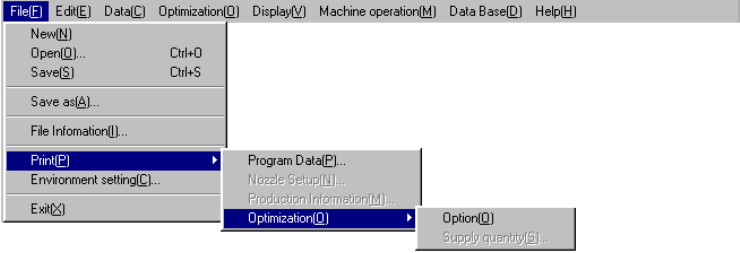
The File (F) menu is configured as shown below: