KE2010.Instruction Manual.Ver.2.01,Rev.08.pdf - 第117页
4 − 10 File na me Initially , t he name of a file which is being edit ed is set. T o change it, directly enter a name here. Y ou can chang e a director y or drive in the same manner as when you execute the [Open] com man…
4 − 9
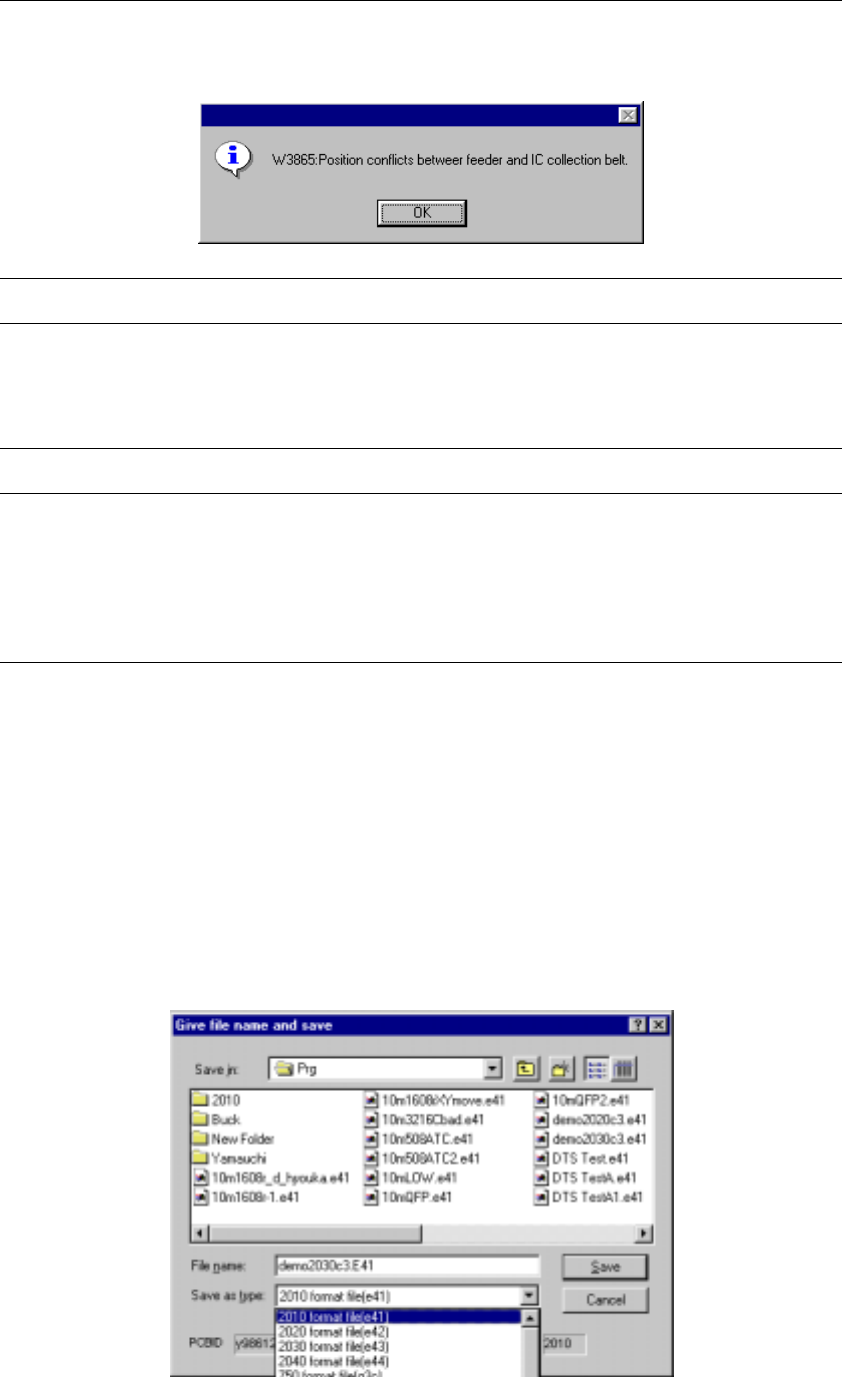
Note: When reading a file, the machine checks to see if a position specified in Pick
data is overlapped with the IC collection belt position. If the machine
detects any overlap, it displays the warning message as shown below.
Note : When reading a file, the machine cannot read data associated with Vision
data or Adhesive data.
If data to be read includes such data, the machine cannot read any data.
Vision and adhesive data stored in Component data is changed.
Note : If any production program file created with another type of machine is loaded
to the system, the system may recalculate the component pick-up
coordinates saved in the Pick data since the reference coordinates are
unique to each type of machine. Therefore, be sure to check the
component pick-up coordinates when you load a production program created
with another type of machine.
4.2.3 Overwrite & Save
This command stores the current program on a disk as a file. If the program name is
“UNTITLED”, the Save As dialog box appears as shown below. When a file name
other than “UNTITLED” is assigned to a program name, the program is immediately
stored.
4.2.4 Save As
This command stores the current program on a disk with another name.

4 − 10
File name
Initially, the name of a file which is being edited is set. To change it, directly enter a
name here.
You can change a directory or drive in the same manner as when you execute the
[Open] command.
Save as type
To change the file format, change it in the this “Save as type” column.
Note that you can convert a file only if you select the [Save As] command. If you
create a file, then execute the Optimization utility without saving it, the Save dialog
box appears on the screen. However, you cannot convert a file in this case. If
you select to perform the backward conversion to save a file, the saved file is not
read into the machine. Therefore, even though you change its title, and convert it,
the current title does not change.
File type list
File format Description of a program file
2010 format file (e41)
2020 format file (e42)
2030 format file (e43)
2040 format file (e44)
Specify a file name to be assigned to the file you want to save.
710 format file (g2c) Files for a KE-710 machine or EPU for a KE-710 machine
720 format file (g2g) Files for a KE-720 machine or EPU for a KE-720 machine
730 format file (g3c) Files for a KE-730/730plus machine or EPU for a KE-730/730plus machine
740 format file (g3g) Files for a KE-740 machine or EPU for a KE-740 machine
750 format file (g3c) Files for a KE-750 machine or EPU for a KE-750 machine
760 format file (g3g) Files for a KE-760 machine or EPU for a KE-760 machine
2010 format (e41) Files for a KE-2010 machine or EPU for a KE-2010 machine
2020 format (e42) Files for a KE-2020 machine or EPU for a KE-2020 machine
2030 format (e43) Files for a KE-2030 machine or EPU for a KE-2030 machine
2040 format (e44) Files for a KE-2040 machine or EPU for a KE-2040 machine
770 format file (g2d) Files for a KD-770 machine or EPU for a KD-770 machine
775 format file (g3d) Files for a KD-775 machine or EPU for a KD-775 machine
4 − 11
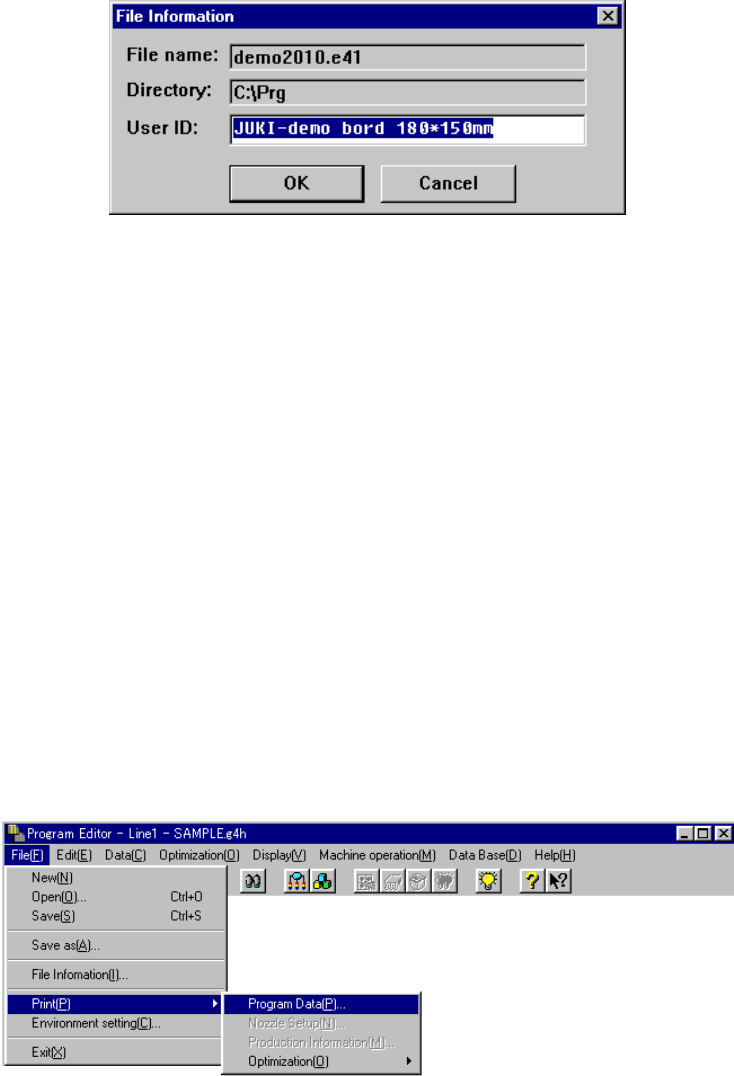
When you select the <OK> button on the “Save As” dialog box, the machine
displays the User ID entry screen as shown below.
This dialog box displays a file name and directory name, and allows you to enter the
user ID. When you want to keep the current user ID unchanged, click the <OK>
button after entering the user ID. The user ID is saved in a production program file.
If you do not need it, click the <Cancel> button. The file is saved without any user
ID.
4.2.5 File Information
When you select the [File Information] command, you can change the user ID,
and/or display the file name and directory.
The same dialog box as that shown above appears on the screen, which appears
also when you select the [Save As] command.
4.2.6 Print
This command prints a file to be edited, nozzle information divided with the
Optimization utility, or the production management information.
When you select the [Print] command, the screen changes as shown below:
When you select the menu item [Program Data], the machine prints the data created
with the Program Editing utility. When selecting the menu item [Production
Information], the machine prints the management information after production.