KE2010.Instruction Manual.Ver.2.01,Rev.08.pdf - 第119页
4 − 12 4.2.6.1 Program Data W hen y ou select t he menu item [ Progr am Data], the dialog box appears as shown below . Mode As the def ault value, “Each stat ion” is selected. Output dat a Check the box located next to t…
4 − 11
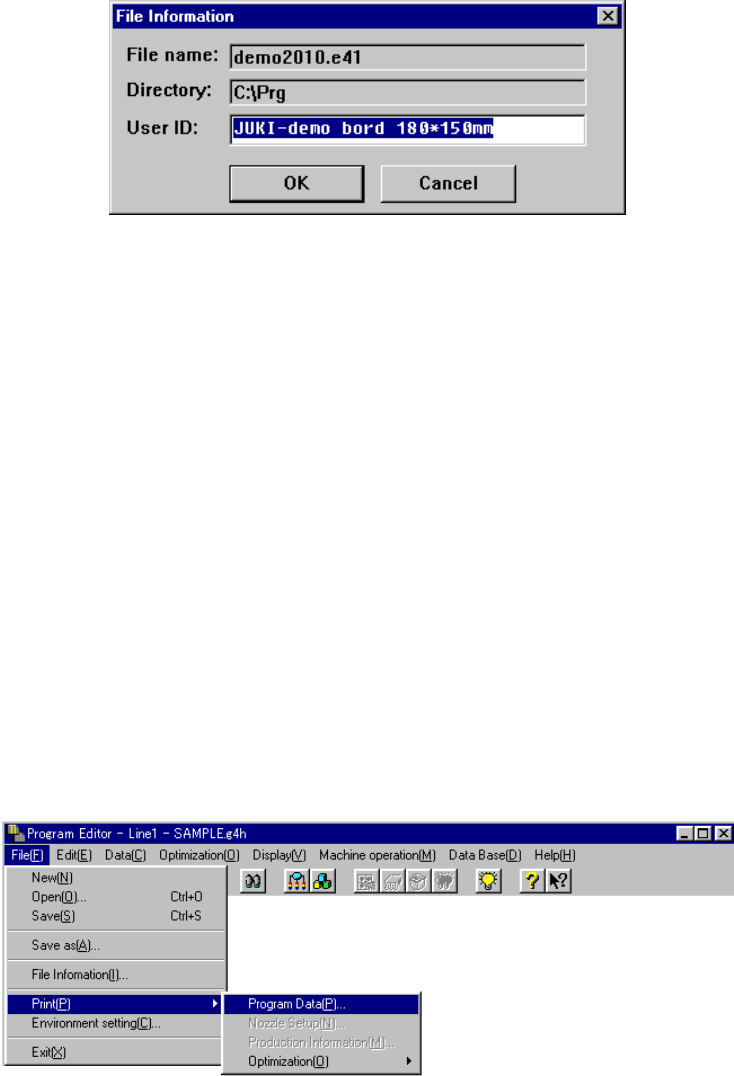
When you select the <OK> button on the “Save As” dialog box, the machine
displays the User ID entry screen as shown below.
This dialog box displays a file name and directory name, and allows you to enter the
user ID. When you want to keep the current user ID unchanged, click the <OK>
button after entering the user ID. The user ID is saved in a production program file.
If you do not need it, click the <Cancel> button. The file is saved without any user
ID.
4.2.5 File Information
When you select the [File Information] command, you can change the user ID,
and/or display the file name and directory.
The same dialog box as that shown above appears on the screen, which appears
also when you select the [Save As] command.
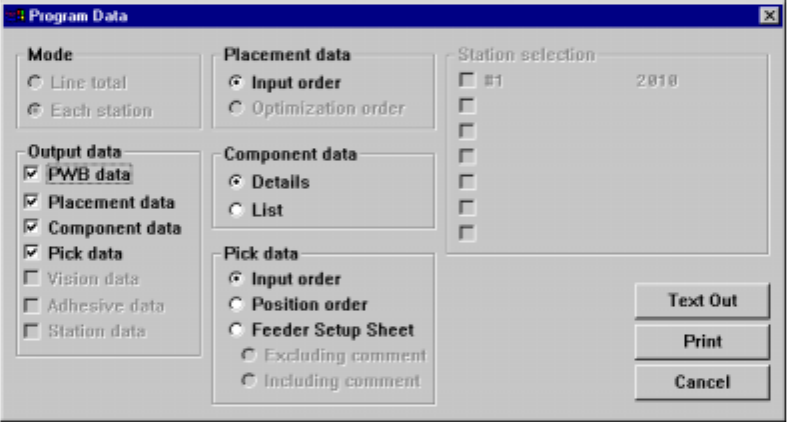
4.2.6 Print
This command prints a file to be edited, nozzle information divided with the
Optimization utility, or the production management information.
When you select the [Print] command, the screen changes as shown below:
When you select the menu item [Program Data], the machine prints the data created
with the Program Editing utility. When selecting the menu item [Production
Information], the machine prints the management information after production.
4 − 12
4.2.6.1 Program Data
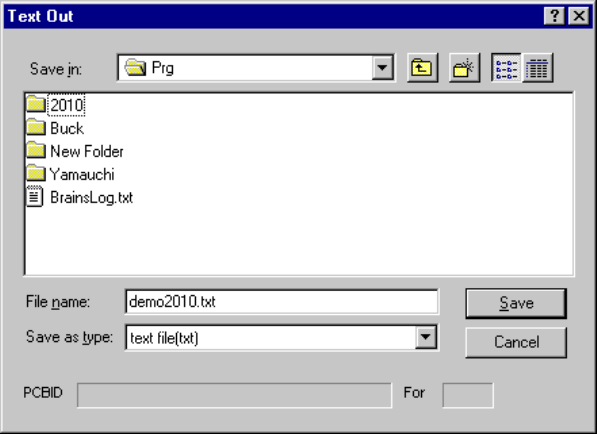
When you select the menu item [Program Data], the dialog box appears as shown
below.
Mode
As the default value, “Each station” is selected.
Output data
Check the box located next to the data to be printed.
Data whose total number of records is “0” (displayed with the [Data completion
status] command) is dimmed to indicate that it cannot be selected.
Depending on the print format selected with the “Mode” item, boxes of data types
which can be selected are automatically checked.
4 − 13
Text Out, Print and Cancel buttons
Print: starts printing the selected data.
Cancel: closes the dialog box displayed on the screen.
Text Out: Outputs data as text.
When you click the <Text Out> button, the dialog box appears on the
screen as shown in the figure below.
Specify where to save the text and the name on this dialog box.
The default setting in the "Save in" box is the directory/folder under which
the production program file is stored.
Placement data
Select the input order of Placement data.
Component data
Select the Component data window type: Details or List.
Pick data
Select Pick data mode:
− Input order
− Position order
− Feeder setup sheet Excluding comment
− Feeder setup sheet Including comment