KE2010.Instruction Manual.Ver.2.01,Rev.08.pdf - 第135页
4 − 28 4.3.11 Sort This comm and is selectable on the Component list screen or Adhesive data screen. ① Ent ering Sor t mode W hen y ou select the [ Sort] command, t he component names ar e displayed in ascending order on…
4 − 27
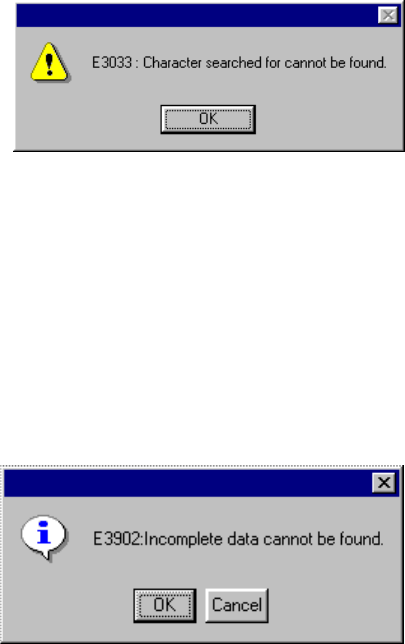
If the machine does not find any character string, the following dialog box appears
on the screen.
The entered character string is memorized until you specify a new character string.
When you execute the [Search next item] command, the character string specified in
the “Search characters” field is to be searched toward the direction checked in the
[Direction] item.
When you check the check box “Search for incomplete” the system retrieves data
not completely created. Note that if you check this box, you cannot select any of
the items: “Comp. ID”, “Comp. Name”, “Adhe. Name” and “All in agreement”.
4.3.8 Search next item
This command searches a character string which is specified with the [Search]
command. The search criteria used the last time are applied to this command from
lines other than the first line.
4.3.9 Cell copy
This command reads data of the cell at which the cursor is located into the memory
buffer. To paste it over the displayed data, execute the [Cell paste] command.
This [Cell copy] command can be selected only when you are editing Placement
data.
This command is effective for the cells “X”, “Y”, “Angle” and “Component name”
only.
4.3.10 Cell paste
This command overwrites the corresponding item on the line the cursor is located
with data stored in the memory buffer.
If there is no data in the memory buffer, this command is disabled.
The memory buffer keeps the same data until you start editing another type of data
(executable continuously).
The [Cell paste] command can be selected only when you are editing Placement
data.
4 − 28
4.3.11 Sort
This command is selectable on the Component list screen or Adhesive data
screen.
① Entering Sort mode
When you select the [Sort] command, the component names are displayed in
ascending order on the Component list (according to the JIS code, but upper
case letters are not distinguished from lower case letters).
The sorted result is maintained even on the Component form screen.
The machine puts a check mark next to the [Sort] command to indicate that
the data is sorted.
② Canceling Sort mode
In the following cases, Sort mode is canceled, then the Component list is
displayed in the input order. The check mark disappears from the [Sort]
command displayed on the menu.
• Select the [Sort] command although this command is already checked.
• If you edit data so that the order of the Component list data is changed
(addition, deletion or change of a component name), Sort mode is
automatically canceled.
4 − 29
4.3.12 Change Component Name
This command allows you to change a component name.
When you change a component name only, the name is changed and the contents
remain the same. When you select the [Change Component Name] command,
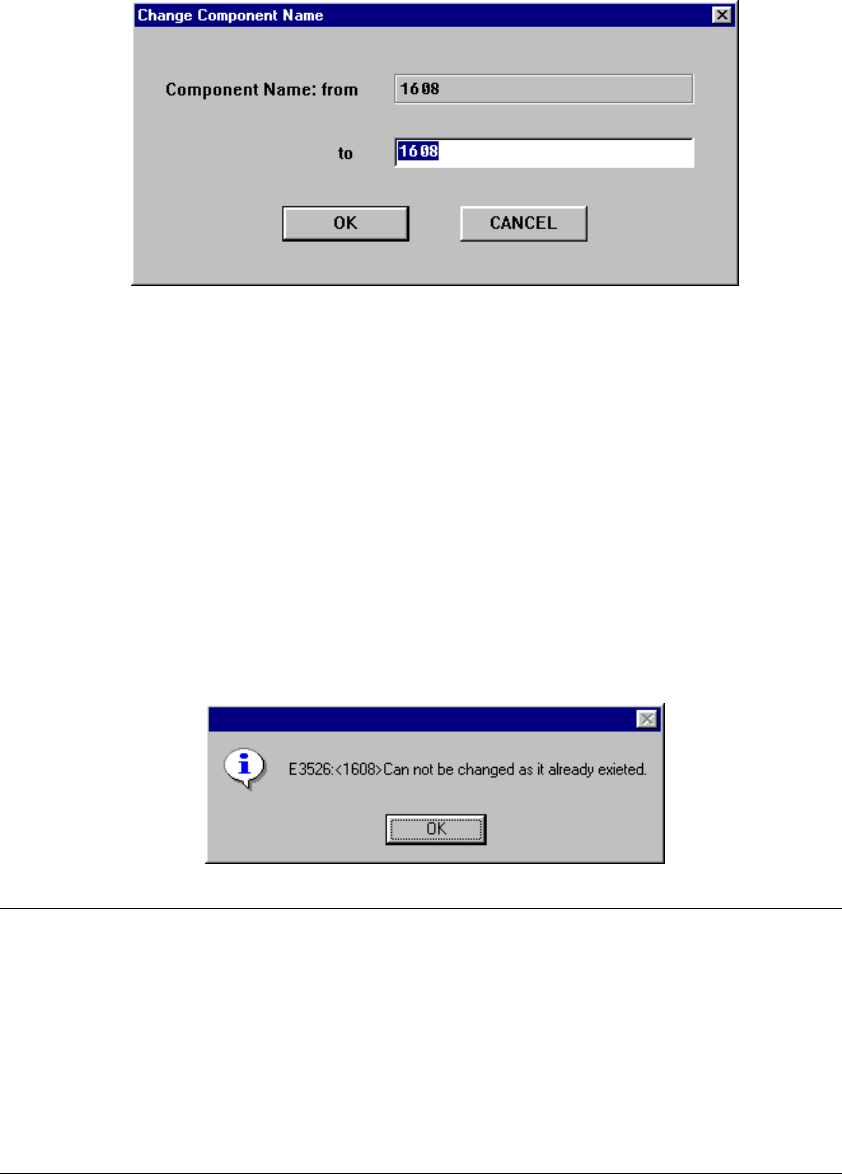
the following dialog box appears on the screen.
The component name before changed is displayed in the Edit box “Component
Name: from”. The component name before changed is displayed and highlighted
in the Edit box “Component Name: to”.
• Enter a new component name in the Edit box “Component Name: to”, then
click the <OK> button. The component name is changed to a new name you
specified. When you click the <CANCEL> button, the component name is not
changed, then the machine returns to the screen displayed before you select
the [Change Component Name] command.
• If the same component name already exists, the following dialog box appears
on the screen.
Note: This command can be selected on the following screens:
•
Component list
•
Component form
•
Pick data All component names are replaced with the specified
name.
•
Vision data All component names are replaced with the specified
name.
•
Placement data All component names are replaced with the
specified name.