KE2010.Instruction Manual.Ver.2.01,Rev.08.pdf - 第136页
4 − 29 4.3.12 Change Component Name This command allows you to change a com ponent name. W hen y ou change a com ponent name only , the nam e is changed and the cont ents remain the sam e. W hen you select the [Change Co…
4 − 28
4.3.11 Sort
This command is selectable on the Component list screen or Adhesive data
screen.
① Entering Sort mode
When you select the [Sort] command, the component names are displayed in
ascending order on the Component list (according to the JIS code, but upper
case letters are not distinguished from lower case letters).
The sorted result is maintained even on the Component form screen.
The machine puts a check mark next to the [Sort] command to indicate that
the data is sorted.
② Canceling Sort mode
In the following cases, Sort mode is canceled, then the Component list is
displayed in the input order. The check mark disappears from the [Sort]
command displayed on the menu.
• Select the [Sort] command although this command is already checked.
• If you edit data so that the order of the Component list data is changed
(addition, deletion or change of a component name), Sort mode is
automatically canceled.
4 − 29
4.3.12 Change Component Name
This command allows you to change a component name.
When you change a component name only, the name is changed and the contents
remain the same. When you select the [Change Component Name] command,
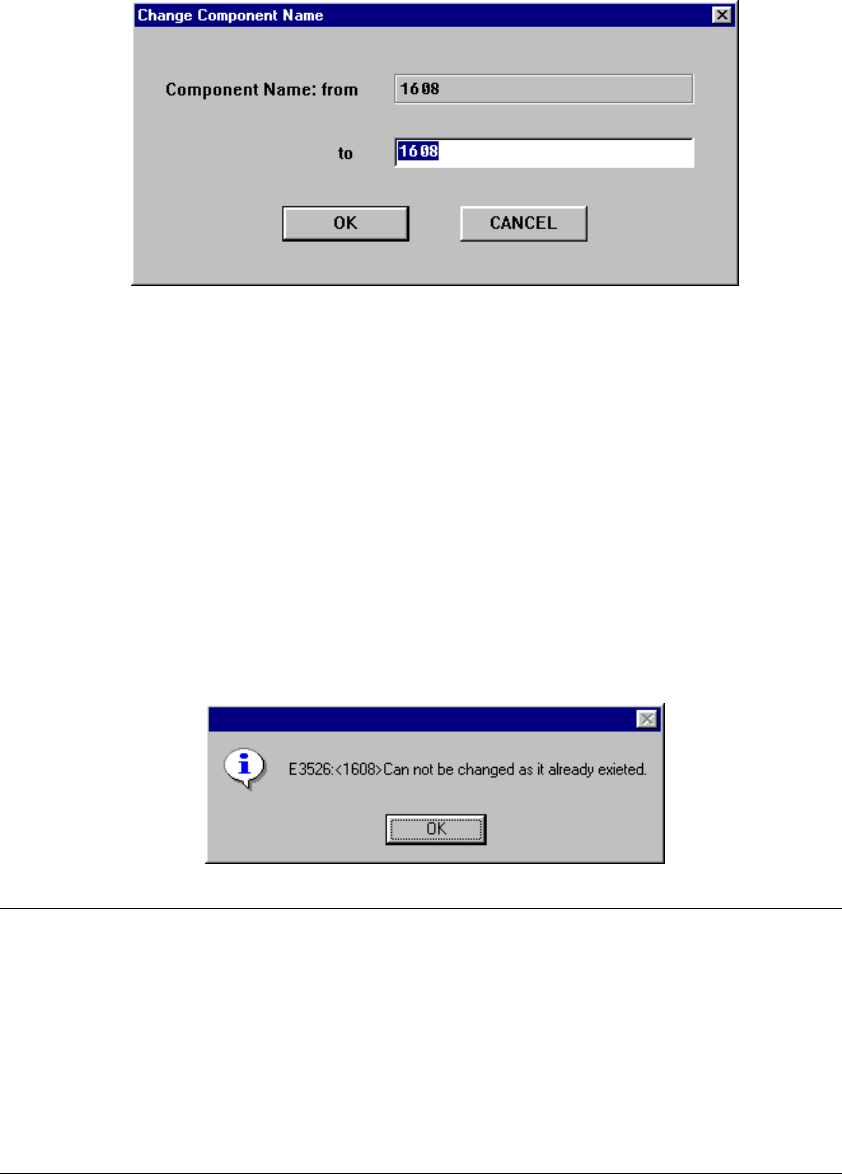
the following dialog box appears on the screen.
The component name before changed is displayed in the Edit box “Component
Name: from”. The component name before changed is displayed and highlighted
in the Edit box “Component Name: to”.
• Enter a new component name in the Edit box “Component Name: to”, then
click the <OK> button. The component name is changed to a new name you
specified. When you click the <CANCEL> button, the component name is not
changed, then the machine returns to the screen displayed before you select
the [Change Component Name] command.
• If the same component name already exists, the following dialog box appears
on the screen.
Note: This command can be selected on the following screens:
•
Component list
•
Component form
•
Pick data All component names are replaced with the specified
name.
•
Vision data All component names are replaced with the specified
name.
•
Placement data All component names are replaced with the
specified name.
4 − 30
4.3.13 Update layers
This command makes the placement layers identical to the component layers
specified on the Component data screen: the system allows you to specify handle
this operation in two ways: all components at a time or the current components only.
① All Components
When you select this command, the system makes all placement layers identical
to the component layers specified with all of the Component data at a time.
Only when the Placement data screen appears on the screen, the menu above is
enabled. Note that this menu cannot be enabled until all Component data is
created completely.
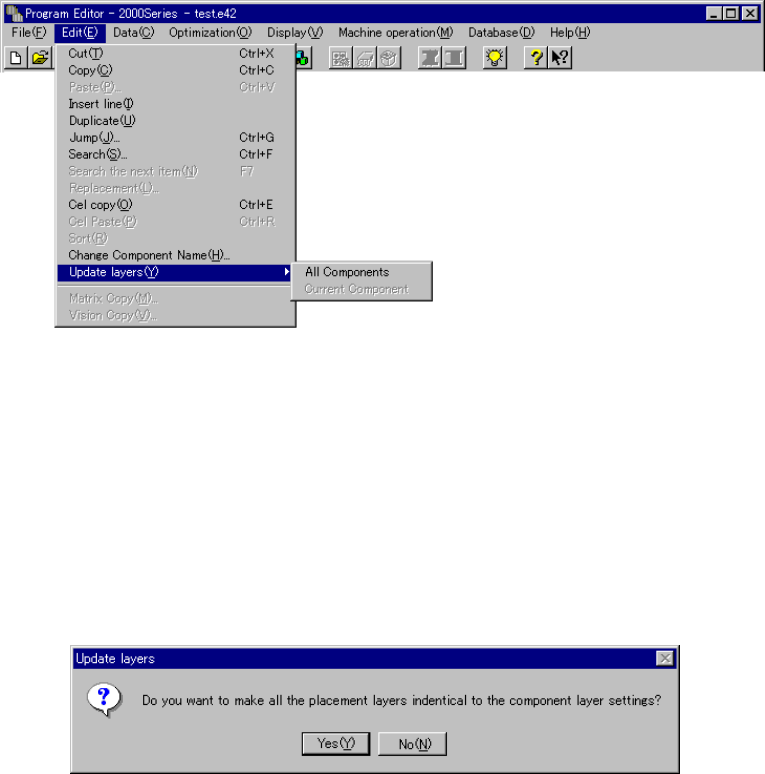
When you select the [Update layers] command on the “Edit” menu, and then the
[All Components] command on the displayed menu, the confirmation message
that asks you whether to make all placement layers identical to all component
layers appears on the screen.
When you click the <Yes> button, the placement layers specified on all Placement
data become identical to the component layers specified on the Component data.
When you click the <No> button, the system cancels the operation without
making any placement layer identical to a component layer.
* When you use this command, the placement layer(s) you already set will be
changed. Therefore, be sure to check to see if all placement layers may be
changed according to the component layers.