KE2010.Instruction Manual.Ver.2.01,Rev.08.pdf - 第137页
4 − 30 4.3.13 Update lay ers This comm and makes t he placement layers identical t o the component layers specified on t he Component data scr een: the system allows you to specif y handle this operation in t wo w ays: a…
4 − 29
4.3.12 Change Component Name
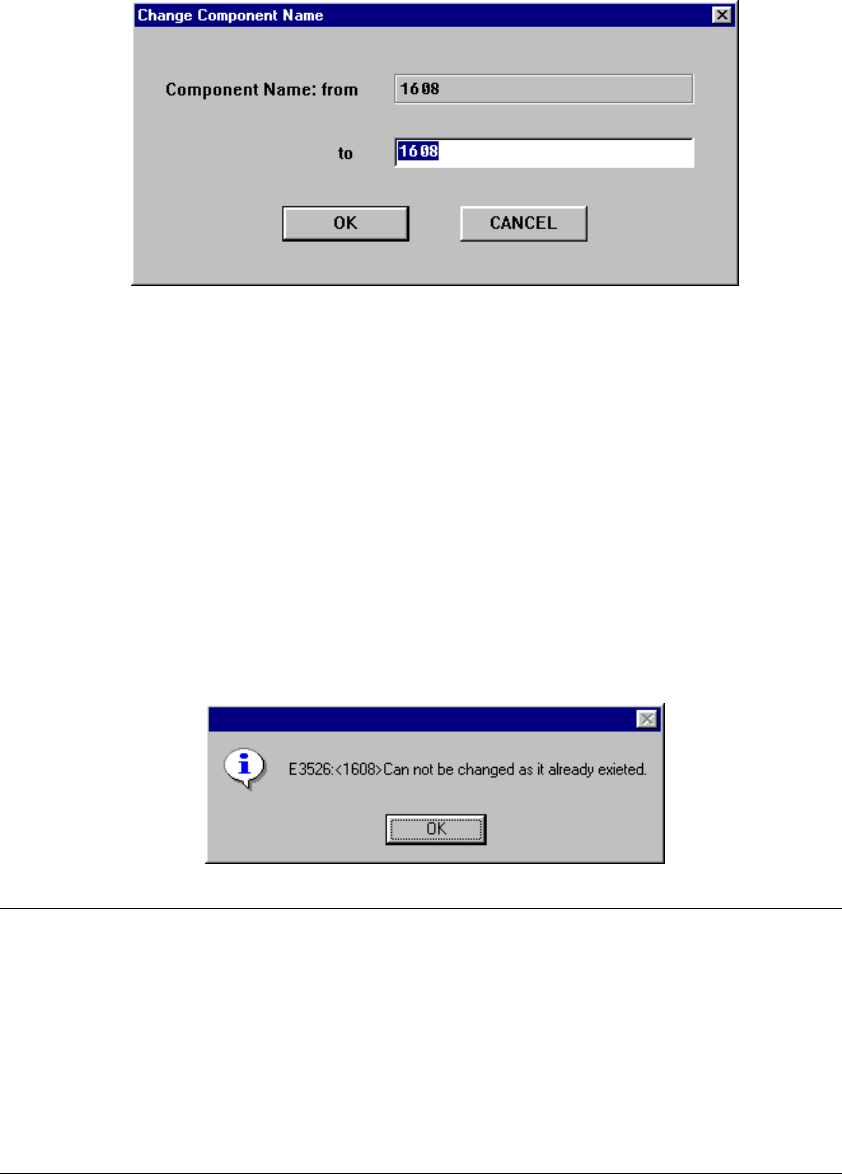
This command allows you to change a component name.
When you change a component name only, the name is changed and the contents
remain the same. When you select the [Change Component Name] command,
the following dialog box appears on the screen.
The component name before changed is displayed in the Edit box “Component
Name: from”. The component name before changed is displayed and highlighted
in the Edit box “Component Name: to”.
• Enter a new component name in the Edit box “Component Name: to”, then
click the <OK> button. The component name is changed to a new name you
specified. When you click the <CANCEL> button, the component name is not
changed, then the machine returns to the screen displayed before you select
the [Change Component Name] command.
• If the same component name already exists, the following dialog box appears
on the screen.
Note: This command can be selected on the following screens:
•
Component list
•
Component form
•
Pick data All component names are replaced with the specified
name.
•
Vision data All component names are replaced with the specified
name.
•
Placement data All component names are replaced with the
specified name.
4 − 30
4.3.13 Update layers
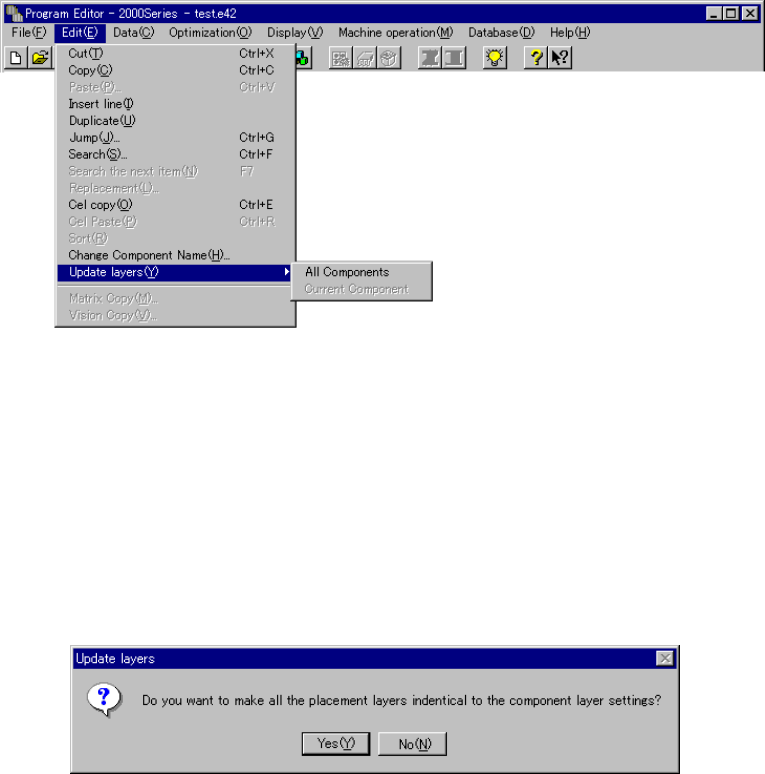
This command makes the placement layers identical to the component layers
specified on the Component data screen: the system allows you to specify handle
this operation in two ways: all components at a time or the current components only.
① All Components
When you select this command, the system makes all placement layers identical
to the component layers specified with all of the Component data at a time.
Only when the Placement data screen appears on the screen, the menu above is
enabled. Note that this menu cannot be enabled until all Component data is
created completely.
When you select the [Update layers] command on the “Edit” menu, and then the
[All Components] command on the displayed menu, the confirmation message
that asks you whether to make all placement layers identical to all component
layers appears on the screen.
When you click the <Yes> button, the placement layers specified on all Placement
data become identical to the component layers specified on the Component data.
When you click the <No> button, the system cancels the operation without
making any placement layer identical to a component layer.
* When you use this command, the placement layer(s) you already set will be
changed. Therefore, be sure to check to see if all placement layers may be
changed according to the component layers.
4 − 31
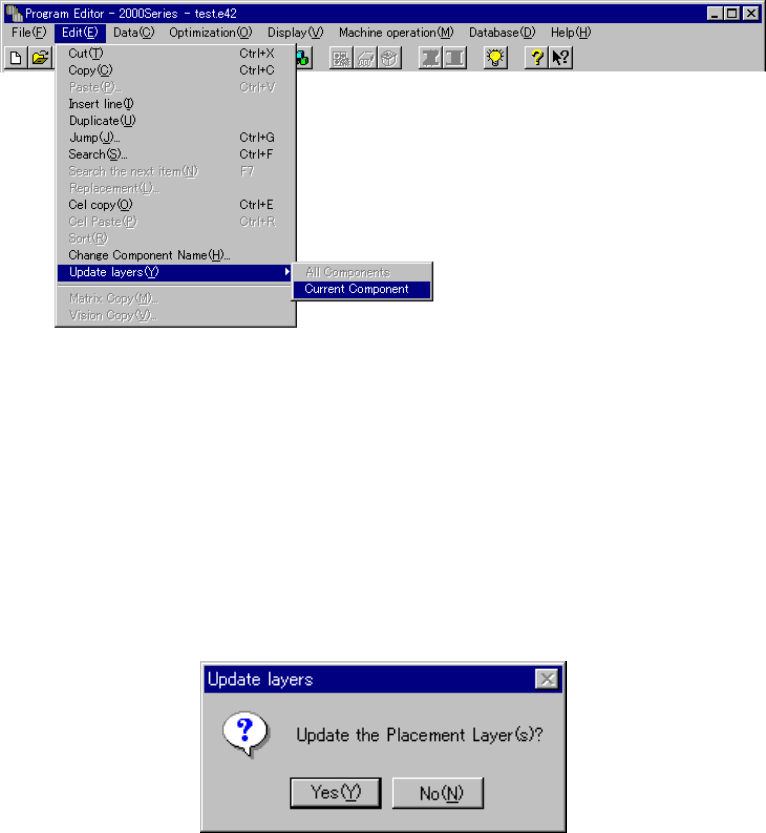
② Current Component
When you select this command, the system makes only the placement layers that
are linked to the component layers of the Component data displayed on the
Component Form screen identical to the linked component layers.
Only when the system displays the Component data Form screen, this menu is
enabled. Note that this menu cannot be enabled until you create the displayed
component data completely.
When you select the [Update layers] command on the “Edit” menu, and the
[Current Component] command on the displayed menu, the confirmation
message that asks you whether to update the placement layer appears on the
screen.
When you click the <Yes> button, the system makes the placement layers of
Placement data linked to Component data identical to the component layers of
Component data currently displayed on the screen. When you click the <No>
button, the system cancels the operation without updating any placement layer.
* When you click the <Yes> button on the confirmation message box, the system
validates the Component data displayed on the screen.
* When you use this command, the system updates the placement layers(s) you
already set. Therefore, be sure to check to see if the placement layers may
be changed according to the component layers.