KE2010.Instruction Manual.Ver.2.01,Rev.08.pdf - 第138页
4 − 31 ② Current Component W hen you select this com mand, the system m akes only the placement lay ers that are linked t o the component layers of t he Component data displayed on the Component Form screen identical to …
4 − 30
4.3.13 Update layers
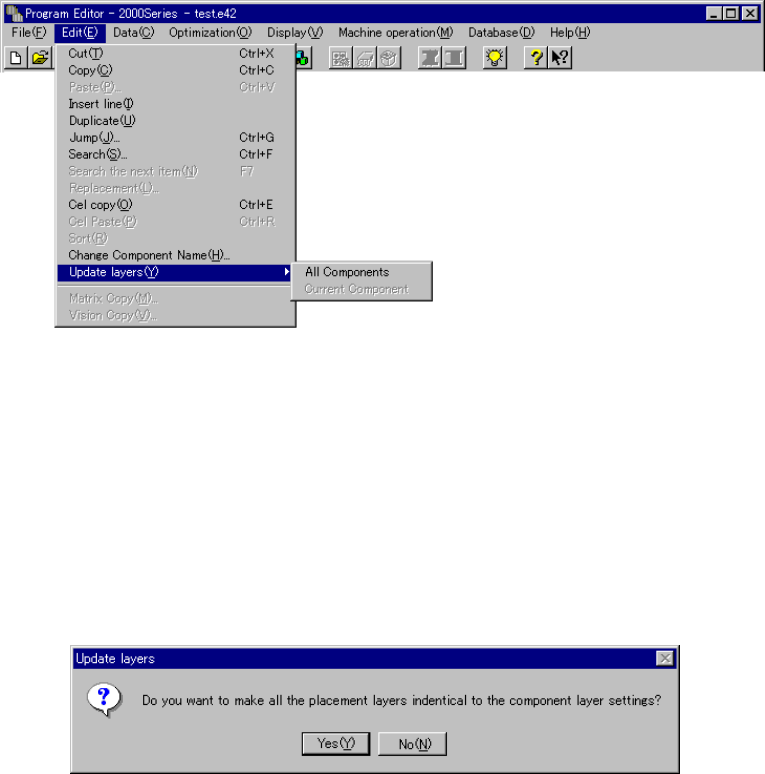
This command makes the placement layers identical to the component layers
specified on the Component data screen: the system allows you to specify handle
this operation in two ways: all components at a time or the current components only.
① All Components
When you select this command, the system makes all placement layers identical
to the component layers specified with all of the Component data at a time.
Only when the Placement data screen appears on the screen, the menu above is
enabled. Note that this menu cannot be enabled until all Component data is
created completely.
When you select the [Update layers] command on the “Edit” menu, and then the
[All Components] command on the displayed menu, the confirmation message
that asks you whether to make all placement layers identical to all component
layers appears on the screen.
When you click the <Yes> button, the placement layers specified on all Placement
data become identical to the component layers specified on the Component data.
When you click the <No> button, the system cancels the operation without
making any placement layer identical to a component layer.
* When you use this command, the placement layer(s) you already set will be
changed. Therefore, be sure to check to see if all placement layers may be
changed according to the component layers.
4 − 31
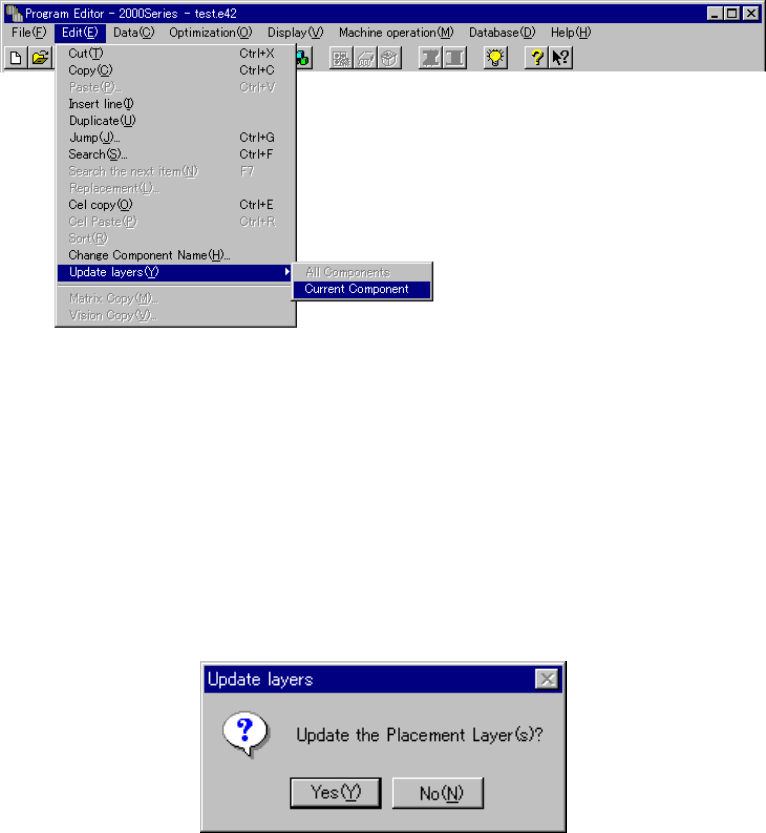
② Current Component
When you select this command, the system makes only the placement layers that
are linked to the component layers of the Component data displayed on the
Component Form screen identical to the linked component layers.
Only when the system displays the Component data Form screen, this menu is
enabled. Note that this menu cannot be enabled until you create the displayed
component data completely.
When you select the [Update layers] command on the “Edit” menu, and the
[Current Component] command on the displayed menu, the confirmation
message that asks you whether to update the placement layer appears on the
screen.
When you click the <Yes> button, the system makes the placement layers of
Placement data linked to Component data identical to the component layers of
Component data currently displayed on the screen. When you click the <No>
button, the system cancels the operation without updating any placement layer.
* When you click the <Yes> button on the confirmation message box, the system
validates the Component data displayed on the screen.
* When you use this command, the system updates the placement layers(s) you
already set. Therefore, be sure to check to see if the placement layers may
be changed according to the component layers.
4 − 32
4.3.14 Matrix Copy
For Placement data, this command inserts the data read into the memory buffer
with the [Cut] or [Copy] command at or before the cursor position.
For Pick data, this command copies the line at which the cursor is located, then
inserts the copied line to the next line. After this command is executed, the cursor
moves to the leftmost input field of the newly copied line.
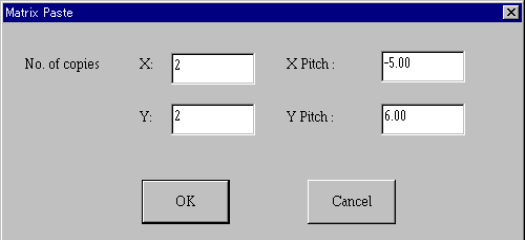
When you specify the items “No. of copies X”, “No. of copies Y”, “X Pitch”, and “Y
Pitch”, the machine copies the data in a matrix with adding or subtracting the
entered valued to/from the placement position in the X direction and that in the Y
direction respectively.
After the [Matrix Copy] command is executed, all of the component IDs are
changed to “#”.
If there is no data in the memory buffer, this command is disabled.
For Pick data, this command can be executed for tray components (fed with a tray
holder or ATS only).
For Pick data, you cannot execute this command by selecting two or more data
records.
① No. of copies X: specifies the number of times for copying in the X direction.
The default value is “1” for both Placement data and Pick data.
② No. of copies Y: specifies the number of times for copying in the Y direction.
The default value is “1” for both Placement data and Pick data.
③ X Pitch: sets the amount to increment or decrement the placement or pick
position in the X direction.
The default value is “0.00” for both Placement data and Pick data.
④ Y Pitch: sets the amount to increment or decrement the placement or pick
position in the Y direction.
The default value is “0.00” for both Placement data and Pick data.
⑤ OK: executes the paste operation.
⑥ Cancel: cancels the paste operation.