KE2010.Instruction Manual.Ver.2.01,Rev.08.pdf - 第141页
4 − 34 When an error occurs In the f ollowing cases, an error occurs, t hen the corresponding error dialog box appears on the screen. ① W hen the number of dat a records exceeds the maximum number of recor ds which can b…
4 − 33
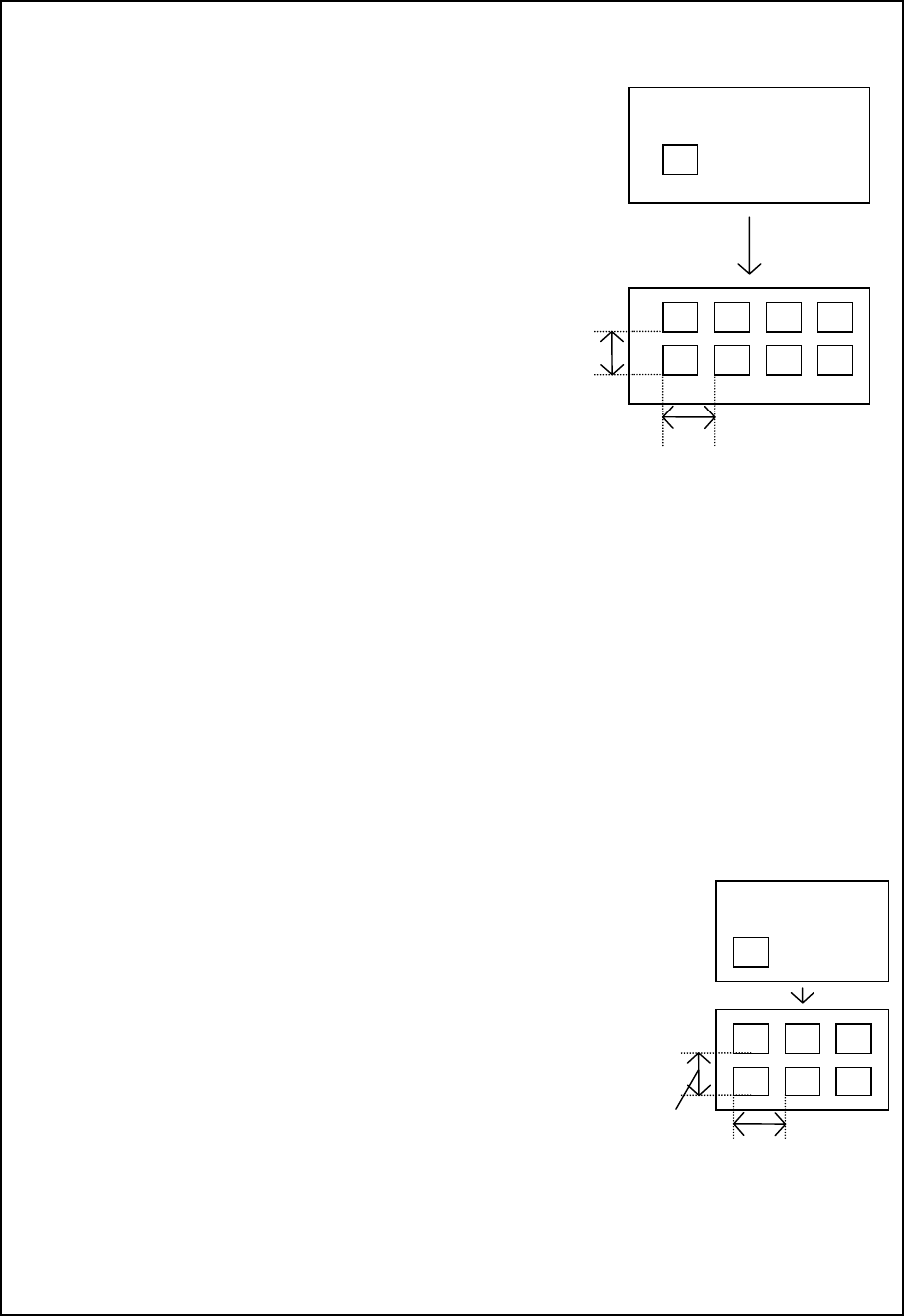
Example of the [Matrix Copy] command result
When this command is successfully executed
(For Placement data)
Component IDs X Y Angle Component name
(Screen image)
R1 5.00 10.00 45.00 1608-A
R2 10.00 10.00 0.00 1608-A
No. of copies
X: 3
X Pitch:
0.5
No. of copies
Y: 1
Y Pitch:
1
R 5.00 10.00 45.0 1608-A
R2 10.00 10.00 0.00 1608-A
# 5.50 10.00 45.00 1608-A
# 10.50 10.00 0.00 1608-A
# 6.00 10.00 45.00 1608-A
# 11.00 10.00 0.00 1608-A
# 6.50 10.00 45.00 1608-A
# 11.50 10.00 0.00 1608-A
# 5.00 11.00 45.00 1608-A
# 10.00 11.00 0.00 1608-A
# 5.50 11.00 45.00 1608-A
# 10.50 11.00 0.00 1608-A
# 6.00 11.00 45.00 1608-A
# 11.00 11.00 0.00 1608-A
# 6.50 11.00 45.00 1608-A
# 11.50 11.00 0.00 1608-A
− The copied block is inserted above the specified line.
− All of the component IDs become “#”.
− The input focus moves to the first component ID of the inserted block.
(For Pick data)
Component Pack Tray feeder Angl Sply Pos Type lane X1 Y1 Z X2 Y2 X3 Y3
name
R1 Tray ATS 0 Rear 50 * 1 436.30 -47.70 5.00 436.30 -27.70 456.30 -47.70
(Screen image)
No. of copies
X: 2
X Pitch:
100
No. of copies
Y: 1
YPitch:
: 50
R1 Tray ATS 0 Rear 50 * 1 436.30 -47.70 5.00 436.30 -27.70 456.30 -47.70
R1 Tray ATS 0 Rear 50 * 1 536.30 -47.70 5.00 536.30 -27.70 556.30 -47.70
R1 Tray ATS 0 Rear 50 * 1 636.30 -47.70 5.00 636.30 -27.70 656.30 -47.70
R1 Tray ATS 0 Rear 50 * 1 436.30 2.30 5.00 436.30 22.30 456.30 2.30
R1 Tray ATS 0 Rear 50 * 1 536.30 2.30 5.00 536.30 22.30 556.30 2.30
R1 Tray ATS 0 Rear 50 * 1 636.30 2.30 5.00 636.30 22.30 656.30 2.30
− Only when “Tray” is selected as the package and the “Holder” or “DTS” is selected as the “Tray Feeder”,
you can execute the [Matrix Copy] command.
− You cannot copy two or more records.
− The copied block is inserted above the specified line.
− The input focus moves to the beginning of the inserted block.
Y Pitch:
O
X Pitch:
O
X Pitch:
Y Pitch:

4 − 34
When an error occurs
In the following cases, an error occurs, then the corresponding error dialog box
appears on the screen.
① When the number of data records exceeds the maximum number of records which
can be entered
• OK: terminates the copy operation. No data is copied.
② When the placement position is outside the PWB or circuit layout
• OK: Continues copying data. An range over mark is appended to the
copied data.
• Cancel: Cancels the copy operation.
③ When Pick data is not completed
• OK: Cancels the copy operation. No data is copied.
④ When the pick position is beyond the specified pick coordinates
• OK: Cancels the copy operation. No data is copied.
⑤ When the number of pick points exceeds the maximum pick points of a tray
component
• OK: Cancels the copy operation. No data is copied.
4 − 35
4.3.15 Vision Copy
This command allows you to copy mark data, which is registered onto the mark
database, as a BOC mark or IC mark into your data.
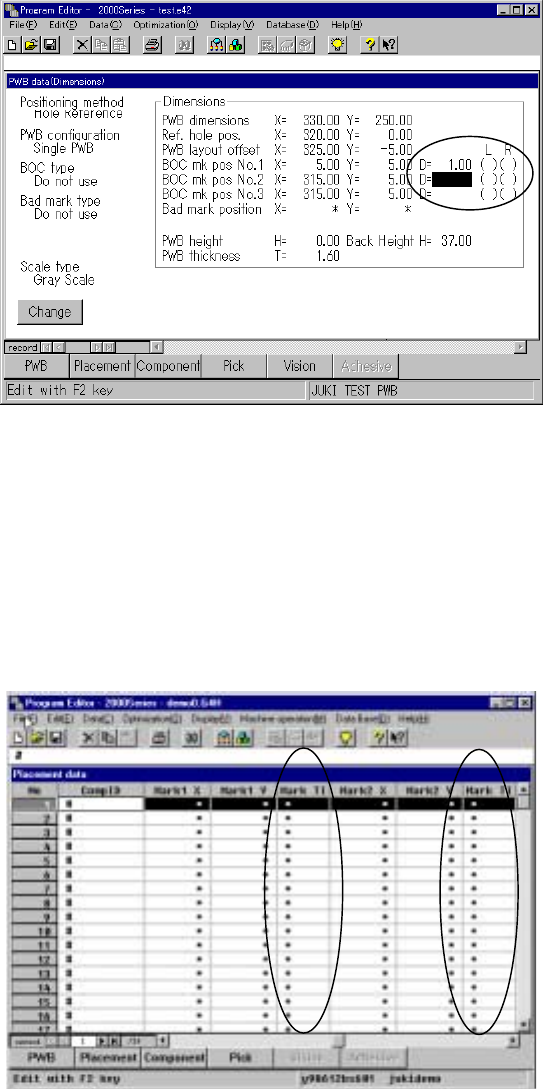
(1) Copying as a BOC mark
Step 1: Move the cursor into the cell “D =” of the menu item “BOC mark pos
No. 1 (2 or 3, as desired)” on the PWB data screen.
Step 2: Select the [Edit] menu command provided with the Program Editing
utility, then the [Vision Copy] command.
The position of the cell to which a BOC mark is copied
with the [Vision Copy] command
(2) Copying as an IC mark
Step 1: Move the cursor to the cell "Mark" which indicates the IC mark point
on the Placement data screen.
Step 2: Select the [Edit] menu command provided with the Program Editing
utility, then the [Vision Copy] command.
The position of the cell to which an IC mark is copied
with the [Vision Copy] command