KE2010.Instruction Manual.Ver.2.01,Rev.08.pdf - 第142页
4 − 35 4.3.15 Vision Copy This command allows you to copy mark data, which is register ed onto the m ark database, as a BOC m ark or IC mar k into your dat a. (1) Copying as a BOC mar k Step 1: Move the cursor into the c…

4 − 34
When an error occurs
In the following cases, an error occurs, then the corresponding error dialog box
appears on the screen.
① When the number of data records exceeds the maximum number of records which
can be entered
• OK: terminates the copy operation. No data is copied.
② When the placement position is outside the PWB or circuit layout
• OK: Continues copying data. An range over mark is appended to the
copied data.
• Cancel: Cancels the copy operation.
③ When Pick data is not completed
• OK: Cancels the copy operation. No data is copied.
④ When the pick position is beyond the specified pick coordinates
• OK: Cancels the copy operation. No data is copied.
⑤ When the number of pick points exceeds the maximum pick points of a tray
component
• OK: Cancels the copy operation. No data is copied.
4 − 35
4.3.15 Vision Copy
This command allows you to copy mark data, which is registered onto the mark
database, as a BOC mark or IC mark into your data.
(1) Copying as a BOC mark
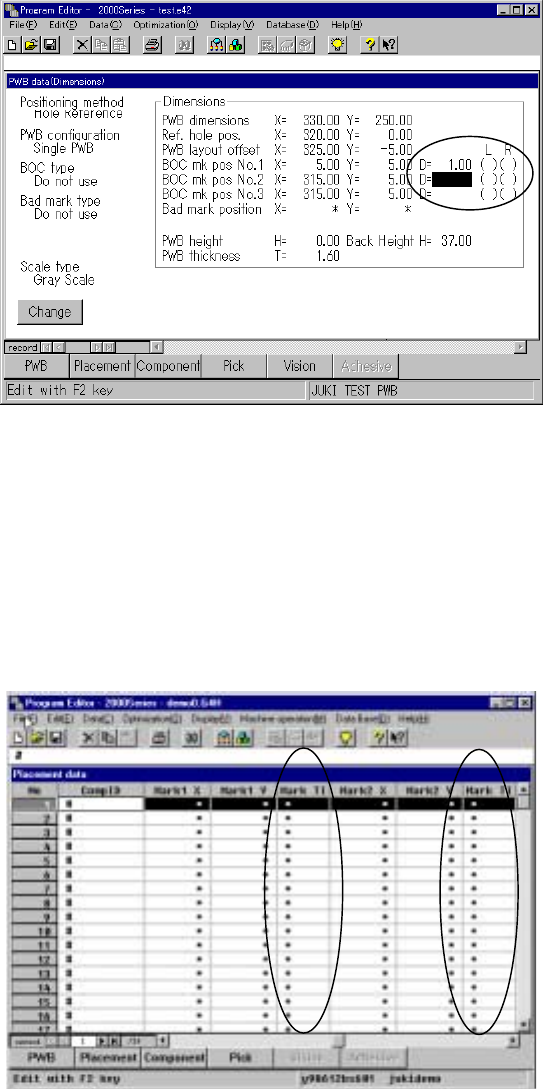
Step 1: Move the cursor into the cell “D =” of the menu item “BOC mark pos
No. 1 (2 or 3, as desired)” on the PWB data screen.
Step 2: Select the [Edit] menu command provided with the Program Editing
utility, then the [Vision Copy] command.
The position of the cell to which a BOC mark is copied
with the [Vision Copy] command
(2) Copying as an IC mark
Step 1: Move the cursor to the cell "Mark" which indicates the IC mark point
on the Placement data screen.
Step 2: Select the [Edit] menu command provided with the Program Editing
utility, then the [Vision Copy] command.
The position of the cell to which an IC mark is copied
with the [Vision Copy] command
4 − 36
(3) Vision copy dialog box
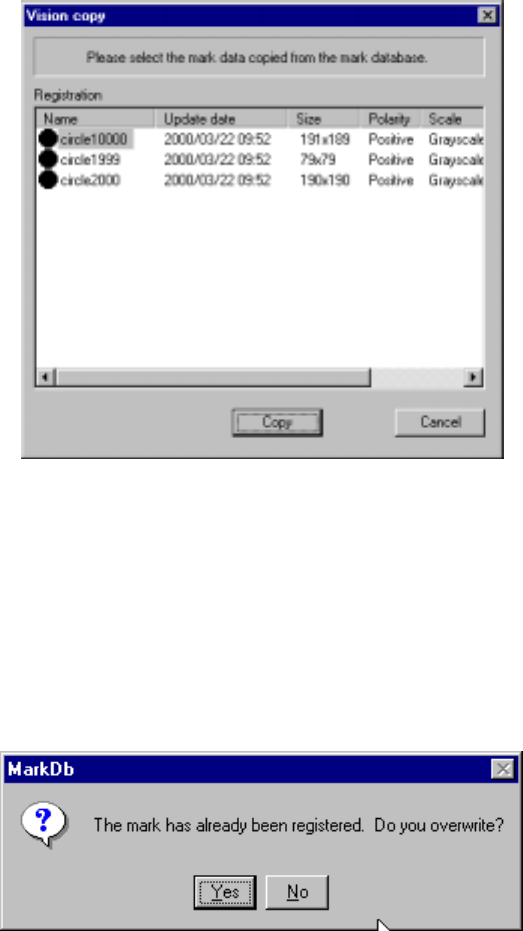
When you select the [Vision Copy] command, the dialog box appears as shown
in the figure below.
Select mark data to be copied from the “Registration” list, then click the <Copy>
button.
Vision copy dialog box
When you click the <Copy> button, an asterisk mark (*) appears in the mark
teaching column (Mark T). When you use a KE-2030, this mark appears in both
columns for the left and right stations.
If you specify the mark data already registered, the following overwriting
confirmation message appears on the screen.
Overwriting mark confirmation message
To overwrite mark data, click the <Yes> button.