KE2010.Instruction Manual.Ver.2.01,Rev.08.pdf - 第150页
4 – 43 ② Ref . hole pos. (Ref erence hole position) Enter the coor dinates of the positioning hole viewed from the PW B ref erence position. Note that t he PW B reference posit ion is assumed to be t he origin ( 0, 0). N…
4 – 42
4.5.2 Dimension set up
When you click the <Dimensions> button on the Basic setting window, the system
switches a window to the "Dimensions" window. The settings of the items"Circuit"
and "BOC mk pos" vary depending on the "PWB configuration" setting on the Basic
setting window: Single PWB, Matrix circuit or Non-matrix circuit.
4.5.2.1 Single pattern
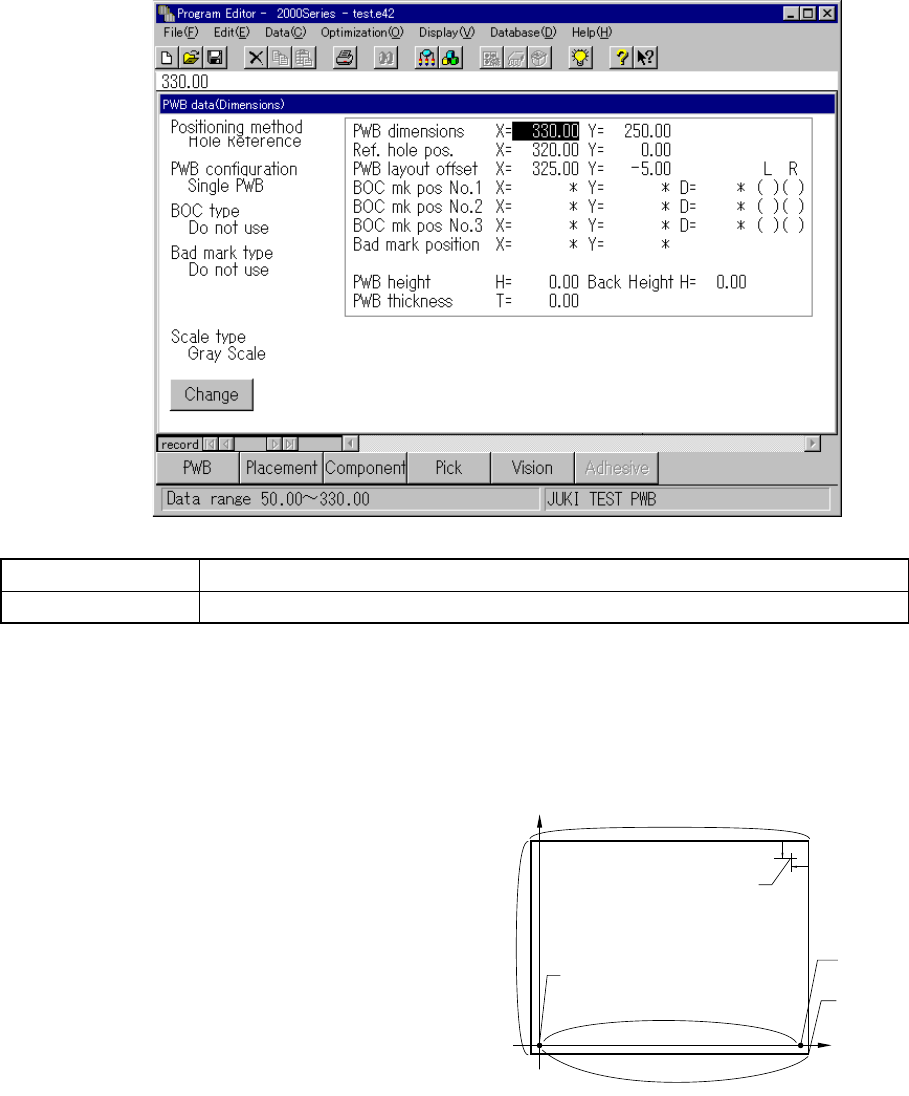
When you select “Single PWB” as the PWB configuration and click the <Dimension>
button, a screen shown below appears.
Button Description
Change Displays the Basic setup change screen.
Before entering each dimension on the "Dimensions" column, be sure to set the
origin of each dimension. Since Placement data is created based on this origin, we
recommend that you specify the origin used in CAD data if you are to create
Placement data from CAD data.
① PWB dimensions
Enter the outer dimensions of a
PWB.
X indicates the same direction as
the board transport direction, while
Y indicates the direction
perpendicular to the board
transport direction.
X = 330.00 Y = 250.00
250
330
(320, 0)
(325, -5)
10
10
BOC mark
PWB reference
position (origin)
Reference pin
PWB layout
end point
4 – 43
② Ref. hole pos. (Reference hole position)
Enter the coordinates of the positioning hole viewed from the PWB reference
position.
Note that the PWB reference position is assumed to be the origin (0, 0).
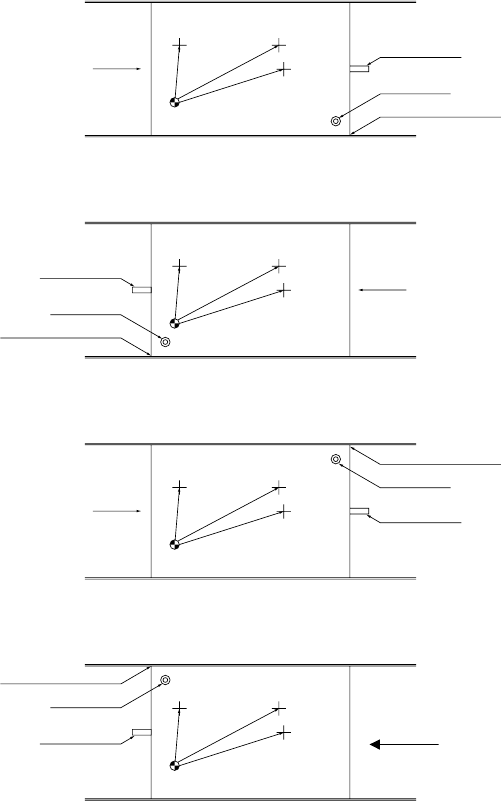
Note that the reference hole position varies according to the board transport
direction or reference side: front or rear (see Figure 4.5.2.1). When you
select "Shape Reference" at the item "Positioning method" on the Basic setting
window, you do not have to enter any data here.
X = 320.00, Y = 0.00
(1) Front reference
PWB transport direction:
left to right
(2) Front reference
PWB transport direction:
right to left
(3) Rear reference
PWB transport direction:
left to right
(4) Rear reference
PWB transport direction:
right to left
Figure 4.5.2.1 Positioning hole position and PWB layout offset
③ PWB layout offset
Enter the coordinates of the PWB layout end point (that is, shape reference
position) viewed from the PWB reference position.
Note that the PWB layout end point varies depending on the transport direction
and transport reference side.
X = 325.00 Y = -5.00
PWB transport
direction
PWB
PWB reference
position (origin)
Stopper pin
Positioning hole pin
PWB layout end point
PWB
PWB
PWB reference
position (origin)
PWB transport
direction
Stopper pin
Positioning hole pin
PWB layout end poin
t
Stopper pin
PWB layout end point
Positioning hole pin
PWB transport
direction
PWB transport
direction
Stopper pin
Positioning hole pin
PWB layout end poin
t
PWB reference
position (origin)
PWB
PWB reference
position (origin)
4 – 44
④ BOC mk pos No. 1 to No. 3
Enter to (X, Y) the coordinates of a BOC mark viewed from the PWB reference
position, and to (D) the diameter of a mark. You can select two or three BOC
marks. When you use three BOC marks, you can use any of three BOC marks.
When using two BOC marks, select the two BOC marks which are placed
diagonally on the PWB. The position of the BOC mark can be taught.
Since a KE-2030 machine has two stations, right and left, an asterisk mark (*) in
the parentheses next to “R” or “L” is used to indicate the data completion status.
For a user-designated template, “T” appears in the parentheses after the
system teaches a mark (See Section 5.4 “Teaching a Mark”).
⑤ Bad mark position
For a single-plane PWB, the bad mark type cannot be selected because “Do not
use” is specified for the item “Bad mark type”.
⑥ PWB height
If the height of the side on which a component is to be placed when a board is
clamped with a jig or like is different from that obtained when a flat board is
clamped, enter the difference with assuming that the height of the clamped flat
board upper side is 0.
The "+" sign indicates the up direction, while the "" sign does the down direction.
Since you cannot set the height of a board for each circuit, the height of each
circuit should be the same if you are to create a jig.
Normally, set this item to "0.00".
⑦ PWB thick
Enter the thickness of a PWB.
The support plate moves up according to the thickness of a PWB entered here
to support the PWB.
⑧ Back Height
Enter the distance from the board transfer reference side to the bottom side of a
PWB including components (note that any component located on the bottom of
a PWB should not interfere with the support table).
The value you entered here is used as the support plate waiting position during
production.
The shorter the support plate moves, the shorter the board transport cycle time
becomes.